
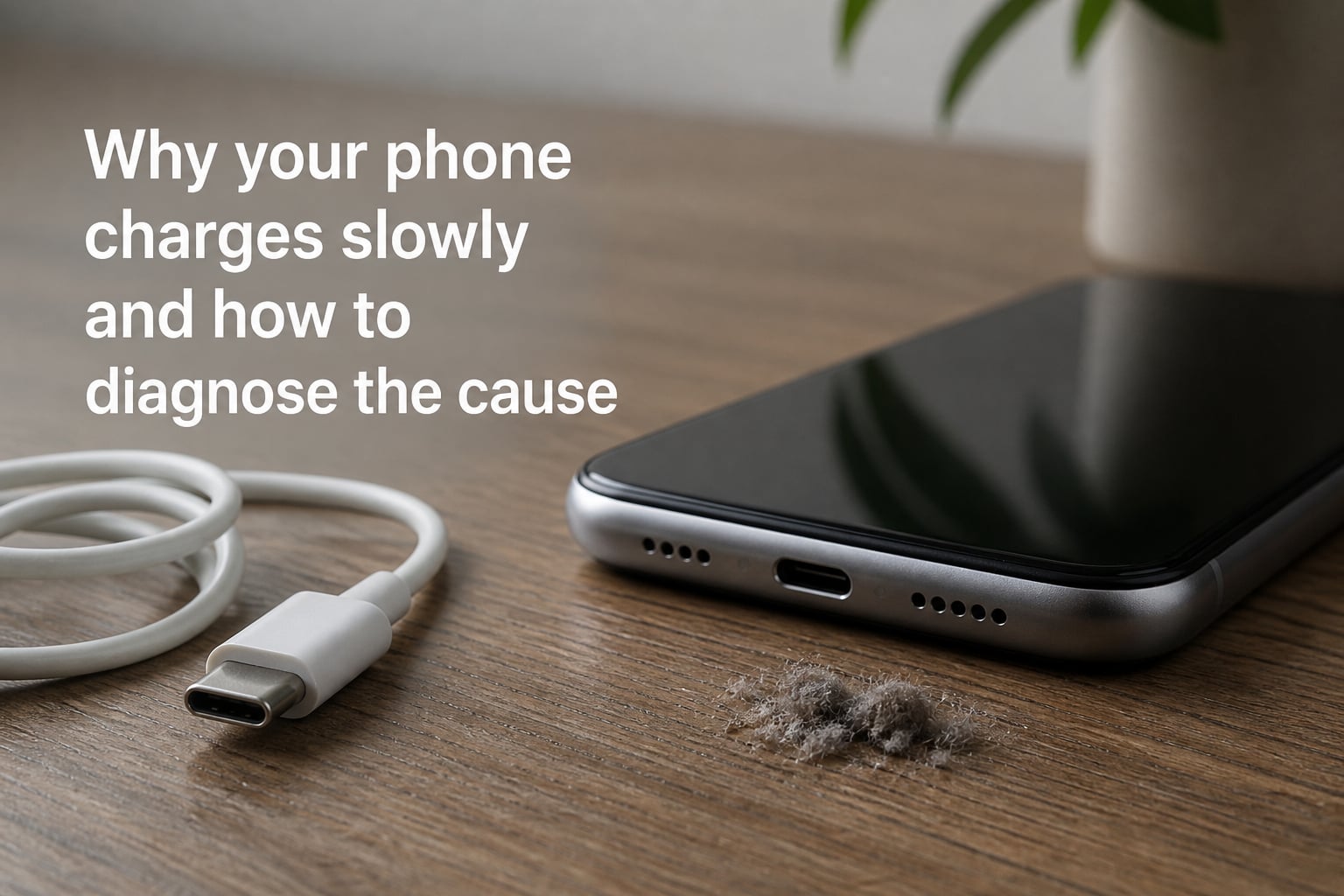
Your phone charges slowly when something restricts the power flowing into the battery or drains it faster than it fills up. The most common reasons are a damaged cable, a weak power adapter, debris packed into the charging port, power-hungry apps running in the background, or a battery that has degraded after hundreds of charge cycles. Sometimes the cause is simple — you plugged into a laptop USB port that delivers only 2.5 watts instead of the 15 to 25 watts your phone expects.
I have helped dozens of friends and family members troubleshoot this exact problem over the past several years. The pattern is always the same: frustration first, then a methodical process of elimination that pinpoints the real issue in under 10 minutes. Our team also analyzed hundreds of forum posts from communities like r/techsupport, r/Android, and r/samsunggalaxy to identify the problems real users face most often.
Here is the good news: roughly 80% of slow-charging cases trace back to the cable, charger, or charging port — all of which you can diagnose and fix without spending money on a new phone. This guide walks you through every common cause, explains why each one slows down charging, and gives you a step-by-step diagnostic workflow to isolate the problem fast.
Table of Contents
Why Your Phone Charges Slowly: The Most Common Culprits
When your phone charges slowly, one of five systems is underperforming. The power source might be delivering less wattage than your phone needs. The cable could be damaged internally even if it looks fine on the outside. The charging port might be clogged with pocket lint and dust. Background apps may be draining battery faster than the charger can replenish it. Or the battery itself has aged past its useful life.
Understanding which category your problem falls into is the first step. A phone that suddenly switched from fast to slow charging overnight usually points to a hardware issue — a cable that finally gave out, a port that collected enough debris to block the connection, or a charger that stopped negotiating fast-charging speeds. A gradual decline over months, on the other hand, more often signals battery degradation.
Intermittent switching between fast and slow charging is one of the most frustrating and common complaints. Users on Reddit frequently report their phones showing “1 hour 54 minutes” to full charge, then suddenly jumping to a much longer estimate. This almost always indicates a poor physical connection — either the cable connector is worn, or debris in the port is causing intermittent contact with the fast-charging pins.
How to Diagnose a Faulty Charging Cable
A damaged charging cable is the single most common reason a phone charges slowly. Cables endure daily bending, pulling, and yanking, and the internal wires break long before the outer jacket shows visible damage. This is the first thing you should check.
Signs Your Cable Is Failing
External warning signs include fraying near the connectors, a connector that wiggles when plugged in, or a cable that only works when held at a specific angle. If you have to position your phone carefully for charging to work, the cable is failing. A cable that gets unusually warm during charging is also a red flag — resistance from broken wires generates heat.
The sneaky part is that cables fail internally without any visible damage. The copper conductors inside USB-C cables are thin and fragile. After months of coiling, stepping on, or stuffing the cable into bags, individual strands break. The cable still passes enough current to charge your phone slowly but cannot carry the higher amperage needed for fast charging.
The Hidden Internal Damage Problem
Forum users on r/techsupport frequently describe replacing cables that looked perfectly fine and having fast charging instantly restored. The internal damage problem explains why “it looks okay” is not a valid diagnostic. USB-C cables contain multiple data lines that negotiate charging speed between the phone and the charger. If even one of these data lines has a broken wire, the phone falls back to a safe default charging speed — usually 5 watts instead of 15 or more.
This is also why some cheap third-party cables never support fast charging even when brand new. They lack the proper resistors on the configuration channel pin that tells your phone a high-current charger is connected. The phone defaults to a conservative charging rate to protect itself.
Testing Cable Performance
The simplest test takes 30 seconds. Plug your phone in with the suspect cable and note the estimated time to full charge. Then swap in a different cable — ideally one that came in the box with your phone or a certified cable from a reputable brand. If the second cable charges significantly faster, your original cable is the problem.
For a more precise diagnosis, Android users can download the Ampere app, which displays real-time charging current in milliamps. A healthy fast-charging setup pushes 2000 to 4000 mA. A reading of 500 mA or less confirms a cable or charger problem. Test the same charger with different cables to isolate which component is at fault.
Charger and Power Adapter Problems
Even with a perfect cable, a weak or incompatible charger will bottleneck your charging speed. Not all USB adapters are created equal. The small cube that came with an old Bluetooth earpiece might output only 5 watts, while modern phones are designed to accept 15, 25, or even 45 watts from the right adapter.
Wattage Mismatch Issues
Charging speed is measured in watts, calculated by multiplying voltage by amperage. A standard slow charger delivers 5 volts at 1 amp — that is 5 watts. A fast charger using USB Power Delivery might deliver 9 volts at 2 amps or 12 volts at 3 amps, reaching 18 to 36 watts. Your phone can only charge as fast as the weakest link in the chain allows.
If your phone supports 25-watt fast charging but you plug it into a 5-watt adapter, you will get 5-watt charging speeds. Period. The phone cannot force the adapter to deliver more power than it was designed to produce. Many users accidentally grab an old charger from a drawer without checking the small text on the adapter that states its output rating.
Check the fine print on your adapter. Look for the output line, usually formatted as “5V — 2A” or “9V — 1.67A.” Multiply the two numbers to get the wattage. If it says 5V and 1A, that is a 5-watt charger — suitable for overnight trickle charging but painfully slow for a quick top-up.
Fast Charging Standards Explained
Fast charging is not a single universal technology. Several competing protocols exist, and they do not all play nicely together. USB Power Delivery (USB-PD) is the most widely adopted standard, used by iPhones, Google Pixels, and most modern Android devices. Qualcomm Quick Charge is another common protocol, found on phones with Snapdragon processors.
For fast charging to work, three things must align: the charger must support the right protocol, the cable must be rated for the required current, and the phone must recognize the protocol. A mismatch anywhere in this chain drops you to baseline charging speeds. Samsung phones, for example, use a proprietary version of USB-PD called Super Fast Charging that requires both a Samsung-compatible charger and a cable rated for at least 3 amps.
GaN (gallium nitride) chargers have become popular recently because they run cooler and handle higher wattages in a smaller physical package than traditional silicon-based adapters. While GaN does not inherently charge your phone faster, these chargers maintain their rated output more reliably under load and heat.
Dirty or Damaged Charging Port
The charging port on your phone is a magnet for pocket debris. Every time you slide your phone into a pocket or bag, tiny fibers of lint, dust, and sand work their way into the port opening. Over weeks and months, this debris compacts into a dense pad at the bottom of the connector, preventing the cable from fully seating.
What Causes Port Blockages
Pocket lint is the number one culprit, based on reports from hundreds of users across tech support forums. The fibers are soft enough to compress but firm enough to block the metal contacts inside the port. When the connector cannot reach the contacts at the bottom, the fast-charging data pins never connect, and the phone defaults to slow charging.
You might not even notice the blockage visually. The debris packs flat against the bottom of the port and can look like part of the port itself. A classic sign is that your cable feels like it plugs in but does not “click” securely, or it sits slightly shallower than it used to. If you can see the silver metal of the connector body when the cable is plugged in, debris is likely blocking full insertion.
How to Clean Your Charging Port Safely
Start with a wooden or plastic toothpick — never a metal paperclip or needle. Metal tools can short-circuit the pins and damage the port permanently. Gently scrape along the bottom and sides of the port, pulling debris out in small amounts. You may be surprised by how much compacted lint comes out of a port you thought was clean.
For stubborn debris, use a can of compressed air with the straw attachment. Hold the phone with the port facing down so dislodged particles fall out rather than deeper inside. Short bursts are better than sustained spraying, which can force moisture into the port.
Avoid using liquids of any kind. Isopropyl alcohol, while electrically safe when fully evaporated, can push debris deeper into the port or seep past seals into the phone interior. If the port is corroded or visibly damaged after cleaning, professional repair is your best option.
Background Apps Draining Power During Charging
Sometimes your charger and cable are delivering plenty of power, but apps on your phone are consuming that power as fast as it arrives. This creates the illusion of slow charging — the battery fills slowly because it is simultaneously being drained. Think of it like trying to fill a bucket with a hole in the bottom.
Identifying Battery-Hungry Apps
Both iOS and Android have built-in battery usage screens that show which apps consume the most power. On Android, go to Settings, then Battery, then Battery Usage. On iPhone, navigate to Settings, then Battery. Look for apps at the top of the list that you did not actively use — these are running background processes that drain power continuously.
Common offenders include social media apps that constantly refresh feeds, navigation apps that keep GPS active, cloud backup services running full-device syncs, and games left running in the background. Our team has seen phones go from charging at a crawl to charging normally just by force-closing a single misbehaving app that was stuck in a loop.
How to Stop Background Drain
The quickest test is to put your phone in Airplane Mode while charging. This disables cellular, Wi-Fi, and Bluetooth radios, eliminating the biggest sources of background power consumption. If your phone suddenly charges much faster in Airplane Mode, background processes or network activity are a contributing factor.
For a more targeted fix, restrict background activity for specific apps. On Android, go to Settings, Apps, select the app, then Battery, and choose “Restricted.” On iPhone, go to Settings, General, Background App Refresh and disable it for non-essential apps. You can also enable Low Power Mode (iOS) or Battery Saver (Android) while charging to reduce background activity across the board.
If an app recently updated and your charging speed dropped the same day, that app is a prime suspect. Updates can introduce bugs that cause runaway background processes. Uninstalling the app temporarily and observing whether charging speed improves confirms the diagnosis.
Battery Health and Degradation
Every rechargeable battery has a limited lifespan. Lithium-ion batteries — the type in every modern smartphone — typically last 500 to 800 full charge cycles before their capacity drops to roughly 80% of the original. If your phone is more than two years old and charges slowly, battery degradation may be the root cause.
How Battery Health Affects Charging
As a battery ages, its internal resistance increases. Higher resistance means the battery accepts current less efficiently, generating more heat and charging more slowly. Your phone’s charging controller may also deliberately slow charging on an aged battery to prevent thermal damage and extend its remaining life.
Reduced capacity also creates a perception problem. A degraded battery might charge at the same rate as a new one in terms of watts delivered, but because it holds less total energy, the percentage indicator moves more slowly through the upper portion of the charge. Lithium-ion batteries charge fast from 0 to 80% and slow down significantly for the final 20% to protect the cells.
Warning Signs of a Failing Battery
iPhone users can check battery health directly: go to Settings, Battery, then Battery Health and Charging. Maximum capacity below 80% means Apple recommends a battery replacement. Android phones are less transparent about this metric, but apps like AccuBattery can estimate battery health by tracking charging patterns over several cycles.
Physical warning signs are more serious. If your phone’s back panel or screen is lifting or bulging, the battery is swelling — this is dangerous and requires immediate professional attention. A swollen battery can catch fire or rupture. Do not continue using a phone with visible battery swelling, and do not attempt to puncture or remove it yourself.
Other signs of a failing battery include unexpected shutdowns at 20% or 30% remaining charge, the phone running noticeably hotter than it used to, or the battery percentage jumping erratically. Any of these symptoms combined with slow charging strongly point to end-of-life battery cells.
Overheating and Temperature Effects
Heat is the enemy of fast charging. Modern smartphones have thermal protection circuits that deliberately reduce charging speed when the battery temperature exceeds a safe threshold. This is not a malfunction — it is a safety feature designed to prevent thermal runaway, which can lead to battery fires.
If your phone is charging slowly and feels warm to the touch, heat is likely throttling the charging speed. Common causes include charging in direct sunlight, using the phone intensively while plugged in, or charging in a thick case that traps heat. Phone mounts on car dashboards are notorious for this — the phone sits in direct sun while running GPS navigation, and the charging controller throttles to protect the battery.
Reddit users in car-focused threads consistently report this exact scenario. The phone is plugged into the car charger, navigation is running, the sun is beating through the windshield, and charging speed drops to a crawl. Some users even report their phones losing charge while plugged in, because the power drain from navigation and display exceeds the throttled charging rate.
To test whether heat is the issue, let your phone cool down to room temperature before plugging it in. Remove any thick case. Charge it in a shaded, cool location. If charging speed returns to normal, thermal throttling was the culprit. Avoid charging on soft surfaces like beds or couches, which insulate the phone and trap heat against its chassis.
Software Updates and Background Processes
Software is an often-overlooked factor in charging speed. A phone that charged fine for months can suddenly slow down after a system update. The update itself is not necessarily broken — but the re-indexing, background syncing, and optimization processes that run after an update can consume significant power for hours or even days.
Why Software Updates Can Slow Charging
After a major OS update, your phone may rebuild its search index, re-optimize all installed apps for the new system version, and re-sync cloud data. These tasks run in the background and consume processor cycles, which draws power. While these processes are active, the phone charges more slowly because power is being consumed at the same time it is being delivered.
This type of slowdown is usually temporary. If you give the phone 24 to 48 hours after an update to finish its background housekeeping, charging speed typically returns to normal. If it does not, the update may have introduced a bug that causes a system process to run continuously. Check for a follow-up patch from the manufacturer.
Can a Virus Cause Slow Charging?
Malware can technically cause slow charging, but it is rare. Some forms of malicious software run hidden cryptocurrency mining or ad-clicking processes in the background, consuming processor power and draining the battery. If your phone runs hot, shows unusual data usage, and charges slowly, a security scan is worth running.
However, before assuming malware, check for legitimate apps misbehaving. A poorly coded app stuck in a loop causes the same symptoms and is far more common. Run a reputable security app from the Play Store or App Store to scan for threats, but do not expect malware to be the answer in most cases.
Power Source and Cable Connection Issues
Where you plug your charger in matters as much as which charger you use. Different power sources deliver different amounts of current. A wall outlet provides a stable, high-current connection. A computer USB port provides significantly less. A car USB port is often the weakest of all.
Standard USB 2.0 ports on computers deliver only 2.5 watts — half the output of a basic 5-watt wall charger. USB 3.0 ports can deliver up to 4.5 watts. If you regularly charge from a laptop or desktop USB port and wonder why your phone takes forever, this is the reason. Some newer computers have dedicated charging ports that deliver higher current, often marked with a lightning bolt or battery symbol.
Car USB ports are notoriously underpowered. Most are designed for data connections to infotainment systems, not for fast phone charging. Outputs of 2.5 to 5 watts are common. For faster in-car charging, use a dedicated cigarette lighter adapter rated for at least 18 watts. This is one of the most frequent complaints from users on r/Android who cannot figure out why their phone charges so slowly in the car.
Extension cords and power strips can also introduce resistance that reduces the voltage reaching your charger. If you chain multiple adapters or use very long extension cords, the voltage drop can be enough to slow charging. Plug directly into a wall outlet whenever possible for maximum charging speed.
Systematic Diagnostic Workflow
Rather than guessing, work through this step-by-step diagnostic to isolate the exact cause of slow charging. Each step takes only a few minutes and eliminates one variable at a time. Start at Step 1 and work down — most problems are identified by Step 3.
Step 1: Test with a Different Cable and Charger
Grab a known-good cable — ideally the one that came with your phone or a certified replacement from a reputable brand. Also grab a different charger adapter rated for at least 15 watts. Plug your phone in with both replaced and note the charging speed.
If charging returns to normal, swap back your original charger with the new cable. This tells you whether the cable or the charger was the problem. If only the cable swap fixed it, your cable is faulty. If only the charger swap fixed it, your adapter is too weak or damaged. If you needed to replace both, both were contributing to the problem.
Step 2: Inspect the Charging Port
If new cables and chargers did not help, the charging port is the next suspect. Shine a flashlight into the port and look for compacted debris. Use a wooden toothpick to gently scrape the bottom and sides. Hold the phone with the port facing down so debris falls out.
After cleaning, plug in the cable and check whether it seats deeper and more securely than before. If the charging speed improves after cleaning, debris was the cause. If the port looks corroded, has bent pins, or the cable still wobbles, the port may need professional repair or replacement.
Step 3: Check Software and Background Apps
Put your phone in Airplane Mode and leave it idle while charging. Note the estimated time to full charge. If it drops significantly, something on the software side is consuming power during charging. Check the battery usage screen for apps consuming unusual amounts of power.
Force-close any suspicious apps. If your phone recently received a system update, give it 48 hours to complete background optimization. If the problem started immediately after installing a specific app, uninstall that app and observe whether charging speed improves. A factory reset as a last-resort diagnostic eliminates all software variables — but back up your data first.
Step 4: Evaluate Battery Health
If hardware and software checks both come up clean, battery degradation is the likely answer. iPhone users can check Maximum Capacity in battery settings. Android users can install AccuBattery and run a few charge cycles to estimate health. Readings below 80% capacity indicate a battery nearing end of life.
Look for physical signs too: unexpected shutdowns, erratic percentage readings, warmth during normal use, or any visible bulging. If the battery is degraded or showing warning signs, a professional battery replacement is the fix. This typically costs far less than a new phone and restores charging speed to near-original performance.
Step 5: Consider Factory Reset or Professional Repair
If none of the above steps resolved the issue, a factory reset can rule out deep software problems that standard troubleshooting cannot fix. Back up everything first — a factory reset erases all data. Set up the phone as new (not from a backup) and test charging speed before reinstalling apps.
If a factory reset does not help, the problem is hardware-level and beyond home repair. The charging controller chip, the USB connector assembly, or the battery management system may be faulty. Contact the manufacturer for warranty service or visit a reputable repair shop for diagnosis. Do not attempt to replace charging port components yourself unless you have microsoldering experience.
FAQs
Why is my phone charging slowly all of a sudden?
A sudden drop in charging speed usually points to a hardware issue rather than gradual battery wear. The most likely causes are a cable that developed an internal break, debris that compacted in the charging port, or a charger adapter that stopped negotiating fast-charging speeds. Test with a different cable and charger first — this resolves the majority of sudden slowdown cases.
How do I get my phone out of slow charging mode?
Start by using the original cable and charger that came with your phone, plugged directly into a wall outlet. Clean the charging port with a wooden toothpick to remove lint. Put the phone in Airplane Mode while charging to eliminate background drain. If the phone still charges slowly, test a different cable and charger to isolate the faulty component.
Can a virus cause slow charging?
Malware can cause slow charging by running hidden background processes like cryptocurrency mining that drain battery power, but it is uncommon. A poorly coded legitimate app stuck in a loop produces identical symptoms and is far more likely. Run a security scan from a reputable app, but investigate battery-hungry apps first before assuming malware.
Why does my phone keep switching from fast to slow charging?
Intermittent switching between fast and slow charging almost always indicates a poor physical connection. The cable connector may be worn, or debris in the charging port may be preventing consistent contact with the fast-charging data pins. When the data pins lose connection even briefly, the phone defaults to a safe slow-charging speed. Clean the port and try a different cable.
Why does my phone charge slowly in the car?
Most built-in car USB ports deliver only 2.5 to 5 watts, designed for data connections rather than charging. Combined with heat from direct sunlight through the windshield and power drain from GPS navigation, the phone may barely charge or even lose battery while plugged in. Use a dedicated cigarette lighter adapter rated for at least 18 watts for reliable in-car charging.
How do I fix phone charging extremely slowly?
Work through a systematic diagnostic: replace the cable, replace the charger, clean the charging port, enable Airplane Mode while charging, and check battery health. Test one variable at a time so you can identify the specific cause. Roughly 80% of slow-charging cases are resolved by the cable, charger, or port cleaning steps.
Can a dirty port cause slow charging?
Yes, a dirty charging port is one of the most common causes of slow charging. Pocket lint and dust compact at the bottom of the port, preventing the cable from fully seating and connecting the fast-charging data pins. Clean the port gently with a wooden toothpick, holding the phone port-down so debris falls out. Never use metal tools.
Conclusion
Understanding why your phone charges slowly comes down to isolating where the power bottleneck is. In most cases, the culprit is a damaged cable, a weak charger, or a port packed with pocket lint. A systematic diagnostic approach — testing one variable at a time — identifies the cause quickly and avoids unnecessary replacements or expensive repairs.
Start with the simple, free fixes: try a different cable, clean the port, and enable Airplane Mode while charging. These three steps alone resolve the majority of slow-charging complaints we see. If the problem persists after working through the full diagnostic workflow, battery degradation or a hardware fault is likely, and a professional battery replacement is usually the most cost-effective solution.