
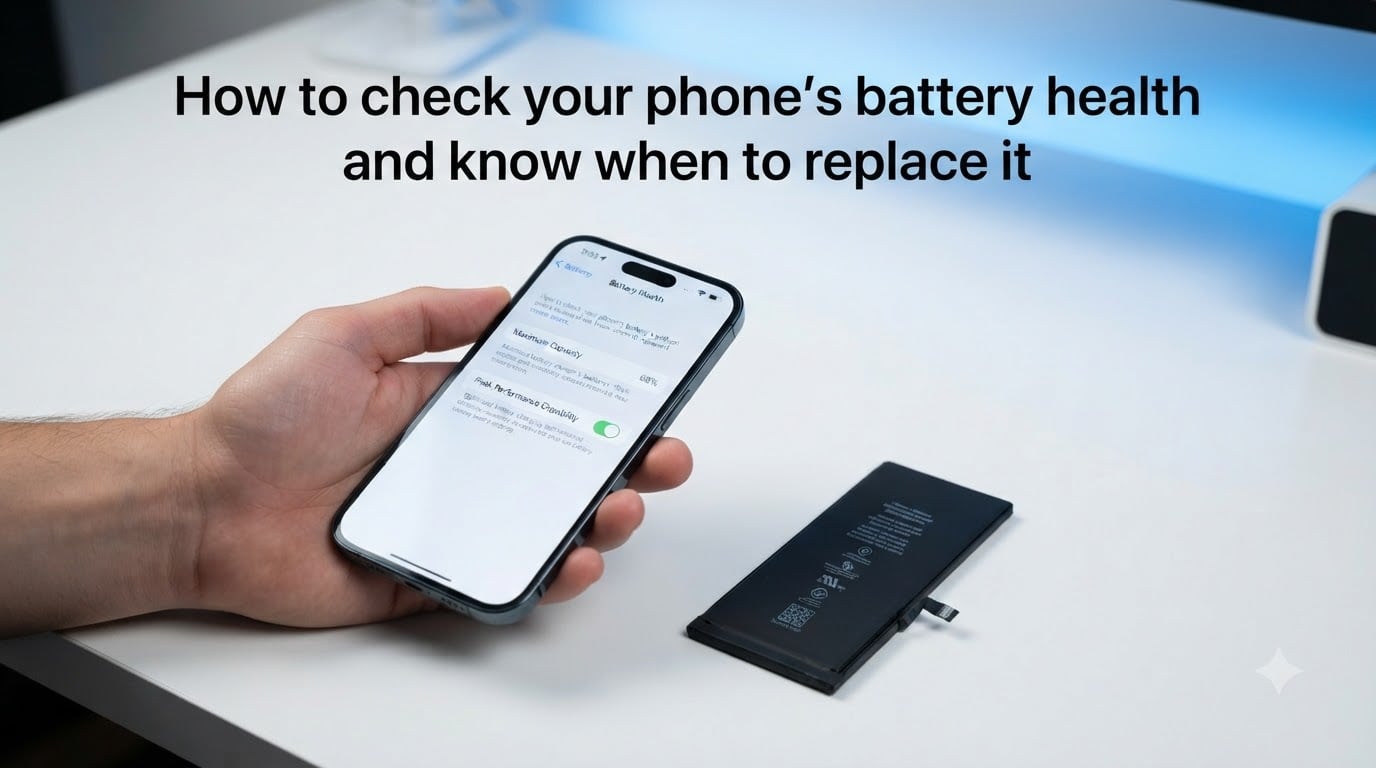
Your phone’s battery is the one component that quietly degrades every single day. You might not notice it until your phone dies at 3 PM or randomly shuts down at 40%. Knowing how to check phone battery health helps you catch problems early and decide whether a replacement can add another year or two to your device’s life.
The good news is that both iPhone and Android phones have built-in tools to measure battery health. In this guide, I’ll walk you through the exact steps for every major phone brand, explain what the numbers mean, and help you figure out when it’s time for a replacement.
You’ll also learn the warning signs of a failing battery, the famous 80% replacement threshold, and practical tips to slow down degradation. Let’s start with what battery health actually means.
Table of Contents
What Battery Health Actually Means?
Battery health is a measure of your phone battery’s current capacity compared to when it was brand new. It’s expressed as a percentage. A phone at 100% battery health holds the full charge it shipped with, while one at 85% holds 85% of that original capacity.
Every phone uses a lithium-ion battery, and these batteries physically degrade over time. Each time you charge and discharge the battery, it goes through one charge cycle. Most phone batteries are rated for 500 to 800 full charge cycles before their maximum capacity drops to about 80% of the original.
Here’s what that means in practice: a phone that originally lasted 14 hours on a charge will last roughly 11 hours at 80% health. The decline is gradual at first, then speeds up in the later stages.
Heat, fast charging, and letting your phone drain to zero all accelerate degradation. Cold weather, keeping your charge between 20% and 80%, and avoiding overheating slow it down. I’ll cover specific tips later, but the key takeaway is that some degradation is unavoidable and completely normal.
How to Check iPhone Battery Health
iPhone makes it easy to learn how to check phone battery health. Apple built a dedicated battery health meter right into iOS, so you don’t need any third-party apps.
Here’s the step-by-step process:
Step 1: Open the Settings app on your iPhone.
Step 2: Scroll down and tap Battery.
Step 3: Tap Battery Health & Charging (on older iOS versions, this may just say “Battery Health”).
Step 4: Look at the Maximum Capacity percentage. This is your battery health score.
Step 5: Check the Cycle Count if you’re on iOS 17.4 or later. Apple now shows this number directly, which tells you how many full charge cycles the battery has been through.
Below the capacity percentage, you’ll see a message about Peak Performance Capability. If your battery health is high, it will say “Your battery is currently supporting normal peak performance.” If the battery has degraded significantly, you may see a message about performance management being applied to prevent unexpected shutdowns.
One important note: iPhone 15 and newer models can also show detailed cycle count and manufacturing date in Settings > Battery > Battery Health. If you have an older iPhone and don’t see a battery health option, make sure you’ve updated to the latest iOS version available for your device.
How to Check Android Battery Health?
Android battery health checking varies by manufacturer. Unlike Apple, Google doesn’t require every Android phone to have a single standardized battery health percentage. Instead, each brand handles it differently.
For Google Pixel phones: Open Settings > Battery. Pixel doesn’t show a single health percentage, but you can see battery usage stats and diagnostics. For more detail, use the built-in diagnostics by opening the Phone app and dialing *#*#4636#*#*, then selecting “Battery information” if the menu appears on your device.
For OnePlus phones: Open Settings > Battery > Battery Health. OnePlus added a dedicated battery health section in recent OxygenOS versions that shows a percentage and estimated remaining lifespan.
For Xiaomi and Redmi phones: Open Settings > Battery > tap the battery icon or Battery protection. Some MIUI and HyperOS versions display battery condition as Good, Normal, or Worn.
For other Android phones: Start in Settings > Battery and look for any health, status, or diagnostics option. If your phone doesn’t have a built-in health percentage, you can use the hidden dial code method covered in the next section.
Samsung Battery Health Check Codes
Samsung Galaxy phones deserve their own section because they have multiple ways to check battery health, including hidden diagnostic tools that many users don’t know about. This is one of the most common questions in forums, so let me cover all the methods.
Method 1: Samsung Members app. This is the most reliable method. Open the Samsung Members app (pre-installed on most Galaxy phones, or downloadable from the Galaxy Store). Tap Support > Phone diagnostics > Battery status. You’ll see a health rating and estimated capacity.
Method 2: Settings menu. On newer One UI versions, go to Settings > Battery and device care > Battery. Tap the battery icon at the top for diagnostics. Samsung shows battery status as Normal, Weak, or Replace depending on condition.
Method 3: The hidden dial code. Open your Phone app and dial *#*#4636#*#*. On some Samsung models, this opens a “Testing” menu with a “Battery information” option showing health, status, and temperature. Note that Samsung has disabled this code on some recent One UI versions, so it may not work on every device.
Method 4: Samsung Members hardware test. In the Samsung Members app under diagnostics, you can run a full battery test that checks charging speed, discharge rate, and overall health. This gives a more thorough picture than the quick status check.
If none of these methods show a specific health percentage, don’t worry. Samsung’s approach is to show a status label rather than a number. If it says “Normal,” your battery is in good shape. If it says “Weak” or “Replace,” it’s time to consider a new battery.
Signs Your Battery Needs Replacement
Even without checking a health percentage, your phone will tell you when its battery is failing. Here are the most common signs that it’s time for a replacement.
1. Your phone dies well before reaching zero percent. If your phone shuts down at 15%, 20%, or even 30%, the battery can no longer deliver consistent voltage. This is one of the clearest signs of a degraded cell.
2. Battery life has dropped dramatically. A phone that used to last a full day now barely makes it to lunch. One Reddit user with an iPhone 12 Mini at 74% health reported their phone only lasting from 8 AM to 4 PM with light use.
3. The phone gets unusually hot during normal use or charging. Excess heat means the battery is working harder than it should, which also accelerates further degradation.
4. Your iPhone shows a performance management warning. Apple applies performance throttling to older batteries to prevent unexpected shutdowns. If your phone feels sluggish and you see a message about an aging battery in Settings, this is why.
5. The back of your phone is bulging or lifting. This is a sign of a swollen battery and is a safety issue. Stop using the phone immediately and get it replaced. Do not try to open it yourself.
6. Charging feels slower than it used to. A degrading battery may accept charge more slowly or struggle to reach 100%.
If you’re experiencing two or more of these symptoms, checking your battery health percentage will confirm what you already suspect.
The 80% Rule: When to Replace Your Battery
The 80% threshold is the widely accepted point for battery replacement. Apple specifically designs iPhone batteries to retain up to 80% of their original capacity after 500 complete charge cycles under normal conditions. Below 80%, you’ll notice a sharper decline in daily battery life.
So is 80% battery health good or bad? It’s the tipping point. At 80%, your phone still works but holds roughly 20% less charge than when new. For many people, that means needing an afternoon top-up where they didn’t before.
Below 80%, the problems multiply. The phone may struggle to deliver peak power during demanding tasks, leading to throttling or unexpected shutdowns on iPhones. Real users on Reddit report that replacing a battery in the 74% to 80% range produced a noticeable improvement in daily usage.
For Samsung and other Android phones, the same principle applies even if the threshold isn’t displayed as a percentage. When Samsung’s diagnostics say “Weak” or “Replace,” you’ve reached the equivalent of the 80% point.
My recommendation: start planning for a replacement when your battery health reaches 80% to 85%. You don’t have to replace it immediately, but it’s the right time to budget for one. Once you drop below 75%, the daily inconvenience usually makes replacement worth the cost.
Tips to Extend Battery Life and Slow Degradation
You can’t stop battery aging, but you can slow it down significantly. These habits will help your battery hold more capacity for longer.
Follow the 20-80% charging rule. Lithium-ion batteries experience the least stress when kept between 20% and 80% charge. Avoid letting your phone drain to zero and try unplugging it before it sits at 100% for hours. Even following this rule loosely makes a measurable difference over a year.
Enable Optimized Battery Charging. On iPhone, go to Settings > Battery > Battery Health & Charging and turn on Optimized Battery Charging. This feature learns your daily charging routine and delays charging past 80% until just before you need the phone. Samsung’s equivalent is called Adaptive Charging or Battery Protection in One UI settings.
Avoid heat at all costs. Heat is the single biggest enemy of lithium-ion batteries. Don’t leave your phone in a hot car, avoid using it while fast-charging if it gets warm, and remove thick cases during charging if your phone tends to run hot. Charging in direct sunlight also degrades the battery faster.
Turn on Low Power Mode proactively. Instead of waiting until 20%, enabling Low Power Mode (iPhone) or Power Saving Mode (Android) earlier in the day reduces background activity and battery drain, which means fewer charge cycles over time.
Manage background apps and connectivity. Disable Background App Refresh for apps that don’t need it. Turn off 5G if your area has weak 5G signal, since the phone works harder to maintain it. Limit Location Services to “While Using” instead of “Always” for non-essential apps.
Don’t stress about fast charging. Modern fast chargers are designed to manage heat and voltage safely. Fast charging does add some wear, but it’s minimal compared to heat damage and deep discharges. Use the charger that came with your phone or a reputable brand.
Battery Replacement Options and What to Expect
If you’ve decided it’s time for a replacement, you have several options ranging from official service to DIY kits. The right choice depends on your phone, budget, and comfort level.
Official manufacturer repair. Apple Stores and authorized service providers offer the most reliable replacement. Apple charges a flat fee for battery service, typically ranging from around $69 to $119 depending on the model. Samsung’s official service through authorized centers like uBreakiFix is similarly priced at roughly $70 to $100. The advantage is that you get a genuine battery with warranty coverage and your data stays intact.
Third-party repair shops. Local repair shops and chains can replace your battery, often at a lower price. The trade-off is that battery quality varies. Ask whether they use OEM (original equipment manufacturer) parts and whether they offer any warranty on the repair.
DIY replacement kits. For older iPhones and some Android models, DIY kits are available from companies like iFixit. These cost less but require patience and steady hands. Modern phones with strong adhesive and water resistance make DIY replacement harder than it used to be.
Will I lose my data? A battery replacement should not affect your data. Apple and authorized service providers perform battery swaps without touching your storage. However, it’s always a good idea to back up your phone before any repair, just in case.
The environmental angle. Replacing a battery instead of buying a new phone is one of the most environmentally friendly choices you can make. Manufacturing a new smartphone generates significant carbon emissions and requires mining raw materials like lithium, cobalt, and rare earth elements. A fresh battery can extend your phone’s life by one to three years, dramatically reducing its environmental footprint per year of use.
FAQs
Is 76% battery health good?
No, 76% battery health means your battery has degraded significantly and holds about 24% less charge than when new. At this level, you will likely notice shorter daily battery life and possible unexpected shutdowns. It is a good time to replace the battery, especially on an iPhone where performance throttling may already be active.
How to tell if phone battery needs replacing?
Common signs include your phone shutting down before reaching zero percent, battery life dropping noticeably shorter than when new, the phone running hot during normal use, sluggish performance from throttling, a bulging back panel, and slower charging. If you experience two or more of these symptoms, check your battery health percentage and consider replacement.
Is 70% battery health ok for iPhone?
70% battery health on an iPhone is well below the 80% replacement threshold. At this level, your iPhone likely applies performance management to prevent unexpected shutdowns, resulting in noticeable slowdowns. Daily battery life will be roughly 30% shorter than when the phone was new. Replacement is strongly recommended.
How long does a 100% phone battery last?
A phone at 100% battery health with a full charge typically lasts 10 to 18 hours of mixed use depending on the model and usage patterns. Heavy usage like gaming, video streaming, and 5G connectivity reduces this, while light usage extends it. Most phone batteries are designed to retain 80% capacity after 500 full charge cycles, which is about 18 to 24 months for the average user.
Conclusion
Learning how to check phone battery health takes less than two minutes and can save you from the frustration of a phone that dies halfway through the day. Whether you use iPhone’s built-in Battery Health meter, Samsung’s Members app diagnostics, or the hidden dial codes on other Android phones, the goal is the same: understand what your battery is telling you.
The 80% threshold is your signal to start planning a replacement. Combine that knowledge with good charging habits, and you can keep your phone running strong for years longer than most people expect. Check your battery health today, and if it’s time for a swap, you now know exactly what to do next.