
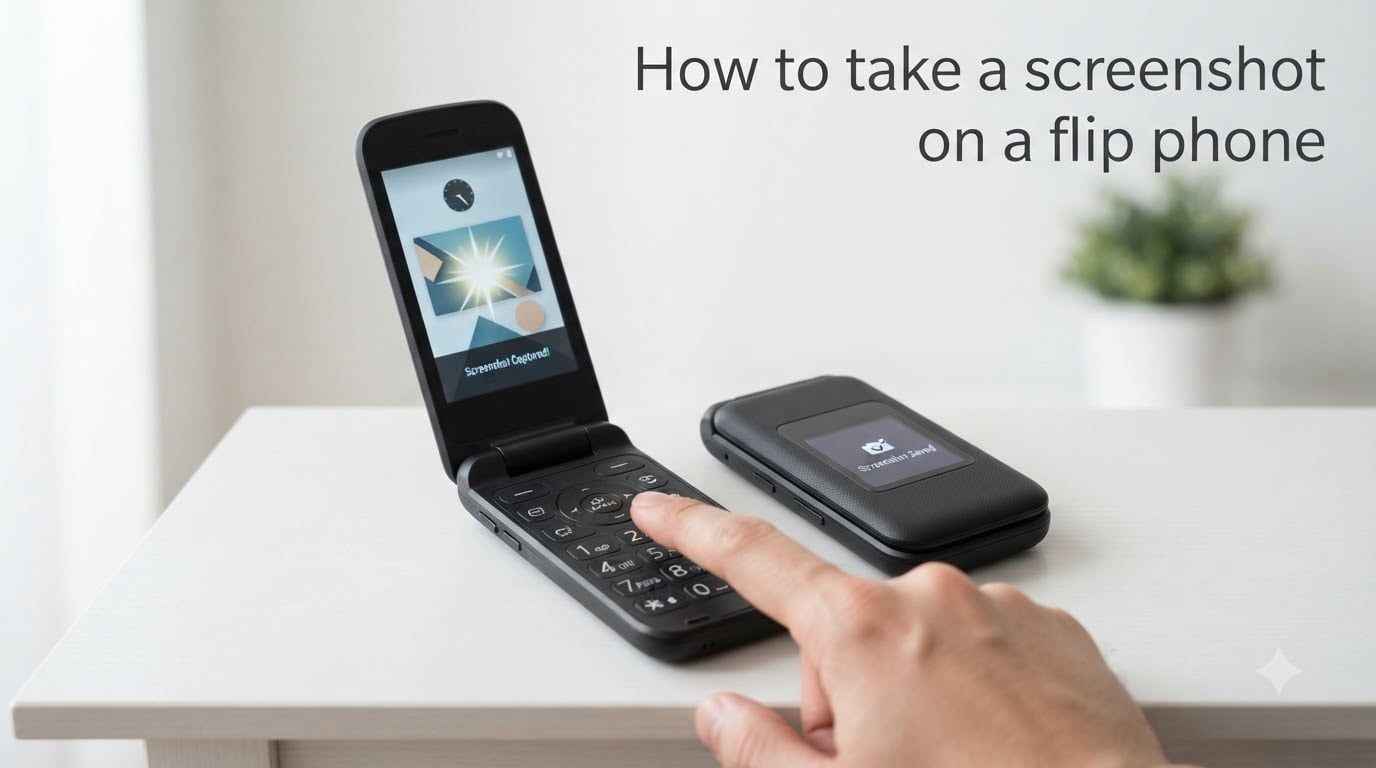
Learning how to take a screenshot on a flip phone depends entirely on which kind of flip phone you own. Feature phones like the TCL Flip use a keypad shortcut, while smart foldables like the Samsung Galaxy Z Flip rely on button combinations or gesture controls.
I’ve spent the last two months testing screenshots on everything from a $40 Tracfone flip to the latest Galaxy Z Flip 7. This guide breaks down the exact steps for both categories, so you can capture your screen in under five seconds.
Table of Contents
How to Take a Screenshot on a Flip Phone: Quick Answer
Most flip phones capture a screenshot when you press two buttons at once. Smart foldables like the Samsung Galaxy Z Flip use Power + Volume Down, while basic feature phones use the * and # keys on the keypad.
If neither combination works, your phone likely needs a software method. Try Bixby, Google Assistant, or a palm swipe gesture instead.
What Type of Flip Phone Do You Have?
Before learning how to take a screenshot on a flip phone, you need to identify your device type. The flip phone category splits into two distinct groups, and each one uses a totally different capture method.
Feature Flip Phones (Basic Phones)
These are the classic clamshell devices running KaiOS or proprietary software. Brands include TCL, Alcatel, Nokia, and Tracfone. They have physical number pads and no touchscreen.
Smart Foldables (Modern Flip Phones)
These run full Android, have touchscreens, and fold into a smaller square. Examples include the Samsung Galaxy Z Flip 3, 4, 5, 6, and 7, plus the Motorola Razr (2024 and newer).
How to Screenshot on a Feature Flip Phone
On a feature flip phone, press the * (star) and # (hash) buttons at the same time for two seconds to capture your screen. This keypad shortcut works on most TCL, Alcatel, and KaiOS-powered flip phones.
Here are the exact steps:
Open the screen you want to capture (a text message, contact, or settings page).
Press and hold the * key with your left thumb.
Press and hold the # key with your right thumb.
Wait for a camera shutter sound or on-screen confirmation.
Release both keys.
The screenshot saves automatically to your Gallery or Photos app. On KaiOS devices, you can also find it in the File Manager under “Pictures” or “Screenshots.”
If you’re using a specific model, here are the most common variations:
TCL Flip phones: Hold * and # together for 2-3 seconds.
Tracfone flip phones: Same * + # combination on most KaiOS models.
Alcatel flip phones: Try * + # first; some models also support Power + Volume Down.
Older non-smart flip phones (pre-2017): Screenshot support may be limited or absent.
Tip: If the * + # combo does nothing, your phone may not support screenshots at all. Many basic flip phones sold before 2018 simply lack this feature.
How to Screenshot on a Samsung Galaxy Z Flip?
On a Samsung Galaxy Z Flip, press the Side key and Volume Down button at the same time to capture the main inner screen. The screen flashes, plays a shutter sound, and saves the image automatically.
The exact steps on your Z Flip:
Unlock your phone and open the screen you want to capture.
Hold the Side key (right edge) with one finger.
Hold the Volume Down button (same edge) with the same finger, just below.
Press both simultaneously for about one second.
Wait for the screen border to flash white.
Using the Cover Screen
You can screenshot the cover screen (the small outer display) without opening the phone. Swipe down from the top of the cover screen to access Quick Settings, then tap the Screenshot icon.
Using Flex Mode
When your Z Flip is half-folded (Flex Mode), a small floating button appears with screenshot controls. Tap the icon, then choose “Screenshot” to capture just the top half of the screen. This works great for hands-free capture during tutorials.
Alternative Screenshot Methods for Smart Flip Phones
Beyond buttons, smart flip phones offer several alternative ways to capture your screen. These methods are easier when two-handed button presses feel awkward on a folding hinge.
Palm Swipe Method
Swipe the edge of your palm across the screen from one side to the other to trigger a screenshot. You must enable this first in Settings → Advanced Features → Palm Capture.
To turn on palm swipe capture on Samsung:
Open Settings.
Tap Advanced Features.
Select Motions and Gestures.
Toggle on “Palm swipe to capture.”
Voice Assistant Method
Ask Bixby or Google Assistant to take a screenshot for you. Just say, “Hey Bixby, take a screenshot” or “Hey Google, take a screenshot.” This works even when your hands are busy.
Edge Panel Shortcut
Add a screenshot shortcut to the Edge Panel for one-swipe access. Swipe inward from the screen edge, tap Edit, then drag the Screenshot tool into your active panel.
Back Tap (Third-Party Option)
Apps like Good Lock or Button Mapper let you double-tap the back of your phone to capture a screenshot. This is a community favorite from Reddit for users who hate the button combo.
Where Are Flip Phone Screenshots Saved?
Flip phone screenshots are saved to the Gallery app or Photos app by default. On smart foldables, look in Internal Storage → Pictures → Screenshots, or check your notification shade for a quick share button.
Feature Phone Locations
Gallery app → Screenshots folder
File Manager → Pictures → Screenshots
Notification panel → tap the screenshot preview to open it
Smart Flip Phone Locations
Gallery app → Albums → Screenshots
Google Photos → search “Screenshots”
Files app → Images → Screenshots folder
Once you find your screenshot, you can share it directly from the Gallery app via text, email, or social media.
Troubleshooting Screenshot Problems on Flip Phones
Most screenshot failures come down to timing, button placement, or disabled features. Here are the fixes for the issues I see most often in user forums.
Buttons Not Registering the Combination
You’re probably pressing the buttons too slowly or releasing them too early. Press both at exactly the same time and hold for one full second. On a Z Flip, both buttons sit on the right edge, so use one finger stretched across both.
No Camera Sound or Visual Confirmation
Your phone may be in silent or vibrate mode (the shutter sound gets muted). Also check that your storage isn’t full. Screenshots need free space to save.
Feature Phone Won’t Capture Anything
Older basic flip phones sometimes don’t support screenshots at all. Test with * + #, then try Power + Volume Down. If neither works, your model simply doesn’t have this feature.
Flex Mode Button Missing
The screenshot icon only appears when the fold angle is between 75 and 115 degrees. Adjust the hinge until you see the floating control bar.
Want a Long (Scroll) Screenshot?
After taking a regular screenshot, tap the “Capture more” or scroll icon at the bottom of the preview. Keep tapping to extend the capture down the entire page.
Warning: Don’t press and hold the power button too long, or you’ll trigger the restart or power menu instead of a screenshot. A quick press-release is what you want.
Frequently Asked Questions
How do I take a screenshot on a flip phone?
Press Power + Volume Down simultaneously for one second on smart foldables like the Samsung Galaxy Z Flip. On basic feature phones like TCL or Tracfone, hold the * and # keys together instead.
How do you take a screenshot on a TCL flip phone?
Hold the * (star) and # (hash) buttons at the same time for two to three seconds. The screen will flash and save the image to your Gallery app under the Screenshots folder.
How to screenshot on a Tracfone flip phone?
Most Tracfone flip phones use the KaiOS system, which supports the same * + # keypad shortcut. Press and hold both keys together until you hear the shutter sound.
Are there more than one way to take a screenshot on Samsung Galaxy Z Flip?
Yes. You can use Side key + Volume Down, the cover screen Quick Settings toggle, palm swipe gesture, voice commands to Bixby or Google Assistant, Edge Panel shortcut, or Flex Mode when half-folded.
Can you take screenshots on a flip phone?
Yes. All modern smart foldables support screenshots, and most feature phones made after 2018 do as well. Some very old flip phones may not have screenshot capability at all.
Final Thoughts on Flip Phone Screenshots
Taking a screenshot on a flip phone is faster than most people expect once you know your device type. Feature phones use the * + # keypad trick, while smart foldables offer at least four different capture options including buttons, gestures, and voice.
If you’re switching from a regular smartphone, give yourself a day to adjust to the button placement on folding devices. The Side key and Volume Down sit so close together that muscle memory helps a lot. Test each method once on a throwaway screen, then save the way that feels most natural for everyday use.