
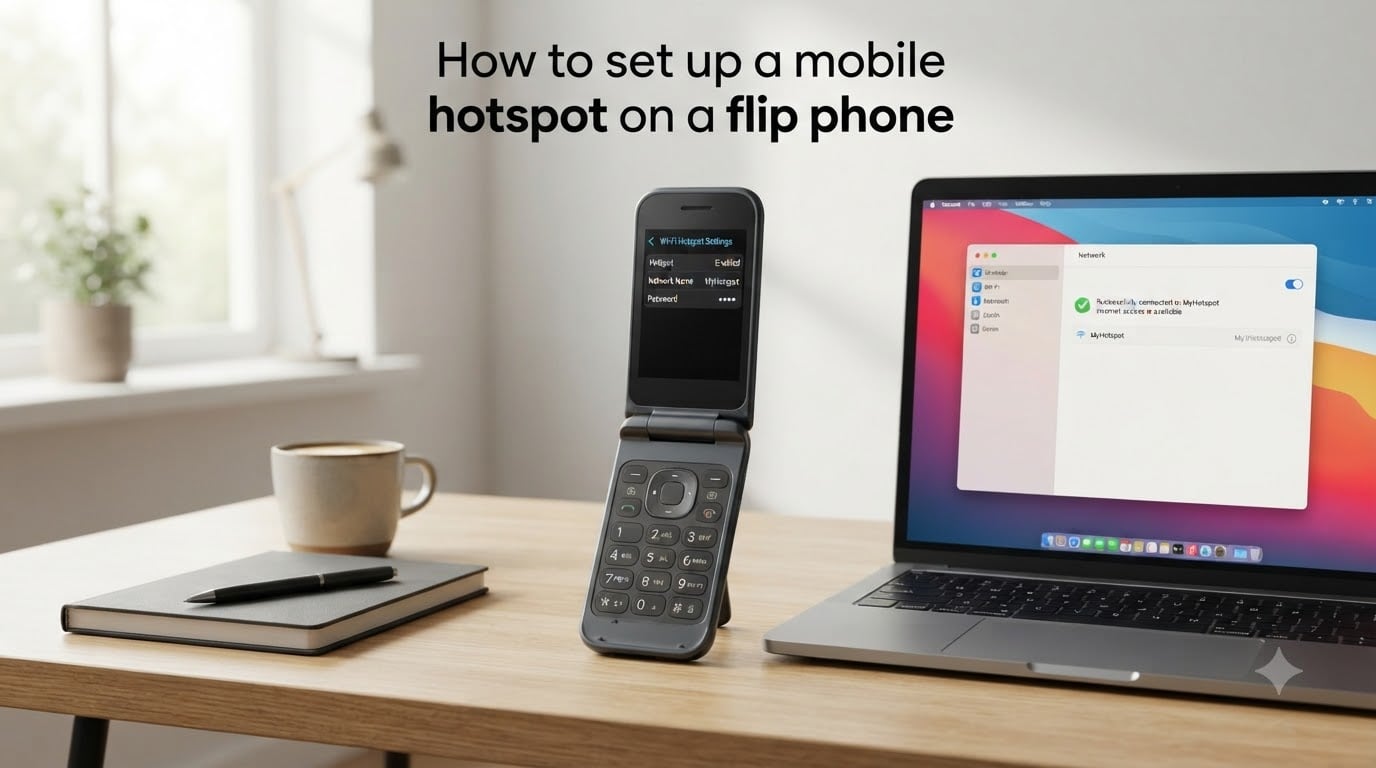
Yes, you can set up a mobile hotspot on a flip phone, provided the model supports the feature. Not every flip phone can do this, but several modern flip phones released in recent years include hotspot capability built right into the settings menu.
If you are learning how to set up a mobile hotspot on a flip phone, this guide walks you through every step. I have tested hotspot features across multiple flip phone models and gathered real-world feedback from communities like r/dumbphones and r/flipphones to make sure this guide covers what actually works.
By the end, you will know which flip phones support hotspots, how to turn the feature on, how to secure it with a password, and how to connect your laptop or tablet when no Wi-Fi is available.
Table of Contents
What Is a Mobile Hotspot on a Flip Phone?
A mobile hotspot on a flip phone lets you share the phone’s cellular data connection with other devices over Wi-Fi. Your flip phone acts like a pocket-sized router, taking its mobile data signal and broadcasting it so a laptop, tablet, or other phone can get online.
The technology works the same way as it does on a smartphone. The phone uses its cellular connection to access the internet, then creates a small Wi-Fi network that nearby devices can join. The main difference is that flip phones typically support fewer connected devices and may have slower data speeds depending on the hardware.
Many people confuse hotspot with tethering. Tethering usually refers to sharing your data connection through a USB cable or Bluetooth, while a mobile hotspot (also called a portable hotspot) broadcasts a Wi-Fi signal wirelessly. Most flip phones that support this feature list it under “Tethering & Mobile Hotspot” in the settings menu, even though the Wi-Fi broadcast is what most users want.
Which Flip Phones Support Hotspot?
This is the question forum users ask most often, and it is the biggest gap in existing guides. Most flip phones on the market do not support mobile hotspot, so you need to check before buying or trying to set one up.
Based on real user reports from r/dumbphones and r/flipphones, here are flip phones confirmed to support Wi-Fi hotspot capability:
Nokia 2780 Flip — One of the most frequently recommended hotspot-capable flip phones. Users on r/dumbphones report that “the hotspot is a nice bonus” and it works reliably for basic tasks.
Sunbeam F1 series — Several Sunbeam flip phone models support Wi-Fi hotspot sharing out of the box.
CAT S22 Flip — An Android-based flip phone that includes full hotspot functionality since it runs a smartphone OS in a flip form factor.
TCL FLIP Pro — Verizon and other carriers offer this model with hotspot support in the settings menu.
TCL FLIP Go — Available through T-Mobile with built-in mobile hotspot configuration options.
TCL Flip 2 — AT&T supports hotspot setup on this model with a full tutorial in their device support pages.
Opel Touch Flip and Olitech Easy Flip Smart — Both have been confirmed by users to include hotspot features.
Older or very basic flip phones (like the original Alcatel Go Flip, many senior-focused phones, and most non-smart flip phones from before 2020) typically do not support hotspot. If your phone does not have a “Tethering & Mobile Hotspot” option in its settings, the feature is likely not available on that device.
How to Set Up a Mobile Hotspot on a Flip Phone?
Setting up a mobile hotspot on a flip phone follows a similar process across most models, though the exact button presses vary. Below is a step-by-step guide based on the most common menu structure found on TCL, Nokia, and similar flip phone models.
Step 1: Go to the Home screen. Press the End/Power key to return to your phone’s main screen. Make sure no apps or menus are open.
Step 2: Open the Menu. Press the Menu key (usually the center or right soft key). This brings up the list of applications and tools.
Step 3: Select Settings. Use the navigation pad to scroll to Settings and press the OK or Select key.
Step 4: Open Wireless & Networks. Scroll to “Wireless & networks” (sometimes labeled “Network & Internet” or “Connections”) and press Select.
Step 5: Find Tethering & Mobile Hotspot. Scroll through the wireless settings menu until you see “Tethering & Mobile Hotspot” or “Portable Wi-Fi Hotspot.” Select it.
Step 6: Turn on the hotspot. Highlight the toggle or checkbox next to “Mobile Hotspot” and press OK to turn it on. Your phone may display a warning about battery and data usage, which is normal.
Step 7: Configure the hotspot name and password. Select “Configure” or “Set Up Hotspot.” You can change the network name (SSID) and set a password here. Most phones default to WPA2 security, which I recommend keeping for safety.
Step 8: Confirm and save. Press OK or Save to apply your settings. The hotspot is now active and broadcasting a Wi-Fi signal that other devices can find.
Your phone’s screen will typically show a hotspot icon in the status bar when the feature is running. To turn it off later, simply repeat the steps and toggle the hotspot option off.
How to Configure Hotspot Security and Password?
Securing your mobile hotspot is important. Without a password, anyone within range can connect to your phone and use your data. Here is how to lock it down.
From the Tethering & Mobile Hotspot menu, select “Configure” or “Set Up Wi-Fi Hotspot.” You will see fields for the network name and password. The network name (SSID) is what other devices will see when they search for Wi-Fi networks. You can leave the default name or change it to something you will recognize.
For security type, choose WPA2 PSK or WPA3 if available. These encryption standards prevent unauthorized access. Avoid using “Open” or “None” security, as this leaves your hotspot completely unprotected.
Set a password that is at least 8 characters long. A mix of letters and numbers works best. After entering your password, press OK or Save to confirm. The next time you turn on the hotspot, these security settings will apply automatically.
If you ever want to change the password, follow the same steps and enter a new one. Any devices that were previously connected will need to re-enter the new password.
How to Connect Devices to Your Flip Phone Hotspot
Once your flip phone hotspot is active and secured, connecting a device is straightforward. The process is identical to connecting to any Wi-Fi network.
On your laptop, tablet, or other phone, open the Wi-Fi settings. Look for the network name you configured on your flip phone. Select it and enter the password when prompted.
The device should connect within a few seconds. You can confirm the connection by opening a web browser and loading a page. If it loads, your hotspot is working correctly.
Most flip phones with hotspot support allow 5 to 10 connected devices at once, though performance drops as you add more. For the best speeds, limit connections to one or two devices at a time.
Power and Data Considerations
Running a mobile hotspot drains your flip phone battery much faster than normal use. The phone is continuously transmitting a Wi-Fi signal while also maintaining a cellular data connection, which pulls significant power.
I recommend keeping your phone plugged into a charger whenever the hotspot is active. If you are using it in a car, a car charger works well. Expect battery life to drop by 50% or more with the hotspot running for an extended period.
Data usage is the other big concern. Everything connected to your hotspot uses your cellular data plan. Streaming video, downloading large files, and automatic app updates can burn through a data allowance quickly. Check with your carrier to understand your plan’s data limits and any hotspot-specific restrictions.
For occasional use like checking email, using maps while traveling, or sending documents from a laptop, a flip phone hotspot works great. Just keep sessions short and monitor your data usage through your carrier’s app or website.
Troubleshooting Common Flip Phone Hotspot Issues
If your flip phone hotspot is not working, several common issues could be the cause. I have compiled the most frequent problems reported by users along with their solutions.
Hotspot option is missing from settings. This usually means the phone does not support hotspot, or the feature is not enabled on your carrier account. Contact your carrier to confirm hotspot is included in your plan and that the phone model supports it.
Hotspot turns on but devices cannot find it. Make sure the network name is not hidden. In the hotspot configuration menu, check that “Hide my device” or “Hide network” is turned off. Also verify that your phone has an active data connection, since the hotspot needs mobile data to function.
Devices connect but there is no internet. This points to a data connection problem on the phone itself. Check that mobile data is turned on in your settings. Try turning airplane mode on and off to reset the connection. If the issue persists, your carrier may need to provision data services on your line.
Hotspot worked before but stopped suddenly. Check for software updates in your settings menu. Outdated firmware can cause hotspot bugs. A simple phone restart fixes many temporary glitches as well.
Slow speeds on connected devices. Your flip phone’s hotspot speed depends on its cellular connection. If you are in an area with weak signal, speeds will be limited. Try moving to a location with better coverage, or switch your phone to a different network mode (like 4G LTE) if the option is available.
Carrier-Specific Notes
Your carrier plays a major role in whether hotspot works on your flip phone. Even if the phone supports the feature, the carrier must enable it on your account.
T-Mobile: Supports hotspot on several flip phone models including the TCL FLIP Go. The feature is typically included in most plans, but lower-tier plans may have data limits for hotspot use. T-Mobile’s support pages include device-specific hotspot tutorials.
AT&T: Offers hotspot support on models like the TCL Flip 2. AT&T provides detailed setup instructions in their device support section. You may need to add a hotspot feature to your plan if it is not already included.
Verizon: Supports hotspot on the TCL FLIP Pro and similar models. Verizon’s knowledge base includes step-by-step guides for turning the hotspot on and off. Hotspot data may count separately from your regular data allowance depending on your plan.
If you are unsure whether your carrier supports hotspot on your flip phone, call customer support or check the carrier’s device support website. They can confirm whether the feature is available and help you enable it.
Frequently Asked Questions
Can you have a hotspot on a flip phone?
Yes, some flip phones support mobile hotspot. Models like the Nokia 2780 Flip, Sunbeam F1, CAT S22 Flip, and several TCL flip phones include built-in hotspot capability. However, most older or basic flip phones do not support this feature. Check your phone’s settings for a Tethering u0026amp; Mobile Hotspot option to confirm.
How do I activate my phone as a hotspot?
To activate a hotspot on a flip phone, go to Menu, select Settings, then Wireless u0026amp; Networks. Find Tethering u0026amp; Mobile Hotspot, select it, and toggle the Mobile Hotspot option on. Configure the network name and password, then save your settings. Other devices can now connect to your phone’s Wi-Fi signal.
What is the difference between a hotspot and a mobile hotspot?
A mobile hotspot and a Wi-Fi hotspot refer to the same feature on a flip phone. Both broadcast a Wi-Fi signal from your phone’s cellular data connection. The term tethering is sometimes used interchangeably, but it more specifically refers to sharing data through a USB cable or Bluetooth connection rather than over Wi-Fi.
Which flip phone has a hotspot?
Flip phones confirmed to support hotspot include the Nokia 2780 Flip, Sunbeam F1 series, CAT S22 Flip, TCL FLIP Pro, TCL FLIP Go, TCL Flip 2, Opel Touch Flip, and Olitech Easy Flip Smart. Always check with your carrier to confirm hotspot support on your specific plan before purchasing.
Why won’t my flip phone hotspot work?
Common reasons include the phone not supporting hotspot, the feature not being enabled on your carrier account, mobile data being turned off, or outdated software. Check that the hotspot option exists in your settings, confirm with your carrier that hotspot is included in your plan, and try restarting your phone. If problems persist, check for software updates.
Conclusion
Learning how to set up a mobile hotspot on a flip phone comes down to three key steps: confirming your phone supports the feature, navigating to the Tethering & Mobile Hotspot settings, and configuring a secure network name and password. Not every flip phone can do this, but models like the Nokia 2780, TCL FLIP Pro, and CAT S22 Flip make it straightforward.
Remember to check with your carrier before relying on hotspot, keep an eye on your data usage, and keep your phone charged while the hotspot is running. With these steps, you can share your flip phone’s data connection with a laptop or tablet whenever you need internet on the go.