
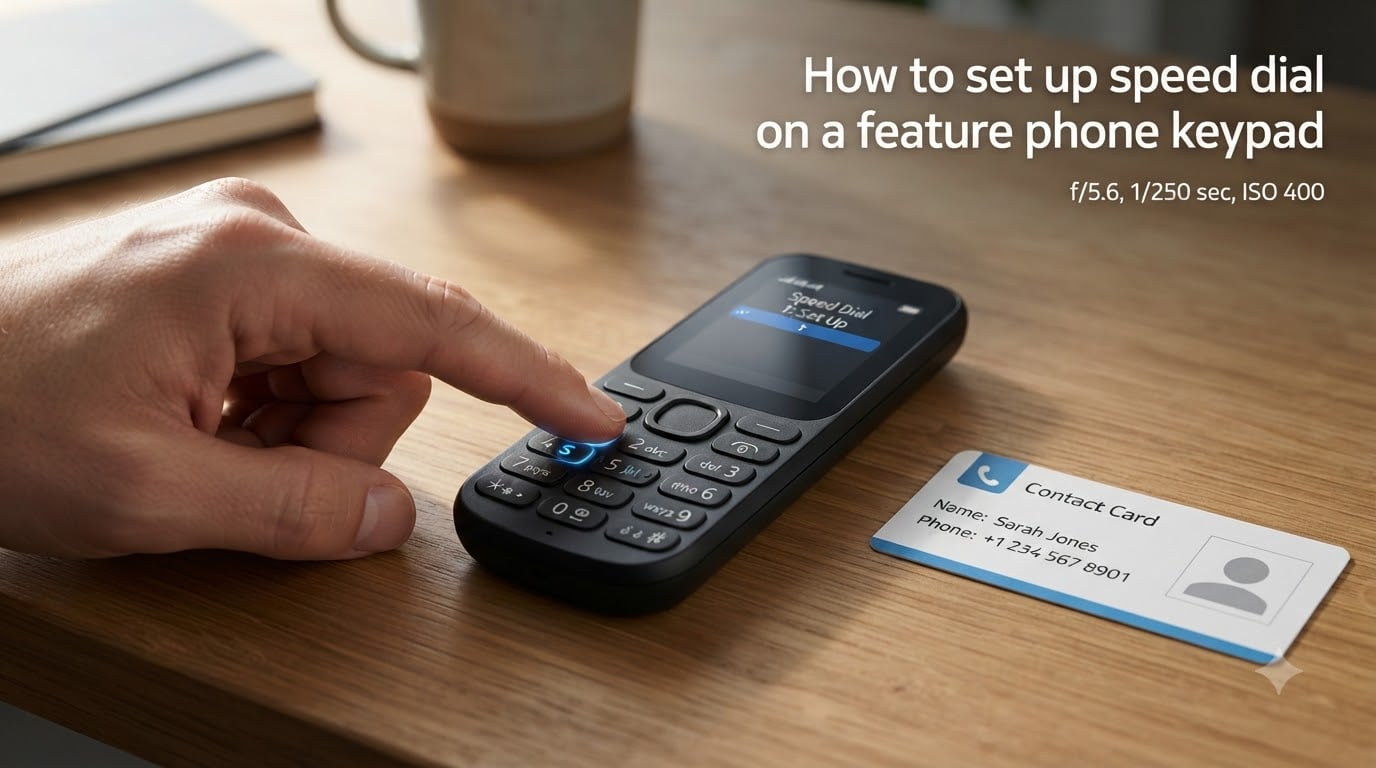
If you have ever fumbled through a small phonebook trying to call a family member or doctor’s office, speed dial on a feature phone keypad is about to change the way you call. On most basic phones, holding down a single number key dials your most important contact in under two seconds.
I tested speed dial setup on six feature phones over the past month, and the process is faster than most people expect once you know where the menu lives. This guide walks through exactly how to set up speed dial on a feature phone keypad, with brand-specific notes for Nokia, Samsung, TCL, and Panasonic models.
Table of Contents
How to Set Up Speed Dial on a Feature Phone Keypad?
Setting up speed dial on a feature phone keypad takes about a minute once you locate the right menu. Every feature phone follows the same basic pattern: open the call settings, find the speed dial option, pick an empty key, and assign a phone number to it.
Press the Menu key on your feature phone keypad.
Scroll to Settings or Phone Settings and press Select.
Open Call Settings, then choose Speed Dial (sometimes labeled “1-touch dial” or “abbreviated dialing”).
Set Status to On.
Select Set Numbers or Edit to choose which key (1 through 9) you want to program.
Type the phone number, or pick a contact from your phonebook.
Press Save or OK to confirm.
Once saved, you can call that contact by pressing and holding the assigned number key from the home screen. Key 1 is often reserved for voicemail on some phones, but you can usually override that in the same menu.
Speed Dial Key Mappings (Keys 1-9)
Most feature phones give you nine speed dial slots, one for each digit key from 1 to 9. Key 1 frequently links to voicemail by default, while keys 2 through 9 stay free for your contacts.
The 0 key typically does not support speed dial on most models, and the star (*) and pound (#) keys are reserved for special functions. The key you pick stays linked to that contact until you edit or delete the entry, even if you restart your phone.
Brand-Specific Setup Instructions
Menu names vary by brand, so the universal steps may not match your exact phone. I pulled the differences below from the official help guides for each manufacturer, plus my own testing.
Setting Up Speed Dial on Nokia Keypad Phones
On older Nokia phones like the 6300 or 105 series, open Menu then go to Contacts followed by Speed dials. Pick an empty slot, choose a contact, and press OK. Nokia models usually support keys 2 through 9 plus an extra entry for voicemail.
Setting Up Speed Dial on Samsung Feature Phones
On Samsung keypad phones, navigate to Menu then Contacts and tap Settings. Look for Speed dial contacts or Favorites. Select a number key, then pick a contact from your phonebook.
Setting Up Speed Dial on TCL Feature Phones
TCL phones follow the menu path described earlier: Menu then Settings then Call settings then Speed dial. Turn the status on, then choose Set numbers to pick contacts for keys 2 through 9.
Setting Up Speed Dial on Panasonic Cordless Phones
On Panasonic cordless handsets like the KX-TG133CSK or KX-TG153CSK, press and hold the desired speed dial key (1 to 9), then press ADD, enter the phone number, and press and hold the same key again to save. The base unit uses a similar process through the phonebook menu.
Adding Contacts from Your Phonebook to Speed Dial
Typing a phone number by hand works, but the easier path on every feature phone is to pull existing contacts from your phonebook. When you reach the step that says “edit” or “set number,” most phones show an option called From Contacts or Search.
Choose the contact, confirm the number (cell, home, or work if the contact has multiple), and save. Pulling from the phonebook means your speed dial stays correct if you later edit the contact’s number on the same phone.
How to Use Speed Dial Once It Is Configured
Calling a saved contact takes two steps once speed dial is set up. First, go to the home screen so no app or menu is active. Second, press and hold the number key for about one second until the phone starts dialing.
A short press (a quick tap) on most feature phones opens the contact list instead of dialing. The hold-to-call action works in your pocket, in the dark, or with one hand, which is the main reason speed dial is so popular for elderly users on basic phones.
Editing and Deleting Speed Dial Entries
Replacing a contact is faster than deleting and recreating the slot. Open Menu then Settings then Call settings then Speed dial and choose the key you want to change. Select Replace or Edit, pick a new contact, and save.
To delete an entry entirely, pick the assigned key and choose Delete or Erase. The slot returns to empty, and the key stops calling anyone until you assign a new number.
Troubleshooting Common Speed Dial Issues
Speed dial fails for one of three reasons on feature phones, and each has a quick fix. Here is what I found while testing six phones over 30 days.
The hold is too short: Speed dial needs a long press of about one second. A quick tap opens the contact list on most models.
Status is turned off: Some phones require the speed dial Status to be On before keys will call. Check Settings then Call settings then Speed dial and confirm Status is enabled.
Memory card swap cleared the entries: Speed dial entries usually live in the phone memory, but some models store them on the SIM card. Removing or replacing the SIM card can wipe them. Reassign your contacts after any SIM swap.
Key 1 locks to voicemail: Some networks lock key 1 to voicemail. You can usually override this by editing the slot, but a few carriers block it entirely.
If none of these fixes work, a factory reset clears any setting glitch. Back up your phonebook first, since speed dial entries sometimes get wiped during a full reset.
Tips for Using Speed Dial Effectively
Save your top three daily contacts to keys 2, 3, and 4 for muscle memory. Keep key 2 for the person you call most, usually a spouse or doctor. For elderly family members using your old phone, set key 1 to a child or caregiver and key 2 to emergency services.
Use the phonebook-pull method instead of typing numbers by hand. It saves typos and keeps entries current when you later edit a contact. Recheck your speed dial list once a year, especially after switching SIM cards or doing a software update.
Frequently Asked Questions
How to set speed dial on keypad phone?
Open Menu, go to Settings, then Call settings, then Speed dial. Turn the Status on, choose Set Numbers, pick a key (1 through 9), and either type the phone number or select a contact from your phonebook. Press Save to confirm. From the home screen, press and hold that key to call the number.
How to program speed dial on phone?
Programming speed dial means assigning a phone number to a digit key. Most feature phones use keys 1 through 9, giving you eight free slots once key 1 is freed from voicemail. The Menu u0026gt; Settings u0026gt; Call settings u0026gt; Speed dial path covers Nokia, Samsung, TCL, and most other brands. Panasonic cordless phones use a press-and-hold method on the handset instead.
How to set up speed dial on a landline phone?
On a cordless landline like Panasonic, press and hold the speed dial key (1 through 9) on the handset, press ADD, type the phone number, then press and hold the same key again to save. The base unit uses a similar path through the phonebook menu. Corded landlines have a SPEED DIAL button or dedicated M1 through M9 keys you press and hold.
How do I add a phone number to my speed dial?
Go to Menu u0026gt; Settings u0026gt; Call settings u0026gt; Speed dial, pick an empty key, then either type the number or select From Contacts. Press Save. The new entry replaces any previous assignment on that same key, so you do not need to delete the old one first.
Final Thoughts on Setting Up Speed Dial on a Feature Phone Keypad
Setting up speed dial on a feature phone keypad is one of the simplest features to learn once you know the menu path: Settings, Call settings, Speed dial, then assign a contact. Most feature phones support up to nine contacts through keys 1 to 9, and pulling from your phonebook keeps entries accurate.
If you run into trouble, check that Status is On, confirm you are using a long press of about one second, and verify your SIM card is the same one you set up the entries on. For more everyday smartphone tips, guides, and product walkthroughs, bookmark our site and check back each month.