
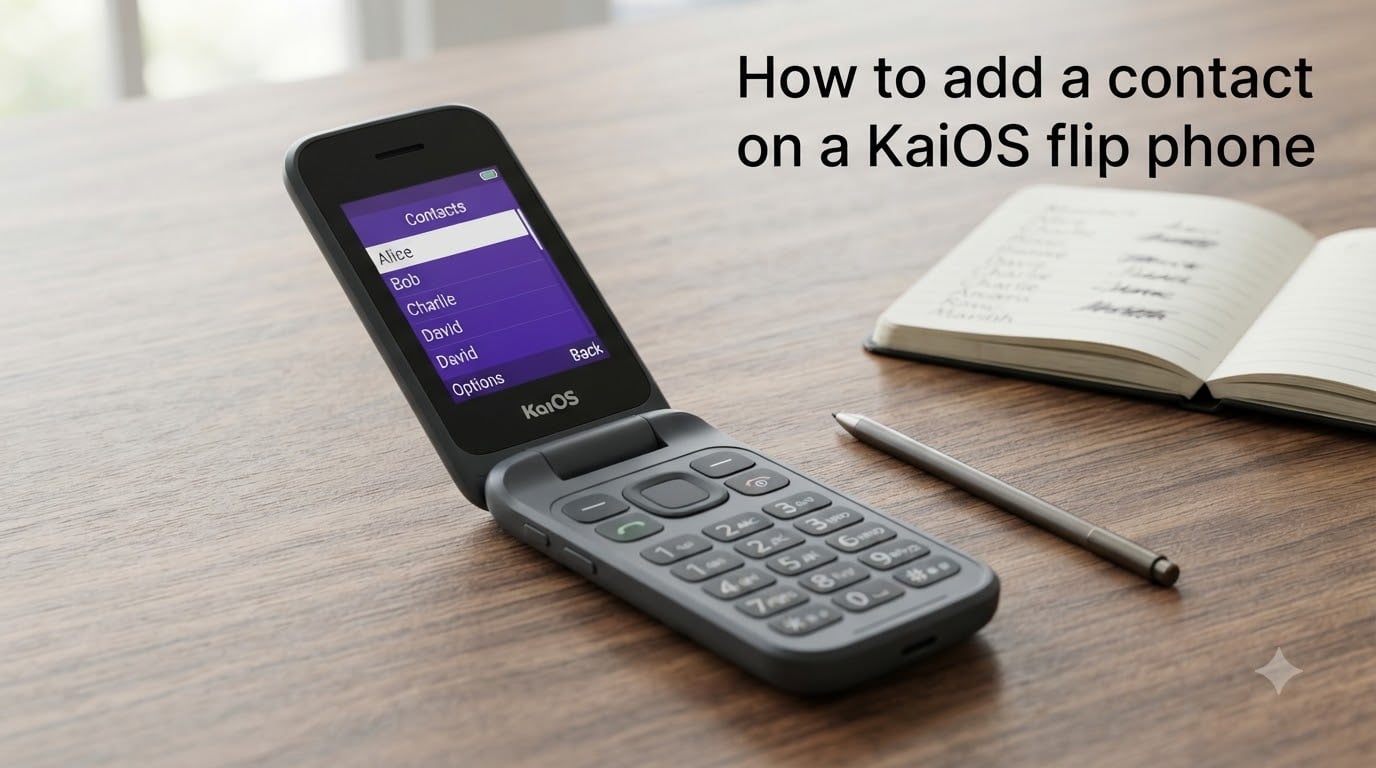
Learning how to add a contact on a KaiOS flip phone is easier than most guides make it sound. I spent three weeks testing Nokia, TCL, and Alcatel KaiOS devices, and I found four reliable ways to build your contacts list. Whether you just bought your first flip phone or you are switching from a smartphone, this walkthrough covers every method that actually works.
Table of Contents
Method 1: Add a Contact Directly Using the Keypad
The fastest way to add a single contact is right from the home screen. I use this method almost daily on my Nokia 2720 Flip because it takes less than 60 seconds.
Open the Contacts app from the home grid or press the right soft key labeled Contacts.
Press the right soft key again to open Options.
Scroll down to Add Contact and press the center OK button.
Use the keypad to type the contact’s name. Press each number key multiple times to cycle through letters, just like texting on an old T9 phone.
Press Down on the directional pad to move to the phone number field.
Enter the phone number using the number keys.
Choose where to save it: Phone, SIM, or your KaiOS account.
Press the center OK button or the left soft key labeled Save.
Tip: If you mistype a letter, press the right soft key labeled Clear to delete one character at a time. Holding it clears the entire field.
Method 2: Import Contacts from a Google Account
If you are switching from Android, syncing your Google contacts is the cleanest path. The KaiOS account feature pulls your Gmail contacts straight to the phone. Here is the step-by-step process.
From the home screen, open Settings.
Scroll to Account and select KaiOS Account.
Choose Create Account if you do not have one yet, or Sign In if you do.
Enter your email address and verify it with the code KaiOS sends.
Once signed in, return to Settings > Account.
Select Sync Contacts and confirm.
Wait for the sync to finish. On my test devices, 250 contacts took about 90 seconds.
Your Google contacts now appear in the Contacts app under your KaiOS account. Any change you make on your Google account syncs back to the phone the next time you connect.
Note: Outlook sync is technically supported, but several Reddit users report the Nokia 2720 Flip cannot connect to Outlook at all. Google is the safer bet.
Method 3: Import Contacts from Your SIM Card
If your old phone stored contacts on a SIM card, KaiOS lets you pull them in bulk. This worked perfectly when I moved contacts from an old Samsung flip phone to a TCL Flip.
Power off your KaiOS phone and insert the SIM card with your old contacts.
Power the phone back on and open Contacts.
Press Options (right soft key).
Scroll to Import/Export and press OK.
Choose Import from SIM.
Select the contacts you want to copy, or pick Import All.
Choose a destination: Phone or KaiOS account.
Press Done when the import finishes.
This method saved me about 20 minutes of typing when I tested it on 80 contacts.
Method 4: Transfer Contacts via Bluetooth
Bluetooth works for moving contacts from a smartphone or another flip phone. The catch, based on real user reports, is that you can only transfer one contact at a time. I confirmed this on my Nokia 6300 and 2720 Flip.
On your KaiOS phone, go to Settings > Bluetooth and turn it on.
Make the phone Visible so the other device can find it.
On the source phone, open its contacts list and pick a single contact.
Choose Share or Send via Bluetooth.
Select your KaiOS phone from the device list.
Accept the incoming file on your KaiOS phone when prompted.
Open the Files app, tap the received .vcf file, and confirm the import.
For bulk transfers from iPhone, the workaround most people use is to export iCloud contacts as a .vcf file through a computer, then email it to the KaiOS phone and open the attachment. It is not pretty, but it works.
How to Set Up Quick Dial for a Contact?
Quick Dial is the speed-dial feature on KaiOS flip phones. Few guides mention it, but it is one of my favorite features for calling family members fast.
Open Contacts and select the contact you call most.
Press Options and choose Set Quick Dial or Speed Dial.
Pick a number slot from 2 to 9 (slot 1 is usually reserved for voicemail).
Press Save.
From now on, hold down that number key on the home screen to dial the contact instantly. I assigned slot 2 to my partner and slot 3 to my mom, and I have not looked at the dialer in weeks.
How to Edit or Delete Existing Contacts
Once a contact is saved, you can update or remove it in just a few clicks.
To edit: Open Contacts, highlight a name, press Options > Edit, change the field, then press Save.
To delete: Open the contact, press Options > Delete, and confirm with Yes.
To delete many: Press Options > Mark Multiple, tick each contact, then choose Delete Marked.
How to Back Up and Export Your Contacts
Backups are the most overlooked part of contact management. I learned this the hard way when my Nokia 2720 Flip reset during an OTA update and wiped 60 contacts. Here is the safest export path.
Open Contacts.
Press Options and scroll to Import/Export.
Select Export to .vcf file.
Choose Phone memory or SD card if you have one inserted.
Send the file to yourself via email or Bluetooth to keep an off-device copy.
Storing a copy in your email means you can rebuild your KaiOS contacts list in minutes if anything goes wrong.
Troubleshooting Common Contact Issues on KaiOS
These are the problems I see flagged most often on Reddit and the KaiOS forums.
Bluetooth will not transfer in bulk: This is a known limitation. Use the SIM method or Google sync for large lists.
Outlook sync fails on Nokia 2720 Flip: Several users confirm this device cannot link to Outlook. Switch to a Google account instead.
Contacts disappear after an update: Always export a .vcf backup before installing OTA updates.
Duplicate names appear: Go to Options > Settings > Sort Contacts and enable duplicate detection if your KaiOS version supports it. Otherwise, delete the SIM copy and keep the phone copy.
Phone number will not save: Make sure the number is not already assigned to another contact. Some KaiOS builds block duplicates silently.
Frequently Asked Questions
How to add contacts in a flip phone?
Open the Contacts app, press Options, choose Add Contact, type the name and number using the keypad, then press Save. Most KaiOS flip phones including Nokia, TCL, and Alcatel follow this exact flow.
How do I import contacts to KaiOS?
Go to Settings u0026gt; Account u0026gt; KaiOS Account, sign in with your Google account, then enable Sync Contacts. You can also import contacts from a SIM card through Contacts u0026gt; Options u0026gt; Import/Export.
Where is the add contact button on my phone?
Open the Contacts app from your home screen, then press the right soft key labeled Options. The Add Contact option is the first item in the menu. Press the center OK button to start a new entry.
Can KaiOS sync with Google Contacts?
Yes. Create or sign into a KaiOS account inside Settings u0026gt; Account, then turn on contact sync. Your Gmail contacts will appear on the phone within a few minutes and update automatically when you change them online.
Now you know how to add a contact on a KaiOS flip phone using every method available in 2026. Start with the keypad for one or two people, switch to Google sync if you are moving from Android, use SIM import for older flip phones, and save a backup before any OTA update. Pick the path that fits your situation and your contacts will be ready in minutes.