
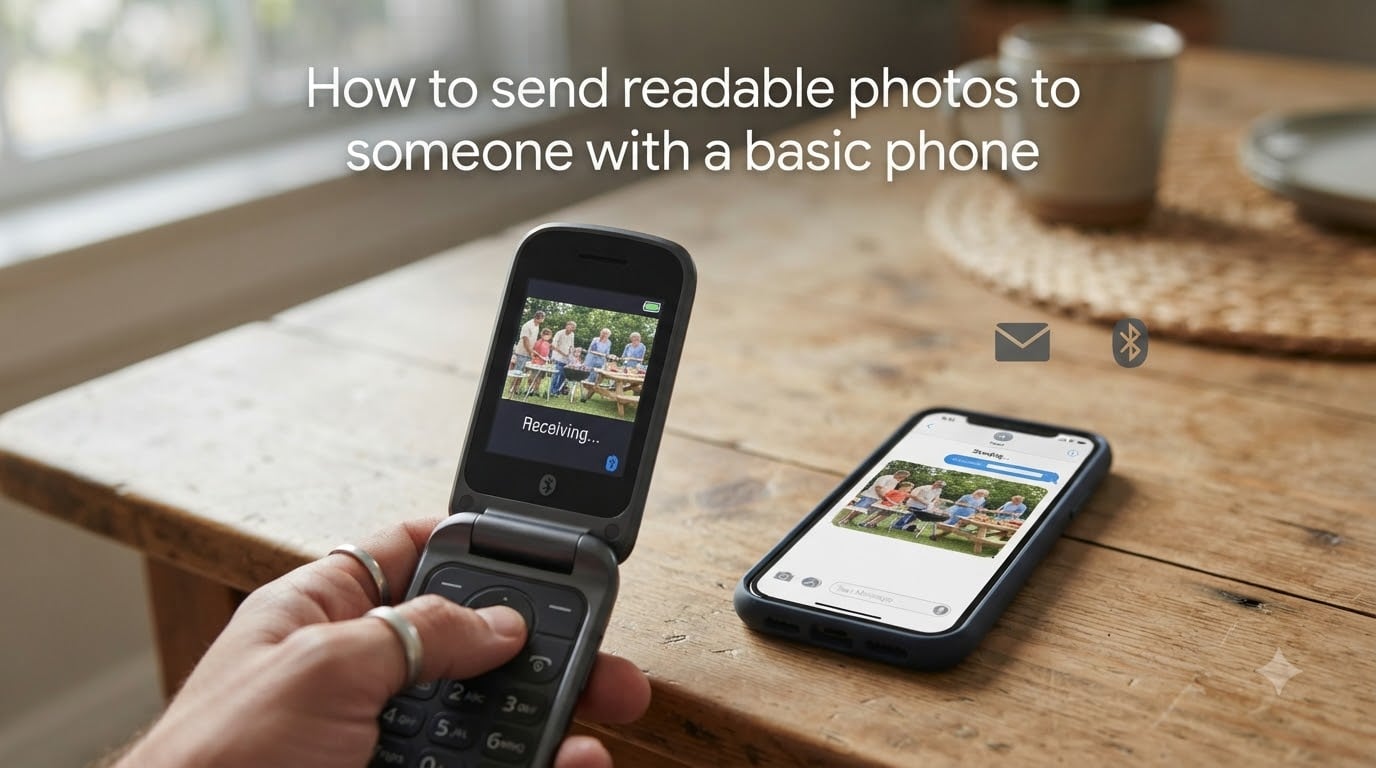
Sending a photo to a friend or family member with a basic phone can feel harder than it should. The photo on your screen looks sharp, but on their device it arrives blurry, cut off, or does not arrive at all. I have run into this with my own parents, who use a basic flip phone, and the fix is almost always about the sending method, not the phone itself.
This guide walks you through how to send readable photos to someone with a basic phone using four methods: MMS, email, Bluetooth, and Wi-Fi Direct. I will also cover how to prepare your image so it stays clear on a smaller screen, plus a quick comparison to help you pick the right method on the first try.
Table of Contents
Understanding SMS vs MMS on Basic Phones
Before you send anything, it helps to know the two messaging systems at play. Most “the photo won’t send” problems come from using the wrong one for the job.
What Is SMS and Why It Cannot Carry Photos
SMS (Short Message Service) is the original text protocol. It supports about 160 characters of plain text and nothing else. SMS cannot carry photos, videos, or audio. If your phone tries to send a picture over SMS, it either strips the image and sends a link, or fails outright.
What Is MMS and How It Carries Photos
MMS (Multimedia Messaging Service) is the extension that adds images, short videos, and group messages. Almost every basic phone sold in the last decade supports MMS on at least 2G or 3G networks. On 4G-only networks, some older basic phones need a small carrier setting or a SIM swap to keep MMS working.
Typical Carrier MMS Size Limits
Most carriers cap MMS somewhere between 300 KB and 1 MB. Once you go over that, the message either fails or your carrier compresses the image aggressively. That compression is the main reason photos arrive blurry on basic phones. Aim for under 500 KB per image and your recipient will see a much cleaner result.
Method 1: Send a Photo via MMS
MMS is the default method and the one most people try first. It works on iPhone, Android, and most basic phones without any extra setup.
How to Send an MMS from iPhone
- Open the Messages app and tap the existing conversation with your recipient, or start a new one.
- Tap the camera icon or the + button next to the text field.
- Select an image from your Photos library, or take a new one with the in-app camera.
- Tap the send arrow. If the bubble turns green, the message went as SMS or MMS. If it is blue, it went as iMessage and may not deliver to a basic phone.
How to Send an MMS from Android
- Open Messages and start or open a thread with your recipient.
- Tap the paperclip or attachment icon near the text field.
- Pick a photo from your gallery, or capture one with the camera.
- Send the message. If the thread has any group text features disabled, MMS handles the photo automatically.
What to Do If the MMS Fails to Deliver
If the photo never arrives, the most common causes are carrier MMS settings and group chat prefixes. Confirm “Group MMS” is enabled in your messaging settings so threads with multiple recipients still send. Also check that mobile data is on, because MMS uses data even on Wi-Fi. If a known contact suddenly stops receiving photos, restart both phones and re-check the message center number under your messaging settings.
Method 2: Email the Photo as an Attachment
Email is the most reliable fallback. If MMS keeps failing, or if the photo is too large for your carrier’s limit, email almost always works.
When Email Is the Better Choice
Email beats MMS when the photo is important, such as a document, a recipe card, or a photo of a piece you are buying. It also beats MMS when you want to send more than one image at a time, or when the recipient opens Mail more often than Messaging. The trade-off is that the recipient needs to know their phone’s email address, which is not always obvious.
How to Send a Photo via Email
- Open your Mail or Gmail app and tap compose.
- Enter the recipient’s phone email address in the To field.
- Tap the attachment icon (usually a paperclip) and choose the photo from your gallery.
- Send the message. The photo arrives as a downloadable attachment on the recipient’s basic phone.
Getting the Recipient’s Phone Email Address
Most carriers route email to a phone number using a domain. The common formats are [email protected]. For example, on Verizon it is [email protected], on AT&T it is [email protected], and on T-Mobile it is [email protected]. If you are unsure, ask the recipient to forward a test message from their phone to your email, or call their carrier to confirm.
Method 3: Transfer the Photo Over Bluetooth
Bluetooth is the only method that works without any cell service or Wi-Fi. It is great for in-person handoffs, especially when signal is weak or the recipient is on a pay-as-you-go plan with no data.
When Bluetooth Makes Sense
Use Bluetooth when you are sitting next to the person, when neither phone has a data connection, or when the recipient’s carrier does not support MMS on their plan. Bluetooth is slower than the other options, so it is best for one or two photos, not a full album.
Pairing and Sending Step-by-Step
- Turn on Bluetooth on both phones from the settings menu.
- On the sender’s phone, open Settings, then Bluetooth, and tap “Pair new device.”
- Select the recipient’s phone from the list of nearby devices. Confirm the pairing code on both screens.
- Open the photo, tap the share icon, and choose Bluetooth. Pick the paired phone.
- Accept the file on the recipient’s phone. The photo saves to their gallery or files folder.
Common Bluetooth Problems and Fixes
If the pairing fails, turn Bluetooth off and on again on both phones, and make sure both are visible to nearby devices. Older basic phones sometimes reject files larger than 1 MB, so resize first. If the recipient’s phone never appears in the list, check that it is not in airplane mode and that nothing is blocking the radio, such as a metal case.
Method 4: Use Wi-Fi Direct or Nearby Share
If only the sender has a smartphone, you can use Wi-Fi Direct or Nearby Share to push photos to a basic phone that supports it. This is faster than Bluetooth and works without a router.
What Wi-Fi Direct and Nearby Share Do
Wi-Fi Direct creates a private wireless link between two devices without needing a Wi-Fi network. Nearby Share, which is built into modern Android phones, uses a mix of Wi-Fi Direct and Bluetooth to send files quickly. Some newer basic phones advertise Wi-Fi Direct support, but most do not, so this method is really a backup for the rare basic phone that supports it.
How to Use Nearby Share with a Basic Phone
- On the Android sender, open the photo and tap the share icon.
- Pick Nearby Share. The phone scans for nearby devices.
- When the recipient’s basic phone appears, tap it. The recipient accepts on their screen.
- If the recipient’s phone does not show up, fall back to Bluetooth or email instead.
How to Prepare Photos So They Stay Readable
The “readable” part of the question is really about image preparation. Even a perfect delivery method produces a blurry result if the photo is too large or compressed badly.
Resize to Match the Recipient’s Screen
Most basic phones have screens between 1.8 and 2.8 inches. Anything larger than 1024×768 is wasted on those screens, and a 12 MP photo from a modern smartphone will be compressed into a smear. Resize to 640×480 or 800×600 before sending. The image fills the screen and looks sharper than an oversized original.
Compress Below the Carrier MMS Limit
Keep the file size under 500 KB for safe MMS delivery. Most photo apps have a “small” or “medium” export option that does this. If the file is still too large, use a free compressor app or send by email instead.
Use JPG and Keep Aspect Ratio Simple
Stick to JPG. Some basic phones handle PNG and HEIC poorly, and a few will reject files like HEIC outright. Square or 4:3 photos render best on small screens, since very wide or tall images get letterboxed at best and cropped at worst.
Quick Comparison: Which Method Should You Use?
This table gives you a fast answer. Pick the row that matches your situation.
| Method | Best For | Needs Data or Wi-Fi | Typical File Size Limit |
|---|---|---|---|
| MMS | Quick everyday photos | Yes, mobile data | 300 KB to 1 MB |
| Important photos and multiple images | Yes, data or Wi-Fi | Up to 25 MB (carrier may downsize) | |
| Bluetooth | No signal, in-person handoff | No | Around 1 MB on older basic phones |
| Wi-Fi Direct / Nearby Share | Fast local transfer to a supported phone | No router needed | Several MB, varies by device |
If you only remember one rule, remember this: resize the photo to 800×600, keep it under 500 KB, save it as JPG, and send it via MMS for the everyday case. That single habit solves most of the “blurry on their phone” complaints my readers describe.
Frequently Asked Questions
Can I send pictures to a feature phone?
Yes. Most feature phones support MMS, which carries photos over the carrier network. If MMS does not work, send the photo via email using the recipient’s phone email address, or transfer it over Bluetooth when you are nearby.
Why won’t my photo send to a basic phone?
The most common causes are mobile data being off, group MMS being disabled in your settings, the photo being larger than the carrier’s MMS limit, or an iMessage thread that fails to fall back to MMS. Turn on mobile data, enable group MMS, and resize the photo to under 500 KB to fix most cases.
Can I send pictures without data?
Yes. Bluetooth works without any cellular data or Wi-Fi. Pair the two phones, share the photo from the gallery, and accept the file on the recipient’s device. File size is usually capped around 1 MB on older basic phones.
Is it better to send pictures through text or email?
Text (MMS) is faster for quick, everyday photos and works on every basic phone. Email is better for important photos, larger images, or multiple pictures at once, since it is not bound by the strict 300 KB to 1 MB MMS limit.
How do I send a picture to someone else’s cell phone?
Open your messaging app, start a thread with the recipient, tap the attachment or camera icon, choose a photo, and send. If the recipient has a basic phone, make sure the message goes as MMS rather than iMessage, and keep the photo under 500 KB.
Final Thoughts
Sending readable photos to someone with a basic phone is mostly about the delivery method and the file size. Use MMS for everyday photos, email when reliability matters, and Bluetooth when there is no signal. Resize to 800×600, export as JPG, and keep the file under 500 KB, and the photo will arrive looking the way you intended.