
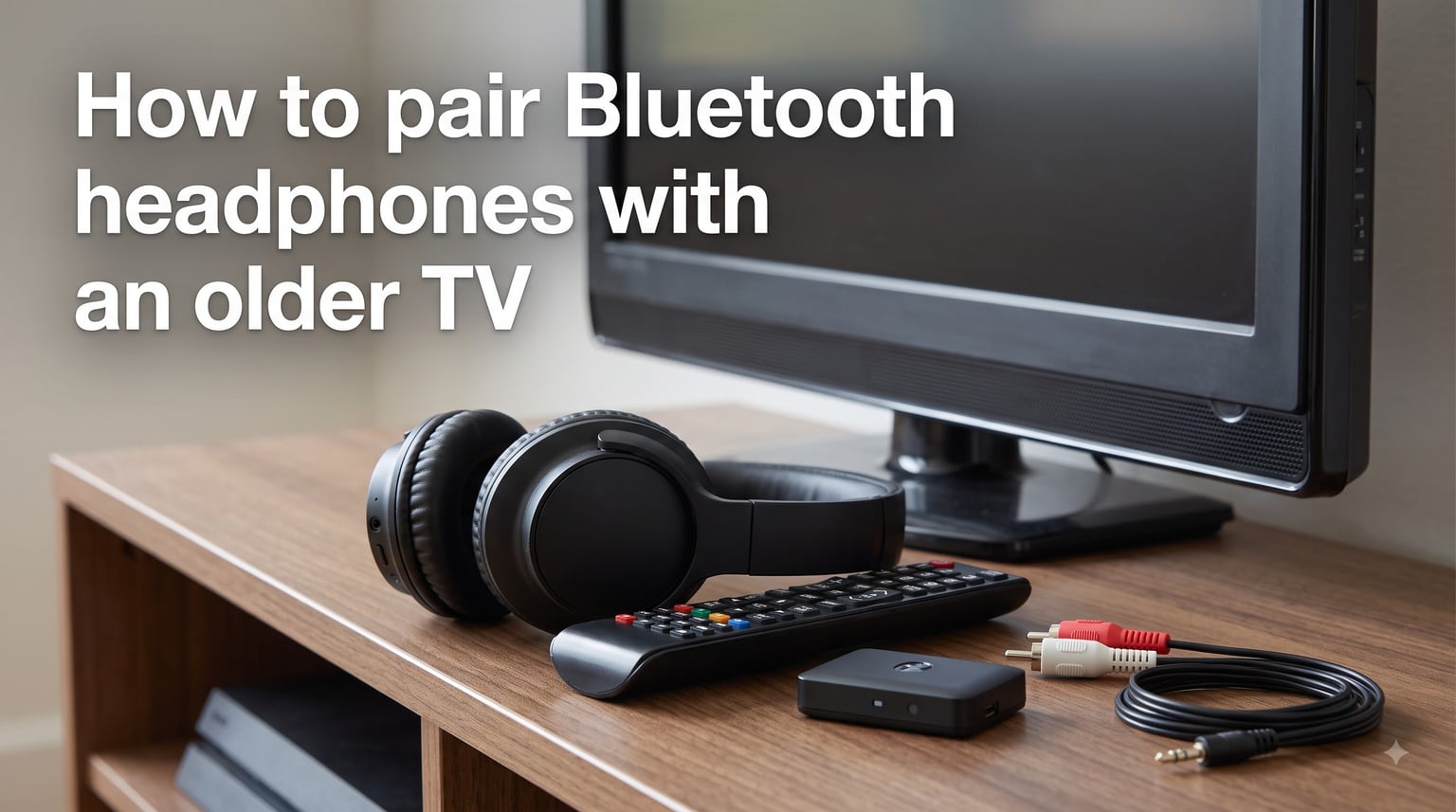
Yes, you can pair Bluetooth headphones with an older TV. The process takes about 10 minutes once you have the right setup, and there are two main paths depending on whether your TV has built-in Bluetooth or needs an external transmitter. I have helped friends, family members, and readers work through both scenarios, and the solution is simpler than most people expect.
Learning how to pair Bluetooth headphones with an older TV matters for a few practical reasons. Late-night viewing without waking the household is the number one use case I hear about. Others need private listening because they live in shared apartments, and many viewers with hearing impairments rely on wireless headphones to catch dialogue that TV speakers muddy.
If your older TV has built-in Bluetooth, you can pair headphones directly through the TV’s settings menu. If it does not, you will need a Bluetooth transmitter that plugs into the TV’s audio output port. That small device bridges the gap between your older TV and any wireless headphones you already own.
Table of Contents
Checking Your Older TV for Bluetooth Compatibility
Most older TVs do not have Bluetooth built in, but some models from around 2015 onward include it. The fastest way to check is to open your TV’s settings menu and look under Sound or Connectivity for any Bluetooth options. If you see a Bluetooth Speaker List or Device menu, your TV supports direct pairing.
Here is where it gets tricky. Some TVs have Bluetooth, but only for the remote control, not for audio. I have seen this confuse people on older Samsung and Vizio models. The remote pairs fine, but the TV refuses to send sound to headphones. If your settings menu only mentions a smart remote and shows nothing about audio devices or speakers, the Bluetooth is remote-only.
A quick compatibility checklist:
Open Settings, then Sound. Look for Bluetooth Speaker List or Sound Output options.
Check Settings, then General or Connection for a Bluetooth device menu.
Search your exact TV model number online plus “Bluetooth audio” to confirm.
If nothing shows up, plan on using a Bluetooth transmitter instead.
Do not waste time trying to force a pairing that your TV was never designed for. If the menu has no Bluetooth audio option, no amount of button pressing will create one. A transmitter is the reliable answer.
Understanding Your TV’s Audio Output Ports
Before you connect anything, you need to know which audio output ports your older TV has. This determines which transmitter or cable you buy and how clean your audio will sound. Most older TVs offer one or more of three common output types.
Optical (TOSLINK)
The optical output is a small, square port with a flap or door, usually labeled Digital Audio Out (Optical). It transmits audio as pulses of light through a fiber-optic cable, which means zero electrical interference and the cleanest digital signal you can get.
If your older TV has an optical output, use it. Pair it with a Bluetooth transmitter that supports optical input and aptX Low Latency. This combination gives you the best audio quality and the least delay.
3.5mm AUX (Headphone Jack)
The 3.5mm AUX port is the round headphone jack you probably recognize from phones and laptops. Many older and mid-range TVs still include one, usually labeled Headphone or Audio Out.
This is the easiest port to work with. Almost every Bluetooth transmitter accepts a 3.5mm cable. The downside is that AUX is an analog signal, so audio quality is slightly lower than optical. For most people watching regular TV, the difference is barely noticeable.
RCA (Red and White)
RCA outputs are the round red and white ports, often labeled Audio Out. These are common on older TVs and are purely analog, just like AUX. You will use a cable with two RCA plugs on the TV end and a 3.5mm jack on the transmitter end.
RCA works fine for Bluetooth transmitters, but it is the lowest-quality option of the three. Use it only if your TV lacks both optical and AUX outputs.
How to Pair Bluetooth Headphones With an Older TV: Step by Step
If your TV does have Bluetooth audio support, here is the step-by-step process to pair your headphones directly. This method works on many Samsung, LG, and Sony models from the mid-2010s onward.
Step 1: Open your TV’s sound settings. Grab your remote and navigate to Settings, then Sound (or Audio). Look for Sound Output and change it from TV Speaker to Bluetooth Speaker List or Bluetooth Headphones.
Step 2: Put your headphones in pairing mode. Every headphone model is different, but the process usually involves holding the power button or a dedicated pairing button for 5 to 10 seconds until an LED flashes rapidly. Check your headphone manual if you are unsure.
Step 3: Search and select on the TV. On the TV’s Bluetooth Speaker List screen, select the option to scan or search for devices. Your headphones should appear within a few seconds. Select them to start pairing.
Step 4: Confirm and adjust audio settings. Once connected, the TV may ask you to confirm the device type or adjust volume. Some TVs automatically mute their internal speakers when Bluetooth headphones connect. If not, you may need to lower the TV volume manually.
Step 5: Test the connection. Play something with clear dialogue. If the sound comes through your headphones and the delay is minimal, you are done. If you notice lip sync issues, jump to the audio delay section below.
Using a Bluetooth Transmitter for TVs Without Bluetooth
A Bluetooth transmitter is a small device that plugs into your TV’s audio output port and broadcasts the sound wirelessly to your headphones. It is the single best solution for older TVs, and I have set up dozens of these for people. The device typically costs between $25 and $60 and requires no technical skill to install.
Here is how to set up a Bluetooth transmitter on an older TV:
Step 1: Identify your TV’s audio output port (optical, AUX, or RCA) using the guide above.
Step 2: Plug the transmitter into that port using the matching cable. Most transmitters include all three cable types in the box.
Step 3: Power the transmitter. Some models draw power from the TV’s USB port. Others include a wall adapter or a built-in rechargeable battery.
Step 4: Put your Bluetooth headphones in pairing mode.
Step 5: Press the pairing button on the transmitter. Its LED will flash, indicating it is searching. Within a few seconds, the transmitter and headphones should connect automatically.
Step 6: Play audio from your TV. Sound should now route through the transmitter to your headphones. If you hear nothing, check that the TV’s audio output is set to External or the correct port.
When shopping for a transmitter, look for one that supports aptX Low Latency. This codec reduces audio delay to around 30 to 40 milliseconds, which is low enough that you will not notice lip sync problems. Standard Bluetooth codecs add 150 to 250 milliseconds of delay, which makes dialogue look noticeably out of sync.
If you want two people to listen at the same time, buy a transmitter with dual-link or dual-connection support. These models pair with two sets of headphones simultaneously, which is great for couples watching TV together late at night. Just make sure both headphones support aptX Low Latency, or one person may experience more delay than the other.
The Streaming Device Workaround
If your older TV lacks Bluetooth but you already use a streaming device, you may not need a transmitter at all. Several popular streaming devices include Bluetooth output built in, which means you can pair headphones directly with the streaming stick or box rather than the TV.
Amazon Fire TV devices support Bluetooth headphones natively. Go to Settings, then Controllers and Bluetooth Devices, then Other Bluetooth Devices. Put your headphones in pairing mode and select them. Fire TV also supports two pairs of headphones simultaneously on some models.
Apple TV connects to AirPods and other Bluetooth headphones effortlessly. Open Settings, then Remotes and Devices, then Bluetooth. Select your headphones when they appear. Apple TV auto-connects to AirPods if you are signed into the same Apple ID.
Chromecast with Google TV also supports Bluetooth headphones through Settings, then Remotes and Accessories, then Pair remote or accessory.
The limitation here is that Bluetooth audio only works for content played through the streaming device. If you watch live cable, use an antenna, or play from a DVD player connected to the TV, the streaming device cannot route that audio to your headphones. For those sources, you still need a Bluetooth transmitter connected directly to the TV.
Brand-Specific Pairing Guidance
Different TV brands bury Bluetooth settings in different menus. Here is where to find them on the most common brands.
Samsung TVs
On most Samsung TVs, press Menu or Home on the remote. Navigate to Settings, then Sound, then Sound Output. Select Bluetooth Speaker List. Put your headphones in pairing mode and select them from the list. Some Samsung models require you to enable Bluetooth first under Settings, then General, then External Device Manager.
LG TVs
For LG TVs with webOS, press the Settings button on the remote. Go to Sound, then Sound Out. Change the output to LG Sound Sync (Bluetooth) or Use Wireless Audio. Select Device Selection, put your headphones in pairing mode, and choose them from the list.
Sony TVs
Sony TVs running Android TV or Google TV make this straightforward. Press Home, go to Settings, then Remotes and Accessories, then Add Accessory. Put your headphones in pairing mode and select them. Sony models generally support Bluetooth audio well, even on some older sets.
Roku TVs
Roku TVs can be finicky with Bluetooth. Some models support it, while others only work with the Roku mobile app’s Private Listening feature, which sends audio to your phone and then to wired or Bluetooth headphones connected to the phone. If your Roku TV has no Bluetooth audio option in settings, use a transmitter or the Private Listening app workaround.
Fixing Audio Delay and Lip Sync Issues
Audio delay is the number one complaint I hear from people who set up Bluetooth headphones with a TV. The sound arrives a fraction of a second after the lips move on screen, and it is immediately distracting. Here is why it happens and how to fix it.
Bluetooth requires audio to be compressed, transmitted, decompressed, and played back. That processing pipeline adds latency. Standard SBC and AAC codecs add 150 to 250 milliseconds of delay, which is enough to create visible lip sync errors.
The fix is aptX Low Latency. This codec, supported by many modern transmitters and headphones, reduces delay to 30 to 40 milliseconds. At that level, the human brain cannot detect the difference between video and audio. Both your transmitter and your headphones must support aptX Low Latency for this to work. If either device only supports standard Bluetooth, you will still get delay.
Some TVs also have a built-in lip sync or audio delay adjustment in the sound settings menu. Look for an option labeled Audio Delay, Lip Sync, or Digital Audio Out Delay. You can manually nudge the timing to better match your headphones. This does not eliminate the Bluetooth delay, but it can reduce the mismatch enough to be tolerable.
One more tip: route all audio through the transmitter only. Do not try to split audio between TV speakers and Bluetooth headphones simultaneously. Some TVs force this when using their built-in Bluetooth, and it adds processing overhead that increases delay. A dedicated transmitter connected to the optical or AUX port bypasses this problem entirely.
Troubleshooting Common Pairing Problems
Even with the right setup, things can go wrong. Here are the most common issues and how I fix them.
Headphones do not appear in the TV’s Bluetooth list. Make sure the headphones are actually in pairing mode, not just turned on. The LED should be flashing rapidly, not holding steady. Move the headphones within three feet of the TV during pairing. Clear any old pairings from the headphones if they were previously connected to another device.
Sound still comes from the TV speakers. Go into the TV’s sound settings and change the output to External Speakers, Bluetooth, or Headphones. Some TVs default to their built-in speakers and need a manual switch. On TVs with a transmitter connected, you may need to set the output to the specific port the transmitter uses.
Connection drops intermittently. This is usually a range or interference issue. Keep the headphones within 30 feet of the TV with a clear line of sight. Move other Bluetooth devices away from the transmitter. If your transmitter uses a rechargeable battery, make sure it is fully charged, as low power can cause dropouts.
Audio quality is poor or static-filled. Check that the cable between the TV and transmitter is firmly seated on both ends. If using RCA outputs, try wiggling the connectors to confirm a clean contact. Interference from Wi-Fi routers and microwaves can also degrade Bluetooth audio, so position the transmitter away from those devices.
FAQs
Can I connect Bluetooth headphones to an old TV?
Yes. If your older TV has built-in Bluetooth audio support, you can pair headphones directly through the TV’s sound settings menu. If it does not, you can plug a Bluetooth transmitter into the TV’s optical, AUX, or RCA audio output port and pair your headphones with the transmitter instead.
How to connect Bluetooth headphones to non-smart TV?
Use a Bluetooth transmitter. Plug it into the TV’s audio output port (optical, AUX, or RCA), power it on, and pair your headphones with the transmitter. The transmitter reads the TV’s audio signal and broadcasts it wirelessly to your headphones.
How do I know if my TV is compatible with wireless headphones?
Open your TV’s settings menu and look under Sound or Connectivity for a Bluetooth Speaker List or Sound Output option. If you see Bluetooth audio settings, your TV supports direct wireless headphone pairing. If you only see Bluetooth for remote controls, you will need a transmitter.
Can I make an old TV Bluetooth compatible?
Yes. A Bluetooth transmitter adds Bluetooth audio capability to any TV with an audio output port. The device plugs into the optical, AUX, or RCA port and broadcasts sound to your wireless headphones. It is inexpensive and requires no technical installation.
Why is there audio delay with Bluetooth headphones on TV?
Bluetooth processing adds latency because audio must be compressed, transmitted, and decompressed before playback. Standard codecs add 150 to 250 milliseconds of delay. Using a transmitter and headphones that both support aptX Low Latency reduces this to 30 to 40 milliseconds, which eliminates noticeable lip sync problems.
Can I connect two Bluetooth headphones to my TV at the same time?
Yes, if you use a Bluetooth transmitter with dual-link support. These transmitters pair with two sets of headphones simultaneously. Both headphones should support aptX Low Latency for the best experience. Some Fire TV devices also support dual headphone connections natively.
Wrapping Up: Your Path to Wireless TV Audio
Learning how to pair Bluetooth headphones with an older TV comes down to one simple decision. If your TV has Bluetooth audio in its settings, pair directly through the sound menu. If it does not, buy a Bluetooth transmitter and plug it into whichever audio output port your TV offers.
The transmitter method works on virtually any TV made in the last 20 years, from non-smart CRT-era flat screens to older smart TVs that only support Bluetooth for remotes. Look for a transmitter with aptX Low Latency support to avoid the lip sync issues that frustrate first-time users. If you want to share the experience, grab a dual-link model so two people can listen at once.
Do not let an older TV keep you from enjoying private, wireless audio. The solution is affordable, takes minutes to set up, and works with the Bluetooth headphones you already own.