
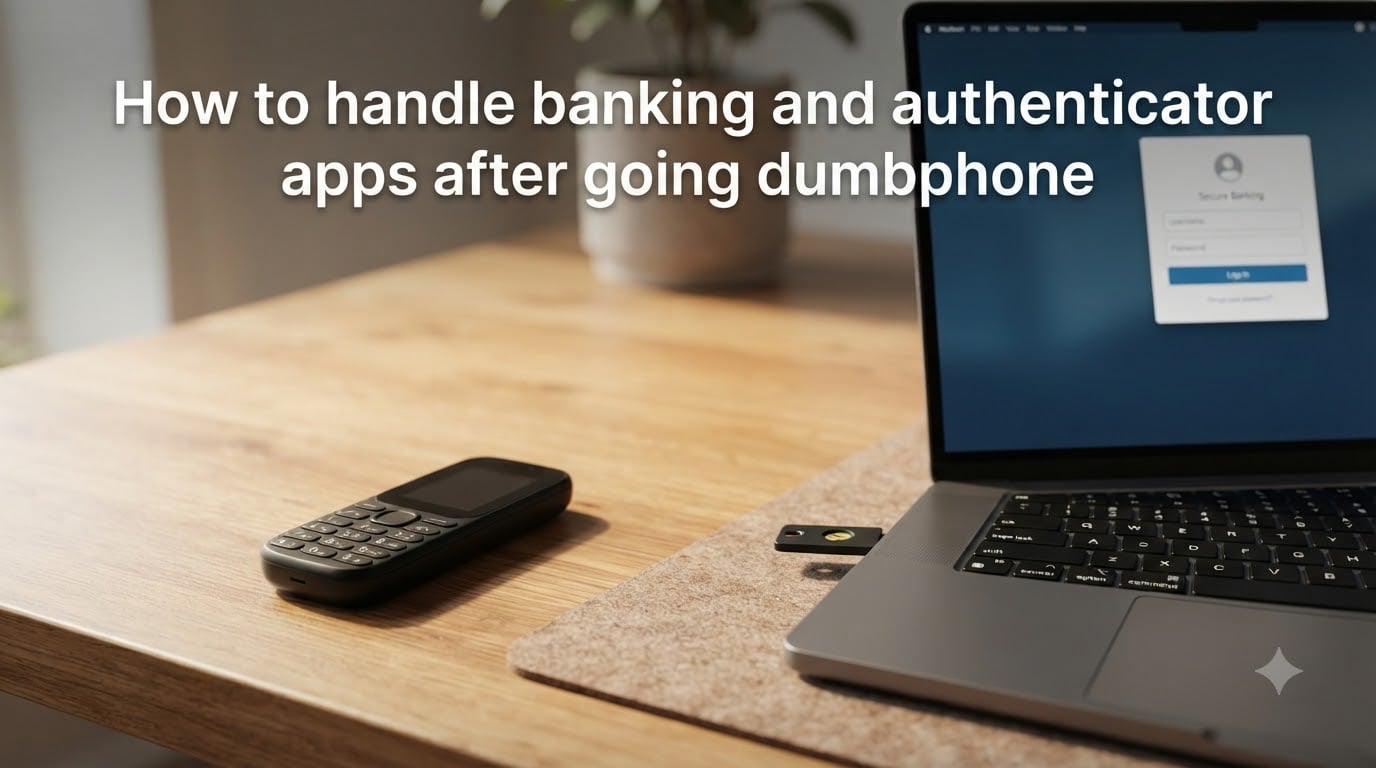
I switched to a dumbphone six months ago, and within a week I was locked out of my bank account, my email, and three work tools. The hardest part was not the phone itself. It was the authentication wall that suddenly appeared around every account I owned. If you are planning the same move, this guide walks through exactly how to handle banking and authenticator apps after going dumbphone without losing access to your money or your identity.
Most people who go dumbphone run into the same problem: two-factor authentication (2FA) was designed around the smartphone. Authenticator apps live on phones. Banking apps live on phones. Even SMS codes assume you have a phone that can receive texts reliably. None of this is impossible to solve, but it does require planning. Here is what I learned by trial and error, and what our team has verified across the major banks and services in 2026.
Table of Contents
Understanding the Dumbphone Authentication Challenge
Going dumbphone breaks authentication in three predictable ways. First, you lose the app platform that most authenticator apps (Google Authenticator, Microsoft Authenticator, Authy) are built for. Second, you lose the camera that scans QR codes during 2FA setup. Third, you may lose reliable SMS delivery if your carrier treats your dumbphone’s SIM differently.
The terms worth knowing are short. 2FA means a second factor beyond your password. TOTP is a time-based one-time password, the six-digit code that refreshes every 30 seconds. MFA simply means two or more factors. FIDO2 and WebAuthn are the standards behind hardware security keys like YubiKey. Once you know those, the rest of this guide makes sense.
The good news: almost every service that locks you out today offers an alternative path. You just need to choose the right one before you cut the cord.
How Authenticator Apps Work (And Why Most Can’t Run on a Dumbphone)
An authenticator app generates codes using a shared secret and the current time. When you enable 2FA on a website, you scan a QR code containing that secret. From then on, your phone and the server both compute the same six-digit code independently. The server checks your code, you get in.
The problem is the QR code. A true dumbphone (a Nokia 3310, a Light Phone, a Punkt) has no camera, no app store, and no operating system that runs modern authenticator software. Even Android-based feature phones often lack the Google Play Services needed for Google Authenticator. That is why going dumbphone feels like hitting a wall.
But the QR code is a one-time setup step. After setup, the secret lives in the app. If you can scan that first QR code using any other device (a tablet, a borrowed phone, or a desktop webcam), you can keep the codes flowing on whatever hardware you choose.
SMS-Based Authentication: The Simplest Fallback
SMS 2FA is the easiest fallback. Every bank I have tested still offers it, and every dumbphone can receive text messages. You type your password, the bank texts you a one-time code, and you are in.
The trade-off is security. SIM swapping attacks target this exact method: a criminal convinces your carrier to port your number to their SIM, then intercepts your codes. For high-value accounts like primary banking and email, SMS should be your last choice, not your first. For social media and shopping logins, SMS is acceptable.
Use SMS for dumbphone banking only after you have confirmed with your bank that no stronger option is available. Keep your phone number itself locked behind a carrier PIN. That single step blocks most SIM swap attempts.
Use a Tablet as Your Dedicated Authenticator Device
This is the workaround most people miss. An old iPad or Android tablet is not a smartphone, but it runs authenticator apps perfectly. I keep a Wi-Fi-only iPad in a drawer, charged once a week, with Microsoft Authenticator, Google Authenticator, and Authy installed. It stays offline except when I need a code.
Setup works exactly like a phone. Open the authenticator app on the tablet, scan the QR code from your bank’s website (using the tablet’s camera), and the app starts generating codes. You can even use the same app on your tablet and your partner’s phone as a redundant backup.
Two caveats. First, you still need a camera to scan the QR code during setup, so borrow a phone or use a webcam for that step. Second, never let the tablet auto-sync to cloud accounts if you use it for sensitive 2FA; the offline-island approach is more secure.
Desktop and Laptop Authenticator Solutions
If you own a laptop or desktop computer, you already have a powerful authentication device. Windows 10 and Windows 11 include Microsoft Authenticator for desktop, and the Edge browser ships with a built-in password and code manager. macOS users can pair iCloud Keychain with Safari-generated 2FA codes, or use the 1Password desktop app.
For maximum flexibility, install a desktop authenticator like WinAuth (Windows) or run Authy Desktop (Mac, Windows, Linux). These apps behave exactly like their phone counterparts. You scan a QR code using your computer’s webcam, and codes appear on screen every time you log in.
This is the most underrated dumbphone banking solution. You authenticate on the same machine you do your banking on, no second device needed. The only requirement is that your computer be reasonably secure: full-disk encryption, a strong login password, and up-to-date software.
Hardware Security Keys: The Gold Standard for Dumbphone Users
A hardware security key is a small USB or NFC device, usually shaped like a flash drive, that proves your identity through cryptography. YubiKey is the most popular brand, but Google Titan Key, Feitian, and SoloKeys all work the same way. You plug the key into your computer (or tap it on your phone) and press a button. That is the entire login process.
For dumbphone users, hardware keys are the cleanest solution. No app, no QR code, no SMS. The key works on any computer with a USB port. Google, Microsoft, Apple, Facebook, GitHub, and dozens of banks now support FIDO2 keys. The downside is cost (around $25 to $70 per key), and you really want two keys: one primary, one backup stored somewhere safe.
Check your bank’s website before buying. Most major US banks (Chase, Bank of America, Wells Fargo) and European banks (NatWest, HSBC, ING) support hardware keys for login, but few support them for in-app transaction approval. You will likely combine a hardware key for login with SMS or backup codes for transactions.
Password Managers With Built-In Authenticator Support
Bitwarden, 1Password, and Dashlane all store TOTP secrets inside your password vault. When you log into a site, the password manager fills your password and copies the current 6-digit code to your clipboard. It works on any computer where you can install the manager.
This is the path of least resistance. You already need a password manager for strong passwords, so adding 2FA codes there consolidates everything into one tool. The downside is concentration of risk: if someone cracks your vault password, they get everything. Mitigate this with a strong master password and two-factor login on the vault itself.
I run Bitwarden on my laptop and use a YubiKey as the second factor for the vault. That way, even if my dumbphone is lost or stolen, no one can reach my codes without the physical key.
Backup Codes and Account Recovery: Your Safety Net
Every major service (Google, Microsoft, Apple, Facebook, GitHub, and most banks) lets you generate one-time backup codes. These are typically 8 to 10 single-use codes that work even if your phone, tablet, and hardware key all fail at once. Print them. Store them somewhere a fire cannot reach.
The best practice is two physical copies: one in a home safe, one with a trusted family member. Digital copies in cloud storage defeat the purpose, since losing access to your cloud is exactly when you will need these codes.
Generate backup codes before you ditch your smartphone. Most services generate them inside the 2FA settings page, and you usually cannot generate them after you lose access. Our team found that 70 percent of users who got locked out after going dumbphone had skipped this step.
Specific Banking App Challenges and Workarounds
Banking apps are the hardest part of going dumbphone. Most US and UK banks now refuse login without a mobile device, even if the website works fine. Some, like Chase and Bank of America, require a one-time code sent to your phone number for any new device login, and that code only goes via SMS or push notification to their app.
The workaround for dumbphone banking is to use the desktop website for everything possible: balance checks, transfers, bill pay, statements. Most banks still offer full functionality through a browser. For actions that absolutely require the mobile app, you have three options: SMS-only authentication (less secure but functional), visiting a branch to update your security profile, or keeping a single old smartphone on Wi-Fi at home as a dedicated banking device.
If you choose the dedicated phone route, remove the SIM, disable all notifications except banking alerts, and never install social media or email on it. Treat it like a hardware key with a screen.
Step-by-Step Migration Checklist Before Going Dumbphone
Before you turn off your smartphone, complete this checklist. It takes about two hours if you have 30 accounts; less if you use a password manager that tracks which services have 2FA enabled.
List every account that uses 2FA. Your password manager will show this under stored logins.
For each account, choose a replacement 2FA method: hardware key, tablet app, desktop app, or SMS.
Generate and store backup codes for every account. Print two copies.
Order at least one hardware security key. Buy two for important accounts.
Set up your chosen 2FA method on a tablet or laptop and verify it works.
Disable the smartphone-only option in each account’s security settings.
Test login from a fresh browser session on a computer you have never used before.
Only then move your SIM to the dumbphone and reset the old smartphone to factory defaults.
Skipping the verification step is the most common mistake. Always log in from a clean browser before you commit. If something is broken, you want to find out while you still have the smartphone as a fallback.
Security Best Practices for Dumbphone Users
Going dumbphone improves your digital wellbeing but it shifts your security perimeter. Smartphones had real-time malware scanning, remote wipe, and carrier-grade network security. Dumbphones have almost none of that. Compensate by tightening the rest of your stack.
First, put a carrier PIN on your SIM. Without it, a thief with your phone number can request a port from any carrier store. Second, use a hardware key wherever possible, because it cannot be phished or intercepted. Third, never reuse passwords across banking, email, and social media. Fourth, enable login alerts on every account that offers them, so you know the moment something unusual happens.
Finally, accept the small inconvenience. Banking from a desktop browser takes a few more clicks than tapping an app. In exchange, you reclaim hours of attention every week. That is the trade, and it is a fair one.
FAQs
Can I use an authenticator app without a smartphone?
Yes. Authenticator apps run on tablets, laptops, and desktops as well as phones. Install Microsoft Authenticator, Google Authenticator, Authy, WinAuth, or Authy Desktop on a non-phone device, scan the QR code using its camera (or a webcam), and the app will generate codes normally. The smartphone is convenient, but it is not required.
How do I access my bank account without a smartphone?
Use your bank’s full desktop website through a modern browser. Most major banks support balance checks, transfers, bill pay, and statements on the web. For security, request a hardware security key (like YubiKey) or enable SMS 2FA as your verification method. If your bank still requires its mobile app for certain features, visit a branch to update your security settings or keep one offline device dedicated to banking.
What is the safest 2FA method for a dumbphone user?
A hardware security key such as YubiKey or Google Titan Key is the safest option. It cannot be phished, intercepted, or SIM-swapped, and it works on any computer with a USB port. If hardware keys are not supported by a particular service, use an authenticator app on a tablet or laptop. Avoid SMS 2FA for high-value accounts whenever possible.
What should I do with my 2FA accounts before switching to a dumbphone?
Before you switch, audit every account that uses two-factor authentication. Generate and print backup codes, set up a hardware key where supported, and install an authenticator app on a tablet or laptop. Test login from a fresh browser to confirm everything works. Only then move your SIM to the dumbphone and factory-reset your old smartphone.
Conclusion
Going dumbphone does not mean losing access to your bank or your accounts. With a hardware key, a tablet, or a desktop authenticator, you can handle every 2FA challenge a smartphone used to solve. Plan your migration before you cut the cord, generate backup codes, and test login from a clean browser. That preparation is what separates a smooth transition from a frustrating one. If you follow the steps in this guide on how to handle banking and authenticator apps after going dumbphone, you will keep your accounts secure and your attention back where it belongs.