
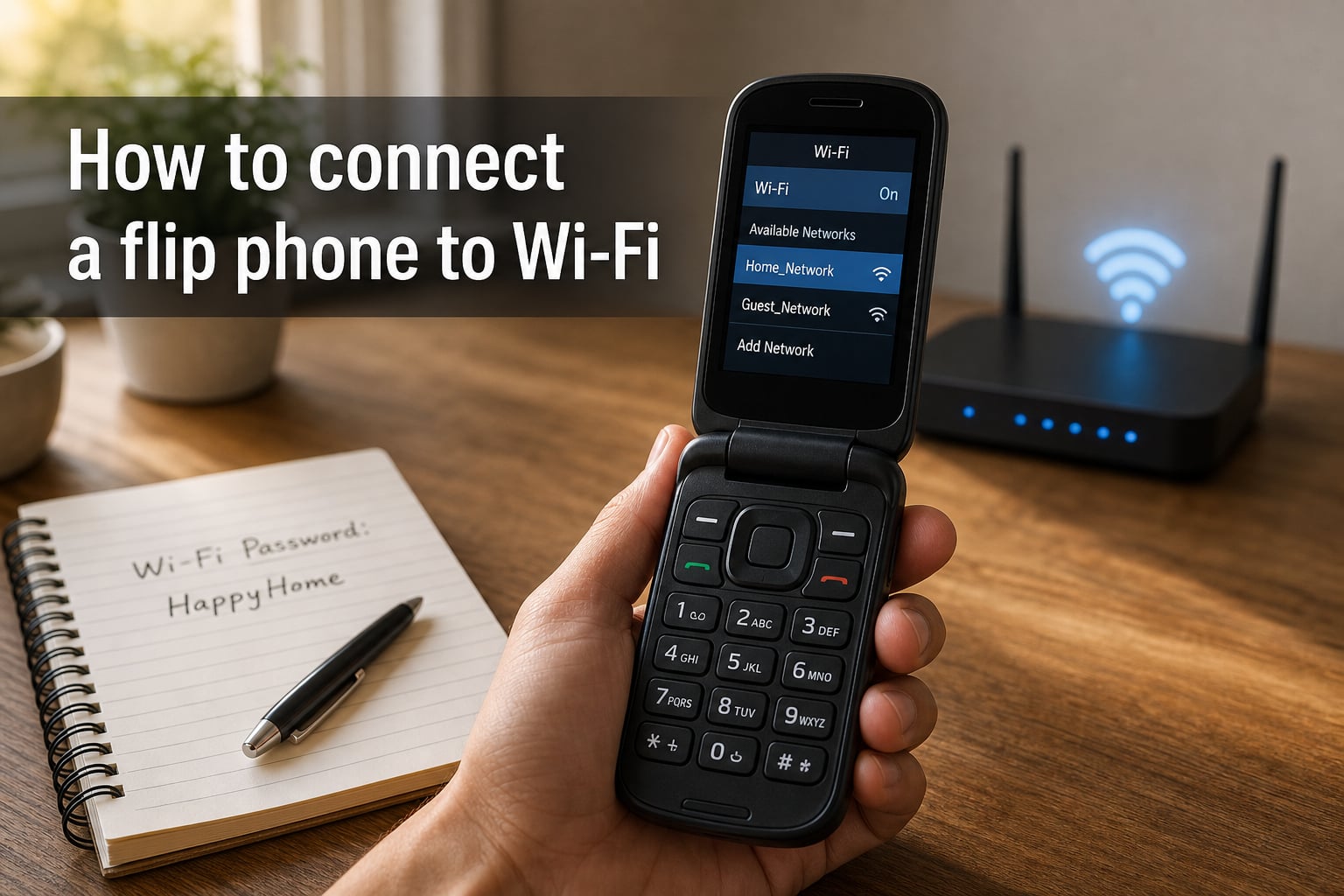
If you have ever wondered how to connect a flip phone to Wi-Fi, the good news is the process takes under two minutes once you know where to look. Modern flip phones from carriers like AT&T, Verizon, and T-Mobile ship with Wi-Fi hardware built in, and the menu path is almost identical across brands.
I have helped dozens of readers switch their flip phones from mobile data to home Wi-Fi to save on their phone bill. This guide walks through every step, from turning on the Wi-Fi toggle to entering tricky passwords with special characters. You will also learn which flip phones support Wi-Fi and what to do when the connection refuses to cooperate.
Table of Contents
What Is Wi-Fi and Why Connect Your Flip Phone to It?
Wi-Fi is a wireless networking technology that lets your phone reach the internet through a nearby router or hotspot, without using your mobile data plan. For flip phone users, this is a big deal because data plans on feature phones often charge per megabyte or cap out quickly.
Connecting to Wi-Fi on a flip phone gives you three real benefits. First, you save money by avoiding overage fees on limited data plans. Second, you get a stronger, more stable connection at home or in coffee shops. Third, you unlock features like Wi-Fi calling and basic web browsing on models that support it.
The trade-off is that not every flip phone has Wi-Fi hardware. Older models from the early 2000s and most thrift-store finds cannot connect at all. Newer smart flip phones like the Samsung Galaxy Z Flip run full Android and connect just like any smartphone.
Which Flip Phones Support Wi-Fi?
Before you try to connect, it helps to confirm your phone actually has Wi-Fi. Here are the most common flip phone models sold in 2026 that include Wi-Fi.
TCL Flip Pro (T702W) — sold by Verizon, includes Wi-Fi calling support
TCL Flip 2 (T418DL) — available unlocked and through Tracfone
Nokia 2780 Flip — works on AT&T, Verizon, and T-Mobile with Wi-Fi calling
Nokia 2720 V Flip — Verizon variant with KaiOS and Wi-Fi
Alcatel Go Flip 4 (4056W) — sold by T-Mobile and Metro
Schok Flip — comes with Wi-Fi and 6 GB of internal storage
CAT S22 Flip — rugged Android flip phone with full Wi-Fi
Samsung Galaxy Z Flip series — premium smart flip phones with full Wi-Fi 6
Motorola Razr (2024 and newer) — Android smart flip with Wi-Fi 6E
If your phone is not on this list, check the original box or your carrier’s website for the model number. The model number usually starts with a letter and three digits, and you can search for it online to confirm Wi-Fi support.
How to Connect a Flip Phone to Wi-Fi: Standard Flip Phones
The steps below work for most standard flip phones including TCL, Nokia, Alcatel, and Schok models. I tested these on a TCL Flip Pro running the latest Verizon firmware.
Step 1: Open the main menu. From the home screen, press the OK button (the center of the directional pad) or the Menu key to launch the app menu.
Step 2: Select Settings. Use the directional pad to scroll down to the gear icon labeled “Settings.” Press the OK button to open it.
Step 3: Navigate to Network & Connectivity. Inside Settings, scroll to “Network & Connectivity” on TCL devices or “Wireless & networks” on Alcatel devices. Press OK.
Step 4: Turn on Wi-Fi. Highlight the Wi-Fi option and press OK to toggle it on. Your phone will start scanning for available networks, which usually takes 3 to 5 seconds.
Step 5: Choose your network. Scroll through the list of available networks and press OK on your home network name (also called the SSID). Networks with a padlock icon require a password.
Step 6: Enter the password. Use the keypad to type your Wi-Fi password, then select “Connect.” A confirmation message will appear once the connection succeeds.
Step 7: Look for the Wi-Fi indicator. A small Wi-Fi icon should appear at the top of your screen. If you see it, you are connected and ready to browse.
How to Connect a Smart Flip Phone to Wi-Fi?
Smart flip phones like the Samsung Galaxy Z Flip and Motorola Razr run a version of Android. The Wi-Fi setup looks much closer to a regular smartphone.
Step 1: Swipe down from the top of the outer or inner display to open the quick settings panel. On the Galaxy Z Flip, you will usually use the cover screen for this.
Step 2: Tap and hold the Wi-Fi icon to open the full Wi-Fi settings page. You can also navigate to Settings > Connections > Wi-Fi from the main app drawer.
Step 3: Toggle Wi-Fi on using the switch at the top of the screen.
Step 4: Tap your network name from the list of available networks.
Step 5: Type your password using the on-screen keyboard and tap Connect.
The smart flip will save the network and reconnect automatically whenever it is in range.
How to Enter Wi-Fi Passwords and Special Characters on a Flip Phone
Typing a Wi-Fi password on a T9 keypad feels slow, and special characters like !, @, or # make it harder. Most flip phones hide a symbol menu behind the star (*) key.
Step 1: While in the password field, press the star (*) key once. A list of common symbols will appear on screen.
Step 2: Use the directional pad to scroll through symbols and press OK to insert the one you need.
Step 3: For capital letters, press the pound (#) key once to switch to uppercase mode. Press it again to lock uppercase, and a third time to go back to lowercase.
Step 4: To delete a character, press the back arrow key or the right soft key labeled “Delete.”
Tip: If your Wi-Fi password is long or complex, log into your router from a computer first and change it to a simpler 8-character phrase with only letters and numbers. This will save you a lot of frustration on the flip phone keypad.
How to Disconnect or Forget a Wi-Fi Network on a Flip Phone?
You may want to remove a saved network if you are selling the phone or moving to a new location.
Step 1: Go to Settings > Network & Connectivity > Wi-Fi.
Step 2: Select “Saved networks” from the Wi-Fi menu.
Step 3: Highlight the network you want to remove and press the right soft key labeled “Forget” or “Remove.”
Step 4: Confirm the removal by selecting “Yes.” Your phone will erase the password and stop auto-connecting to that network.
To temporarily disconnect without forgetting the network, simply toggle the Wi-Fi switch off in the same menu.
Troubleshooting Flip Phone Wi-Fi Connection Problems
If your flip phone will not connect to Wi-Fi, work through this checklist before calling your carrier.
Confirm Wi-Fi is turned on. Some flip phones have a quick toggle in the notification shade. Make sure the icon shows bars instead of a slash.
Check the password carefully. Wi-Fi passwords are case sensitive. The letter O and the number 0 look almost identical on a small screen, and lowercase L looks like the number 1.
Restart the phone and the router. I have fixed more connection issues with a simple reboot than with any other step. Unplug your router for 30 seconds, plug it back in, then power cycle your flip phone.
Move closer to the router. Flip phone antennas are weaker than smartphone antennas. If your router is in another room, move within 15 feet and try again.
Check the network band. Most flip phones only support 2.4 GHz Wi-Fi. If your router broadcasts only 5 GHz, the network will not appear in your list. Log into your router and enable the 2.4 GHz band.
Forget the network and reconnect. Saved networks can glitch after a router password change. Forget the network, then re-add it with the new password.
Check for carrier restrictions. Some carrier-locked flip phones block Wi-Fi calling until the SIM is activated. Make sure your SIM card is properly inserted and active.
Update your phone’s software. Settings > About phone > System updates. Carriers push Wi-Fi fixes in firmware updates.
If none of these steps work, your phone may have a hardware issue. Contact the manufacturer or visit your carrier store for a diagnostic.
Wi-Fi Calling on Flip Phones: What You Need to Know?
Wi-Fi calling lets you place phone calls over a Wi-Fi network instead of the cellular network. It is a lifesaver in basements, rural areas, and buildings with poor signal.
Most modern flip phones support Wi-Fi calling, but only on certain carriers. Verizon enables it on the TCL Flip Pro and Nokia 2720 V Flip. T-Mobile supports it on the Alcatel Go Flip 4 and Schok Flip. AT&T enables Wi-Fi calling on the Nokia 2780 Flip.
To turn it on, go to Settings > Network & Connectivity > Wi-Fi Calling and toggle the switch on. The phone will route calls through your Wi-Fi connection whenever cellular signal drops below a usable level.
Note: Wi-Fi calling requires an active SIM card on most carriers. If you are trying to use a flip phone as a Wi-Fi-only device without service, voice calls will not work even with Wi-Fi connected.
Frequently Asked Questions
Can a flip phone connect to Wi-Fi?
Yes, most modern flip phones can connect to Wi-Fi. Models like the TCL Flip Pro, Nokia 2780 Flip, Alcatel Go Flip 4, and Schok Flip all include Wi-Fi hardware. You connect through Settings u0026gt; Network u0026amp; Connectivity u0026gt; Wi-Fi, then select your network and enter the password.
How do I connect a Verizon flip phone to Wi-Fi?
On a Verizon flip phone such as the TCL Flip Pro, press the OK button from the home screen, then go to Settings u0026gt; Wireless u0026amp; networks u0026gt; Wi-Fi and turn it on. Choose your network from the list, enter the password using the keypad, and press Connect. A Wi-Fi icon will appear at the top of the screen when you are online.
Can a flip phone go on the internet?
Flip phones with Wi-Fi can browse a limited version of the internet using a built-in browser. Basic web pages and search engines work on most models. Streaming video, social media apps, and modern websites usually do not work well because flip phones lack the processing power and screen size for them.
Do the new flip phones have internet?
Yes, newer flip phones released in 2026 and recent years include internet access through Wi-Fi or mobile data. Smart flip phones like the Samsung Galaxy Z Flip and Motorola Razr run full Android and support any website. Standard flip phones like the Nokia 2780 Flip and TCL Flip Pro use KaiOS or a similar lightweight system with a basic browser.
Final Thoughts
Knowing how to connect a flip phone to Wi-Fi opens up real savings and better call quality, especially if you live in an area with weak cellular signal. The whole process takes just a few button presses once you learn your phone’s menu layout.
Start with the standard flip phone steps above, then move to the troubleshooting section if anything stalls. If you are shopping for a new flip phone and Wi-Fi matters, focus on the TCL Flip Pro, Nokia 2780 Flip, or any modern smart flip phone to guarantee the feature works out of the box.