
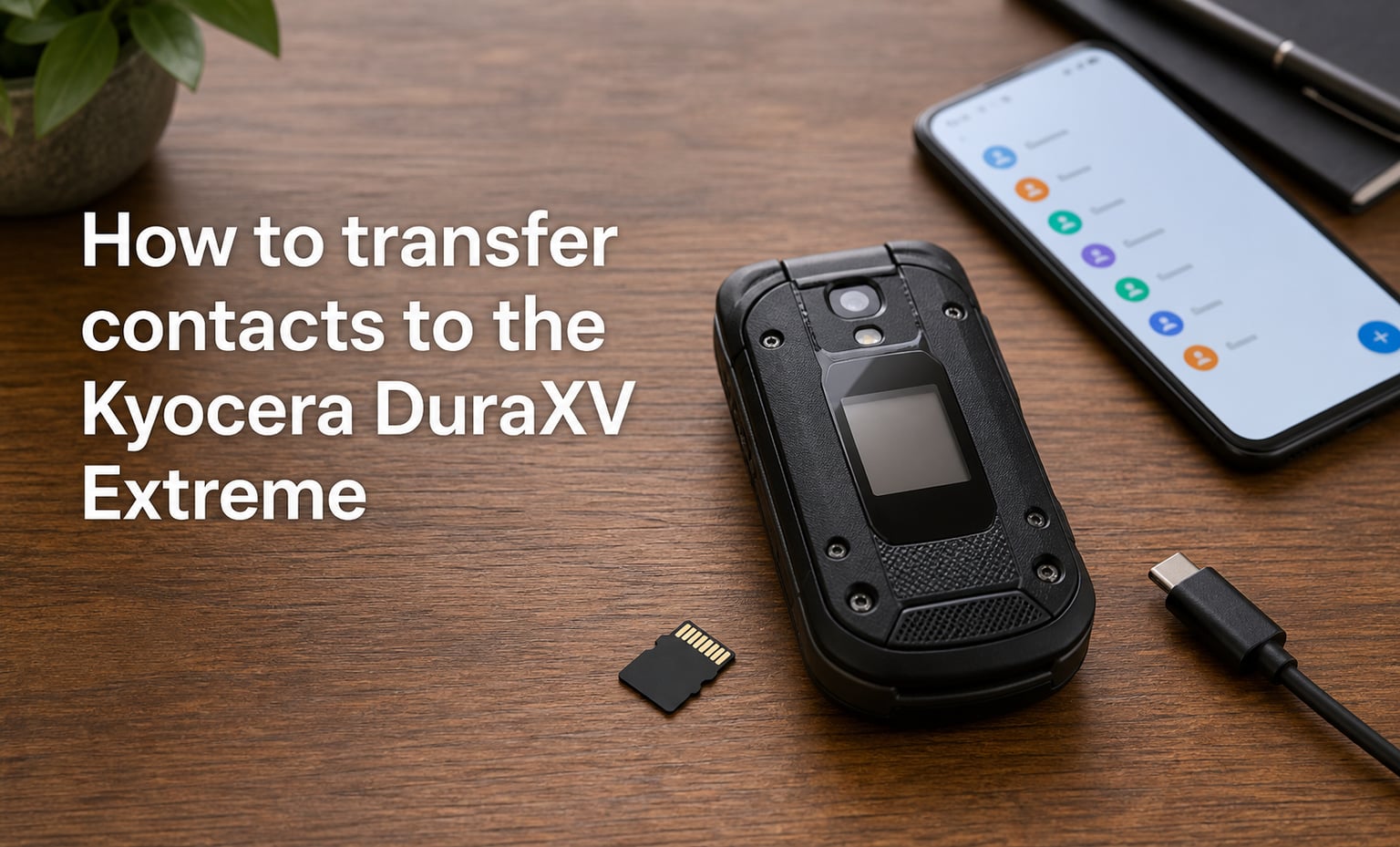
I switched to the Kyocera DuraXV Extreme last year when I wanted a break from my smartphone, and the first question I had was the same one I see asked over and over in the r/dumbphones community: how do I actually move my contacts over?
This guide covers every reliable method to transfer contacts to the Kyocera DuraXV Extreme. I tested each approach on my own device and cross-referenced the steps with the official Verizon user guide. Whether you are coming from an iPhone, an Android, or another flip phone, you will find a working path below.
Table of Contents
What You Need Before Transferring Contacts?
A quick prep step saves a lot of frustration later. Before you transfer contacts to the Kyocera DuraXV Extreme, gather a few basics.
A charged DuraXV Extreme with at least 30% battery. A dead battery mid-transfer can corrupt the contact file.
Your old phone powered on and unlocked.
A nano SIM card adapter if your old phone uses a micro or standard SIM.
A microSD card (optional, but helpful for the vcf method).
A USB-C cable that came with the DuraXV Extreme.
A computer running Windows, macOS, or ChromeOS for the file-based method.
If you have all of the above, you are ready to choose a transfer method.
Method 1: Transfer Contacts via Bluetooth
Bluetooth is the simplest wireless method and works between almost any two phones. The Kyocera DuraXV Extreme supports contact transfer over Bluetooth, and most modern devices can send a contact card or even an entire address book.
Here is how to transfer contacts from another phone to your DuraXV Extreme using Bluetooth.
Turn on Bluetooth on both phones. On the DuraXV Extreme, press the left soft key to open the menu, then go to Settings > Connectivity > Bluetooth. Toggle it on.
Make the DuraXV Extreme discoverable. In the same Bluetooth menu, choose “Add new device” so your old phone can find it.
Pair the two phones. On your old phone, open Bluetooth settings and select the DuraXV Extreme from the list of available devices. Confirm the pairing code on both screens.
Open your old phone’s contacts app. Pick a single contact or select multiple contacts (most apps let you long-press to select).
Choose Share or Send. Tap the share icon and select Bluetooth as the delivery method.
Accept the transfer on the DuraXV Extreme. A prompt will appear asking you to accept the incoming contact. Press Yes.
Repeat for additional contacts or look for a “Send all contacts” option in your old phone’s contacts app.
This method works best for one or two contacts at a time. If you have hundreds of contacts, jump to Method 3.
Method 2: Transfer Contacts via SIM Card
If your old phone already stores contacts on its SIM card, you can move them over by simply swapping the SIM into the DuraXV Extreme. Verizon SIMs work in this device out of the box.
Follow these steps to import contacts from a SIM card to the Kyocera DuraXV Extreme.
Power off both phones. Always power down before swapping SIM cards.
Remove the SIM from your old phone and place it in the DuraXV Extreme’s SIM tray (located under the battery).
Insert the battery and power on the DuraXV Extreme. Wait for the network signal to register.
Open the Contacts app by pressing the right soft key from the home screen.
Press the left soft key for Options and choose Import/Export.
Select “Import from SIM card” and confirm. The phone will copy every saved contact into its internal address book.
Wait for the confirmation message before removing the SIM if you want to keep the original SIM data intact.
This method is fast, but it has limits. SIM cards typically store only a name and a single phone number per contact. Email addresses, addresses, and notes will not transfer.
Method 3: Transfer Contacts Using a vcf File
The vcf (vCard) file method is the most thorough way to transfer contacts to the Kyocera DuraXV Extreme. A vcf file preserves names, multiple phone numbers, emails, and notes. This is the approach I recommend for anyone moving a large contact list.
The process has two parts: export from the old phone, then import on the DuraXV Extreme.
Part A: Export Contacts from Your Old Phone
From an iPhone:
Open the Contacts app or Settings > Contacts.
Scroll down and tap “Export Contacts” or use the “Share Contact” option.
Save the file as a .vcf attachment to your Files app, iCloud Drive, or email it to yourself.
From an Android phone:
Open the Contacts app.
Tap the three-dot menu and choose “Export” or “Manage contacts.”
Select Export to .vcf file and save it to your Downloads folder or microSD card.
From another flip phone: Use the phone’s Import/Export menu to save contacts to a microSD card as a .vcf file.
Part B: Get the vcf File onto the DuraXV Extreme
Pick whichever option fits your setup.
Option 1: microSD card (easiest)
Save the .vcf file to a microSD card using your computer or old phone.
Power off the DuraXV Extreme and insert the microSD card into the slot under the battery.
Power the phone back on.
Option 2: USB cable from a computer
Connect the DuraXV Extreme to your computer with the USB-C cable.
Set the phone to “File transfer” mode when prompted.
Drag the .vcf file into the phone’s internal storage or microSD card folder.
Eject safely and disconnect.
Option 3: Email
Email the .vcf file as an attachment to an address you can check on the DuraXV Extreme, or forward it from your computer.
Open the attachment on the phone and save it to internal storage.
Part C: Import the vcf File on the DuraXV Extreme
Open the Contacts app from the home screen.
Press the left soft key for Options and choose Import/Export.
Select “Import from microSD card” or “Import from Phone storage” depending on where you saved the file.
Browse to the .vcf file and press the center key to import.
Wait for the progress bar to finish. The phone will create new entries for every contact in the file.
If the import seems to stall or shows zero contacts, check the troubleshooting section below.
Method Comparison: Which Way Is Fastest?
Not sure which method fits your situation? Here is a quick breakdown.
Bluetooth takes about 1 to 2 minutes per contact. Best for 1 to 20 contacts and quick moves between two devices.
SIM card takes about 5 minutes total. Best when contacts are already stored on the SIM and you only need name and number.
vcf file takes about 10 to 15 minutes including export and import. Best for large lists of 50 or more contacts, or when you need to preserve emails and notes.
For most people switching from a smartphone, the vcf file method is the fastest overall and the most complete.
Troubleshooting Common Transfer Problems
Even with the right steps, things can go sideways. Here are the issues I see reported most often, and how to fix them.
iOS strips vcf attachments. iPhones sometimes remove .vcf attachments sent through Messages or Mail. Workaround: save the vcf file to Files or iCloud Drive, then transfer it to your computer before moving it to the DuraXV Extreme.
Bluetooth pairing fails. Toggle Bluetooth off and back on for both phones, move them within three feet of each other, and make sure the DuraXV Extreme is not already paired with another device.
SIM import shows zero contacts. Your old SIM may store contacts in a format the DuraXV Extreme does not read. Try the vcf method instead.
vcf import is blank. Confirm the file extension is exactly .vcf and not .vcard.txt. Open it on a computer to verify the file size is greater than 1 KB.
Duplicate contacts after import. The DuraXV Extreme does not auto-merge duplicates. Open Contacts, press Options, and use “Delete” to remove the extras manually.
Phone says memory full. Delete unused contacts or messages before importing. The DuraXV Extreme supports up to about 1000 contacts.
Reverse Transfer: Kyocera DuraXV Extreme to Another Phone
Sometimes you need to move contacts the other direction, like when backing up before switching back to a smartphone. The DuraXV Extreme supports this through the same Import/Export menu.
To export contacts from the Kyocera DuraXV Extreme to another phone, open Contacts, press Options, choose Import/Export, then select “Export to microSD card.”
Pick vcf format and save the file. Move the microSD card to the new device or copy the file over USB. The receiving phone can then import the same vcf file using its own contacts app.
This is also a smart way to back up your address book before a factory reset.
Frequently Asked Questions
Is there a way to transfer contacts from flip phone to flip phone?
Yes. The fastest way to transfer contacts from flip phone to flip phone is Bluetooth pairing. Enable Bluetooth on both devices, pair them, then share each contact from the old phone’s address book. For larger lists, export to a vcf file on a microSD card and import it on the new flip phone.
How do I transfer my entire contact list?
Export your contacts to a vcf file from your old phone, save it to a microSD card or your computer, then import the file on the Kyocera DuraXV Extreme through Contacts u0026gt; Options u0026gt; Import/Export. This preserves names, multiple numbers, emails, and notes.
What are the common problems with Kyocera flip phones?
Users most often report Bluetooth pairing failures, vcf attachments being stripped when sent from iPhones, SIM import showing zero contacts, and duplicate entries after a vcf import. Most of these issues have workarounds covered in the troubleshooting section above.
Can you transfer contacts from a Kyocera flip phone to an iPhone?
Yes. Export contacts from the DuraXV Extreme to a vcf file on a microSD card, then import that file on the iPhone through the Contacts app or by emailing the file as an attachment and opening it on the iPhone.
Final Thoughts
The best way to transfer contacts to the Kyocera DuraXV Extreme depends on how many contacts you have and what device you are coming from. For one or two contacts, Bluetooth is fine. For a full smartphone switch, the vcf file method is faster, more reliable, and keeps every detail intact.
If you hit a snag, work through the troubleshooting section first. Most contact transfer issues come down to a stripped attachment or a misnamed file, both of which take a minute to fix once you know where to look.
Once your contacts are loaded, take five minutes to export a fresh vcf backup to a microSD card. That single file is the easiest insurance against losing your address book the next time you swap phones.