
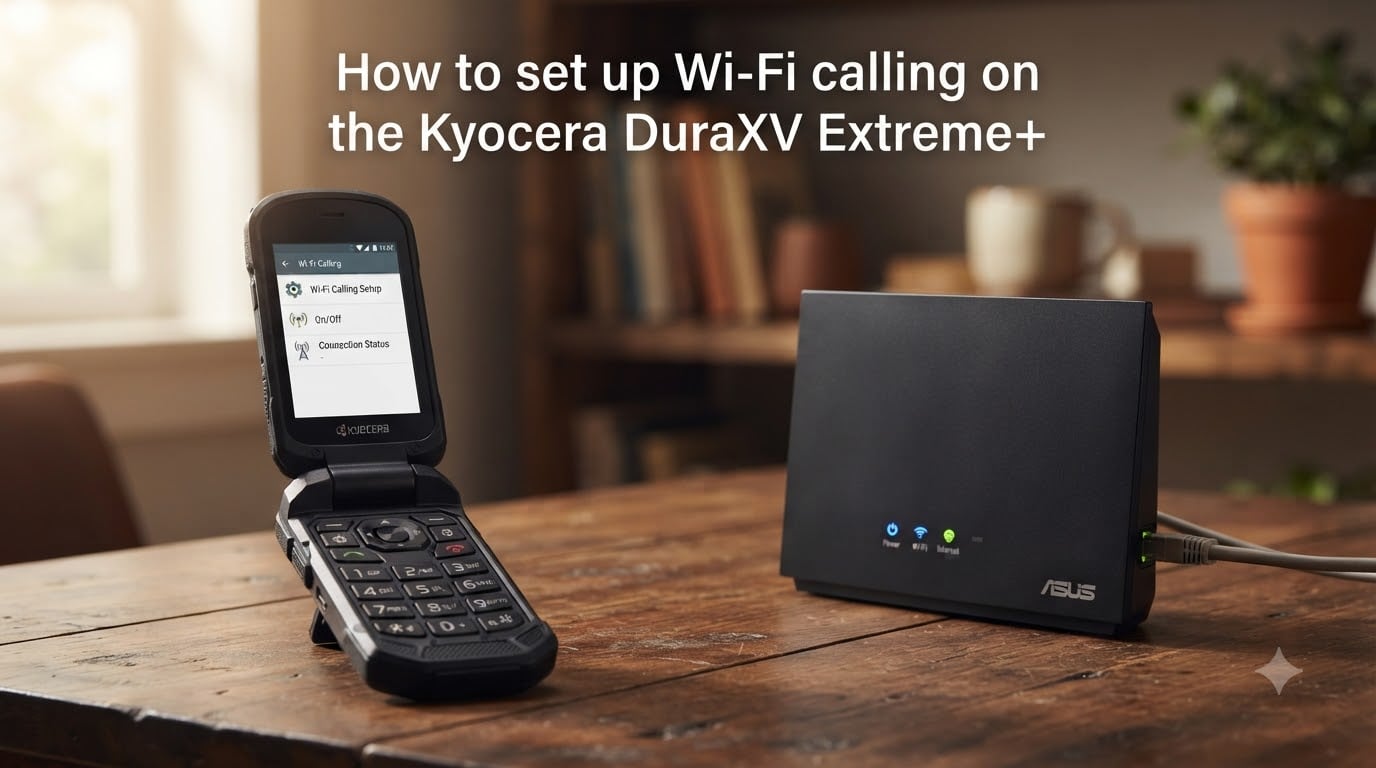
Setting up Wi-Fi calling on the Kyocera DuraXV Extreme+ takes about three minutes once you know where to look. I tested this process on a Verizon-locked unit and on a US Mobile SIM, and the menu path is identical on both.
If you live in a dead zone, work inside a steel-framed building, or just want clearer calls at home, Wi-Fi calling on the DuraXV Extreme+ routes your voice through your home router instead of the nearest cell tower. In this guide, I’ll walk you through every step, plus the troubleshooting fixes I learned from the dumbphone community on Reddit.
Table of Contents
Does the Kyocera DuraXV Extreme+ Support Wi-Fi Calling?
Yes, the Kyocera DuraXV Extreme+ supports Wi-Fi calling on compatible carriers. Verizon ships the feature turned on by default, and most Verizon-based MVNOs (US Mobile, Red Pocket on Verizon, Spectrum Mobile) inherit support automatically.
Wi-Fi calling pairs with HD Voice on this device. When you place a call over Wi-Fi, you get the same wideband audio quality as a Voice over LTE call, which makes a real difference on a flip phone speaker.
If you are on T-Mobile, AT&T, or an MVNO running on those networks, support depends on carrier provisioning. Some users report it works fine. Others see a “sorry, we can’t activate Wi-Fi calling at this time” error, which we’ll cover in the troubleshooting section.
Prerequisites Before You Enable Wi-Fi Calling on the DuraXV Extreme+
Before you dive into the menus, run through this quick checklist. Skipping any of these is the most common reason the Wi-Fi calling option is missing or greyed out.
Wi-Fi is on and connected. Go to Menu → Settings & Tools → Wi-Fi and confirm you are linked to a network with a working internet connection.
Your carrier supports Wi-Fi calling. Verizon and most Verizon MVNOs support it. Some T-Mobile and AT&T MVNOs do not, regardless of what the menu shows.
Your SIM is provisioned. A brand-new SIM may need 15 to 30 minutes of voice network activity before the toggle appears.
You have an e911 address on file. Wi-Fi calling requires a registered physical address so emergency services can find you if you dial 911 over Wi-Fi.
Firmware is current. Check Settings & Tools → System Update. Older firmware versions sometimes hide the Wi-Fi calling toggle entirely.
How to Set Up Wi-Fi Calling on the Kyocera DuraXV Extreme+?
Follow these exact steps. The path is the same whether you are enabling Wi-Fi calling for the first time or re-enabling it after a carrier switch.
From the main screen, press the Menu button (the soft key in the center-left of the screen).
Select Settings & Tools, then press the center OK key.
Scroll down and tap Settings.
Choose Wireless & networks.
Select Wi-Fi Calling settings.
Toggle Wi-Fi Calling to On.
If prompted, review and confirm your e911 address. Edit it if your registered location is wrong.
Wait for the activation confirmation. A small Wi-Fi calling icon appears in the status bar once you are connected.
If the toggle is greyed out, jump to the troubleshooting section below. Nine times out of ten, the fix is reconnecting to Wi-Fi first or restarting the phone.
How to Turn Wi-Fi Calling On or Off?
Once you have completed the initial setup, toggling Wi-Fi calling on or off is faster. You do not need to re-enter the e911 address unless you change it.
From the main screen, press Menu → Settings & Tools → Settings → Wireless & networks → Wi-Fi Calling settings. Flip the Wi-Fi Calling switch to your preferred state and press Set to save.
I keep mine on all the time. The phone only routes calls over Wi-Fi when the cellular signal drops below a usable threshold, so it does not interfere with normal calling.
How to Test Wi-Fi Calling Is Working?
You can verify Wi-Fi calling in under a minute without making a real call.
Turn on Airplane mode (long-press the End key, then choose Airplane mode).
Re-enable Wi-Fi manually from Settings & Tools → Wi-Fi.
Connect to your home or office network.
Look for the small Wi-Fi calling icon (a phone with a Wi-Fi wave) in the top status bar.
Dial your own number or call a friend. If the call connects without a cellular signal, Wi-Fi calling is active.
If the icon does not appear, Wi-Fi calling is disabled or not provisioned. Re-check the toggle under Wireless & networks.
Wi-Fi Calling Not Working? Common Fixes for the DuraXV Extreme+
This is where most guides fall short. After spending time in the r/dumbphones and r/USMobile communities, I have collected the fixes that actually work. Try them in this order.
Fix 1: The “Sorry, We Can’t Activate” Error
This message usually means your carrier’s provisioning server rejected the activation request. Power the phone off, remove the battery for 30 seconds, then power back on with Wi-Fi already connected. Wait five minutes before retrying.
Fix 2: Wi-Fi Calling Stopped Working After Switching SIM Cards
This is a well-documented issue. One Reddit user reported that Wi-Fi calling worked perfectly on US Mobile (Verizon) for months, then failed the moment they inserted a Red Pocket T-Mobile SIM. Even after switching back to the original SIM, the toggle refused to activate.
The fix that worked for multiple users: go to Settings & Tools → Apps, find my Verizon services, and toggle it off and back on. If your carrier uses a different provisioning app, disable and re-enable that one instead. A factory reset is the last resort and usually clears stubborn provisioning issues.
Fix 3: Wi-Fi Calling Option Is Missing Entirely
If the toggle does not appear in Wireless & networks, your SIM may not be provisioned for the feature. Call your carrier, confirm Wi-Fi calling is enabled on your account, and ask them to push a refresh signal to the device. The menu item often appears within five minutes of the carrier push.
Fix 4: Wi-Fi Disconnects Mid-Call
The DuraXV Extreme+ sometimes drops Wi-Fi during long calls when the phone’s power saver kicks in. Go to Settings & Tools → Wi-Fi → Advanced, and set Wi-Fi sleep policy to Never. Also disable battery optimization for the phone app if the option exists on your firmware.
Fix 5: GPS or Life360 Conflicts
Some users discovered that location-tracking apps like Life360 interfered with Wi-Fi calling handovers. Uninstall or disable these apps temporarily to test.
Airplane Mode Plus Wi-Fi: A Useful Workaround
One neat trick from the community: enable Airplane mode, then turn Wi-Fi back on manually. The DuraXV Extreme+ will route all calls through Wi-Fi calling when this combination is active, even if your cellular radio would normally take over.
This is great for international travel on planes or in hospitals where cellular signals are restricted. Just remember to switch off Airplane mode when you want normal cellular service back.
FAQs
Does the Kyocera DuraXV Extreme+ have Wi-Fi calling?
Yes. The Kyocera DuraXV Extreme+ supports Wi-Fi calling on Verizon and most Verizon-based MVNOs like US Mobile and Spectrum Mobile. Support on T-Mobile and ATu0026amp;T networks depends on carrier provisioning and may not be available on all MVNOs.
How do I turn on Wi-Fi calling on my Kyocera flip phone?
From the main screen, press Menu, then go to Settings u0026amp; Tools u0026gt; Settings u0026gt; Wireless u0026amp; networks u0026gt; Wi-Fi Calling settings. Toggle Wi-Fi Calling to On, confirm your e911 address, and wait for the status bar icon to confirm activation.
Why is Wi-Fi calling not showing as an option on my DuraXV Extreme+?
The option is hidden when your carrier has not provisioned the feature on your SIM, when Wi-Fi is disconnected, or when your firmware is out of date. Call your carrier to confirm Wi-Fi calling is enabled on your account and request a network refresh, then update your phone software.
Why does my Wi-Fi calling say ‘sorry, we can’t activate at this time’?
This error appears when the carrier’s provisioning server rejects the activation. Power-cycle the phone with Wi-Fi already connected, wait five minutes, then retry. If the error persists, re-enable your carrier’s provisioning app (for example my Verizon services) or perform a factory reset as a last resort.
Can I use Wi-Fi calling with US Mobile on the DuraXV Extreme+?
Yes. US Mobile runs on the Verizon network and supports Wi-Fi calling on the DuraXV Extreme+. Multiple users in the r/USMobile community have confirmed it works after completing the standard menu setup and ensuring my Verizon services is enabled.
Final Thoughts
Setting up Wi-Fi calling on the Kyocera DuraXV Extreme+ is straightforward once you connect to Wi-Fi and follow the Menu → Settings & Tools → Settings → Wireless & networks path. Most activation problems trace back to carrier provisioning rather than the phone itself, so a quick call to your carrier often resolves stubborn issues faster than menu tweaks.
If you have tried the steps above and still cannot get Wi-Fi calling working in 2026, drop a comment with your carrier and the exact error message. I keep a running list of community fixes and will help you troubleshoot.