
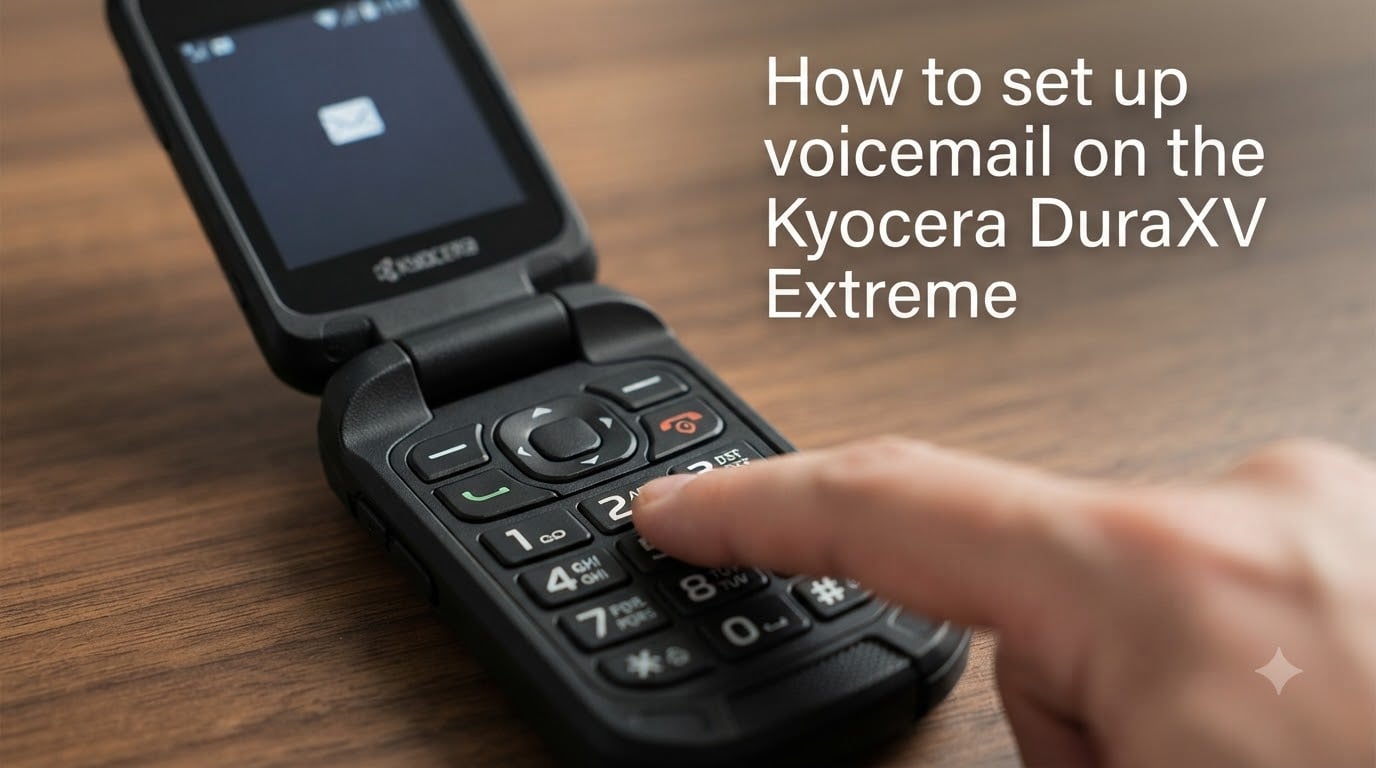
If you are holding a Kyocera DuraXV Extreme and staring at the idle screen trying to figure out voicemail, you are in the right place. Learning how to set up voicemail on the Kyocera DuraXV Extreme comes down to one simple action: from the main screen, press and hold the 1 key, then follow the automated prompts to create a password and record your greeting. I have used flip phones like this one for years, and the setup is surprisingly quick once you know the right path. This guide walks through both the key-press shortcut and the menu navigation method, plus troubleshooting for the issues I see most often.
Table of Contents
How to Set Up Voicemail on the Kyocera DuraXV Extreme: Step-by-Step
The fastest way to start your voicemail setup is the 1 key method. This works the same way on most flip phones, including this rugged Kyocera model.
Step 1. From the idle screen, locate the number 1 key on the keypad.
Step 2. Press and hold the 1 key for about two seconds. This dials your voicemail service automatically.
Step 3. Listen carefully to the automated prompts. On a brand-new phone, the system walks you through the initial setup the first time you connect.
Step 4. Create a voicemail password. Enter a 4-to-7 digit code (or whatever your carrier requires) using the number pad, then press the pound (#) key to confirm. Repeat it when asked.
Step 5. Record your name when prompted. Speak clearly and press # when finished.
Step 6. Record your voicemail greeting. The system gives you the option to use a default greeting or record a personal one. Choose the personal option, speak your message, and press # to save.
Step 7. Confirm the recording by listening to the playback. Accept it or re-record as needed.
That completes your voicemail setup. From now on, any call you miss will route to this voicemail box.
Set Up Voicemail Using the Menu Navigation Method
Prefer to navigate through menus instead of using the speed-dial key? You can reach the same voicemail configuration through the Settings menu. This is helpful if the 1 key does not connect for some reason or if you need to verify your voicemail number.
Step 1. From the idle screen, press the Center soft key (the middle button above the keypad) to open Menu.
Step 2. Select Settings & Tools.
Step 3. Select Settings.
Step 4. Select Call settings.
Step 5. Select Voicemail.
Step 6. Select Voicemail number to view or edit the number your phone dials for voicemail. For Verizon users, this is typically your own 10-digit mobile number. If it is blank or incorrect, enter your mobile number and save.
Once the voicemail number is set correctly, return to the idle screen and press and hold the 1 key. The phone will now dial the right number and connect you to the automated setup system.
How to Check Voicemail on the Kyocera DuraXV Extreme?
After setup, checking messages is even simpler. You have two options every time you want to listen to voicemail.
Quick method: From the idle screen, press and hold the 1 key. Enter your password when prompted, then follow the menu to listen to new or saved messages.
Menu method: Press the Center soft key for Menu, then go to Settings & Tools > Settings > Call settings > Voicemail. From there, select the option to call voicemail.
When you have a new voicemail, a notification icon appears at the top of your screen. On the DuraXV Extreme, this is usually a small cassette or envelope-style indicator depending on your software version.
How to Change Your Voicemail Greeting or Password?
Want to update your greeting or reset a forgotten password? Both tasks happen through the voicemail service’s personal options menu.
To change your greeting: Press and hold the 1 key, enter your password, then listen for the main menu. Select the option for greetings (usually option 3 or the prompt that says “personal options”). Choose record a new greeting, speak your message after the tone, and press # to save.
To change your password: From the same voicemail main menu, select personal options, then choose the password or security option. Enter your current password if asked, then type and confirm your new one.
If you forgot your password: You cannot reset it from inside the voicemail system without knowing the old one. Instead, call Verizon customer service at *611 from your DuraXV Extreme or log in to your Verizon account online to reset the voicemail password from there.
Kyocera DuraXV Extreme Voicemail Troubleshooting
Voicemail setup on a flip phone does not always go smoothly. These are the most common issues I have seen and how to fix them.
Voicemail not connecting when I hold the 1 key. This usually means the voicemail number is missing or wrong. Go to Menu > Settings & Tools > Settings > Call settings > Voicemail > Voicemail number and confirm it shows your own 10-digit mobile number. Save and try again.
No voicemail notification icon appearing. This is a frequent complaint on Reddit from DuraXV Extreme owners. Restart your phone first. If the icon still does not show after a known missed call, dial your voicemail manually to check for messages. The notification may be delayed rather than missing entirely.
The system says my voicemail is not set up. If you get this message after completing setup, the provisioning on Verizon’s side may not have synced. Wait 15 minutes and try again, or contact Verizon to confirm voicemail is active on your line.
Callers hear a generic greeting instead of mine. Your recorded greeting may not have saved. Call voicemail, navigate to greetings, and re-record it. Make sure you press # and then confirm acceptance.
Voicemail still not working after everything above. Call Verizon at *611 or 1-800-922-0204. They can reset voicemail provisioning on their end, which resolves most stubborn setup failures on the DuraXV Extreme.
FAQs
How to set up voicemail on the Kyocera DuraXV Extreme?
From the idle screen, press and hold the 1 key to call your voicemail service. Follow the automated prompts to create a password, record your name, and record your personal greeting. The entire process takes about three minutes.
How to activate voicemail on a flip phone?
On most flip phones including the Kyocera DuraXV Extreme, press and hold the 1 key from the main screen. This speed-dials your voicemail service. On the first call, the automated system activates your mailbox and walks you through setting a password and greeting.
How to listen to voicemail on a Kyocera flip phone?
Press and hold the 1 key from the idle screen, enter your password when prompted, then select the option to listen to new or saved messages. You can also access voicemail through Menu u0026gt; Settings u0026amp; Tools u0026gt; Settings u0026gt; Call settings u0026gt; Voicemail.
How do I change my voicemail on a Kyocera?
Press and hold the 1 key, enter your password, then select personal options from the main menu. Choose the greeting option to record a new message, or the password option to change your security code. Press # to save your changes.
Setting up voicemail on the Kyocera DuraXV Extreme is straightforward once you know the shortcut: press and hold the 1 key and follow the prompts. If that path hits a wall, the menu route through Settings & Tools lets you verify your voicemail number. And if Verizon’s provisioning is the holdup, a quick call to *611 gets it sorted. Take three minutes now to get it done so you never miss a message.