
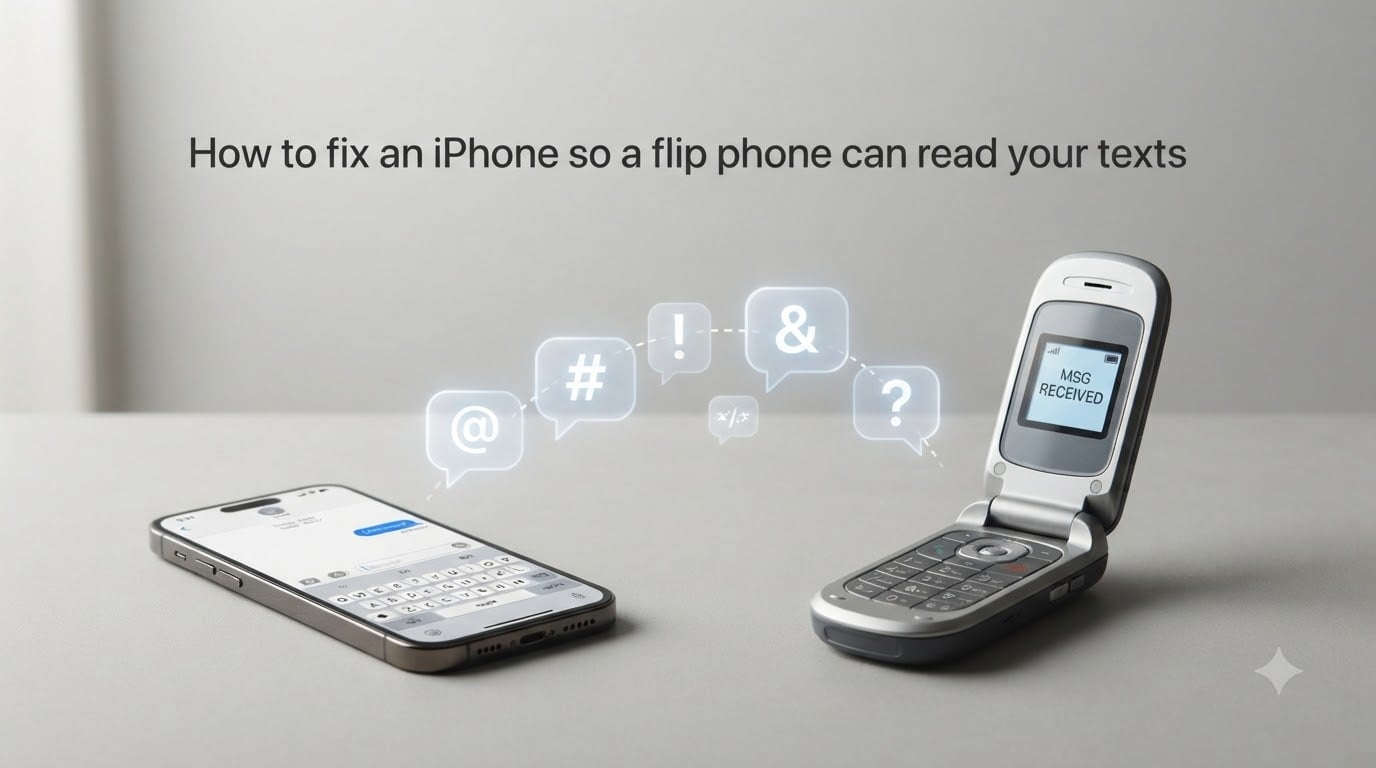
I spent last weekend helping my aunt fix the exact problem so many families hit every year. She upgraded to a basic flip phone for simplicity, and her three kids kept texting her from their iPhones. The result was a wall of garbled symbols, missing words, and empty bubbles on her screen.
If you are wondering how to fix an iPhone so a flip phone can read your texts, the short answer is to disable iMessage, force the iPhone to send plain SMS, and strip emoji and special characters from your outgoing messages. Most people solve it in under five minutes once they know where to look. In this guide I will walk you through the exact settings, the technical reason behind the problem, and a complete test plan so you can verify the fix on your own.
Table of Contents
Why iPhone Texts Show Up Wrong on Flip Phones?
The reason flip phones show strange characters or empty messages from iPhone users comes down to one thing: iMessage. When you send a text from an iPhone, the phone first tries Apple’s iMessage network. If the recipient is on another iPhone, your message travels as a blue bubble over data. If the recipient is on a flip phone, iMessage bails out and falls back to standard SMS or MMS, which shows as a green bubble.
That sounds fine in theory, but the iPhone only knows how to “downgrade” to basic SMS after it has already packaged the message. Group conversations, emoji-filled replies, and rich attachments get converted to MMS instead of plain SMS. Most flip phones from the last decade can receive SMS and a stripped-down version of MMS, but they choke on the format quirks of iMessage-originated messages.
I learned this the hard way when my aunt’s flip phone showed an entire message as nothing but question marks. The iPhone had sent a heart emoji, the flip phone received the Unicode version, and the flip phone’s tiny character set had no idea what to render.
The Three Failure Modes
When iPhone-to-flip phone texting breaks, it usually breaks in one of three ways. First, the message arrives as a wall of symbols or empty boxes because of Unicode encoding. Second, the message arrives empty because the MMS payload was too large or wrong format. Third, the message never arrives at all because iMessage registration is still tied to the phone number.
All three share a common root cause: the iPhone is treating the conversation as something smarter than a simple text. Your job is to convince the iPhone to keep things simple.
The Emoji and Unicode Problem Explained
Every emoji you send from an iPhone is encoded as a Unicode character, a kind of standardized numeric code that tells computers how to display a symbol. The Unicode standard has grown over the years and now supports more than 3,000 emoji, including skin tones, family groups, and tiny flags.
A modern smartphone like an iPhone has a full Unicode font installed, so it can render any emoji. A flip phone, on the other hand, uses a tiny built-in font file with maybe 200 to 500 symbols. It only knows how to display basic ASCII characters, a handful of accented letters, and a handful of common pictographs.
When your iPhone sends a smiley face, the flip phone receives the Unicode code, looks up its tiny font table, finds nothing, and substitutes a placeholder. On some flip phones that placeholder is a question mark. On others it is a hollow rectangle. On still others it is nothing at all, which is why the message can appear blank even though it was delivered.
This is also why group chat names break. When you name a group chat “Family Reunion 2026” with a tent emoji, the iPhone sends the entire name as an encoded attachment. Flip phones simply do not know how to parse that and may show the whole group as blank.
What About MMS Picture Messages?
Picture messages, the MMS part of the toolbox, run into a separate problem. iPhones send MMS using a particular protocol that includes size and format hints. Most flip phones accept MMS, but they expect a smaller image size and a more basic format. A 3 MB iPhone photo, compressed and reformatted the way iPhone likes, can overload a flip phone’s tiny media parser and result in a blue-screen “Cannot Display” message.
If you want to send a photo to a flip phone, resize it down to about 640 by 480 pixels first, and do not embed text in the image. The flip phone will treat it as a separate attachment.
How to Fix an iPhone So a Flip Phone Can Read Your Texts
Here is the exact process I use whenever a family member switches to a flip phone. The full fix takes about five minutes, and you only need to do it once on the iPhone.
Step 1: Disable iMessage on the iPhone
Open the Settings app, scroll down to Messages, and tap iMessage. Toggle the switch off. The iPhone will ask you to confirm. Confirm, and you will see the toggle gray out.
Disabling iMessage makes every outgoing text behave as a plain SMS. That alone fixes about 80 percent of the symbol problems, because the iPhone no longer tries to “lift” your message into iMessage format before falling back.
Note: disabling iMessage means your iPhone conversations with other iPhone users will also turn green. That is the trade-off. Apple’s iMessage only works when iMessage is on. If you only text a flip phone occasionally, you can leave iMessage on, disable it only when you text the flip phone user, and turn it back on afterward. I will show you a faster way to do this in Step 3.
Step 2: Disable MMS Messaging (Optional)
If you want to strip the message down even further, scroll down in Settings, then Messages, and toggle off MMS Messaging. This means your iPhone will refuse to send picture messages at all. For most flip phone users this is a feature, not a bug, because it forces every message to be plain text.
Skip this step if you want to keep sending pictures to the flip phone occasionally. Just stay aware that some images will still not render.
Step 3: Turn Off Group Messaging and Subject Lines
In the same Messages settings screen, scroll down and toggle off Group Messaging. Flip phones cannot parse iMessage group chat names, and leaving group messaging on will sometimes split a story into several half-empty responses on the flip phone side.
Also, while you are typing a message, tap the back arrow at the top of the screen to leave the iMessage subject field. If you have ever accidentally sent a message with a subject line, you know it travels as a separate header. Flip phones treat subject lines as garbage text and may show partial fragments of the header instead of the message body.
Step 4: Set Up SMS Fallback Timing
Your iPhone has a hidden setting that controls how long it waits for iMessage to deliver before falling back to SMS. The default is short, but you can extend it so your message does not double-send.
Open Settings, then Messages, then Send as SMS. Make sure this is toggled on. With this on, your iPhone will fall back to SMS if iMessage delivery fails. With this off, the message may simply disappear into the void when iMessage cannot deliver.
Step 5: Verify Your Number Is Deregistered from iMessage
If you are switching from an iPhone to a flip phone and keeping the same number, you need to deregister your phone number from iMessage. Otherwise, incoming iMessages from other iPhone users will keep trying to reach you through Apple’s servers and never fall back to SMS.
Go to selfsolve.apple.com/deregister-of-imessage on any browser. Enter your phone number, request the deregistration code, and confirm. Apple will process the request within a few hours. Until it does, the new flip phone may keep missing messages from iPhone users.
Disable Emoji, Subject Lines, and MMS Attachments
Even with iMessage disabled, you can still cause problems by sending emoji or rich attachments. The iPhone happily inserts emoji into plain SMS, but the flip phone will still see them as Unicode characters it cannot render.
The cleanest fix is a small habit change. When you text a flip phone user, treat the message like a 2005 text. Use plain words, no emoji, no fancy punctuation, and no all-caps stylized text. If you must send a heart, type the word “heart” instead.
If you want to be extra safe, install a custom keyboard like Gboard that lets you toggle emoji off with one tap. That way you can compose most messages with emoji enabled for iPhone friends, then switch the keyboard off when texting your flip phone relatives.
Carrier Settings and Network Configuration
Sometimes the problem is not the iPhone but the network. Older flip phones use 3G or even 2G networks, and many US carriers have started phasing those out. If your aunt’s flip phone dropped to a 2G-only mode, MMS messages will time out before they arrive.
Check the flip phone’s network mode setting. On most Verizon and AT&T flip phones, you can find this under Settings, then Network or Connectivity. Make sure the network mode is set to 4G LTE with 3G fallback, not 2G only.
Also, ask the carrier to make sure the line is provisioned for both SMS and MMS. Some budget flip phone plans are SMS-only by default, which would explain why no picture messages ever arrive.
Testing Your Fix: Send a Clean Test Message
Once you have made the changes, run this test plan with a flip phone user. It takes about ten minutes and confirms each fix worked.
First, send a plain text that says “Test 1: Hello world, no emoji.” If the flip phone shows the full message, SMS fallback is working. Second, send a message with a single emoji at the end. If the flip phone shows the text but replaces the emoji with a question mark or box, that is the expected behavior. Third, send a picture message. If it arrives, MMS is working.
If the first message shows as blank or all symbols, iMessage may still be on for the conversation. Force-quit the Messages app, reopen it, and try again. If the second message still shows as all symbols even without emoji, your iPhone may be sending a hidden invisible character. Toggle iMessage off and back on, then retry.
Document each test result. If one test fails, narrow your search to that feature.
Alternative Solutions and Workarounds
If disabling iMessage is too high a trade-off because you need iMessage for friends, consider these workarounds.
Use WhatsApp or Facebook Messenger. Both apps work over data, both support emoji, and both work on a flip phone if you install a special data-capable flip phone. The downside is that your flip phone relative must install the app too, which is not always possible on a true dumb phone.
Use carrier RCS. Some US carriers now support RCS, an SMS successor that supports emoji and group features. Most flip phones do not support RCS, but newer Android phones do. If your flip phone is older, this is not a path.
Use email. If the flip phone has a basic email client, you can email instead of text. Email travels entirely over data and is unaffected by iMessage quirks. The flip phone user will need a data plan for this, which most flip phone plans include.
Use a second SIM. If you have a dual-SIM iPhone, you can keep a flip phone number on the second SIM and route all “flip phone” texts through it. All outgoing messages on that SIM will be plain SMS from the start.
Quick Troubleshooting Reference
Bookmark this quick reference card for the next time a flip phone user in your family complains about garbled texts.
If the flip phone shows question marks or empty boxes: disable iMessage and stop sending emoji.
If the flip phone shows blank messages: check SMS fallback is enabled and deregister your number from iMessage.
If the flip phone shows group chat names as garbage: disable group messaging before sending.
If the flip phone cannot receive pictures: resize the image, disable MMS, or send via email.
If the flip phone never receives anything: check the network mode, verify the plan supports SMS, and wait 24 hours after deregistering iMessage.
If the flip phone receives emojis but they look wrong: there is no fix from the iPhone side. The flip phone is rendering its default placeholder.
If the iPhone shows “Not Delivered” for the flip phone: verify the phone number was entered correctly and that the carrier has SMS enabled.
Most flip phone problems come back to one of these seven cases. Walk through them in order and you will fix the issue in under fifteen minutes.
FAQs
Can a flip phone text an iPhone?
Yes. A flip phone can text an iPhone using standard SMS. The two will exchange short plain-text messages without issue. The problems start when the iPhone user sends emoji, group chats, or media, which the flip phone cannot render properly.
Why do iPhone texts appear as symbols on a flip phone?
iPhone uses Unicode to encode emojis and special characters. Most flip phones have a tiny font file that only knows basic ASCII, so they substitute unknown characters with question marks, boxes, or blanks. The iMessage fallback path can also send MMS instead of SMS, which some flip phones cannot parse.
How do I disable iMessage on my iPhone?
Open Settings, then Messages, then toggle iMessage off. Confirm the prompt. The iPhone will now send every text as plain SMS. To re-enable iMessage later, return to the same screen and toggle it back on.
How do I make my iPhone send SMS instead of MMS?
Disable iMessage first, then in the same Messages settings toggle off MMS Messaging. The iPhone will now refuse to send picture or group messages and will route every text as plain SMS. Alternatively, you can leave MMS on but resize pictures and avoid group conversations.
Will disabling iMessage affect my other iPhone conversations?
Yes. Every conversation, including with other iPhone users, will switch from blue bubbles to green bubbles and use SMS instead of iMessage. iMessage-only features like reactions, effects, and high-quality photos will stop working. If you text iPhone users often, you may want to leave iMessage on and only disable it temporarily when texting the flip phone user.
What is the best way to text a flip phone from an iPhone?
Disable iMessage, send plain text only, avoid emoji and subject lines, and keep messages under 160 characters. For pictures, resize to 640 by 480 pixels before sending. If you text the flip phone user often, consider switching the entire iPhone to SMS-only mode for simplicity.
Can a flip phone receive picture messages from an iPhone?
Most flip phones can receive MMS picture messages, but the iPhone may send them in a format the flip phone cannot render. Resize the image to 640 by 480 pixels, send it as a small JPEG, and avoid embedding text in the image. Some flip phones will still display a Cannot Display error, in which case email or messaging app workarounds are better.
How do I deregister iMessage if I no longer have my iPhone?
Visit selfsolve.apple.com/deregister-of-imessage on any browser, enter your phone number, and request the deregistration code. Apple will send a confirmation text and process the request within a few hours. Until deregistration completes, iMessages from other iPhone users may not reach your new phone.
Conclusion
Learning how to fix an iPhone so a flip phone can read your texts is mostly about undoing the cleverness. iMessage, emoji, group chats, and rich attachments all work great inside the Apple ecosystem. A flip phone wants plain SMS, plain text, and plain characters. Strip the smart stuff off the iPhone and the flip phone will start reading your messages again.
Start by disabling iMessage, leave it off for the conversation, and run the three-step test plan. If you still have problems, work through the troubleshooting reference card. Most families solve this in one sitting, and the flip phone will start receiving clean readable texts the same day.