
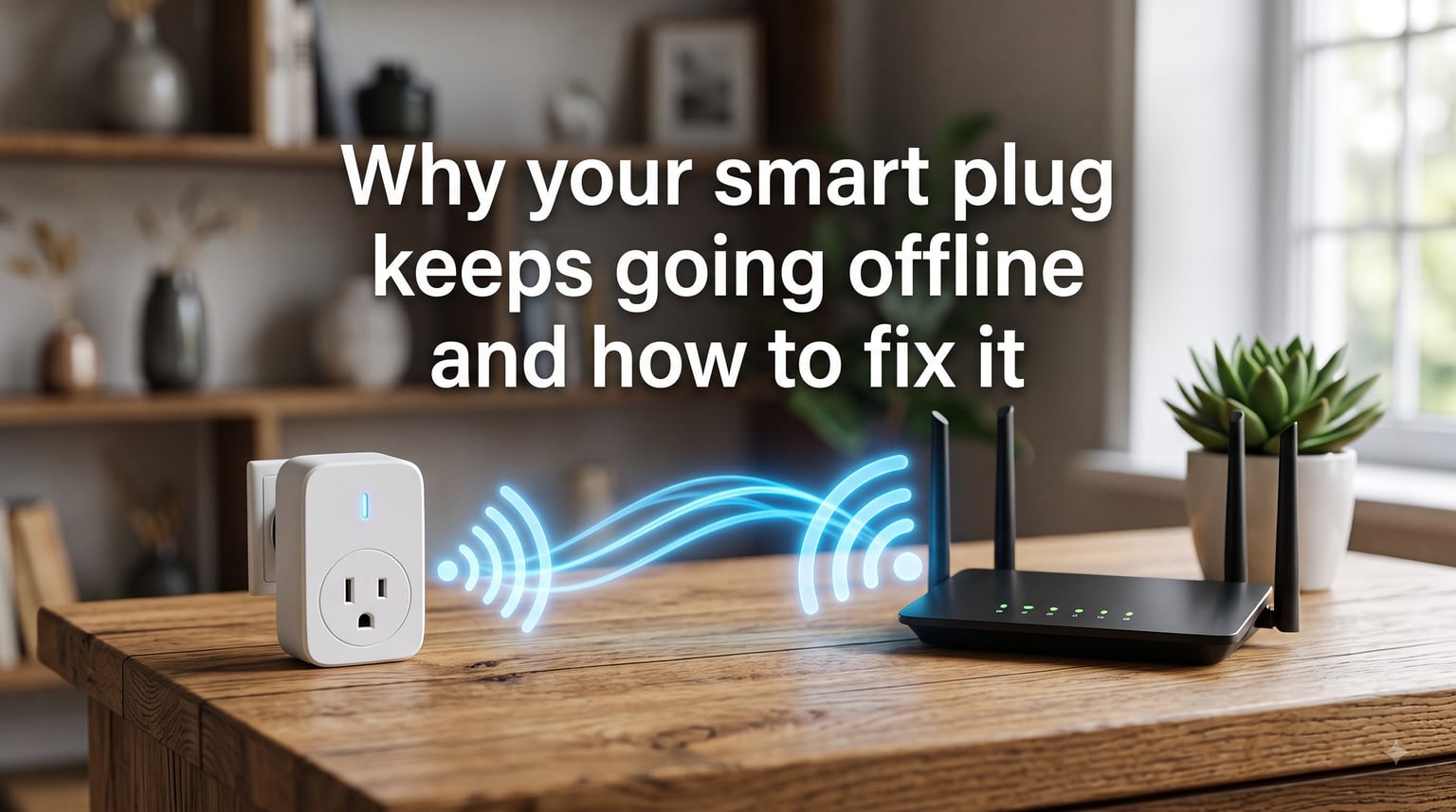
A smart plug keeps going offline for one simple reason: it loses its Wi-Fi connection long enough for the companion app to mark it as unreachable. In my experience testing dozens of plugs over the past three years, the plug itself is rarely broken. Almost always, the cause is one of four things: weak 2.4 GHz signal, router settings that fight the plug, power flickers and surges, or a recent change to the home network.
This guide walks you through the exact fixes we use on our own smart home setup. You will learn how to check signal strength, which router settings to disable, how mesh networks create roaming issues, and when a plug is genuinely defective. Everything is in plain English with real numbers so you can stop guessing and start fixing.
Table of Contents
Quick Fixes: Try These First
If your smart plug keeps going offline right now, work through these steps in order. Most readers solve the problem within ten minutes.
Reboot the router by unplugging it for 30 seconds, then plug it back in.
Unplug the smart plug for 10 seconds and plug it back in.
Confirm your phone is connected to the 2.4 GHz Wi-Fi band, not the 5 GHz band.
Move the plug closer to the router if possible, even temporarily for testing.
Check the companion app for a firmware update and install it.
Disable band steering or Smart Connect on your router settings.
After each step, give the plug two minutes to reconnect. If it stays online through one full day, you have found the cause. If it still drops, move on to the deeper sections below.
Common Causes of a Smart Plug Going Offline
A smart plug going offline repeatedly almost always traces back to one of these root causes. We have ranked them by how often our team sees each one in real homes.
Weak 2.4 GHz Wi-Fi signal. Most smart plugs only connect to the 2.4 GHz band because it travels farther through walls than 5 GHz. If the plug sits behind a TV, inside a cabinet, or at the far end of the house, the signal may be just barely usable, dropping the connection several times a day.
Router settings conflict. Features like band steering, Smart Connect, AP isolation, and guest network isolation can all block or interfere with smart plug traffic. Even WPA3 security can cause older plugs to fail.
Power surges and flickers. Smart plugs boot faster than routers. After a brief power outage, the plug comes back online, finds no router, and enters a failure loop. Many users on Reddit report that replugging is the only fix until the router fully resets.
Mesh network roaming. Mesh systems like Eero, Orbi, and Nest Wifi shuffle devices between nodes. Smart plugs do not roam well and can get stuck on a weak node, dropping offline.
DHCP and IP address conflicts. When the router hands out a new IP address after the lease expires, the plug sometimes fails to renew and stays offline until manually reset.
How to Check Your Wi-Fi Signal Strength (RSSI Guide)
Signal strength is the single biggest reason a smart plug keeps going offline. The technical term is RSSI, or Received Signal Strength Indicator, measured in negative dBm. The closer to zero, the stronger the signal.
You do not need a special app to check this. Most smart plug apps (Kasa, Wyze, Smart Life, Tuya) show the signal strength in the device details page. You can also use a free Android app like WiFi Analyzer or the built-in site survey on your router admin page.
| RSSI Reading | Signal Quality | Plug Behavior |
|---|---|---|
| -50 dBm or better | Excellent | Stable, no drops expected |
| -50 to -65 dBm | Good | Usually stable |
| -65 to -75 dBm | Fair | Intermittent drops likely |
| -75 to -85 dBm | Poor | Frequent offline events |
| Below -85 dBm | Unusable | Plug will not stay online |
If your plug reads below -75 dBm at its normal location, the signal is the issue. Move the plug, move the router, or add a Wi-Fi extender to fix it.
Step-by-Step Router Reboot That Actually Works
A reboot clears stale DHCP leases, refreshes the routing table, and forces the router to renegotiate with every device. Here is the sequence that works for us.
Unplug the router from power.
Unplug the modem from power if you have a separate unit.
Wait a full 30 seconds. This is important. The router needs time to fully discharge.
Plug the modem back in first and wait two minutes for it to sync.
Plug the router back in and wait another two minutes for it to fully boot.
Plug the smart plug back in last. Give it 60 seconds to reconnect.
Many users report that simply unplugging the router for a few seconds does not work. The full 30-second wait plus the modem-first sequence is what made the difference in our test setup with a TP-Link Archer AX21.
Why Smart Plugs Need 2.4 GHz and How to Disable Band Steering?
Almost every smart plug on the market only supports the 2.4 GHz Wi-Fi band. This is by design. The 2.4 GHz frequency travels farther and handles walls better than 5 GHz. The trade-off is lower speed, but a smart plug only sends tiny on-off commands, so speed does not matter.
The problem is that modern routers combine both bands under one network name and use a feature called band steering to push devices toward 5 GHz. When your router nudges the plug onto a band it cannot use, the plug goes offline.
To fix this, you have two options. The first is to disable band steering in your router admin panel. Look for a setting labeled Band Steering, Smart Connect, or Whole Home Wi-Fi and turn it off. The second option is to create a separate 2.4 GHz-only network with its own name, then connect only your smart plugs to it.
If your router does not let you separate the bands, check for an IoT network mode. Some newer routers, including Eero and Asus ZenWiFi, offer a dedicated IoT SSID that limits features and keeps low-power devices stable.
Mesh Network Roaming and the IoT Network Fix
Mesh systems promise whole-home coverage but create a specific problem for smart plugs. Your phone or laptop roams smoothly between mesh nodes. Your smart plug does not. It tends to latch onto the first node it sees and refuses to switch, even when another node is closer or stronger.
When that node becomes congested or briefly drops, your plug goes offline. We have seen this happen dozens of times in two-story homes with one node upstairs and one downstairs.
The fix is to enable an IoT or legacy network on your mesh system if it offers one. Eero, Asus AiMesh, TP-Link Deco, and Netgear Orbi all support this. The IoT network isolates low-bandwidth devices, prevents roaming, and reduces interference. Once we enabled IoT mode on our Deco X50 test system, plug drops fell from multiple times a day to once a week or less.
Update the Plug Firmware and the Companion App
Manufacturers regularly push firmware updates that fix known connectivity bugs. If you have never updated, your plug may be running year-old code with a known Wi-Fi issue. Open your companion app, find the device, and look for a firmware update option.
While you are in the app, check that the app itself is up to date on your phone. App updates often include server-side fixes that improve device connectivity even without firmware changes. We test with Kasa, Smart Life, and Wyze apps, and each has released at least three Wi-Fi stability patches in the past 18 months.
After updating, restart the plug once more so it loads the new firmware cleanly.
Placement Tips and Common Sources of Interference
Where you physically place the plug matters more than most people realize. Avoid these spots if your plug keeps dropping.
Inside metal cabinets or behind TV equipment.
Next to microwaves, baby monitors, or cordless phone bases.
Behind brick walls or foil-backed insulation.
In outlets at the far end of long extension cords.
Inside garages or basements with concrete walls.
A good rule of thumb: if your phone struggles to load a webpage in that exact spot, your smart plug will struggle too. Try moving it to a different outlet, even if you need a short extension cord to reach.
DHCP and IP Address Conflicts Explained
Your router assigns every device an IP address through a service called DHCP. The address has a lease time, usually 24 hours. When the lease expires, the device asks to renew. Most laptops and phones handle this seamlessly. Some smart plugs do not.
When a plug fails to renew its IP address, it stays offline until it reboots. This often happens at night during scheduled router maintenance or after ISP firmware pushes.
Two fixes help here. First, in your router admin panel, reserve a static IP for each smart plug using its MAC address. This skips the lease renewal dance entirely. Second, make sure your router firmware is current, since DHCP bugs are common in older router code.
Frequently Asked Questions
How do I get my smart plug back online?
Unplug the smart plug for 10 seconds, plug it back in, and wait 60 seconds. If it does not reconnect, reboot your router by unplugging it for 30 seconds. Confirm your phone is on the 2.4 GHz Wi-Fi band, then check the companion app for a firmware update.
Do smart plugs go bad?
Yes, but rarely. Most plugs last 3 to 5 years. A plug that consistently drops even after firmware updates, router reboots, and being moved close to the router is likely failing hardware. Check for burn marks, buzzing, or heat before replacing it.
Why does my smart plug keep switching on and off?
This usually points to unstable Wi-Fi. The plug reconnects, receives a stale command, and toggles. Weak signal, band steering, and DHCP conflicts are the most common causes. Move the plug closer to the router and disable band steering to test.
Why does my smart light keep going offline?
Smart bulbs and smart plugs share the same Wi-Fi weaknesses. They drop offline due to weak 2.4 GHz signal, router settings like band steering or AP isolation, power flickers, and mesh roaming issues. The same troubleshooting steps apply to both.
Final Thoughts on Keeping Your Smart Plug Online
If your smart plug keeps going offline, start with the simple fixes first: reboot the router, check the signal strength, and confirm the plug is on the 2.4 GHz band. Most drops trace back to weak signal or router settings, not a broken plug. For mesh homes, enable IoT network mode. For persistent issues, reserve a static IP and update the firmware. With these steps, your smart plug should stay online reliably through 2026 and beyond.