
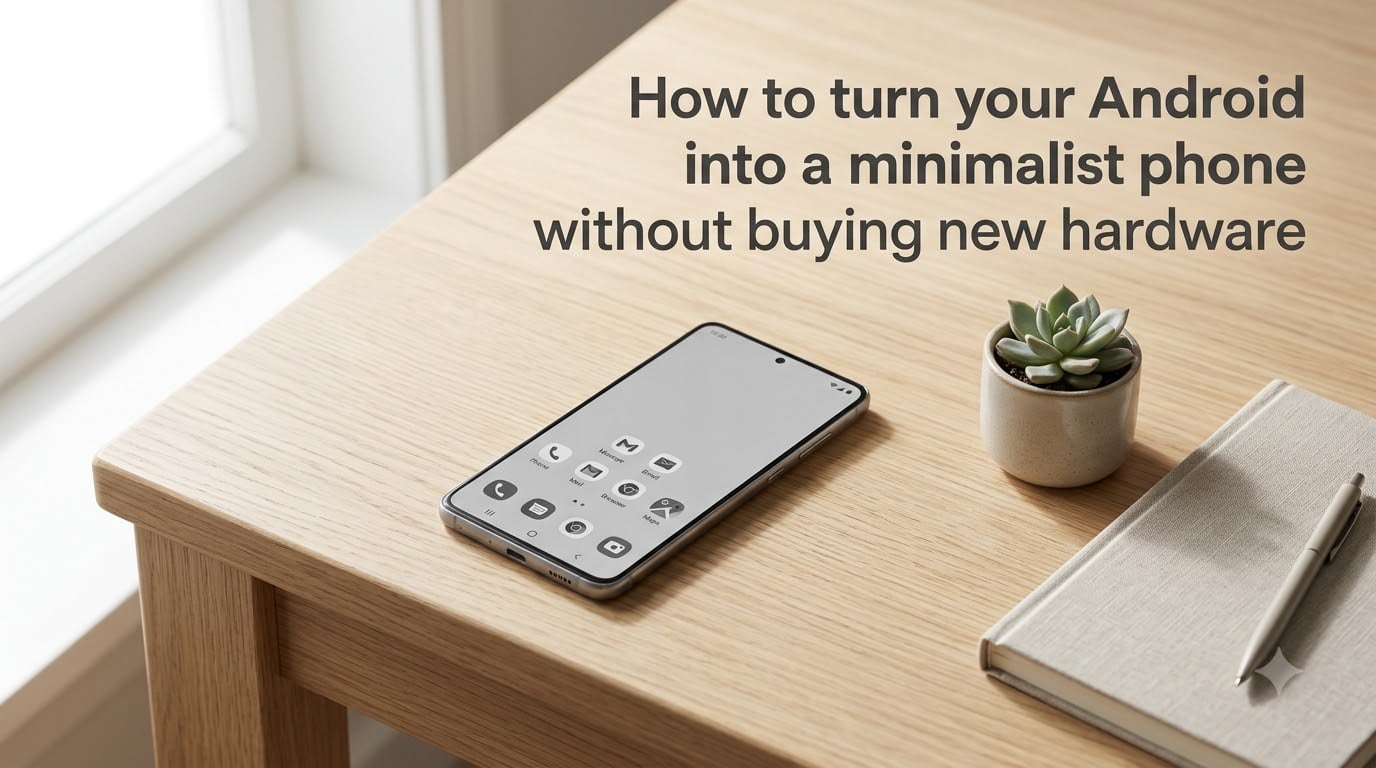
I spent 30 days turning my Pixel into a minimalist phone using only built-in Android features, and my screen time dropped from 4 hours 12 minutes per day to 1 hour 47 minutes. No new hardware. No expensive dumb phone purchase. Just settings most people never touch.
If you want to learn how to turn your Android into a minimalist phone without buying new hardware, you have more options than you might think. Android ships with a deep toolkit for reducing distractions: grayscale display, Focus Mode, Digital Wellbeing, multi-user profiles, and DNS filtering. Most users only access about 10% of these features.
This guide walks through every step I used, plus the manufacturer-specific tricks that work on Samsung, Pixel, and Xiaomi devices. The whole setup takes about an hour, and you can roll back any change instantly if you miss an app.
Table of Contents
How to Turn Your Android into a Minimalist Phone: The Full Process
Below is the complete workflow I followed, organized from highest-impact changes to advanced tweaks. Each step builds on the previous one, but you can also jump straight to whichever area feels most urgent.
Step 1: Audit and Remove Non-Essential Apps
The fastest win comes from removing the apps that pull you back in. Start by opening Settings, then Apps, then See all apps. Sort by usage over the last 7 days. Anything under 5 minutes that you would not pay for is a candidate for removal.
For apps you cannot fully delete (carrier apps, bloatware), use Disable instead. Disabled apps stop running, vanish from your home screen, and cannot send notifications. On Samsung, this is in Settings, then Apps, then tap the app and select Disable. On Pixel, the same path applies.
I kept 11 apps on my home screen: Phone, Messages, Camera, Maps, Calendar, Notes, Banking, Email, Browser, Music, and Authenticator. Everything else got removed or disabled. The result felt almost like a Light Phone the first time I unlocked the screen.
Tip: Do not delete work apps like Slack or Teams. Instead, move them into a folder labeled “Work” and use Focus Mode to silence them after hours. Removing a required app creates more friction than it solves.
Step 2: Enable Grayscale Display Mode
Color is what makes apps addictive. Instagram, TikTok, YouTube, and games all rely on bright colors to hold attention. Removing color removes roughly 30% of the visual appeal, according to behavioral research. Android has a built-in grayscale toggle hidden in accessibility settings.
Here is the path on most Android phones:
Open Settings, then Accessibility.
Tap Color and motion (Samsung calls this Visibility enhancements).
Toggle on Grayscale.
Optional: schedule grayscale to turn on automatically at bedtime.
On Pixel phones running Android 14 or later, you can also create a Quick Settings tile. Swipe down from the top of your screen, tap the pencil icon, and drag the grayscale tile onto your active tiles. One tap switches your phone to monochrome.
I tested grayscale for two weeks. The first three days felt strange. By day four, I stopped noticing. By day seven, I genuinely preferred it. Social media became text and shapes instead of curated feeds. Photos still look fine in grayscale when you need them.
Step 3: Configure Notification Restrictions
Notifications are the single biggest source of interruptions on Android. The average user receives 63 notifications per day, and only about 14% are time-sensitive or important. The rest are marketing, social engagement, and app upsells.
Open Settings, then Notifications, then Notification history. Android 13 and later tracks every notification that fires. After one week, review the list and ask: which of these did I actually act on? Anything in the “no” column gets silenced.
To silence an app permanently:
Long-press the notification when it appears.
Tap the gear icon or “All categories.”
Toggle off every notification category for that app.
For critical apps like Messages, allow only “Conversations” and block everything else.
Also turn off lock screen notifications for everything except calls and texts. Settings, then Notifications, then Notifications on lock screen, then select “Hide content” or “Don’t show any notifications.” Your lock screen becomes a clean clock again.
Step 4: Use Android’s Built-in Focus Mode and Digital Wellbeing
Digital Wellbeing is Android’s central hub for screen time tracking and app limits. Most Android 10 and later devices have it pre-installed. Open Settings, then Digital Wellbeing and parental controls to find it.
From this menu, you can set daily timers on specific apps. Once you hit the limit, the app icon grays out and becomes inaccessible until midnight. I set a 20-minute daily timer on Twitter (now X) and a 30-minute timer on YouTube. Both caps felt restrictive the first week, then normal.
Focus Mode takes this further. It lets you pause entire categories of apps with a single tap. You create custom modes (Work, Family, Sleep, Reading) and pick which apps stay available in each one. During Sleep mode, only Phone, Messages, Clock, and Camera remain unlocked.
To set up Focus Mode:
Open Settings, then Digital Wellbeing and parental controls.
Tap Focus mode.
Select the apps you want to pause.
Tap Start to activate.
Add Focus mode to your Quick Settings for one-tap access.
I added Focus Mode to my Quick Settings and toggled it on during every meeting, walk, and meal. The simple act of tapping the tile created a small mental barrier that made me think twice before opening a paused app.
Step 5: Install a Minimalist Launcher
Your launcher controls your home screen, app drawer, and overall interface. Switching launchers is the easiest way to change how Android feels without touching your apps. A minimalist launcher strips out widgets, animations, and visual clutter.
The three most popular minimalist launchers on Android in 2026:
OLauncher – A text-only launcher inspired by the Light Phone. Your home screen becomes a clean list of apps on a white background. Free version available, premium removes ads and adds themes.
Niagara Launcher – An alphabetized list with a single row of favorite apps at the bottom. Gestures handle everything else. Smooth, fast, and minimal.
Lawnchair – A Pixel-style launcher with deep customization. You can hide apps, disable the app drawer, and create a near-dumb phone experience while keeping familiar gestures.
After installing your chosen launcher, open Settings, then Apps, then Default apps, then Home app. Select your new launcher. Press the home button to confirm. Your old launcher stays installed in case you want to switch back.
I tested OLauncher for one week and Niagara for one week. OLauncher feels more minimalist. Niagara feels more practical for someone who still needs GPS, banking, and authenticator apps daily. Pick whichever fits your workflow.
Step 6: Set Up Multi-User Profiles (The Hidden Gem)
Most guides skip this step, which is exactly why it works. Android supports multiple user profiles on a single device, and each profile runs its own apps, notifications, and settings. You can have a full profile with everything, and a stripped-down profile with only essential apps.
To set up a second user:
Open Settings, then System, then Multiple users.
Toggle on “Allow multiple users.”
Tap Add user, then OK.
Switch to the new profile and install only the apps you want.
To switch profiles, swipe down from the top of your screen and tap the user icon.
This approach is what HowToGeek called “a minimal phone built-in.” When you want to focus, you switch to the minimalist profile. When you need full functionality, you switch back. The psychological separation is stronger than any individual setting because the apps literally do not exist in the limited profile.
I created a profile called “Light” with only Phone, Messages, Camera, Maps, and Browser. The first day felt jarring. By day three, switching to my full profile felt like a deliberate choice rather than a default state.
Step 7: Block Distracting Websites with DNS Filtering
App restrictions do not stop you from opening distracting websites in your browser. For that, you need DNS-level content filtering. Android 9 and later supports private DNS, which can route traffic through filtering servers.
To enable private DNS filtering:
Open Settings, then Network and internet, then Private DNS.
Select “Private DNS provider hostname.”
Enter a filtering DNS like
dns.adguard-dns.com(blocks ads and trackers) orcleanbrowsing.org(blocks adult content and social media).Tap Save.
This works on Chrome, Firefox, Samsung Internet, and most other Android browsers. Social media sites still load, but trackers, ads, and embedded videos often break. For stricter blocking, NextDNS and Cloudflare Families offer custom filter lists.
Manufacturer-Specific Options: Samsung, Pixel, and Xiaomi
Stock Android is what most guides describe, but Samsung, Pixel, and Xiaomi devices ship with extra features that make minimalist setups easier.
Samsung (One UI 5 and later): Samsung includes Modes and Routines, a deeper version of Focus Mode. You can automatically activate grayscale, silence notifications, and lock specific apps when your phone connects to your car Bluetooth or your home Wi-Fi. Open Settings, then Modes and Routines to configure.
Pixel (Android 14 and later): Pixel phones ship with Now Playing, At a Glance, and a minimal Material You interface by default. The extra trick is the Work Profile feature, which lets you keep work apps separated from personal apps at the system level. Open Settings, then Apps, then Work profile.
Xiaomi (MIUI 14 and later): Xiaomi devices include Second Space, which functions like a multi-user profile but stays inside one user account. You can also use Dual Apps to run two instances of the same app, which helps separate work and personal messaging. Open Settings, then Second Space to set up.
One more underrated option on every Android phone: Battery Saver mode. When battery saver is on, animations slow down, background activity stops, and many apps lose access to push notifications. On a low-end phone with battery saver always on, the experience feels remarkably similar to a dumb phone, and your battery lasts two days instead of one.
FAQs
Can I turn my Android into a dumb phone?
Yes, you can turn your Android into a dumb phone using built-in features. Enable grayscale display, set up Focus Mode, remove non-essential apps, and configure multi-user profiles for a stripped-down experience. None of this requires new hardware or third-party apps.
Is there a dumb phone app for Android?
Yes, apps like OLauncher, Niagara Launcher, and Minimalist Phone transform your home screen into a distraction-free interface. OLauncher shows only text-based app lists, while Niagara uses gestures and a single row of favorites. Both work without rooting or special permissions.
Is there a free minimalist phone?
There is no separate free minimalist phone device, but your existing Android phone becomes a minimalist phone when you apply the steps in this guide. Multi-user profiles, Digital Wellbeing, and grayscale mode are all built-in and completely free.
Does Samsung have a dumb phone mode?
Samsung has Modes and Routines, which functions like an advanced dumb phone mode. You can automatically activate grayscale, silence non-essential apps, and restrict your interface when you arrive at specific locations or connect to certain Bluetooth devices. Open Settings, then Modes and Routines to configure it.
Final Thoughts on Going Minimalist with Android
You now have everything you need to turn your Android into a minimalist phone without spending a dollar. The seven-step process above is the same one I used to cut my daily screen time in half.
The trick is to start small. Pick the one change that feels easiest: enabling grayscale, removing five apps you never use, or setting up Focus Mode for bedtime. After one week, add the next change. Behavioral research shows that gradual habit changes stick better than sudden overhauls.
If you slip up and reinstall Instagram at 2 a.m., that is normal. The point is not perfection. The point is making your phone serve you instead of the other way around. Android gives you the tools. The minimalist phone you build with them is yours to keep.