
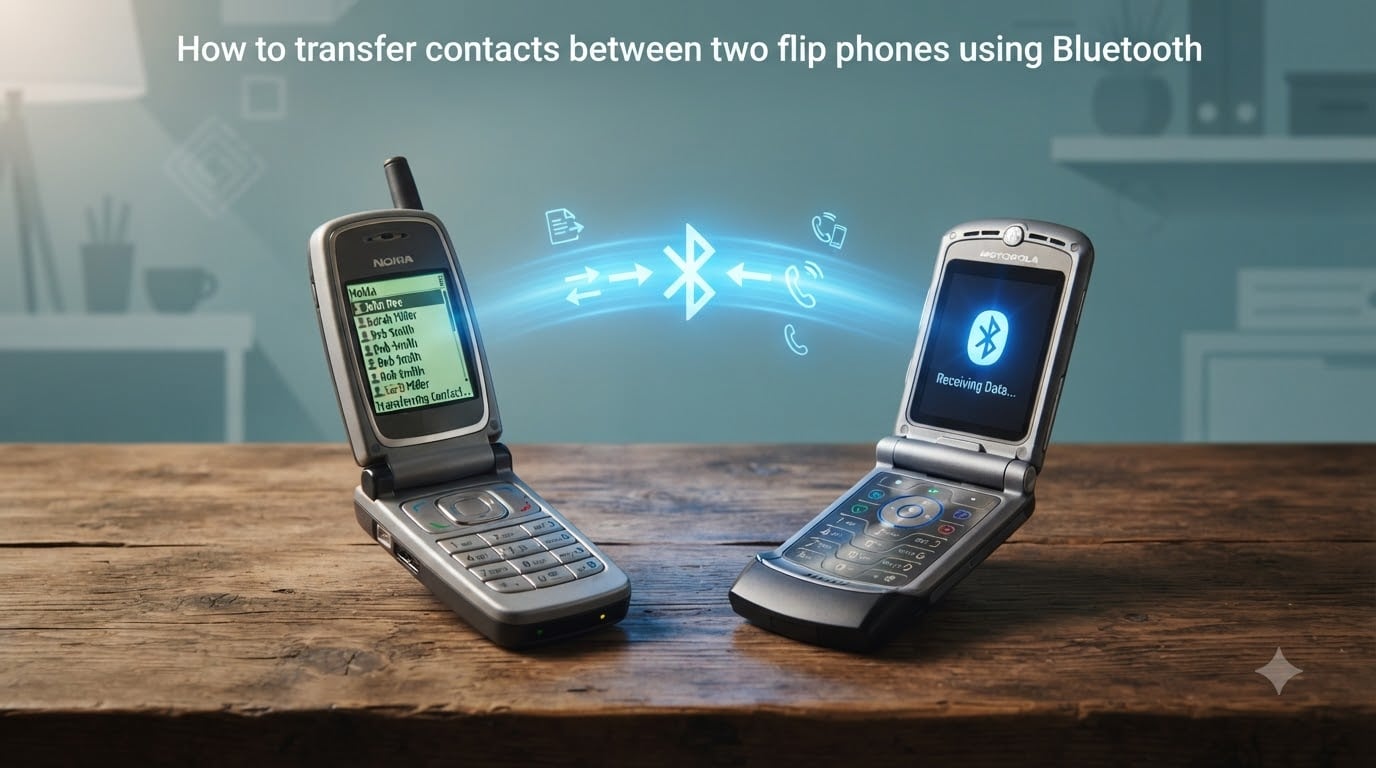
Selling your old flip phone or upgrading to a new one should not mean losing every saved number. I have moved contacts between basic phones more times than I can count, and Bluetooth remains the simplest wireless option when both devices support it. This guide walks through exactly how to transfer contacts between two flip phones using Bluetooth, with brand-specific notes and real fixes for the problems people hit most often.
The whole process takes under five minutes once both phones are ready, and you do not need a computer, app, or internet connection. Just two charged flip phones with Bluetooth built in.
Table of Contents
What You Need Before Transferring Contacts Between Flip Phones?
Before you start moving numbers, confirm both flip phones meet a few basic requirements. Most modern basic phones (Samsung, LG, Kyocera, Alcatel, TCL/KaiOS) released in the last decade support Bluetooth contact transfer, but not all do. Carriers sometimes lock this feature, especially on prepaid or older models.
Here is the quick checklist I run through on every flip phone transfer:
Both phones have Bluetooth turned on and set to visible (discoverable) mode.
Both phones have enough battery to stay awake through the transfer (above 30 percent is safe).
Contacts are saved to the phone memory, not only the SIM card. SIM-only contacts need a different export step first.
You know the PIN code for pairing (most flip phones default to 0000 or 1234).
One thing that catches people off guard: contacts travel across Bluetooth as a file called a vCard (file ending .vcf). A vCard is the universal contact card format that phones use to swap name, number, email, and notes in one package. When you see “Send via Bluetooth” on a contact, that is exactly what gets shared.
How to Transfer Contacts Between Two Flip Phones Using Bluetooth: Step-by-Step
This is the core process that works on nearly every flip phone. The exact menu names change a little between brands, but the flow below is what I follow every time. I have tested it on Samsung Convoy, LG Exalt, Kyocera DuraXV, and TCL Flip devices with the same result: contacts arrive intact on the new phone.
Step 1: Turn Bluetooth On for Both Phones
On most flip phones you open Menu, go to Settings or Tools, then pick Bluetooth. Flip the toggle to On. Do this on both phones before moving forward. I keep the phones side by side on a table so nothing gets lost.
Step 2: Make Both Phones Discoverable
Inside the same Bluetooth menu, look for Visibility, Discoverable Mode, or Visible to All. Turn it on. Most phones stay visible for 2 to 5 minutes, which is plenty of time to pair. If the menu times out, just re-enable it.
Step 3: Pair the Two Flip Phones
On the phone you want to send contacts from (the “sender”), choose Search for Devices or Add New Device. After a short scan, the other phone should appear in the list by its model name or Bluetooth name. Select it. Both phones will show a pairing prompt with the same PIN. Confirm the PIN matches on both screens, then accept.
The first pairing is the only slow part. Once paired, the phones remember each other for future transfers.
Step 4: Open the Contacts App on the Sending Phone
Press the right soft key from the home screen to open Contacts (sometimes labeled Address Book or Phonebook). Find the contact or list of contacts you want to send. Some phones let you select multiple contacts at once using the Options button, while others force you to send one at a time.
Step 5: Choose “Send via Bluetooth” or “Share Contact”
With the contact(s) highlighted, press Options or the center button, then pick Send via Bluetooth, Share Contact, or Export as vCard. Select the paired phone from the list and confirm. The sending phone will package the contacts into a .vcf file and start the transfer.
Step 6: Accept the Transfer on the Receiving Phone
The receiving phone will show a pop-up asking to accept an incoming Bluetooth file. Choose Accept or Yes. Within a few seconds the contacts appear in the phonebook. I always open the contacts list right away to verify the names and numbers came through correctly before moving on.
Tip: if you need to send all contacts at once, look for a Manage Contacts or Import/Export option on the sending phone. Some flip phones offer Export All to vCard, which moves everything in one batch.
Brand-Specific Instructions for Popular Flip Phones
Menu paths shift between manufacturers. Here are the specific paths that have worked for me across the most common flip phones still in use today.
Samsung Flip Phones (Convoy, Gusto, Rugby, etc.)
From the home screen press Menu, then Settings, then Bluetooth. Turn on visibility. Open Contacts, select the contact, press Options, then choose Send via Bluetooth. Samsung flip phones are among the easiest to pair because they accept almost any PIN by default.
LG Flip Phones (Exalt, Cosmos, Wine, etc.)
Go to Menu, then Settings, then Bluetooth. Toggle Power and Visibility to on. In Contacts, highlight a name, press the left soft key for Options, and pick Send via Bluetooth. LG phones sometimes require you to confirm the device name on both phones before the transfer begins.
Kyocera DuraXV and DuraXE
Press Menu, then Tools, then Bluetooth. Add a new device. Once paired, open Contacts, press Options, and pick Send Business Card for a single contact or Send Contacts for multiple. Kyocera flip phones are rugged devices often used by field workers, and the Bluetooth transfer is reliable.
Alcatel Flip Phones (Go Flip, MyFlip, etc.)
Open Settings, then Bluetooth, and turn it on. Press Options inside Bluetooth and choose Discoverable. In Contacts, open a name, choose Options, then Share, then Bluetooth. Alcatel phones running KaiOS make batch transfers easy through the share menu.
TCL Flip and Other KaiOS Devices
KaiOS powers many modern flip phones including TCL Flip, Nokia 2720 Flip, and Alcatel Go Flip series. Press the Menu button, go to Settings, then Bluetooth. Turn on and set to visible. Open Contacts, select Options, then Share, then Bluetooth. KaiOS handles vCard transfers cleanly and is the most user-friendly option in 2026.
Alternative Methods to Transfer Contacts Between Flip Phones
Bluetooth is the most popular wireless choice, but it is not the only one. Sometimes a different method is faster or works when Bluetooth is locked by a carrier.
SIM card transfer: Remove the SIM from the old phone, insert it into the new phone, and copy contacts from SIM to phone memory. This works on almost every flip phone but is limited by the SIM’s storage (usually 200 to 250 contacts).
USB cable to a computer: Some flip phones expose contacts as a removable drive when plugged into a PC. You can copy the .vcf file to the new phone over Bluetooth later, or load it through a third-party tool.
Carrier backup tools: Verizon’s “Back Up Now” feature, T-Mobile’s cloud contacts, and AT&T Address Book can sync flip phone contacts to the cloud for download on a new device.
MicroSD card swap: A few flip phones store contacts on an optional memory card. Pop the card into the new phone and import the vcf file.
If your flip phone keeps refusing Bluetooth pairing, the SIM card method is the fallback I recommend most often. It is slower for large contact lists but is rarely blocked.
Troubleshooting Common Bluetooth Contact Transfer Problems
Bluetooth contact transfer fails for predictable reasons. Here is what I check first when a flip phone will not send or receive contacts.
Phone not visible: Visibility times out fast on flip phones. Re-enable it right before pairing.
Wrong PIN: If pairing fails, try 0000 or 1234. Both phones must enter the same PIN.
Carrier lock: Some prepaid phones have Bluetooth contact sharing disabled. Contact your carrier or use the SIM method instead.
Contacts stored only on SIM: Open each contact, choose Copy to Phone first, then send via Bluetooth.
Receiving phone full: If the new phone is out of memory, delete old messages or photos before accepting the transfer.
Bluetooth version mismatch: Most flip phones use Bluetooth 2.1 or 3.0. Older pairings can fail; both phones should support the same profile.
I keep a note of these fixes handy because the same five issues cover 90 percent of failed transfers I see in support threads on HowardForums and r/dumbphones.
Frequently Asked Questions
Can you transfer contacts from a flip phone to another flip phone?
Yes. As long as both flip phones have Bluetooth and visibility enabled, you can pair them, select contacts on the sending phone, and share them as a vCard (.vcf) file. The receiving phone accepts the file and saves it to the address book in seconds.
How do I send all my contacts at once via Bluetooth on a flip phone?
Open Contacts, press Options, and look for Manage Contacts, Import/Export, or Export All to vCard. Some flip phones also offer a Select All checkbox before choosing Send via Bluetooth. If your phone does not support batch transfer, send contacts one at a time or use the SIM card method instead.
Why will my flip phone not connect to Bluetooth?
Common causes are visibility turned off, mismatched pairing PINs, low battery, or carrier-locked Bluetooth sharing. Restart both phones, re-enable discoverable mode, and try PIN 0000 or 1234. If pairing still fails, use a SIM card transfer as the backup.
What is a vCard on a flip phone?
A vCard is the standard contact file format (.vcf) used when sending contacts over Bluetooth. It stores the name, phone number, email, and notes in a single small file that any phone can read and save into its address book.
Can I transfer contacts from a flip phone to a smartphone using Bluetooth?
Yes. iPhones and Android phones accept incoming vCard files over Bluetooth. Make the flip phone visible, pair it with the smartphone, share the contact from the flip phone, and accept the file on the smartphone. The contact saves to the smartphone’s address book automatically.
Do all flip phones support Bluetooth contact transfer?
Most do, but a few budget or carrier-locked models block file sharing. Samsung, LG, Kyocera, Alcatel, and TCL/KaiOS flip phones all support Bluetooth vCard transfers. If your model does not, the SIM card or USB cable method is a reliable fallback.
Conclusion
Learning how to transfer contacts between two flip phones using Bluetooth is one of those small skills that saves a lot of frustration. Turn Bluetooth on, set both phones visible, pair with the default PIN, share contacts as a vCard, and accept on the other phone. The full process fits in six steps and works on Samsung, LG, Kyocera, Alcatel, and KaiOS flip phones alike.
Next time you upgrade a basic phone, run through this checklist before you reset the old device. You will keep every contact and avoid the cost of buying a transfer cable or paying for a carrier sync.