
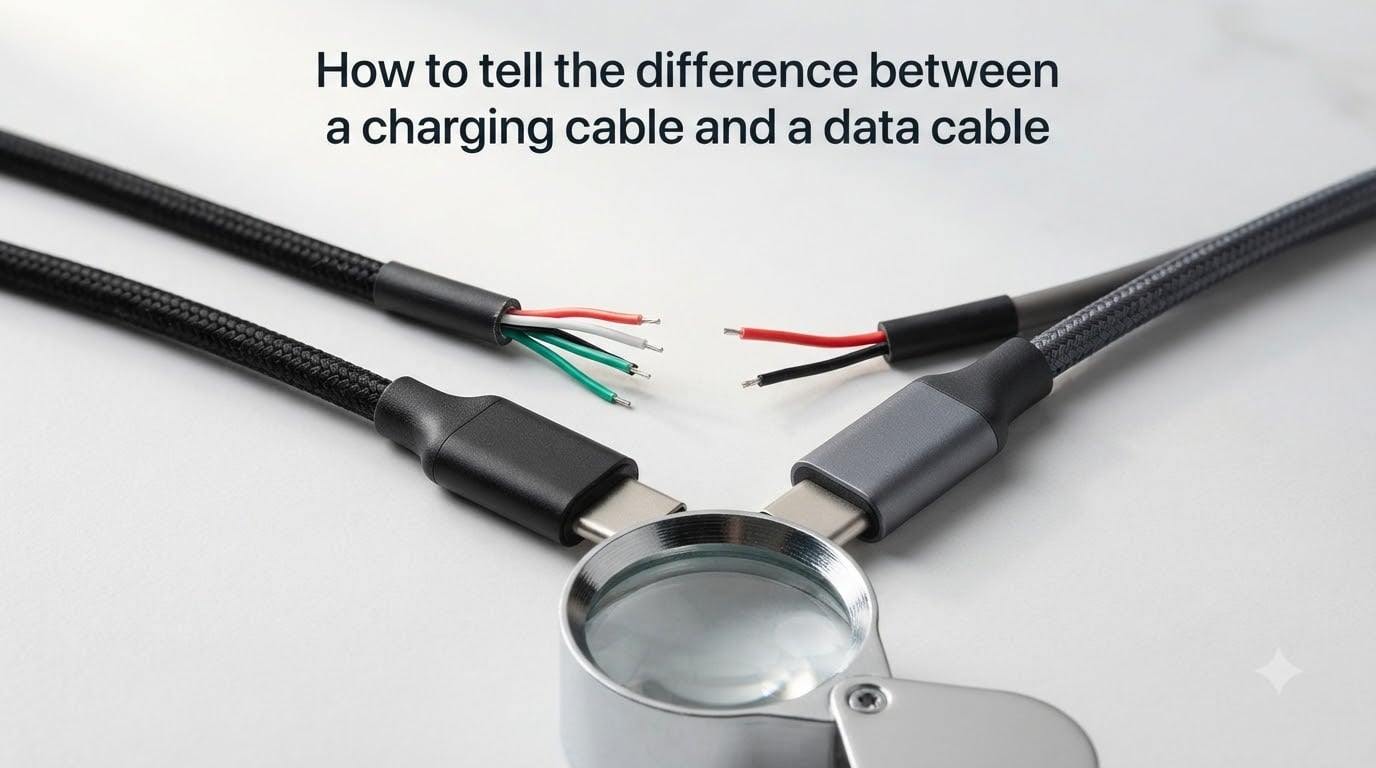
I have a drawer full of USB cables at home, and I will bet you do too. The problem is, half of them refuse to transfer my photos when I plug my phone into my laptop. If you have ever wondered why your cable charges the phone but the computer refuses to recognize the device, you have already run into the charging cable vs data cable problem. In this guide, I will show you exactly how to tell the difference between a charging cable and a data cable using clues you can spot in seconds.
Table of Contents
What Is a Charging Cable vs Data Cable
A charging cable is a USB cable built with only two internal wires that carry power from a wall adapter or USB port to your device. A data cable is a USB cable built with four or more internal wires that carry both power and data signals so your devices can sync, transfer files, and update firmware.
The reason both exist is cost. Cable makers cut out the data wires on cheap cables because most people only need power for their phone. The result: a cheaper cable that charges identically but cannot talk to a computer at all. This is the heart of the charging cable vs data cable distinction.
If you have ever plugged a cable into your PC and seen nothing happen, the cable was almost certainly a charging-only cable in disguise. Knowing the difference saves you hours of frustration, especially when flashing microcontrollers like the ESP32 or pushing firmware updates to game controllers.
Internal Wiring: The Real Difference Between Charging and Data Cables
The single biggest difference between a charging cable and a data cable lives inside the plastic jacket. Look at the cross-section and you can see it with your eyes.
A USB charging cable contains just 2 wires inside:
- V+ (positive): carries 5V power from source to device.
- GND (ground): completes the electrical circuit back to the source.
A USB data cable contains those same 2 wires plus 2 more:
- D+ (data positive): one of the two data lines used for signal transmission.
- D- (data negative): the matching data line that lets devices exchange packets.
More wires means a thicker cable. That is why data cables tend to be slightly chunkier than pure charging cables of the same length. If you have ever squeezed a cable in the store and noticed it felt noticeably stiffer than another, that stiffness was almost always the extra copper inside.
Physical Clues to Identify a Charging Cable vs Data Cable
You do not need to cut a cable open to know which type you have. Here are the visual checks I use on my own cables.
Cable thickness. A charging cable usually feels thinner because it has fewer internal conductors. This is the easiest starting clue when comparing two cables side by side.
Icons printed on the USB-A end. Look closely at the plastic head of a USB-A connector. The official USB specification uses a trident-style logo. Two variations exist: a plain trident means charging only, while a trident paired with a small arrow or “SS” mark indicates data transfer support. Charging cables often skip the logo entirely.
Text and labels on the cable. Good data cables usually print the USB version, data speed, and amp rating somewhere along the jacket. Look for phrases like “USB 2.0,” “Hi-Speed,” or “480 Mbps.” A charging cable might only show the current rating, like “2.4A,” with no mention of data.
Connector quality. Data cables from reputable brands tend to use molded, tighter connector heads. Cheap charge-only cables often have loose shells that slide back with light thumb pressure. This is not a perfect test, but it works as a tiebreaker.
How to Test a Cable for Charging Only or Data Transfer
When visual inspection leaves you guessing, run the cable through these tests. I run this checklist every time I find a mystery cable in my house.
- Plug it into a computer. Connect your device to a Windows, macOS, or Linux computer using the cable. If the device shows up in File Explorer, Finder, or as a removable drive in 10 seconds, the cable supports data transfer. If nothing appears, it is almost certainly a charging-only cable.
- Try a small file transfer. Drag a single photo from your phone to your desktop. A working data cable completes the copy in seconds. A charging-only cable does nothing and may pop up a “USB charging only” notification.
- Test with a microcontroller. Plug an ESP32, Arduino, or Raspberry Pi Pico into your computer with the cable. If the COM port or serial device shows up in your IDE, the cable works for data. ESP32 users on forums report this trick catches charge-only cables instantly.
- Try a controller sync. Plug a PS4 or Xbox controller into your console with the cable. Controllers only sync over data lines. If the console does not detect the controller, the cable is charge only.
- Check device notifications. Many modern Android phones display a USB mode prompt when a data cable is connected. If the prompt never appears, the cable lacks data lines.
Pro tip: keep one of those throwaway promo cables and one good branded data cable so you always have a known-good reference to compare a suspect cable against.
USB Standards and Speeds Explained
Not every data cable moves files at the same speed. The USB version printed on the cable jacket sets the ceiling. Here is how the standards stack up for sync cable performance.
- USB 2.0: up to 480 Mbps. Found in most basic charging cables. Fine for music and photos, slow for video.
- USB 3.0 / USB 3.1 Gen 1: up to 5 Gbps. About ten times faster than USB 2.0. Common in mid-range data cables.
- USB 3.1 Gen 2 / USB 3.2: up to 10 Gbps. Used in premium SSD enclosures and high-end USB-C cables.
- USB4: up to 40 Gbps. Requires a USB-C connector and an E-marker chip on the cable.
- Thunderbolt 3 and 4: up to 40 Gbps. Uses the USB-C connector and adds support for displays and PCIe tunneling.
A fast charging cable can still be a USB 2.0 data cable. The two capabilities are independent. Always check the spec on the jacket if speed matters to you.
Connector Types: USB-A, Micro-USB, and USB-C Cables
The connector on each end of the cable tells its own story about whether data lines are likely present.
USB-A. The flat rectangular plug found on most computers. A USB-A charging cable typically has only the two power pins connected. A USB-A data cable wires up all four pins and supports USB 2.0 transfers at minimum.
Micro-USB. Once the standard for Android phones and small electronics. The Micro USB data cable includes D+ and D- pins, while a Micro USB charging cable omits them. You can spot the difference with the computer test described above in under 10 seconds.
USB-C. The modern oval connector. This is where things get interesting. A USB-C charging cable can be built in three flavors: charge only, USB 2.0 data (480 Mbps), or full USB 3.x data (5 to 20 Gbps). Higher-speed USB-C cables contain a tiny chip called an E-marker that tells the device what the cable can do.
The E-marker chip is the reason the answer to “are all USB-C cables data cables” is a flat no. Cable makers can build cheap USB-C cables with no data wires at all. Always buy USB-C cables that list a data speed on the packaging or product page.
Common Cable Misconceptions Debunked
I see the same myths repeated across forums, so let me clear a few of them up before you spend money on the wrong cable.
Myth 1: A thicker cable always charges faster. Thickness hints at extra data wires, not higher current. A skinny USB-C cable that supports Power Delivery at 100W will charge your laptop faster than a fat USB-A cable capped at 12W.
Myth 2: All USB-C cables support data transfer. Wrong. Plenty of USB-C cables ship with only the power pins wired. The USB-C spec is permissive on purpose, which means the buyer has to read the specs.
Myth 3: Charging cables damage devices. Not true. A charging cable delivers clean power at the same voltage and current as a data cable. The only thing missing is data, not safety.
Myth 4: Bluetooth makes data cables obsolete. Bluetooth is slower, often capped at 3 Mbps, and unsuitable for firmware flashes or large video files. A wired data cable is still the fastest path between devices.
Troubleshooting When Your Cable Only Charges
Sometimes even a “data cable” refuses to transfer files. Here is how I work through that problem.
Confirm the file transfer mode on your phone. Many Android phones default to “charging only” USB mode when you first plug in. Swipe down the notification shade and tap the USB notification to switch to “File Transfer” or “MTP.”
Try a different port on the computer. Front-panel USB ports sometimes share a hub bus that fails to enumerate certain devices. Use a rear port directly on the motherboard for best results.
Replace the cable first, not the device. In most forum reports I have read, replacing the cable fixes the issue 9 times out of 10. If the new cable behaves the same way, the USB port on the device itself is suspect.
Use a data-only cable for security. This sounds odd, but data-only cables exist for exactly this reason. If you plug into a public charger and want zero risk of data leakage, a data-only disabled cable is the safest pick.
Buying the Right Cable for Your Needs
Match the cable to the job. Here is how I pick mine.
- Pure charging at the bedside or in the car: any cheap USB-A or USB-C cable labeled with current ratings (2.4A, 3A) is fine.
- Charging plus phone syncing to a computer: look for “USB 2.0” or higher on the jacket, plus a known brand.
- Charging plus fast file transfers: pick USB 3.0 or higher with a printed speed of 5 Gbps or more.
- Laptop charging plus high-speed data: choose a USB-C cable with an E-marker chip and a wattage rating that matches your charger.
Look for cables certified by USB-IF (the USB Implementers Forum) or MFi (Made for iPhone) when reliability matters. Certified cables have passed electrical and data integrity tests, which removes most of the guesswork.
Frequently Asked Questions
How do I know if my USB cable is data or charge?
Plug the cable into a computer. If your phone or device shows up as a drive or in your file manager within 10 seconds, the cable supports data transfer. If nothing appears, it is almost certainly a charging-only cable.
Are data cable and charger cable the same?
No. A charger cable only carries power through 2 internal wires. A data cable carries both power and data through 4 or more internal wires, which is why it can sync files between devices.
What does a USB data cable look like?
A USB data cable is usually thicker than a charge-only cable of the same length. Look for printed specs like USB 2.0 or higher on the jacket, and check the USB-A end for the official trident logo paired with arrows or SS markings.
Can a charging cable be used for data transfer?
No. A cable built with only the two power wires cannot transmit data. Your device will charge normally but the computer will not see the device.
Why does my cable only charge and not transfer data?
Most likely your cable is missing the D+ and D- data wires. Replace the cable with one labeled for data transfer or USB 2.0 or higher, and check that your phone is set to File Transfer mode when plugged in.
Conclusion
Learning how to tell the difference between a charging cable and a data cable comes down to three signals: wire count, physical thickness, and a quick computer test. Open the jacket and you find 2 power wires in a charger and 4 in a data cable. Squeeze the cable and a data cable feels thicker. Plug into a PC and your device either appears or does not. That is the whole trick.
Now that you can spot the difference, audit the cables in your drawer today. Label the chargers and label the data cables, and you will never lose another afternoon wondering why your photos refuse to sync.