
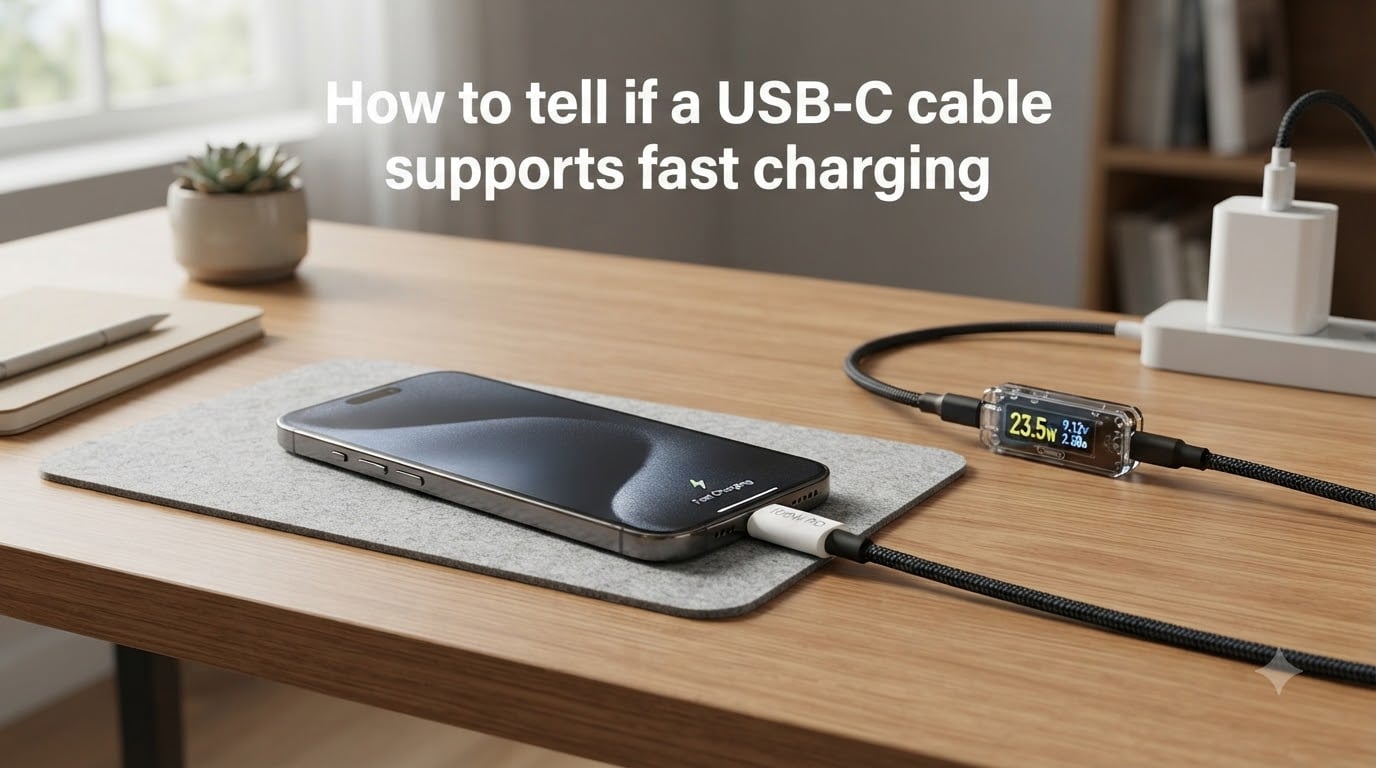
Not every USB-C cable that fits your charger will actually charge your phone or laptop at full speed. In fact, most USB-C cables that ship free in product boxes top out at 15W or 18W, even when your charger is rated for 65W or 100W. If you have ever plugged in a 65W charger and watched your battery crawl, the cable is almost always the reason.
Learning how to tell if a USB-C cable supports fast charging saves you hours of slow charging and keeps your devices safe from cheap, uncertified cables. The good news is that you do not need special equipment to check most cables. A quick visual inspection, a glance at your phone screen, or a simple power meter is all it takes.
I have tested dozens of USB-C cables across phones, tablets, and laptops over the past two years, and I learned the hard way that looks are completely misleading. This guide breaks down every method I use so you can identify a fast-charging cable in under a minute.
Table of Contents
What Is USB-C Fast Charging?
USB-C fast charging works through a protocol called USB Power Delivery, or USB PD. This protocol lets your device and your charger negotiate the optimal voltage and amperage together, rather than the charger blindly pushing a fixed amount of power. When both ends agree on a higher wattage, your battery fills up much faster.
Here is the part that trips most people up: the connector shape has nothing to do with charging speed. A USB-C plug is just a plug. The actual speed depends on the cable’s internal wiring, its thickness (called the cable gauge), and whether it contains a small identification chip called an E-Marker.
So no, not all USB-C cables support fast charging. A basic USB 2.0 cable with thin 28 AWG wire might only handle 15W. A proper USB PD cable with thicker wire and an E-Marker chip can handle 60W, 100W, or even 240W. The difference is entirely inside the cable.
How to Tell if a USB-C Cable Supports Fast Charging: Visual Inspection
The fastest way to identify a fast-charging cable is to look at it. Manufacturers who build proper PD cables usually print the key details right on the cable or the packaging. Here is exactly what to check.
Step 1: Look for Wattage Markings
Run your fingers along the cable housing near each connector. Quality cables print the power rating directly on the cable. You are looking for numbers like “60W,” “100W,” “5A,” or “240W.” If you see a wattage number of 60W or higher, the cable almost certainly supports fast charging.
If the cable says “3A” it supports up to 60W (20 volts at 3 amps). If it says “5A” it supports up to 100W or 240W (20 volts or 48 volts at 5 amps). These amperage ratings matter more than brand names because they tell you the actual current capacity of the wire inside.
Step 2: Check for an E-Marker Chip
Any cable rated above 60W (meaning 5A cables) is required by the USB specification to contain an E-Marker chip. This tiny chip tells your charger and device that the cable can safely handle high current. Without it, the system refuses to push more than 3A as a safety measure.
Some cables print “E-Marker” or “EMarker” directly on the housing. Others do not label it but still contain the chip. The rule of thumb: if a cable is labeled 100W or 240W and comes from a reputable brand, it has an E-Marker. If a no-name cable claims 100W with no certification markings, treat that claim with suspicion.
Step 3: Look for USB-IF Certification
The USB Implementers Forum (USB-IF) is the standards body that certifies USB cables. Cables that pass their testing carry a certification logo on the packaging or a certification ID number. A USB-IF certified cable guarantees that the power delivery claims are real, not marketing.
Step 4: Feel the Cable Thickness
Fast-charging cables carry more current, and more current requires thicker wire. If your cable feels thin, floppy, and cheap compared to others, it likely has small-gauge wire and will not support high-wattage charging. Cables rated for 100W or 240W feel noticeably thicker and stiffer because they contain heavier conductors.
This is not a perfect test on its own, but it is a strong signal when combined with the other checks. I have thrown out cables that looked fine but felt like wet noodles, and they never delivered more than 18W in testing.
Check Your Device Display and Charging Notifications
Your device itself is one of the best fast charging indicators you have. Most phones and laptops tell you on screen when fast charging is active. You just need to know what to look for.
On Samsung phones, the charging notification changes from a simple lightning bolt to text that says “Super Fast Charging” when USB PD at 25W or higher is working. If you only see “Fast Charging,” you are getting around 15W. If you see no special text at all, the cable is not PD-compliant.
On iPhones with USB-C (iPhone 15 and later), there is no on-screen fast charging label. Instead, plug in the cable and watch the battery icon. If the green bolt appears and the battery climbs roughly 50 percent in 30 minutes, fast charging is working. A slow cable will show the same bolt but gain only 15 to 20 percent in that window.
On most laptops, you can check the charging status in the operating system power settings. Windows shows the current charge rate in the battery report. macOS displays charging status in the battery menu bar. If your laptop reports charging at well below the charger’s rated wattage, the cable is your bottleneck.
Test With a USB Power Meter or App
If visual inspection and on-screen checks leave you uncertain, you can measure the actual power flowing through the cable. This is the most reliable method and it does not cost much.
Use a USB-C Power Meter
A USB-C power meter is a small dongle that plugs between your charger and your cable. It has a tiny screen that displays live voltage, amperage, and wattage. These cost around 15 to 30 dollars from brands like Plugable, Satechi, or unbranded options on Amazon.
To test, plug the meter into the charger, plug the cable into the meter, and connect your device. Let the device discharge to around 30 percent battery (charging speed drops as the battery fills). Read the wattage on the meter. A cable rated for 60W should show close to 60W during the bulk charging phase. If it reads 9W or 15W, the cable is not PD-compliant.
Use an Android Charging App
If you have an Android phone, you can skip the hardware meter and use a free app. Apps like Ampere, AccuBattery, and USB-C Check read the charging current and voltage reported by the phone’s battery management system.
Open the app, plug in your cable and charger, and read the numbers. Fast charging at 25W or higher typically shows around 9000 mA and 9 volts or more. Standard charging shows about 2000 mA at 5 volts. This is not as precise as a hardware meter, but it clearly separates fast cables from slow ones.
iOS does not expose charging data to apps, so iPhone users need a hardware power meter for an accurate test.
USB-C Power Tiers Explained: 18W to 240W
USB Power Delivery defines several power tiers, and each one suits different devices. Knowing these numbers helps you pick the right cable and understand what your device actually needs.
At the low end, 18W is the minimum most people consider fast charging for a phone. This tier charges a standard smartphone to roughly 50 percent in 30 minutes. Most basic USB-C cables handle 18W without issue, which is why even cheap cables seem to fast-charge phones.
The 30W to 45W tier covers premium phone fast charging, like Samsung’s Super Fast Charging at 45W. You need a cable rated for at least 3A to hit this range. Many included phone cables cap out here.
The 60W tier is where things get serious. This is the entry point for charging thin-and-light laptops and larger tablets. Cables rated for 60W (20V at 3A) are common and affordable, and they still work fine for phones.
The 100W tier (20V at 5A) covers most laptops, including 15-inch and some 16-inch models. Every 100W cable must have an E-Marker chip by specification. If a cable claims 100W but you cannot find any certification, it is a fake claim.
The 240W tier (48V at 5A) is the newest standard, introduced with USB PD 3.1 in 2026. It targets high-performance gaming laptops and workstations. These cables carry Extended Power Range (EPR) labeling and are noticeably thick. Most people do not need 240W, but if you have a powerful laptop, this is the tier to look for.
A quick reference for matching cable wattage to device type: phones need 18W to 45W, tablets need 30W to 65W, most laptops need 60W to 100W, and gaming laptops may need 100W to 240W. When in doubt, buy a 100W cable because it handles everything below that tier too.
Why Your PD Cable Still Charges Slowly?
This is one of the most common frustrations I see in USB-C communities, and it has several causes. Even when you own a real PD cable, your charging speed can still disappoint. Here is how to troubleshoot.
First, check the charger wattage. A 100W cable plugged into a 15W brick will only deliver 15W. The cable does not generate power; it only carries what the charger provides. Many people blame the cable when the charger is the actual limit.
Second, check the cable length. USB-C has a voltage drop problem over distance. A cable longer than 1 meter (3.3 feet) may not sustain full 100W charging, especially if it uses thin wire. If you need a long cable, look for active cables with built-in signal boosters, or accept a lower wattage.
Third, verify the device supports the PD profile your charger offers. A device that maxes out at 18W will never draw 65W, no matter what cable and charger you use. Check your device specifications for its maximum charging wattage before assuming the cable is broken.
Fourth, inspect the connectors for damage or debris. A bent pin, lint in the port, or a worn connector can disrupt the PD negotiation handshake. When negotiation fails, the system falls back to a safe default of 5V at 2.4A, which feels painfully slow. Clean the port with a non-metallic tool and try a different connector.
Finally, watch for thermal throttling. Some phones and laptops reduce charging speed when the battery gets hot. If your device warms up during charging, the slowdown may be intentional protection, not a cable fault. Let it cool and try again.
Safety Risks of Fake and Low-Quality PD Cables
This is an area where most guides stay silent, but it matters. Counterfeit and uncertified USB-C cables are a real safety hazard, not just a performance problem. I have seen Reddit users report melted connectors, damaged charging ports, and even small fires from cheap knockoff cables.
The danger comes from undersized wire and missing safety chips. A cable claiming 100W but built with 28 AWG wire cannot physically carry 5 amps safely. The wire overheats, the insulation melts, and in the worst case it shorts out. A genuine E-Marker chip prevents this by telling the charger to limit current.
To stay safe, buy from established brands like Anker, Cable Matters, Baseus, Belkin, or Satechi. Avoid listings with brand names you cannot pronounce, prices under 5 dollars for a 100W cable, or vague wattage claims with no certification logo. A real 100W cable costs more to manufacture because of the thicker wire and the E-Marker chip, so rock-bottom prices are a red flag.
If a cable arrives running hot to the touch during charging, stop using it immediately. That is the most reliable warning sign of a dangerously under-built cable.
How to Choose a USB-C Cable That Will Not Let You Down?
After testing cables for years, I have a short checklist that removes the guesswork. Follow these rules and you will rarely buy a dud.
Match the wattage to your most demanding device. If you charge a laptop that needs 100W, buy a 100W cable, not a 60W one. A higher-wattage cable always works for lower-power devices, but the reverse is not true. Buying one good 100W cable covers phones, tablets, and most laptops.
Stick to 1 meter or shorter for maximum power delivery. If you need reach, look for braided jackets and thicker profiles, which usually indicate heavier-gauge wire. Avoid 2-meter cables for laptop charging unless the manufacturer explicitly rates them for full wattage.
Prioritize USB-IF certification over marketing claims. A certified cable has been independently tested. A cable with flashy packaging but no certification number is a gamble.
Choose USB 3.1 or USB4 if you also care about data transfer. A USB 2.0 cable can deliver 100W but only transfers data at 480 Mbps. If you connect external drives or docks, you need the higher data tier too.
For Samsung users specifically, look for cables that mention Super Fast Charging or 45W PD support. For iPhone 15 and later, any quality 20W or higher PD cable works for fast charging. For laptops, always confirm the cable wattage meets or exceeds your laptop’s charging requirement.
Frequently Asked Questions
Do all USB-C cables support fast charge?
No, not all USB-C cables support fast charging. The connector shape is universal, but the internal wire gauge and chips determine charging speed. Basic USB 2.0 cables often cap at 15W, while USB PD cables with E-Marker chips can handle 60W, 100W, or 240W.
How to tell what speed a USB-C cable is?
Look for wattage markings printed on the cable housing (such as 60W, 100W, or 240W), check for an E-Marker chip label on 5A cables, look for USB-IF certification, and feel the cable thickness. Thicker cables with printed ratings support faster charging.
How do you know if a cable is a fast charger?
Check your device screen for fast charging indicators (Samsung shows Super Fast Charging text), use a USB-C power meter to read live wattage, or install an app like Ampere on Android. A true fast-charging cable will deliver 18W or more during the bulk charging phase.
Do I need a special USB cable for fast charging?
Yes, for fast charging above 18W you need a cable rated for USB Power Delivery. For charging above 60W you specifically need a cable with an E-Marker chip that supports 5A current. Standard USB-C cables without PD support will not fast charge your device.
What is considered fast charging for USB-C?
Fast charging for USB-C generally starts at 18W for phones. Premium phones fast charge at 30W to 45W, tablets at 45W to 65W, and laptops at 60W to 100W or higher. Anything delivering more power than a standard 5V 2.4A (12W) charger qualifies as fast charging.
What is an E-Marker chip in a USB-C cable?
An E-Marker chip is a small identification chip required in USB-C cables rated above 60W (5A). It communicates the cable maximum power and data capabilities to the charger and device, allowing safe power negotiation for high-wattage charging.
Conclusion
Figuring out how to tell if a USB-C cable supports fast charging comes down to four simple checks: look for wattage markings, confirm an E-Marker chip on high-power cables, verify USB-IF certification, and test with a power meter if you are still unsure. Your device screen is also a reliable indicator that costs nothing to check.
Start by grabbing every USB-C cable you own and reading the housing near the connectors. You will quickly sort them into fast and slow piles. Then match your fastest cable to your highest-wattage charger and device, and you will see the difference immediately. For anything new you buy, stick with reputable brands, check for certification, and never trust a 100W claim on a cable that costs less than a coffee.