
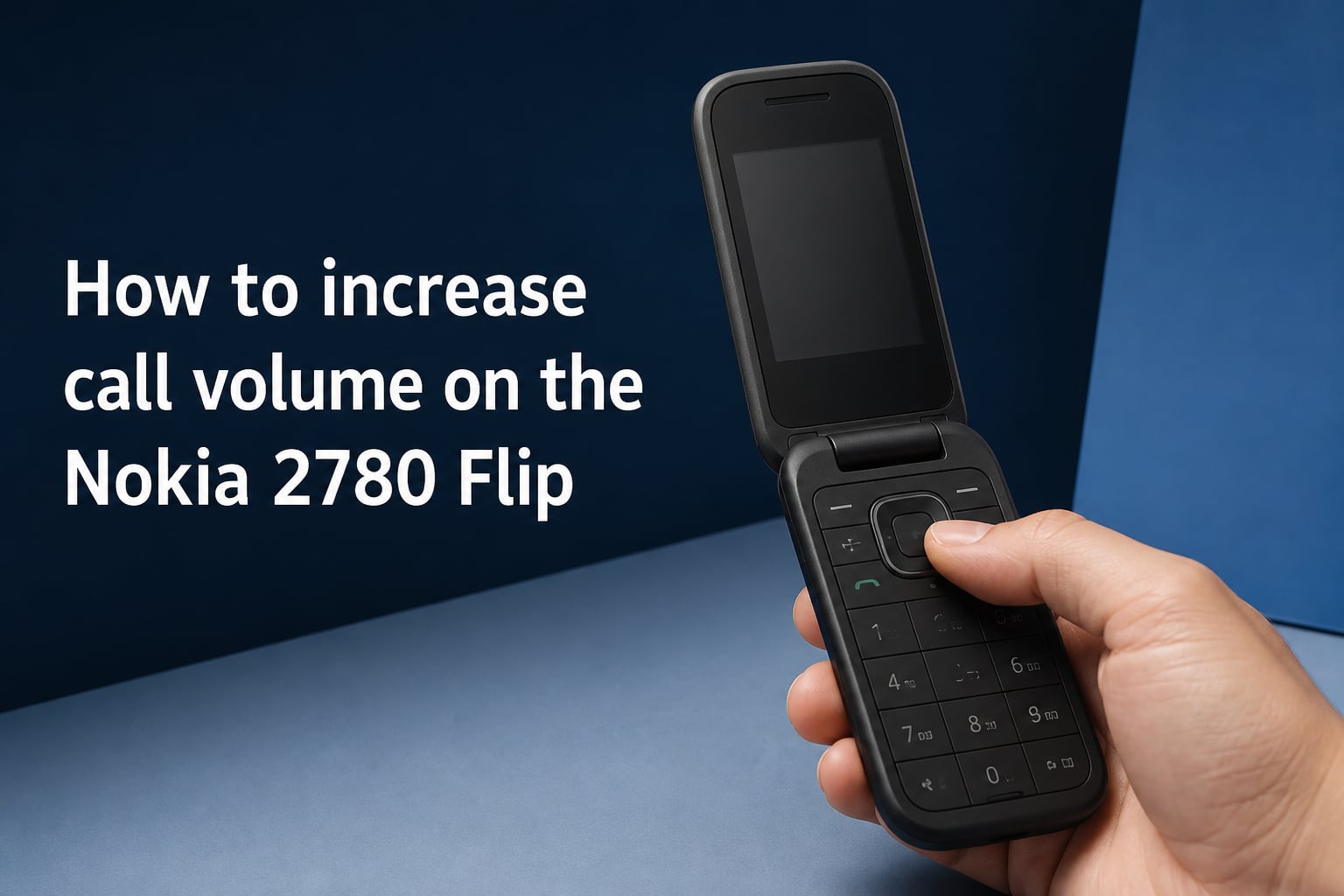
Press the right side of the navigation pad to increase volume or the left side to decrease volume during a call on your Nokia 2780 Flip. That is the fastest method, but there are several other ways to get louder, clearer sound from your phone.
If you have been struggling to hear callers or keep accidentally muting your ringer in your pocket, you are not alone. Our team dug through forum discussions on r/Nokia and r/dumbphones, tested the settings menus ourselves, and compared official HMD documentation with real user experiences to put together this guide.
We will walk you through every method to adjust and lock call volume on the Nokia 2780 Flip, from the quick during-call fix to deeper settings customization and troubleshooting when the volume still feels too low.
Table of Contents
How to Increase Call Volume on the Nokia 2780 Flip During a Call?
The quickest way to change call volume is right in the middle of your conversation. The Nokia 2780 Flip uses its navigation pad as the primary volume controller while you are on a call.
Here is the step-by-step method using the navigation pad:
Step 1: While on an active call, locate the navigation pad in the center of the phone face. This is the large round button surrounding the OK key.
Step 2: Press the right edge of the navigation pad to increase the call volume. Each press raises the volume by one level.
Step 3: Press the left edge of the navigation pad to decrease the volume if it gets too loud.
Step 4: You will see a volume indicator bar appear briefly on the internal screen confirming your adjustment.
Step 5: Keep pressing right until you reach a comfortable listening level. The phone remembers this setting for future calls.
You can also use the side buttons on some carrier variants of the 2780 Flip. These buttons sit on the right edge of the phone body and function as a volume rocker. Press the upper portion to raise volume and the lower portion to lower it during a call.
Tip: The volume you set during a call stays saved for your next call. You do not need to readjust every time unless you want a different level.
Adjusting Volume Through the Settings Menu
You do not have to wait for a call to manage your sound preferences. The Nokia 2780 Flip runs KaiOS, which gives you a dedicated sound settings menu for customizing ringer volume, call alerts, and notification tones.
Follow these steps to access and change sound settings:
Step 1: Press the navigation pad to open the main menu from the home screen.
Step 2: Scroll to and select Settings.
Step 3: Scroll right to the Personalization tab.
Step 4: Select Sound to open the sound customization options.
Step 5: From here you can adjust the ringer volume, notification volume, and keypad tones independently.
The ringer volume setting controls how loudly your phone rings when someone calls you. This is separate from the in-call volume, which only affects what you hear through the earpiece during a conversation.
If your ringer keeps getting accidentally lowered, you can reset it to your preferred level here any time. Many Nokia 2780 Flip owners check this menu regularly because pocket bumps tend to change the ringer level without warning.
You can also switch between sound profiles in this menu. Options typically include silent, vibrate, and general profiles that let you quickly toggle between volume presets for different situations.
How to Prevent Accidental Volume Changes?
One of the biggest complaints we found from Nokia 2780 Flip users involves accidental volume changes. The side buttons are sensitive, and the phone can shift in your pocket, pressing them without your knowledge.
Multiple users on r/Nokia reported the same frustrating experience. One user explained that the side buttons seem too touchy, causing times where they expected a call only to discover the ringer volume had been turned off entirely. They figured the phone was bumping around in their pocket to do that.
Unfortunately, the Nokia 2780 Flip does not have a built-in volume lock feature that prevents these accidental changes. After searching through the official HMD user guide and forum discussions, we confirmed that no native setting locks the volume buttons or ringer level.
However, there are practical workarounds that real users rely on:
Use a phone case. A fitted case or cover adds a raised edge around the side buttons, making them harder to press accidentally. This is the single most effective fix according to forum users.
Lock the keypad before pocketing. Press the power button briefly to lock the phone before putting it away. This does not fully prevent volume button presses on all models, but it does reduce accidental menu navigation and pocket dialing.
Check ringer volume regularly. Make it a habit to glance at the volume level on the external screen after pulling the phone from your pocket. A quick check takes two seconds and can save you from missed calls.
Use a belt clip or pouch. Keeping the phone in a dedicated pouch rather than loosely in a pocket reduces button contact significantly.
Troubleshooting: Why Is My Call Volume Still Too Low?
If you have maxed out the volume using the navigation pad and calls still sound muffled or quiet, something else may be going on. Here is a troubleshooting checklist to work through.
Clean the speaker grille. Dirt, lint, and pocket debris accumulate in the earpiece speaker over time. Use a soft-bristled brush or a clean, dry toothbrush to gently sweep the speaker grille at the top of the internal screen. Avoid using liquids or sharp objects that could damage the speaker.
Check for software updates. KaiOS occasionally releases updates that can affect audio performance. Go to Settings > Device > Device updates > Check for updates to see if a newer version is available.
Remove screen protectors blocking the speaker. Some third-party screen protectors or skins partially cover the earpiece opening. Check that nothing is obstructing the speaker slit above the screen.
Test with a different caller. The issue might be on the other person’s end. Make a test call to someone you know has a clear connection to compare audio quality.
Restart the phone. A simple reboot can resolve temporary software glitches that affect audio output. Hold the power button, select restart, and test call volume again once the phone powers back on.
Inspect for hardware damage. If the phone has been dropped or exposed to moisture, the speaker component itself may be damaged. In this case, contact HMD support or your carrier about repair or replacement options.
Warning: Do not attempt to open the phone casing or disassemble the speaker yourself. This will void your warranty and may cause permanent damage.
Hearing Protection and Safe Volume Levels
The official HMD user guide for the Nokia 2780 Flip includes a hearing protection warning, and it is worth taking seriously. Prolonged exposure to loud volume through the earpiece can cause permanent hearing damage over time.
Set the volume to the lowest level that still lets you hear your caller clearly. If you find yourself consistently needing maximum volume to hear conversations, consider using the speakerphone option for hands-free listening at a safer distance.
If you have existing hearing difficulties, consult an audiologist about phone-compatible hearing solutions rather than relying on extreme volume levels that could worsen hearing loss.
Frequently Asked Questions
How to increase call volume on Nokia phone?
During an active call on the Nokia 2780 Flip, press the right side of the navigation pad to increase volume or the left side to decrease it. You can also use the side volume buttons on supported carrier variants. The phone saves your chosen level for future calls.
How do I make my call volume louder?
To make call volume louder on the Nokia 2780 Flip, press the right edge of the center navigation pad repeatedly during a call until you reach the desired level. If volume is still low after maxing it out, clean the speaker grille, check for software updates, and remove any screen protectors blocking the earpiece.
How to make a flip phone louder?
To make a flip phone like the Nokia 2780 Flip louder, use the navigation pad during calls or adjust ringer volume in Settings u0026gt; Personalization u0026gt; Sound. For persistent low volume, clean the speaker grille of debris, restart the phone, and ensure no case or protector is covering the speaker opening.
Why is my call volume too low?
Call volume may be too low because of dirt in the speaker grille, a software glitch, a screen protector blocking the earpiece, outdated KaiOS software, or hardware damage from drops or moisture. Clean the speaker, restart the phone, update software, and test with different callers to isolate the cause.
Conclusion
Learning how to increase call volume on the Nokia 2780 Flip comes down to mastering the navigation pad during calls, exploring the Settings menu for deeper sound customization, and knowing how to troubleshoot when volume stays stubbornly low.
The navigation pad method works instantly and remembers your preference. Settings let you fine-tune ringer and notification levels separately. And for accidental changes, a good phone case and regular volume checks go a long way.
If you have worked through every step in this guide and call volume is still too quiet, the speaker may need professional inspection. Reach out to HMD support or your carrier for warranty service. Your calls should be clear and audible, and with these methods, they will be.