
If you’ve just bought a flip phone and want to ditch the plastic SIM card, you’re in the right place. I help people switch from smartphones to simpler devices every week, and the most common question I get is how to activate an eSIM on a flip phone without ending up stuck on a carrier support call.
In this guide I’ll walk you through what an eSIM actually is, how to check if your specific flip phone supports one, and the exact steps to activate it. I’ll also cover the manual SMDP+ method for when QR scanning isn’t an option, plus the troubleshooting fixes that solved the problems real users posted on Reddit and carrier forums.
Table of Contents
What Is an eSIM and How Does It Work on a Flip Phone?
An eSIM, short for embedded SIM, is a tiny chip soldered directly into your phone that acts like a digital SIM card. Instead of inserting a physical card, your carrier profile is downloaded onto the chip and managed through software.
For flip phone users, this matters more than you might think. Modern flip phones (especially the foldable kind like the Samsung Galaxy Z Flip) increasingly ship without a SIM tray. Even traditional flip phones such as the Nokia 2780 Flip or TCL Flip 4 5G now support eSIM alongside, or in place of, a physical card. The benefit is real: no tiny tray, no ejector tool, and you can switch carriers in minutes rather than waiting for a new card in the mail.
When you activate an eSIM, your carrier pushes a profile to your device using either a QR code or a SMDP+ address (the long activation URL). Your phone validates the profile, downloads it, and registers on the network. From your perspective, the end result is the same as popping in a SIM: a working cellular line.
Does Your Flip Phone Support eSIM
Not every flip phone supports eSIM, and assuming yours does is the number one reason activation fails. Here’s a quick way to check before you start.
First, look up your exact model on the manufacturer’s website and search for “eSIM” in the specs sheet. If you see EID listed anywhere, you’re good. If only “Nano-SIM” appears, your phone uses a physical card and this guide won’t apply.
Here are the models that support eSIM as of 2026:
Samsung Galaxy Z Flip series: Z Flip 3, 4, 5, and 6 all support eSIM, often with dual SIM (one eSIM plus one physical).
Samsung Galaxy Z Fold series: Z Fold 3, 4, 5, and 6 support eSIM.
Nokia 2780 Flip: Supports eSIM on most US carriers including AT&T, T-Mobile, and Verizon.
TCL Flip 4 5G and Flip 6: Support eSIM on T-Mobile and Metro by T-Mobile.
Motorola Razr (2023 and newer): Supports eSIM.
If you own an older “dumb” flip phone from before 2022, it almost certainly uses a physical SIM only. The TCL Flip 2, Nokia 225, and similar models lack the hardware. In that case, you’ll need a physical SIM card from your carrier instead.
Before You Start: Carrier Unlock and EID Number Checklist
Before you try to activate anything, confirm three things. Skipping these is the reason most activation attempts fail on the first try.
1. Your phone is unlocked. Carrier-locked phones often refuse eSIM profiles from other carriers. If you bought your flip phone from AT&T but your plan is with T-Mobile, you’ll need the original carrier to unlock it first. The fastest way is to call carrier support or use their online unlock portal.
2. You have your EID number. The EID (Embedded Identity Document) is a unique 32-digit identifier for your phone’s eSIM chip. On most flip phones you’ll find it under Settings > About Phone > EID. Write it down or screenshot it. Your carrier may ask for it.
3. You have a Wi-Fi connection. eSIM profiles download over the internet. Cellular data alone often won’t work for the initial activation, especially on a new line. Make sure you’re connected to Wi-Fi before starting.
Your carrier account also needs to be eligible for eSIM. Most major US carriers support eSIM on postpaid plans, and prepaid carriers like Mint, Visible, and US Mobile have caught up too. If your account is too old or flagged, you may need a quick call to support.
How to Activate an eSIM on a Flip Phone: Step-by-Step
Here is the universal process that works across Samsung, Nokia, TCL, and Motorola flip phones. The exact menu names vary slightly by model, but the flow is identical.
Step 1: Power on your flip phone and connect to Wi-Fi. If your phone is brand new, complete the initial setup wizard first. If you’ve been using it on Wi-Fi already, you’re ahead.
Step 2: Open Settings and find SIM or Mobile Network settings. On a Samsung Galaxy Z Flip, tap Settings > Connections > SIM Manager. On a Nokia 2780, navigate to Settings > Network & Connectivity > Mobile Network. On a TCL Flip 4, look under Settings > Network & Internet > SIM Manager.
Step 3: Choose “Add eSIM” or “Download eSIM”. Your phone will ask how you want to add the plan. Pick QR code if you have one from your carrier. If not, pick the manual entry option.
Step 4: Scan the QR code or enter the SMDP+ address. Hold the QR code in front of your phone’s camera. If your flip phone doesn’t have a usable camera scanner, choose manual entry and type the SMDP+ address exactly as your carrier provided it.
Step 5: Confirm the download and label the line. Your phone will pull the eSIM profile from your carrier, install it, and ask you to name the line (such as “Personal” or “Work”). Choose a label you’ll recognize.
Step 6: Restart and test. Power cycle the phone, then make a call or send a text to confirm the line is active. If it works, congratulations: your eSIM is live on your flip phone.
QR Code Scanning Method
The QR code method is the fastest and the one your carrier will guide you toward by default. Here’s how to get the most out of it on a flip phone.
First, get the QR code from your carrier. Log into your carrier’s app or website, go to “Add a line” or “Activate eSIM”, and they’ll display a QR code on your screen. Some carriers also email the QR code as a PDF.
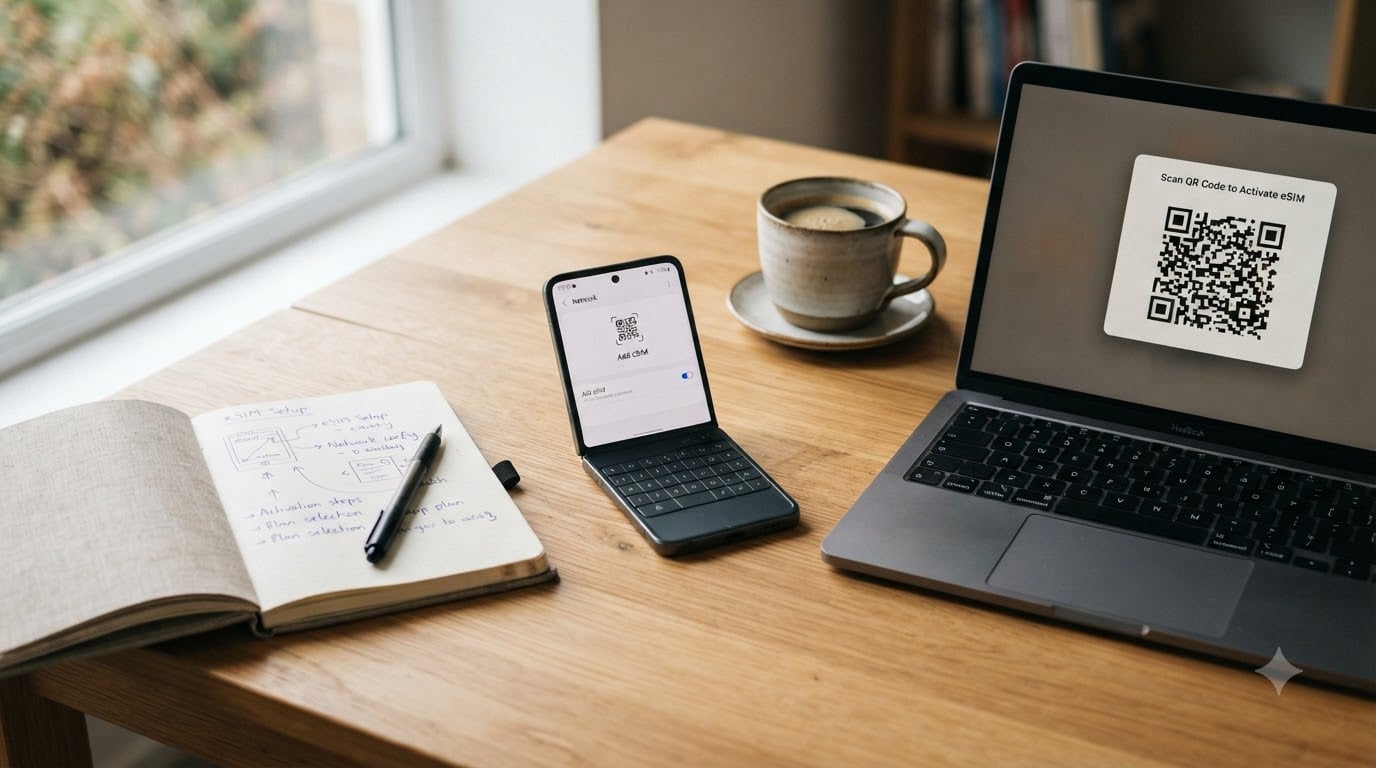
Open the QR code on a laptop, tablet, or printed page. Make sure it’s bright and uncropped. Then on your flip phone, open the “Add eSIM” menu and select “Scan QR code”. Point the camera at the code from about 6 to 10 inches away. The phone will beep or vibrate when it reads it.
If your flip phone’s camera struggles to focus (a common complaint on cheaper models), try the manual SMDP+ entry method below instead. Forcing the camera to focus wastes more time than typing a code.
Manual Activation Using the SMDP+ Address
Manual activation is the fallback when QR scanning fails or when you don’t have a camera handy. You’ll need the SMDP+ address, which looks like a long URL starting with “sm-dp-plus” or “LPA:1$…”.
On your flip phone, open Settings > Mobile Network > Add eSIM > Use SMDP+ Address. Carefully type the full address. Watch for typos: even one wrong character will cause activation to fail silently.
After entering the address, tap Confirm or Download. The phone will contact the carrier’s server, verify your EID, and pull the profile. This step usually takes 30 seconds to 2 minutes. Don’t close the app while it’s working.
When the profile appears in your SIM list, tap it to enable it. Restart your phone to make sure the new line registers on the network. If you get an error message at this stage, jump to the troubleshooting section.
Transferring an Existing eSIM From a Smartphone to a Flip Phone
This is the scenario I see on Reddit almost every week: someone has an iPhone 14 with an AT&T eSIM and wants to move to a Nokia 2780 Flip. The good news is that eSIM transfer is officially supported now. The bad news is that it can be finicky on flip phones.
For iPhone to flip phone transfers, Apple introduced Quick Transfer starting with iOS 16. If both devices are nearby and unlocked, your new flip phone can pull the eSIM profile directly during setup. Make sure Bluetooth is on and both phones are connected to power.
For Android to flip phone transfers, the process depends on the carrier. Most US carriers now let you log into your account, select “Move eSIM to new device”, and generate a fresh activation on the flip phone. The old profile on your smartphone deactivates automatically once the new one is live.
One common gotcha: if you wipe or factory-reset your old smartphone before the new eSIM activates, you can lock yourself out. Always activate on the flip phone first, confirm it works, then reset the old phone.
Troubleshooting Common eSIM Activation Issues
If your eSIM won’t activate, run through this checklist before calling carrier support. These fixes solve the majority of the problems users report in forums.
“Could not activate eSIM” error: Usually a network or unlock issue. Verify your phone is unlocked, you’re on Wi-Fi, and your plan supports eSIM. Restart the phone and try again.
QR code won’t scan: Clean your camera lens and increase screen brightness on the device showing the QR code. If it still fails, use the manual SMDP+ address method.
“Profile already in use” or duplicate profile error: Your previous device still has the eSIM installed. Log into your carrier and deactivate the old profile, or remove it from the old device’s SIM manager.
Activation succeeds but no signal: Toggle airplane mode on and off, then restart. If you still see no signal, check that the new eSIM line is set as the default for mobile data under Settings > Mobile Network.
“EID not recognized” error: Your phone may not be registered with the manufacturer for eSIM use. Check for a firmware update under Settings > Software Update, then retry.
For TCL Flip 4 and Flip 6 users specifically, several people reported that removing the physical SIM mid-activation caused a “would not activate” error. If you’re switching from a physical SIM to eSIM, leave the old card in place until the eSIM is fully working.
Tips for a Smooth eSIM Activation on a Flip Phone
After helping dozens of people through this process, here are the small things that make the biggest difference.
Charge your phone to at least 50 percent before starting. A dead battery mid-activation is one of the most common ways to corrupt an eSIM profile.
Keep your old phone powered on and connected to Wi-Fi until your flip phone shows a working signal. This gives you a backup if something goes wrong.
Write down your EID number and the SMDP+ address on paper before you start. If the activation fails and your phone resets, you’ll still have what you need to try again.
And finally, if you get stuck after two or three tries, don’t waste another hour fighting it. Walk into a carrier store with your flip phone, your EID number, and a photo ID. In my experience the in-store team can activate an eSIM in about five minutes once they’re standing in front of the device.
FAQs
Which flip phones support eSIM in 2026?
As of 2026, eSIM-compatible flip phones include the Samsung Galaxy Z Flip 3 through Z Flip 6, Samsung Galaxy Z Fold 3 through Z Fold 6, Motorola Razr (2023 and newer), Nokia 2780 Flip, and TCL Flip 4 5G and Flip 6. Older dumb flip phones from before 2022 typically do not support eSIM and require a physical SIM card instead.
Can a Samsung flip phone use eSIM?
Yes. Samsung Galaxy Z Flip 3, Z Flip 4, Z Flip 5, and Z Flip 6 all support eSIM. Most models also support dual SIM with one eSIM and one physical Nano-SIM. Activate it by going to Settings u0026gt; Connections u0026gt; SIM Manager u0026gt; Add eSIM on your Z Flip device.
How do I manually activate an eSIM?
To manually activate an eSIM, go to Settings u0026gt; Mobile Network u0026gt; Add eSIM on your flip phone. Select ‘Use SMDP+ Address’ (or ‘Enter details manually’), type the SMDP+ address provided by your carrier exactly as given, tap Confirm, and wait for the profile to download. Restart your phone once the profile appears.
Why is my eSIM not activating on my flip phone?
Common reasons an eSIM fails to activate on a flip phone include: the phone is carrier-locked, the plan does not support eSIM, weak or no Wi-Fi connection during activation, an incorrect SMDP+ address, or an outdated firmware version. Verify your phone is unlocked, connect to strong Wi-Fi, double-check the SMDP+ address, and update your phone’s software before retrying.
Can I transfer my eSIM from an iPhone to a flip phone?
Yes. Apple introduced Quick Transfer in iOS 16, which lets you move an eSIM directly from an iPhone to a nearby flip phone during setup. Keep both devices unlocked, with Bluetooth on, and connected to power. Alternatively, log into your carrier account and generate a fresh eSIM activation on the flip phone, which will deactivate the iPhone profile automatically.
Do I need Wi-Fi to activate an eSIM on a flip phone?
Yes, a Wi-Fi connection is strongly recommended for the initial eSIM activation. The eSIM profile is downloaded from your carrier’s server, and cellular data alone is often not enough on a new line. Connect to a strong Wi-Fi network before starting the activation process.
Conclusion
Activating an eSIM on a flip phone is easier than most people expect once you confirm your device supports it. The core flow stays the same across brands: open Settings, find the SIM manager, scan a QR code or enter the SMDP+ address, and let the profile download over Wi-Fi.
If you’re switching from a smartphone to a flip phone in 2026, take five minutes before you start to confirm your phone is unlocked, find your EID number, and stay on Wi-Fi. That prep work turns a frustrating afternoon into a five-minute activation you can do from your kitchen table.