
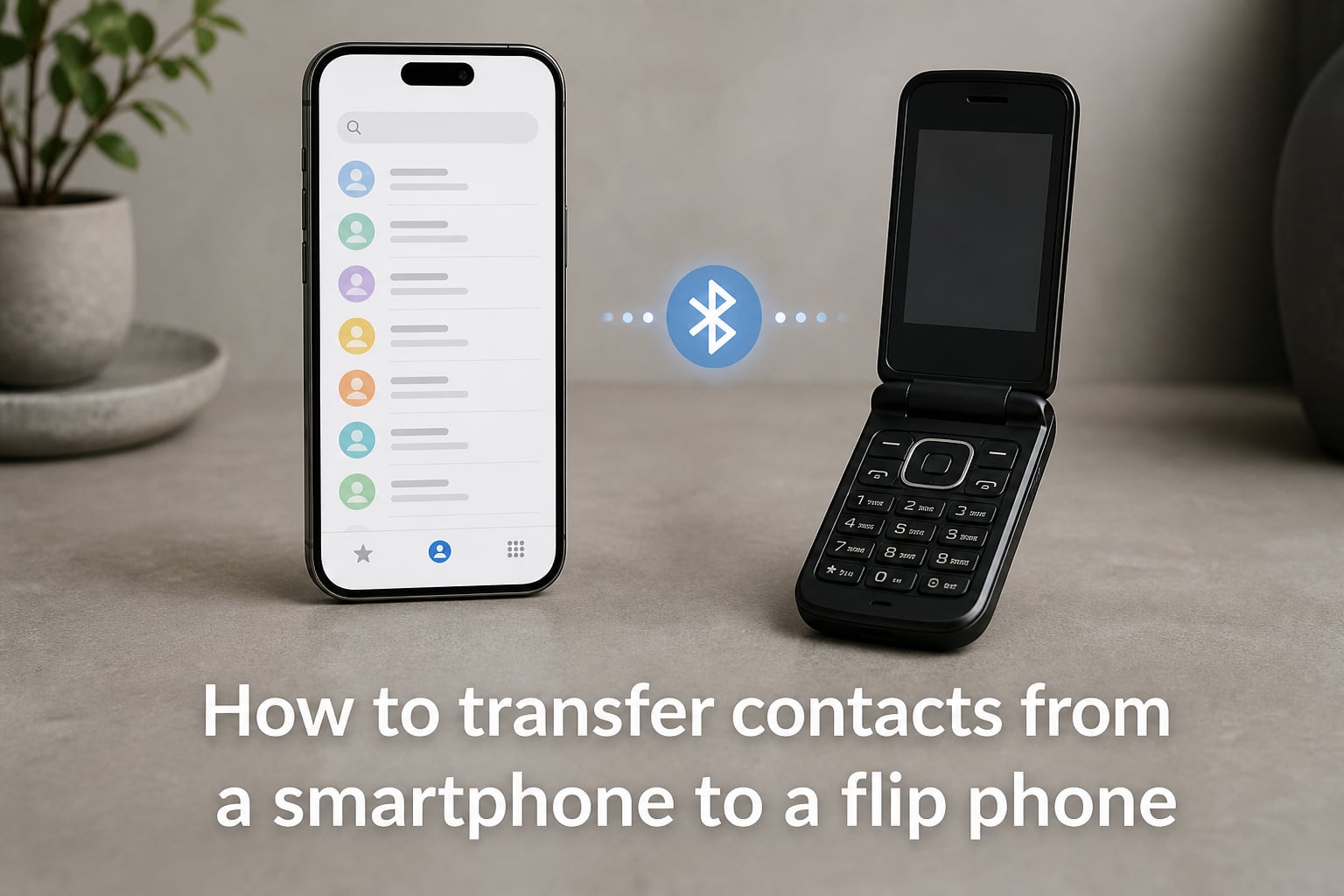
I get why people are switching back to flip phones. The distraction-free life is real, the battery life is unbeatable, and the bills are cheaper. But there’s one headache that stops everyone: how to transfer contacts from a smartphone to a flip phone without losing a single number.
Here’s the good news. I’ve walked dozens of people through this exact process, and it almost always works on the first try. There are three reliable methods: Bluetooth pairing, SIM card export, and vCard (.vcf) files. Each has its strengths, and the one you pick depends on your smartphone and your flip phone model.
This guide covers every step, every device, and every common error. By the end, you’ll know exactly which method fits your situation.
Table of Contents
What You Need to Know Before Transferring Contacts?
Three methods work for moving contacts to a flip phone, and the right one depends on your devices. Bluetooth works for nearly every smartphone and flip phone pairing. SIM card transfer is the fastest option, but only Android phones can export contacts to a SIM card. The vCard (.vcf) file method is the most reliable fallback when the other two fail.
Before you start, do these three things. First, charge both phones above 50 percent so nothing dies mid-transfer. Second, back up your smartphone contacts to your Google or iCloud account, just in case. Third, check how many contacts your flip phone can store. Most basic flip phones hold 200 to 500 contacts, while KaiOS smart flip phones can hold 1,000 or more. If your contact list is bigger than the storage limit, you’ll need to trim it first.
How to Transfer Contacts from a Smartphone to a Flip Phone Using Bluetooth
Bluetooth is the most universal method because almost every flip phone made in the last decade supports it. You pair the two devices, then send contacts one at a time or in small batches. The downside is speed. Sending 300 contacts by Bluetooth can take 30 to 60 minutes because most flip phones receive them one at a time.
On your iPhone
Open Settings, then tap Bluetooth and turn it on.
Put your flip phone in pairing mode. Usually this is under Settings, then Connectivity or Bluetooth, then Add New Device.
Select your flip phone from the iPhone’s list of available devices.
Confirm the pairing code on both screens.
Open the Contacts app, pick a contact, tap Share Contact, then choose Bluetooth.
Select your flip phone and wait for the contact to land.
Repeat for each contact. Yes, this is tedious, but it works on every iPhone running iOS 14 or later.
On your Android phone
Swipe down and long-press the Bluetooth icon to open settings.
Pair your flip phone the same way you would pair wireless earbuds.
Open the Contacts app, tap the three-dot menu, then tap Share.
Select all the contacts you want to move, then choose Bluetooth as the share method.
Pick your flip phone and confirm the transfer.
Using a SIM Card to Move Contacts from Android to a Flip Phone
The SIM card method is the fastest way to transfer contacts from Android to a flip phone, but it has two big limits. First, iPhones cannot export contacts to a SIM card. Second, the SIM card’s contact storage caps at 250 entries on most carriers, and each contact is limited to a name and one phone number. That means no email addresses, no notes, and no second numbers.
Here’s how to do it.
Open the Contacts app on your Android phone.
Tap the three-dot menu, then choose Import/Export or Manage Contacts.
Select Export to SIM card.
Pick the contacts you want to move, or tap Select All.
Wait for the export to finish. This usually takes less than a minute.
Power off your Android phone and remove the SIM card.
Insert the SIM into your flip phone and power it on.
Open the contacts menu on your flip phone. The transferred contacts should appear automatically.
If your flip phone uses a different size SIM than your smartphone, use a SIM adapter or ask your carrier for the right size. Most modern flip phones take a nano SIM.
Sending a vCard (.vcf) File to Your Flip Phone
A vCard file is a small contact card that holds names, numbers, emails, and notes in a single .vcf file. This is the most reliable method when Bluetooth or SIM won’t work, and it’s the only way to transfer contacts from iPhone to a flip phone without losing data. It also works on KaiOS smart flip phones like the TCL FLIP and Nokia 2780 Flip.
From an iPhone
Open icloud.com on a computer and sign in with your Apple ID.
Click Contacts, then select all the contacts you want to move.
Click the gear icon and choose Export vCard. A file will download to your computer.
Email the .vcf file to yourself, or upload it to Google Drive.
Open the email or Drive link on your flip phone (or on a friend’s phone connected to your flip phone via Bluetooth).
Download the .vcf file and open it. Your flip phone will ask if you want to import the contacts.
From an Android phone
Open the Contacts app.
Tap the three-dot menu, then choose Import/Export.
Select Export to .vcf file.
Save the file to your phone’s storage or directly to Google Drive.
Send the .vcf file to your flip phone via email, WhatsApp, or Bluetooth.
Open the file on your flip phone and confirm the import.
One user on the r/dumbphones subreddit shared a clever trick: they sent the .vcf file to their TCL FLIP via WhatsApp, and the phone auto-imported every contact on the first try. If your flip phone supports WhatsApp or has a browser, this is the smoothest route.
iPhone to Flip Phone: Specific Steps You Should Follow
iPhone users have only two real options: Bluetooth or vCard. The SIM card method is locked out because Apple never built a SIM export feature into iOS. For most people, the vCard route is faster and preserves more contact details, including email addresses and notes.
If you have under 100 contacts, Bluetooth is fine. If you have hundreds, save yourself the time and use the iCloud export method. One warning from real users: some flip phones struggle to pair with iPhones over Bluetooth because of older Bluetooth protocols. If the pairing fails, switch to the vCard method.
Android to Flip Phone: Specific Steps You Should Follow
Android users have all three methods available. The SIM card method is the fastest, but the vCard method preserves more data. If your flip phone runs KaiOS, both Bluetooth and vCard work well, and you can also use Google Contacts sync to manage your list from the cloud.
One helpful trick: before exporting, clean up your contact list. Delete duplicates, merge entries, and remove outdated numbers. This makes the transfer faster and avoids the dreaded “memory full” error on the flip phone side.
Troubleshooting Common Transfer Problems
Sometimes the transfer hits a wall. Here are the most common issues and how I fix them.
Bluetooth won’t pair. Restart both phones, then try again. If pairing still fails, reset network settings on your smartphone. On iPhone, this is under Settings, General, Transfer or Reset iPhone, Reset, Reset Network Settings. On Android, the path is Settings, System, Reset Options, Reset Wi-Fi, Mobile and Bluetooth.
Flip phone says storage is full. Most basic flip phones cap at 200 to 500 contacts. Delete old or duplicate entries from your smartphone before exporting, or transfer in smaller batches.
Contacts transfer but lose photos or notes. This is normal with the SIM card method. Use the vCard method instead if you need to keep photos, multiple numbers, or notes.
vCard file won’t open on the flip phone. Some older flip phones don’t support vCard format. Try sending five contacts at a time via Bluetooth instead.
Carrier store couldn’t help. This is sadly common. Verizon, AT&T, and T-Mobile employees often can’t transfer contacts from iPhone to a flip phone because it’s not a standard in-store service. Don’t waste the trip. The DIY methods above work better.
Frequently Asked Questions
How do I put contacts in a flip phone?
You can put contacts in a flip phone by pairing it with your smartphone over Bluetooth and sharing contacts one at a time, by exporting contacts to a SIM card (Android only), or by sending a vCard (.vcf) file to the flip phone via email or messaging apps.
What is the easiest way to transfer contacts from one phone to another?
The easiest method is Bluetooth for small contact lists (under 100 entries), the SIM card for Android users with basic contact info, and a vCard (.vcf) file for large lists or iPhone users needing to preserve photos, emails, and notes.
Can you still use flip phones in 2026?
Yes, flip phones remain fully functional in 2026. Major US carriers still support 4G LTE flip phones, and several manufacturers like TCL, Nokia, and Alcatel release new models each year. KaiOS smart flip phones even support apps like WhatsApp and YouTube.
Can you switch from iPhone to a flip phone and keep the same number?
Yes, you can keep your phone number when switching from iPhone to a flip phone. Move your active SIM card to the flip phone, or ask your carrier to transfer your number to a new SIM that fits the flip phone. Your number stays with the SIM, not the device.
Can you transfer contacts from a smartphone to a flip phone without losing data?
Yes, you can transfer contacts without losing data by using the vCard (.vcf) file method. This preserves names, multiple phone numbers, email addresses, photos, and notes. SIM card transfer, by contrast, only saves one name and one number per contact.
Final Thoughts on Switching to a Flip Phone
Knowing how to transfer contacts from a smartphone to a flip phone is the one hurdle that stands between you and a simpler phone setup. Pick the method that matches your situation: Bluetooth for small lists, SIM card for quick Android transfers, and vCard for everything else. Once your contacts land, you’ll wonder why you didn’t make the switch sooner.