
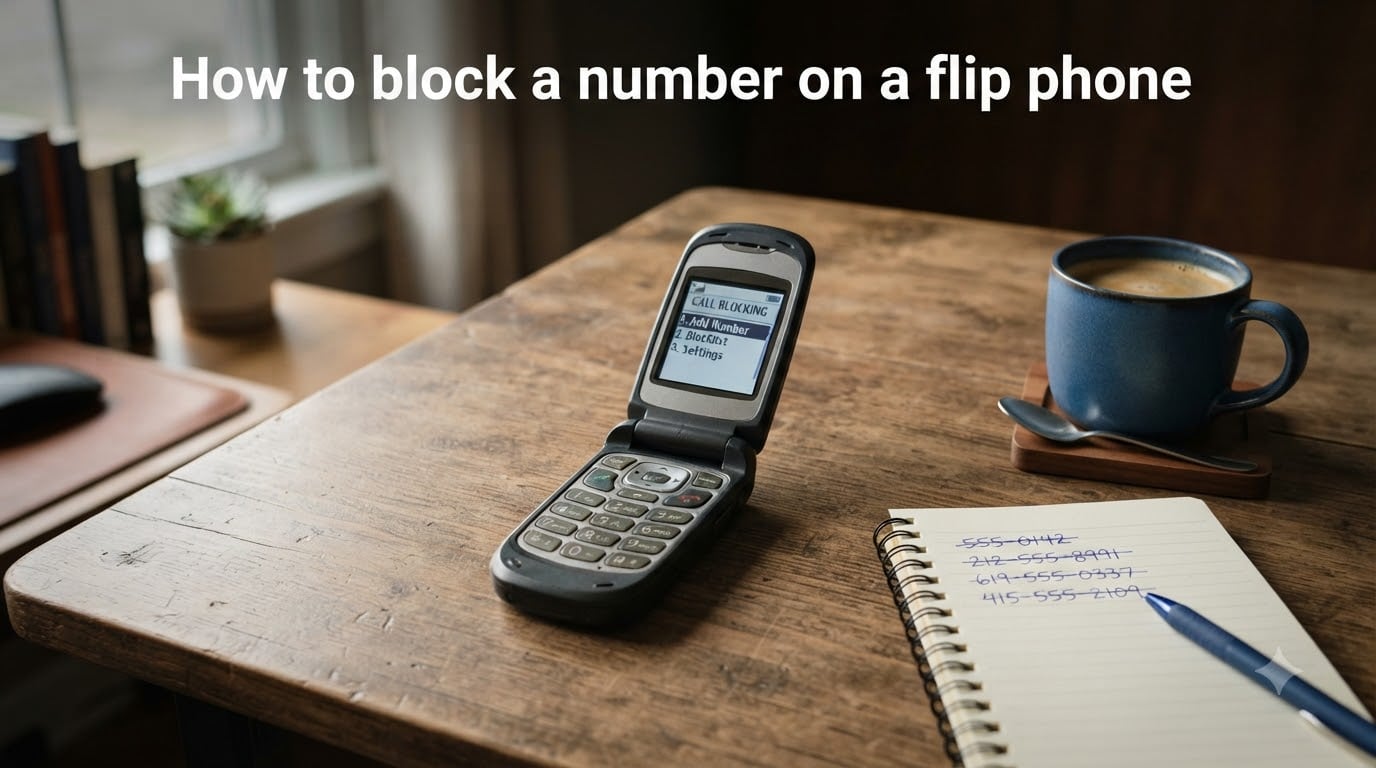
Learning how to block a number on a flip phone is one of the most useful skills for anyone using a basic mobile device. Spam calls, robocalls, and telemarketers target flip phone users just as aggressively as smartphone owners. The good news is that most modern flip phones give you several ways to stop unwanted calls.
In this guide, I will walk you through every method I have tested, from using your phone’s built-in call log to activating carrier-level blocking. Whether you own a TCL FLIP Pro, a TCL FLIP Go, or an older basic flip phone, you will find clear steps here.
Table of Contents
Can You Block a Number on a Flip Phone?
Yes, you can block a number on a flip phone. Most flip phones manufactured in the last several years include a built-in blocking feature accessible through the call log or settings menu. The exact steps vary by model and carrier, but the core process is similar across devices.
Newer models like the TCL FLIP Pro, TCL FLIP Go, and Alcatel MyFlip typically offer full call-blocking menus. Older flip phones, such as the Nokia 2760 Flip or LG Wine, may lack a built-in option. In those cases, your wireless carrier can block numbers at the network level as a reliable alternative.
If your phone does not have a blocking setting, you still have options. Carrier-based blocking, star codes, and spam-filter services all work without requiring any phone-side feature.
How to Block a Number on a Flip Phone Using the Call Log?
The fastest way to block someone on a flip phone is through the call log, also called call history. This method works on most TCL, Alcatel, and Verizon-branded flip phones. The steps below follow the TCL FLIP Pro layout, which is one of the most common models.
Follow these steps to block a number using your call log:
Step 1: From the home screen, press the OK button to open the main menu.
Step 2: Navigate to the Call Log or Recent Calls option using the directional pad, then press the OK button again.
Step 3: Find the number you want to block in your call history list.
Step 4: Press the right soft key to open the Options menu for that number. The right soft key is the button just below the right side of your screen.
Step 5: Select “Block” or “Add to reject list” from the options that appear.
Step 6: Confirm your choice by pressing the OK button or selecting Yes when prompted.
Once confirmed, that number can no longer reach you. Calls from blocked contacts are typically sent straight to voicemail or rejected automatically depending on your phone model.
If you do not see a Block option in the call log menu, try the settings method below instead. Some phones place the blocking feature only in the settings menu rather than the quick-access call log.
How to Block a Number Using the Settings Menu?
If your phone does not show a block option in the call log, the settings menu is your next stop. This method works well on the TCL FLIP Go and many other KaiOS-based flip phones. The menu names differ slightly by carrier, but the path is generally the same.
Step 1: From the home screen, press the Menu key to open the main menu.
Step 2: Select Settings, then press the OK button.
Step 3: Navigate to Call Settings and press the Select key.
Step 4: Look for an option called Call Rejection, Blocked Numbers, or Call Blocking. The exact label depends on your phone and carrier software.
Step 5: Select Add Number or Block List to enter the number manually.
Step 6: Type the phone number you want to block using the keypad, then press the OK button to save.
Some phones also let you block numbers directly from your contacts list through this same menu. If you see a “Block contact” option, you can choose someone from your saved contacts instead of typing the number.
The reject list on flip phones works like a permanent block list. Any number you add stays blocked until you manually remove it. You can usually store 50 to 100 blocked numbers depending on your device.
How to Block Spam Calls on a Flip Phone
Blocking individual spam numbers one at a time gets exhausting fast. Spam callers rotate through hundreds of numbers, so you need a broader strategy to protect your flip phone. Here are the most effective approaches.
Start by blocking every spam number you receive through the call log method above. Even though spammers rotate numbers, blocking known spam callers reduces repeat calls significantly.
Next, contact your carrier to enable network-level spam filtering. Verizon, T-Mobile, and AT&T all offer free or low-cost spam protection services that screen calls before they reach your phone. These services flag or block suspected robocalls automatically.
You can also register your number on the National Do Not Call Registry. While this will not stop scam calls entirely, it reduces legitimate telemarketing calls within 31 days of registration.
For unknown callers, some newer flip phones offer an option to block all numbers not saved in your contacts. Check your Call Settings menu for a feature called “Block unknown callers” or “Reject unknown numbers.” Not every model supports this, but it is worth checking.
Star Codes for Blocking Calls (*61 and *67)
Star codes are short dialing codes you enter on your keypad to activate carrier features. They work on flip phones the same way they work on smartphones. Two codes come up frequently in questions about call blocking.
*61 – Call Block (Selective Call Rejection): Dialing star-61 lets you add the last incoming number to your blocked list at the carrier level. This feature is managed by your carrier, not your phone, so it works even on basic flip phones without built-in blocking. After dialing *61, you will hear a confirmation message. To deactivate, dial star-80. Note that *61 availability and exact behavior vary by carrier, so check with yours if the code does not respond.
*67 – Caller ID Block (Outgoing): Star-67 does something different than most people expect. It blocks your caller ID on outgoing calls, not incoming ones. Dialing *67 before a number hides your identity from the person you are calling. It does not block anyone from reaching you.
*77 – Anonymous Call Rejection: This code blocks incoming calls from numbers that hide their caller ID. Dial *77 to activate and *87 to turn it off. This is useful for stopping private-number spam calls on flip phones.
Star codes are carrier-managed, so they work regardless of your phone model. If your flip phone has no built-in blocking menu, star codes are one of your best options.
Carrier-Level Call Blocking (Verizon, T-Mobile, AT&T)
When your flip phone lacks built-in blocking, your wireless carrier is your strongest ally. All major carriers offer account-level call blocking that works on every phone, including basic flip phones. Here is what each carrier offers.
Verizon: Verizon offers Call Filter, which automatically screens and blocks spam calls. You can activate it through your My Verizon account online or by calling customer service. Verizon also lets you block up to five numbers for free for 90 days through the Blocks page in your account settings. For permanent blocking, add numbers through the Call Filter app settings on a connected device or call Verizon support directly.
T-Mobile: T-Mobile provides Scam Shield, a free service that identifies and blocks scam calls at the network level. You can activate Scam Shield by dialing 611 from your flip phone or logging into your T-Mobile account. The free tier flags likely scam calls, while the premium tier ($4 per month) sends them straight to voicemail automatically. T-Mobile also lets you block specific numbers through customer service.
AT&T: AT&T offers ActiveArmor, a free network-level spam and fraud call blocking service. It works automatically once enabled on your account. You can turn it on through the AT&T website, the AT&T Call Protect setup, or by calling 611. AT&T also allows you to block specific numbers by contacting customer support or managing your account online.
Carrier blocking is especially important for older flip phones that have no on-device blocking menu at all. Even if your phone shows a blocking option, combining device-level blocking with carrier-level filtering gives you the strongest protection.
How to Unblock a Number on a Flip Phone?
Unblocking a number reverses the process you used to block it. The steps are straightforward and take under a minute on most models.
If you blocked the number through the call log, open your Call Log, press the right soft key for Options, and select Unblock or Remove from reject list for that number.
If you blocked the number through Settings, go to Menu, then Settings, then Call Settings, and select Blocked Numbers or Call Rejection. Find the number in your blocked list, select it, and choose Remove or Unblock.
For carrier-level blocking, log into your carrier account or call customer service to remove the number from your blocked list. If you used a star code like *61, dial star-80 to deactivate selective call rejection.
Once unblocked, the number can call and text you again immediately. There is no waiting period for the change to take effect on most devices.
Troubleshooting: Why Can’t I Block Numbers on My Flip Phone?
Some flip phone users discover their phone has no blocking option at all. This is a real frustration that comes up constantly on forums like the r/dumbphones subreddit and HowardForums.
The most common reason is that your phone runs older firmware that does not include a blocking feature. Older basic flip phones from Nokia, LG, and Samsung often lack any built-in call rejection menu. In these cases, carrier-level blocking and star codes are your only phone-side options.
Another issue is menu confusion. The blocking option may be buried under a different name. Look for labels like Call Rejection, Reject List, Blocked Numbers, Call Barring, or Blacklist. Check every submenu under Call Settings before concluding the feature does not exist.
If nothing works, update your phone software through Settings, then contact your carrier. They can confirm whether your device supports blocking and enable network-level protection as a fallback.
Frequently Asked Questions
Can you block a number on a flip phone?
Yes, most modern flip phones let you block numbers through the call log or settings menu. Older basic flip phones may not have a built-in blocking feature, but your carrier can block numbers at the network level instead.
How do you block someone on a flip phone?
Open your call log, find the number, press the right soft key for Options, and select Block. Alternatively, go to Menu, then Settings, then Call Settings, and add the number to your Blocked Numbers or Call Rejection list.
Does *61 block unwanted calls?
Dialing *61 activates Selective Call Rejection, which adds the last incoming caller to your carrier-level blocked list. Availability varies by carrier, so check with Verizon, T-Mobile, or ATu0026amp;T if the code does not work on your line.
Does *67 work on a flip phone?
*67 works on flip phones, but it hides your caller ID on outgoing calls rather than blocking incoming ones. It does not stop unwanted callers from reaching you. Use *61 or carrier-level blocking for incoming call blocking instead.
How to block spam calls on a flip phone?
Block individual spam numbers through your call log, activate carrier spam filtering like Verizon Call Filter or T-Mobile Scam Shield, register with the National Do Not Call Registry, and check your phone settings for an option to block unknown callers not in your contacts.
Conclusion
Blocking a number on a flip phone is completely doable, whether your device has built-in settings or you rely on carrier-level protection. Use the call log for quick blocking, the settings menu for managing a reject list, and star codes or carrier services when your phone lacks on-device options.
Combine device-level blocking with carrier spam filtering for the strongest defense against unwanted calls. Once you know which method your phone supports, the whole process takes under a minute.