
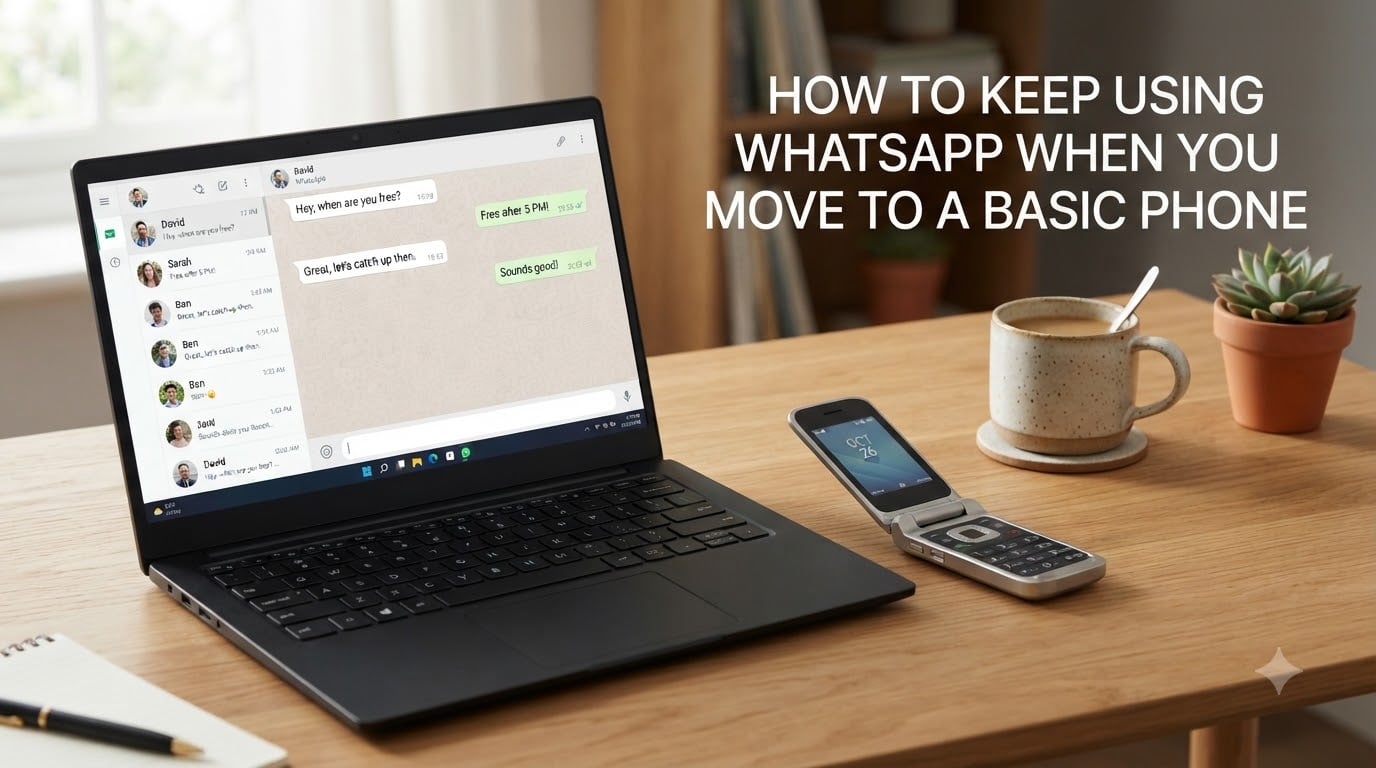
Switching from a smartphone to a basic phone is one of the best things I’ve done for my focus, but the WhatsApp question almost stopped me. WhatsApp has over 2 billion users, and for many of us it’s how work, family, and entire friend groups stay in touch. The good news is you can keep using WhatsApp on a basic phone if you pick the right device or set up a simple workaround. This guide breaks down exactly how to keep WhatsApp when you move to a basic phone, with three real solutions I’ve tested and the steps to transfer your chats safely.
Table of Contents
Can You Use WhatsApp on a Basic Phone?
The Quick Answer: Most Basic Phones Cannot Run WhatsApp
Most basic phones and dumbphones cannot run WhatsApp because they don’t have the Android or iOS operating system WhatsApp requires. WhatsApp needs an active internet connection, a compatible app store, and a screen that can render its interface. A simple flip phone with just calling and texting can’t do any of that.
However, there’s an important exception. A small but growing category of Android-based flip phones and feature phones can install WhatsApp just like a regular smartphone. These are essentially smartphones in a flip phone shell. They give you the compact, distraction-light form factor of a basic phone while still supporting the apps you can’t live without.
So when people ask if you can use WhatsApp on a basic phone, the honest answer is: not on a true dumbphone, but yes on the right hybrid model. The rest of this guide walks through every option so you can pick the one that fits your life.
Why Most Flip Phones Cannot Run WhatsApp?
The Operating System Problem
WhatsApp is built for Android and iOS. That means it needs a phone running one of those operating systems, with access to the Google Play Store or Apple App Store, plus enough storage and memory to run the app. Traditional flip phones and feature phones run lightweight proprietary software that can’t install third-party apps at all.
Think of it like trying to run a modern video game on a calculator. The hardware and software simply aren’t designed for it. No amount of clever workaround changes that fundamental gap.
KaiOS Support Ended in 2024
For a few years, KaiOS was the great hope for dumbphone WhatsApp. KaiOS is a lightweight operating system that powered popular devices like the Nokia 8110 and the JioPhone. It could run a trimmed-down version of WhatsApp, and many people used it as their bridge between minimalism and messaging.
That era is over. WhatsApp officially ended support for KaiOS in 2024. If you currently have a KaiOS phone, WhatsApp will no longer receive updates, security patches, or reliable service. Trying to keep WhatsApp running on KaiOS in 2026 is a dead end, and I’d stop recommending these devices for anyone whose reason for buying is WhatsApp access.
The 4G LTE Requirement
There’s one more technical hurdle worth knowing about. Even if a basic phone could theoretically run WhatsApp, it needs a data connection. Many older flip phones only support 2G or 3G networks, and carriers around the world are shutting those networks down. Without 4G LTE (or WiFi), WhatsApp can’t send or receive messages.
If you’re shopping for a basic phone with WhatsApp in mind, 4G LTE support is a non-negotiable. A phone that can’t get on a modern network won’t help you no matter what else it offers.
Android-Based Flip Phones That Can Run WhatsApp
What Makes a Flip Phone WhatsApp-Compatible
The magic phrase to look for is “Android flip phone” or “Android Go flip phone.” These devices run a stripped-down version of Android, usually Android Go Edition, which is designed for low-cost hardware. Because they’re real Android under the hood, you can install WhatsApp from the Google Play Store just like on any smartphone.
The trade-off is that these phones blur the line between dumbphone and smartphone. They give you WhatsApp, but they also have a browser, an app store, and other distractions. The benefit is that the small screen and T9 keypad make most smartphone activities painful, so you naturally use them less while still keeping access to the essentials.
Popular WhatsApp-Capable Models
A few models come up again and again in community discussions on Reddit’s r/dumbphones and in product roundups from outlets like TechCrunch. Here are the ones people consistently recommend for WhatsApp on a basic phone.
AGM M7: This is probably the most recommended WhatsApp dumbphone out there. It’s a rugged bar-style phone running Android Go, which means full Play Store access. Users on r/dumbphones frequently cite it as the best “WhatsApp-only” smart dumbphone because it does calls, texts, and WhatsApp well without tempting you with a big screen.
Cat S22 Flip: A flip phone with a small touchscreen and Android Go. It runs WhatsApp natively and feels closer to a real flip phone than most alternatives. The touchscreen is small enough that browsing is annoying, which is exactly the friction some people want.
Unihertz Jelly Star: A tiny Android smartphone that some people use as a “dumbphone” because the screen is so small. It runs WhatsApp perfectly but is more of a minimal smartphone than a true basic phone.
Emporia Touchsmart.2: A senior-focused Android flip phone that supports WhatsApp. It’s designed with simplicity in mind and is a good option if you want something straightforward for a parent or grandparent.
TTfone TT970: A budget Android flip phone that supports WhatsApp. It’s one of the cheaper entry points if you want to test whether a hybrid phone works for your lifestyle before committing.
The Two-Phone Setup: Dumbphone + Smartphone for WhatsApp
How the Two-Phone Arrangement Works
If you want a true dumbphone experience but still need WhatsApp, the two-phone setup is the most popular solution I’ve seen in online communities. You carry a basic phone as your daily driver for calls and texts. You keep your old smartphone at home (or in a bag) connected to WiFi, running WhatsApp through the multi-device feature.
WhatsApp’s multi-device support lets you link up to four devices to a single account. This means your smartphone stays the “primary” device with your SIM card, and you can use WhatsApp Web on a laptop or tablet without the phone needing an active cellular connection. The phone just needs occasional internet access to stay linked.
This setup is what NPR’s Life Kit guide and many Reddit users describe as the sweet spot. You get the digital detox of a dumbphone during the day, but WhatsApp is always available when you sit down at your computer.
Real-World Tips from Users
People who have lived with the two-phone arrangement share a few consistent lessons. First, tell your close contacts you’re switching. Friends and coworkers who expect instant WhatsApp replies get frustrated when you only check messages a few times a day. A quick heads-up message prevents that friction.
Second, use WhatsApp’s multi-device feature properly. Once your devices are linked, you don’t need your smartphone online to use WhatsApp Web. That’s the key to making the two-phone setup actually feel freeing rather than like a juggling act.
Third, keep your smartphone charged and connected to WiFi at home. If the primary device goes offline for more than 14 days, WhatsApp will unlink your other devices and you’ll need to set them up again.
How to Use WhatsApp Web as a Basic Phone Solution
What WhatsApp Web Requires
WhatsApp Web lets you use WhatsApp from any browser, which means a laptop, desktop, or tablet can become your main WhatsApp device. For someone moving to a basic phone, this is often the simplest solution because it doesn’t require buying a new phone at all.
The requirement is that you need a primary smartphone (your existing one) linked to WhatsApp at least once. After that initial setup, you can use WhatsApp Web on your computer even when the phone is off, thanks to multi-device support.
Step-by-Step WhatsApp Web Setup
Setting up WhatsApp Web takes about two minutes. Here’s the process I followed.
Step 1: On your smartphone, open WhatsApp and tap the three dots (Android) or Settings (iPhone).
Step 2: Select “Linked Devices” and then tap “Link a Device.”
Step 3: On your computer, go to web.whatsapp.com in your browser. You’ll see a QR code on the screen.
Step 4: Scan the QR code with your phone’s camera when prompted.
Step 5: Wait a few seconds for your chats to sync. Once connected, you can send and receive messages from your computer.
After this one-time setup, WhatsApp Web stays connected even when your phone has no signal. Just open the browser tab and your conversations are there. For a dumbphone user, this means WhatsApp lives on your laptop instead of your pocket.
How to Transfer WhatsApp When Switching Phones?
Backing Up Your Chats
Before you switch phones, back up your WhatsApp chats so nothing gets lost. The backup process is slightly different on Android and iPhone, but both are quick.
On Android: Open WhatsApp, tap the three dots, go to Settings, then Chats, then Chat Backup. Tap “Back Up” to save your chats to Google Drive. Make sure the Google account listed is one you can access on your new phone.
On iPhone: Open WhatsApp Settings, tap Chats, then Chat Backup, then Back Up Now. Your chats save to iCloud.
I recommend doing a fresh backup right before you make the switch, not relying on an automatic backup that might be days old. A current backup means every recent conversation transfers cleanly.
Restoring WhatsApp on the New Phone
Once your backup is saved, installing WhatsApp on a new phone and restoring your chats is straightforward. Download WhatsApp from the Play Store or App Store on your new device. Open the app and verify your phone number (this must be the same number you used before). When WhatsApp detects your backup, tap “Restore” and wait for the process to complete.
Your chat history, photos, and voice messages will appear just as they were. If you’re moving to an Android flip phone that supports WhatsApp, this same process applies. As WhatsApp’s official FAQ explains, you simply download WhatsApp on the new phone and re-register your number to keep everything intact.
Tips for Transitioning to a Basic Phone Without Losing WhatsApp
Moving to a basic phone is a lifestyle change, not just a hardware swap. Here are the tips that made the biggest difference for me and that come up most often in community discussions.
Pick your solution before you switch. Decide whether you want an Android flip phone, a two-phone setup, or a WhatsApp Web approach before you give up your smartphone. Trying to figure it out afterward creates unnecessary stress.
Warn your contacts. Send a message to your important WhatsApp groups and individual contacts explaining your new setup. Let them know you might respond more slowly and tell them how to reach you in an emergency.
Find analog workarounds for other apps. Many people who move to a basic phone discover they also rely on apps like Uber, banking, and Spotify. NPR’s guide suggests getting comfortable with alternatives: calling a taxi by phone, visiting a bank branch, or using a dedicated music player. The transition is easier when you expect these gaps.
Test for a week before fully committing. Keep your smartphone accessible but try living on your basic phone for seven days. You’ll quickly learn which apps you actually need versus which ones you just open out of habit.
Don’t feel like a failure if you keep a smartphone. As NPR’s Life Kit puts it, you don’t have to use a basic phone 24/7. Plenty of people use a dumbphone on weekends or evenings and a smartphone during the work week. The goal is less screen time, not purity.
FAQs
Can you use WhatsApp on a basic phone?
Most basic phones cannot run WhatsApp because they lack the Android or iOS operating system WhatsApp requires. However, Android-based flip phones like the AGM M7 and Cat S22 Flip can install and run WhatsApp from the Google Play Store.
How to keep WhatsApp messages when moving to a new phone?
Back up your chats first (Google Drive on Android, iCloud on iPhone). Then install WhatsApp on the new phone, verify the same phone number, and tap Restore when prompted. Your chat history, photos, and voice messages will transfer automatically.
Which phones will WhatsApp stop working on in 2026?
WhatsApp ended support for KaiOS devices in 2024, so those phones can no longer reliably run the app. Phones running very old Android versions (below Android 5.0) and older iOS versions are also losing support. Always check WhatsApp’s official compatibility list before switching devices.
Will I lose my WhatsApp chats if I switch phones?
No, as long as you create a chat backup before switching. Back up to Google Drive (Android) or iCloud (iPhone), then restore from that backup when you set up WhatsApp on your new phone. Without a backup, your chat history will not transfer.
Can I use WhatsApp Web with a dumbphone?
Yes. Set up WhatsApp Web on a computer or tablet using WhatsApp’s multi-device linking feature. After the initial setup, you can send and receive messages from your computer even when your smartphone is offline. This is one of the most popular workarounds for dumbphone users who still need WhatsApp.
Staying Connected Without Compromise
You don’t have to choose between a calmer phone life and staying reachable on WhatsApp. Whether you go with an Android flip phone, set up a two-phone arrangement, or lean on WhatsApp Web from your computer, there’s a path that fits your communication needs and your digital detox goals. The key is planning your solution before you switch, backing up your chats, and telling your contacts what to expect.
If you’re ready to take the plunge, start with whichever option feels lowest-stakes. Try WhatsApp Web for a week with your current smartphone put away. Test an Android flip phone as a second device. Or commit to the two-phone setup and see how it feels. The right approach to keep using WhatsApp on a basic phone is the one you’ll actually stick with, and now you have everything you need to make that move with confidence.