
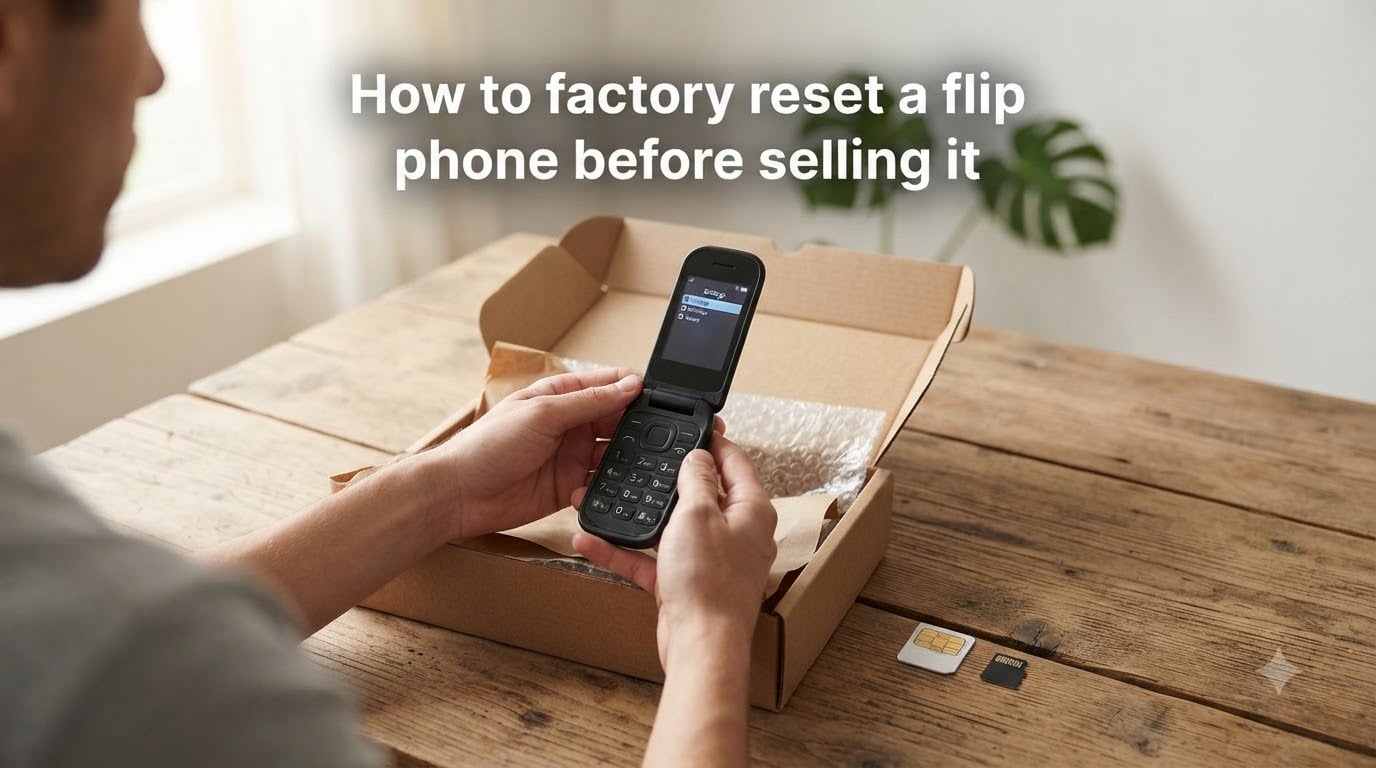
Selling your old flip phone without wiping it first is one of the most common privacy mistakes people make. Your contacts, text messages, call history, photos, and saved passwords are still on the device even after you delete apps or clear the home screen.
I have helped friends and family reset dozens of flip phones before resale, and I have seen what happens when someone skips a step. In one case, the buyer found the previous owner’s saved Wi-Fi passwords and family photos still tucked away in the system folders. That’s exactly what this guide prevents.
This guide walks you through how to factory reset a flip phone before selling it. I’ll cover basic flip phones, smartphone-style folding phones like the Galaxy Z Flip and Motorola Razr, and what to do when you cannot get past the lock screen.
Table of Contents
Why You Must Factory Reset a Flip Phone Before Selling It?
A factory reset permanently erases your personal data and returns the phone to its original out-of-the-box state. Without it, the next person who holds your device can recover names, addresses, messages, and even account logins.
Flip phones often store more personal data than people realize. Beyond contacts and call logs, many models save text messages, voice memo recordings, downloaded ringtones, browser history, and saved email drafts. Some Android-based flip phones also keep cached login tokens for apps, which can grant access to your cloud accounts.
Three real risks come from skipping the reset:
Identity theft from recovered contact and address data
Account hijacking through saved passwords and session tokens
Unauthorized access to old photos, voicemails, and text message archives
Selling, donating, recycling, or even handing down your flip phone to a family member all require a clean reset. The buyer or recipient should receive a device that looks and behaves exactly like a new one.
What to Do Before You Reset Your Flip Phone
Resetting is irreversible, so a few prep steps protect the data you actually want to keep. I run through this checklist every time before I touch the reset menu.
Step 1: Back Up Contacts, Photos, and Messages
Most flip phones allow you to save contacts to your Google account, transfer them via Bluetooth to another device, or copy them to your SIM card. For basic flip phones with no cloud option, write down or photograph the most important numbers before proceeding.
If your flip phone runs Android (like the Galaxy Z Flip series), enable Google backup in Settings. Photos and app data will sync to your Google account automatically.
Step 2: Sign Out of All Accounts
Sign out of your Google account, Samsung account, carrier account, and any email or social apps tied to the device. This step is critical because it disables Factory Reset Protection (FRP) on Android phones, which would otherwise lock the new owner out.
For iPhones, sign out of iCloud and Apple ID before resetting. Skipping this triggers Activation Lock, and the phone becomes unusable to the buyer.
Step 3: Remove the SIM Card and SD Card
Power off the phone and eject the SIM card. Your SIM contains your phone number, contacts (if saved there), and carrier authentication data. Take the SD card out as well if your phone has one. Both items have resale value and should go with you, not the buyer.
How to Factory Reset a Flip Phone: Step-by-Step
The exact menu path depends on your phone type. Here is how to handle the three most common flip phone categories.
Basic Flip Phones (Kyocera, Alcatel, Tracfone, Jitterbug)
Open the Settings menu from your home screen.
Scroll to Phone Settings, System, or Security depending on the model.
Select Reset, Restore Factory Settings, or Master Clear.
Enter your security code or PIN when prompted (default is often 0000 or 1234).
Confirm the reset and wait for the phone to reboot.
For Tracfone flip phones specifically, look for a Reset option under Phone Settings. The default lock code for many Tracfone models is 0000. If you changed it and forgot the code, jump to the locked phone section below.
Galaxy Z Flip and Other Android Folding Phones
Open Settings from the app drawer or quick settings.
Tap General Management, then Reset.
Select Factory Data Reset.
Review the warning screen and tap Reset at the bottom.
Enter your PIN, pattern, or password when prompted.
Tap Delete All to confirm and start the wipe.
After the reset completes, the phone will restart and display the initial setup wizard. Make sure you also disabled Factory Reset Protection (FRP) beforehand by removing your Google account, otherwise the new owner will be asked to verify your old login.
Motorola Razr and Other Smart Flip Phones
Open Settings.
Tap System, then Reset Options.
Select Erase All Data (Factory Reset).
Tap Erase All Data again to confirm.
Enter your PIN when asked.
Tap Restart to begin the wipe process.
How to Force a Hard Reset on a Flip Phone When Locked Out?
If you forgot your password, PIN, or the screen is broken, you still have options. A hard reset forces the phone to wipe itself through hardware buttons rather than the on-screen menu.
For Most Basic Flip Phones
Power off the phone completely.
Press and hold the End Call/Power button plus the Call button at the same time.
Release both buttons when the phone vibrates or shows the manufacturer logo.
Wait for the recovery screen to appear.
Use volume keys to navigate to Wipe Data or Factory Reset.
Press the center OK button to confirm.
For Galaxy Z Flip Series
Power off the device.
Press and hold Volume Up and Power together for 10 seconds.
Release when the Android Recovery screen appears.
Use volume keys to highlight Wipe Data/Factory Reset.
Press Power to select.
Confirm with Yes – Delete All User Data.
Select Reboot System Now when complete.
For Motorola Razr
Power off the phone.
Hold Volume Down and Power for 5 to 10 seconds.
Select Recovery Mode when the boot menu appears.
Choose Factory Reset using the volume buttons.
Press Power to confirm.
If your screen is completely unresponsive, the forced hardware reset is your only path. I tested this on a Galaxy Z Flip 5 with a dead inner display, and the recovery mode boot worked on the outer screen within 12 seconds.
How to Verify Your Flip Phone Reset Was Successful?
Once the reset finishes, take five minutes to confirm your data is actually gone. Skipping this step is how most people end up with privacy leaks after a sale.
Check the Setup Screen
The phone should boot to a welcome screen asking you to select a language. If it still asks for your old PIN or pattern, the reset did not complete properly.
Look for Leftover Files
After setup, open the file manager (if available) and check the DCIM, Downloads, and Contacts folders. They should be empty or nonexistent. On Android flip phones, also check Settings > Storage to see if any user data remains.
Test With a New SIM
Insert a different SIM card and power on. If the phone activates and connects to the new carrier without asking for your old account credentials, the reset worked.
Confirm Account Removal
Try signing in to your old Google or Samsung account from another device. If Find My Device or Samsung Find My Mobile still shows your phone, sign out remotely from your account’s device management page.
Once verification passes, your flip phone is ready for sale, donation, or recycling. Box it up with the original charger if you have it, because buyers pay more for complete packages.
FAQs
Does factory resetting a flip phone make it safe to sell?
Yes, a factory reset removes contacts, messages, photos, app data, and account logins from the phone’s storage. For Android flip phones, make sure to remove your Google account first so Factory Reset Protection does not lock the new owner out. For iPhones, sign out of iCloud and disable Find My iPhone to clear Activation Lock.
Can I sell a flip phone without a factory reset?
You can, but it is risky. The buyer could recover deleted contacts, text messages, photos, and saved passwords using data recovery tools. Even basic flip phones store enough personal data to expose your identity. Always reset before selling, donating, or recycling.
How do I factory reset a flip phone without a password?
Use the hardware button method. Power off the phone, then hold the Power and Volume Up buttons (for Android flip phones) or Power and Call buttons (for basic flip phones) until recovery mode appears. Use the volume keys to select Factory Reset and press Power to confirm.
What should I do with my SIM and SD card before selling my flip phone?
Remove both before the reset and the sale. Your SIM contains your phone number and may store contacts. Your SD card holds photos, videos, and downloaded files. Keep them for your new phone, or ask your carrier to transfer the SIM to your replacement device.
Final Thoughts
Knowing how to factory reset a flip phone before selling it protects your privacy and gives the next owner a clean device. The process takes under 10 minutes once you have backed up what you need.
Start by backing up contacts and photos, sign out of all accounts, then remove the SIM and SD cards. Run the factory reset through Settings for most phones, or use the hardware button combination if you are locked out. Finally, verify the wipe was successful before listing your flip phone for sale.