
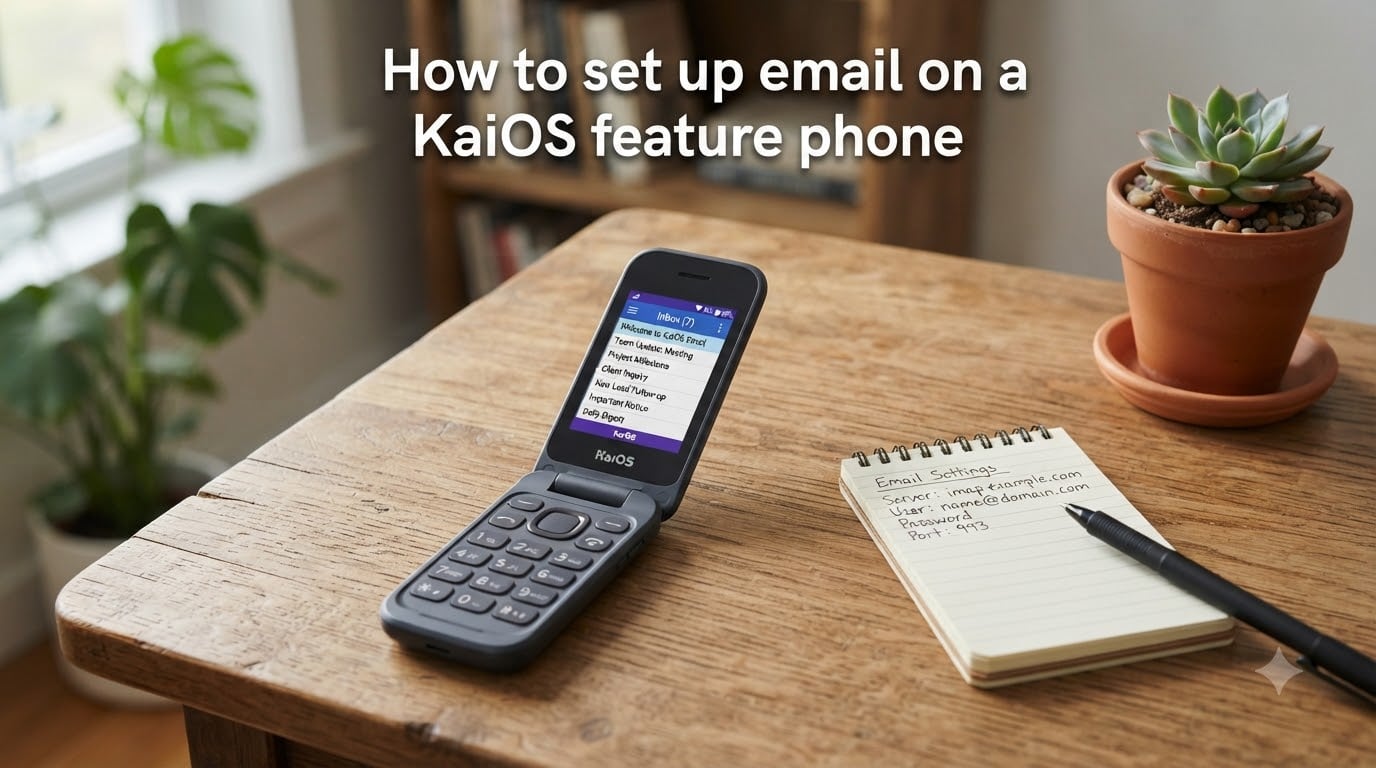
Yes, you can send and receive email on a KaiOS feature phone. Many Nokia, Alcatel, and TCL flip phones run this lightweight operating system, and they include a built-in E-Mail app that works with standard IMAP and POP3 protocols. In this guide, I will walk you through how to set up email on a KaiOS feature phone using clear, numbered steps that match exactly what you see on the screen.
Whether you are adding Gmail, Yahoo Mail, or a custom domain account, the process follows the same path. I have pulled together the exact server settings and the workarounds that real KaiOS users on Reddit recommend, so you can avoid the common setup headaches.
Table of Contents
How to set up email on a KaiOS feature phone: Step-by-step guide
Setting up email on a KaiOS phone is a manual process. You will enter your server details by hand, which gives you full control over how your inbox syncs. Follow these six steps in order.
Step 1: Open the E-Mail app from the menu
From the main screen, press the OK key to open the menu. Scroll until you find the E-Mail icon, then press OK again to launch the app. If this is your first time opening it, the app will jump straight into the setup wizard.
If the wizard does not appear, press the menu key (usually the left soft key) and select Add Account or New Account from the options.
Step 2: Enter your name and email address
The app will ask for two things first: your display name and your full email address. Your display name is what recipients see when you send a message. Type your email address carefully, because a single typo will block the entire setup.
Press Next when you are done. The app will try to detect your settings automatically. On KaiOS, this auto-detect fails more often than not, so be ready to use the Advanced option.
Step 3: Configure Advanced settings (IMAP or POP3)
When auto-detection fails, press Advanced on the screen that appears. This is where you choose between IMAP and POP3 for your incoming mail protocol. I recommend IMAP for almost everyone, because it keeps your phone and computer inbox in sync.
Select IMAP from the protocol list. The app will then ask for your incoming server hostname, port, and password.
Step 4: Enter incoming server (hostname) details
Type the IMAP hostname for your email provider. For Gmail, this is imap.gmail.com. For Yahoo Mail, use imap.mail.yahoo.com. For Outlook or Hotmail, use outlook.office365.com.
Set the port to 993 and choose SSL as the security type. Enter your email password (or your app password, which I cover in the Gmail section below). Press Next to move on.
Step 5: Configure outgoing (SMTP) server settings
Now the app needs your outgoing mail server. For Gmail, the SMTP hostname is smtp.gmail.com. For Yahoo, use smtp.mail.yahoo.com. For Outlook, use smtp.office365.com.
Set the port to 465 with SSL enabled. The app may pre-fill your username and password from the previous step. If the username field is blank, enter your full email address again. Press Next or Save.
Step 6: Save and verify your account
The app will now test your connection by contacting both servers. This can take 30 to 60 seconds on a feature phone. If both checks pass, you will see a success message and your inbox will begin loading.
If the verification fails, double-check your hostname spelling, port numbers, and password. The troubleshooting section near the end of this guide covers the most common errors.
IMAP vs POP3: Which protocol should you choose?
IMAP and POP3 are the two protocols KaiOS uses to receive email. They work very differently behind the scenes.
IMAP keeps your messages on the server and syncs them across every device you own. When you read a message on your KaiOS phone, it shows as read on your computer too. POP3 downloads messages to the phone and typically deletes them from the server.
For most people, IMAP is the right choice. Reddit users on r/KaiOS and r/dumbphones consistently recommend IMAP over POP3 because it prevents lost messages and keeps everything in sync. POP3 only makes sense if this phone is your only email device and you want to save server storage.
Gmail setup on KaiOS with an app password
Gmail is the trickiest provider to set up on KaiOS. Standard OAuth login fails constantly, and many users report having to re-authorize every single day. The fix is to use a Google App Password instead of your normal Gmail password.
Why standard Gmail login fails
Google uses OAuth for secure sign-ins, but the KaiOS E-Mail app only supports basic IMAP authentication. If your Google account has two-step verification enabled (and most do by default), Google blocks plain password login attempts from KaiOS entirely.
How to create a Google App Password
On a computer or smartphone, sign in to your Google Account and go to the Security section. Turn on two-step verification if it is not already active. Then search for “App passwords” in the account settings search bar.
Select Mail as the app type and Other as the device. Type “KaiOS” as the custom name. Google will generate a 16-character password. Write this down or copy it, because you will only see it once.
Using the app password on your KaiOS phone
During the email setup steps above, paste or type that 16-character app password into both the incoming (IMAP) and outgoing (SMTP) password fields. Do not use your regular Gmail password anywhere in the KaiOS setup.
This method is what experienced KaiOS users swear by. It eliminates the daily re-authorization problem and keeps your Gmail syncing reliably.
Yahoo Mail and Outlook setup on KaiOS
Yahoo Mail and Outlook follow the same setup path as Gmail. The only difference is the server hostnames and whether you need an app password.
For Yahoo Mail, use imap.mail.yahoo.com on port 993 for incoming and smtp.mail.yahoo.com on port 465 for outgoing. Yahoo also requires an app password if you have two-step verification turned on. You can generate one from your Yahoo Account Security page.
For Outlook or Hotmail, use outlook.office365.com on port 993 for incoming and smtp.office365.com on port 587 for outgoing. Outlook uses your regular email password but may prompt you to enable SMTP authentication in the Advanced settings.
Managing your email accounts on KaiOS
Once your first account is set up, the E-Mail app lets you add more, switch defaults, delete accounts, and customize how mail behaves on your phone.
How to add multiple email accounts
Open the E-Mail app and press the menu key. Select Settings, then Accounts, then Add Account. You will repeat the full setup process from Step 1. KaiOS does not limit the number of accounts you can add.
How to switch the default account
In Settings under Accounts, highlight the account you want as your primary. Press OK and select Set as Default. New outgoing messages will use this account unless you manually choose a different one before sending.
How to delete an email account
Go to Settings, then Accounts. Highlight the account you want to remove, press the menu key, and select Delete. Confirm your choice. This only removes the account from your phone, not from the email provider.
Adjusting notifications, sync, and signature
Inside Settings you can change how often the phone checks for new mail. Common options include every 5, 15, or 30 minutes, or manual check only. You can also toggle notification alerts on or off and add a custom signature that appears at the bottom of every message you send.
Troubleshooting common KaiOS email problems
Even with correct settings, email on KaiOS can act up. Here are the three most common problems and how I would fix them.
Email not syncing
If your inbox stops updating, first check that you have a data connection. Press and hold the end key to confirm your phone is connected to cellular data or Wi-Fi. Then open the E-Mail app, press the menu key, and select Sync Now to force a manual refresh. If sync still fails, delete the account and re-add it using the steps above.
Authentication errors
An authentication error almost always means your password is wrong. For Gmail, this means you are probably using your regular password instead of an app password. Regenerate the app password and re-enter it in both the IMAP and SMTP fields.
Cannot send mail (SMTP failure)
If you can receive mail but not send it, your SMTP settings are the culprit. Double-check that SMTP authentication is enabled in the Advanced settings. Confirm the port number is correct (465 for SSL or 587 for TLS) and that your username field contains your full email address, not just the part before the @ symbol.
FAQs
How do I set up a KaiOS account?
Open the menu on your phone, select the E-Mail app, and follow the setup wizard. Enter your email address, choose IMAP in the Advanced settings, type your incoming and outgoing server hostnames, and enter your password. For Gmail, use a Google App Password instead of your regular password.
Is KaiOS still active?
KaiOS is still functional on existing devices, but its ecosystem has shrunk significantly. WhatsApp discontinued support for KaiOS, and the KaiStore has limited functionality. Email setup still works using manual IMAP and SMTP settings. New feature phones are less common, but existing Nokia, Alcatel, and TCL models continue to operate.
Can you get email on a flip phone?
Yes. KaiOS-powered flip phones like the Nokia 2720, Alcatel Smartflip, and TCL Flip include a built-in E-Mail app that supports standard IMAP and POP3 accounts. You can send and receive email from Gmail, Yahoo, Outlook, and other providers that offer IMAP access.
How do I fix KaiOS email not working?
Start by checking your data connection. Then verify your server hostnames, port numbers (993 for IMAP, 465 for SMTP), and password. If you use Gmail, switch to a Google App Password instead of your regular password. If problems persist, delete the account from Settings and re-add it from scratch.
Conclusion
Learning how to set up email on a KaiOS feature phone comes down to knowing your server hostnames, choosing IMAP, and using app passwords for providers like Gmail and Yahoo. Once those details are entered correctly, your Nokia, Alcatel, or TCL flip phone will handle email reliably.
If you run into trouble, revisit the troubleshooting steps and double-check your port numbers and authentication settings. The manual setup process gives you more control than auto-detect ever will, and that is what makes KaiOS email work when everything else fails.
Keep your app passwords saved somewhere safe, sync on a schedule that fits your data plan, and your feature phone inbox will stay connected for as long as you need it.