
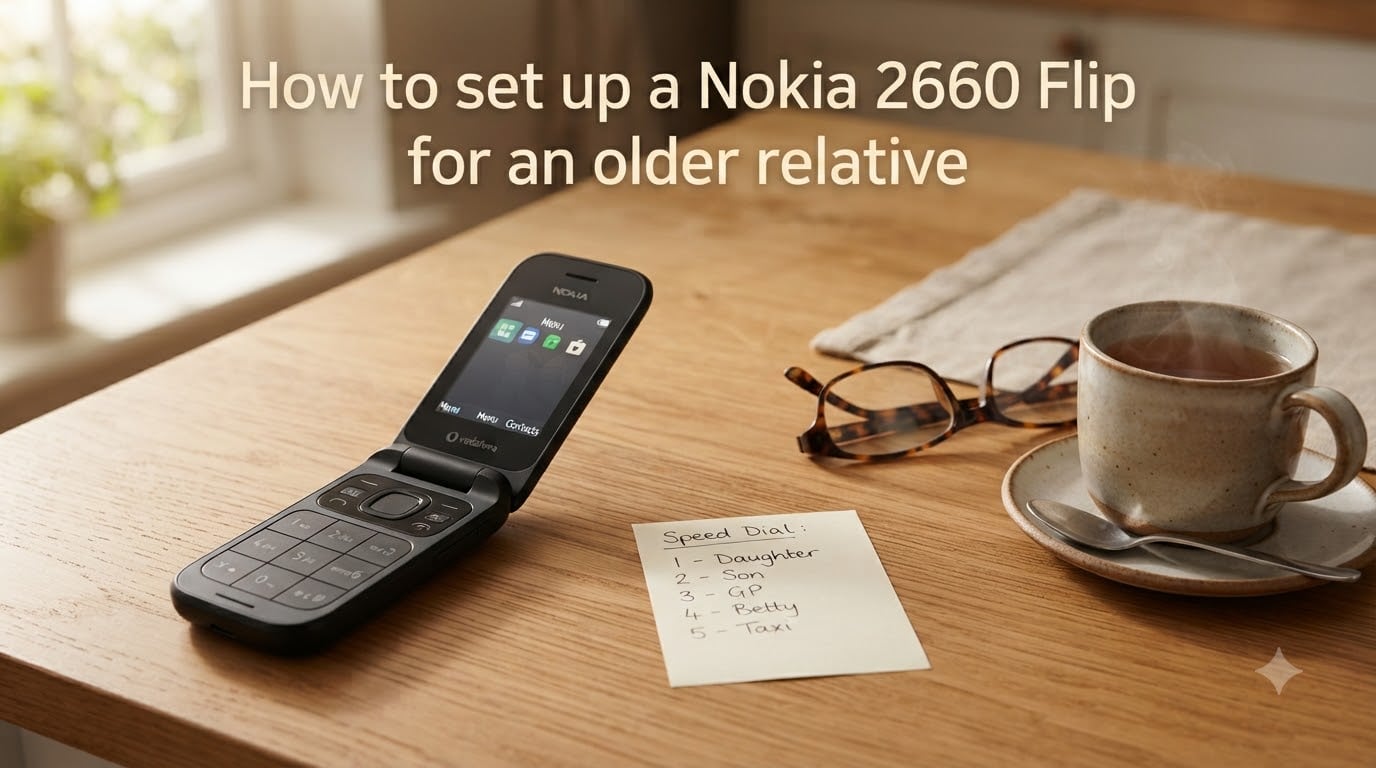
Setting up a Nokia 2660 Flip for an older relative takes about 20 minutes if you do the configuration work yourself before handing the phone over. The Nokia 2660 Flip is a clamshell phone with large buttons, a loud speaker, and a dedicated SOS emergency button, designed specifically for users who want simple calling and texting without the complications of a smartphone.
I have set up phones for my own parents and helped a dozen friends do the same for their grandparents. This guide walks you through every step, plus the pre-configurations that most guides skip entirely. By the end, your older relative will have a phone that works the moment they flip it open.
Table of Contents
Why the Nokia 2660 Flip Works Well for Older Relatives?
The Nokia 2660 Flip is good for seniors because every feature is built around simplicity and safety. The keypad has large, well-spaced buttons with clear numbers. The internal screen is bright, and the external screen shows the time and caller ID without opening the phone.
Here is what makes it stand out for older users:
Big buttons with tactile feedback for users with arthritis or vision loss
Loud speaker rated for clear calls even in noisy rooms
Hearing aid compatibility (HAC rating T3/M3) so calls work with most hearing aids
Dedicated SOS button on the back that calls up to 5 emergency contacts in sequence
Removable battery so you can swap in a fresh one if it dies
4G VoLTE for clear call quality on modern networks
Flip-to-answer by opening the phone, and flip-to-end by closing it
The phone runs Series 30+ software, which means menus are simple text lists. There is no app store, no notifications, and no confusing home screen. That is exactly what most older relatives want.
What Comes in the Nokia 2660 Flip Box
Before you start, lay out everything that came in the box. The standard Nokia 2660 Flip package includes:
The phone itself (closed clamshell)
Removable BL-5C battery
Micro-USB charging cable
Wall charger plug
Quick start guide and warranty card
You will need to supply a nano-SIM card from your carrier. Some carriers ship the SIM separately, so check your activation paperwork. If you are switching from an older phone, the nano-SIM is the smallest of the three current sizes (standard, micro, and nano). It looks like a tiny metal rectangle with notched corners.
Pre-Setup Checklist Before You Begin
Most guides skip this step, but pre-configuring the phone before you hand it over is the single biggest time-saver. Plug the phone in and let it charge for at least 30 minutes before doing anything else. A partial charge protects the battery if a setting update is triggered during setup.
Gather these items before you start:
The phone and battery
An active nano-SIM card
The PIN code for the SIM (usually found on the card holder)
A list of phone numbers you want to add (family, doctor, pharmacy, neighbors)
The carrier’s APN settings if the phone cannot auto-configure data
A charger nearby in case you need it
Write down the most important phone numbers on a paper card that you can tape inside the phone case. Even with speed dial set up, a physical backup helps if the memory ever clears.
How to Set Up a Nokia 2660 Flip for an Older Relative: Step-by-Step
Below is the exact sequence I follow when setting up the Nokia 2660 Flip for an older relative. The setup takes about 15 minutes from a cold start. Follow the steps in order for the smoothest experience.
Step 1: Insert the Nano-SIM Card
Turn off the phone before opening the back cover. Press your thumb firmly on the back cover and slide it down and off. The cover will pop loose with a soft click.
You will see three slots: the battery compartment (large rectangle), the SIM 1 slot (small metal holder), and the SIM 2 slot next to it. Lift the small metal holder for SIM 1 by sliding it gently in the direction of the arrow.
Place the nano-SIM card into the holder with the gold contact area facing down and the notched corner aligned with the slot shape. Lower the holder back down and slide it in the opposite direction of the arrow to lock it.
If you have a second SIM, repeat the process in the SIM 2 slot. The Nokia 2660 Flip supports dual SIM, which is useful if your relative travels between two countries or wants one number for family and one for medical services.
Step 2: Install the Battery
Align the battery contacts with the three gold pins inside the battery compartment. The contacts are on one end of the battery, and the pins are on the bottom of the compartment. Slide the battery in at a slight angle, then press down until it clicks into place.
Do not force the battery. If it does not sit flat, remove it and check that the orientation is correct. The Nokia logo on the battery should be visible when installed.
Step 3: Power On the Phone
Press and hold the red End Call button on the right side of the keypad for 3 seconds. The phone will vibrate and the screen will light up. You will see the Nokia logo followed by a language selection screen.
Use the up and down arrows (or the 4-directional nav pad) to choose your language. Press the green Call button or the center select key to confirm. Repeat for region and time zone.
Step 4: Enter the SIM PIN (if prompted)
If your carrier requires a PIN, the phone will ask for it after boot. Type the 4-digit PIN using the keypad and press the center select key. If you enter the PIN incorrectly three times, the SIM will lock and require a PUK code from your carrier.
Step 5: Set the Date and Time
The phone will auto-detect the time from the network in most cases. If it does not, go to Settings > Phone settings > Date and time and enter the values manually. Use 24-hour format if your relative is more comfortable with it.
Step 6: Disable Mobile Data (Recommended)
Mobile data is on by default, which can confuse seniors and drain the battery. Turn it off by going to Settings > Connectivity > Mobile data and switching it off. This also prevents accidental data charges when the Wi-Fi is not in use.
The phone can still browse the internet with a Wi-Fi connection if you want to enable it later, but most users never need this feature.
Step 7: Make a Test Call
Before configuring anything else, dial your own number from the Nokia 2660 Flip and confirm the call goes through. This proves the SIM is active and the network is talking to the phone. End the call by closing the clamshell.
Configuring the SOS Emergency Button
The SOS button is the most important safety feature on the Nokia 2660 Flip. It sits on the back of the phone and triggers an emergency call sequence when pressed for 3 seconds. Configuring it correctly takes 2 minutes.
Go to Settings > Emergency settings > SOS. You will see options for the SOS contacts list, the SMS message that is sent, and the call sequence.
Add 5 contacts in priority order. The phone will call the first contact, and if there is no answer in 25 seconds, it will move to the next. After cycling through all 5 numbers, it will restart from the top.
Suggested contact order:
Primary family member (you, if possible)
Secondary family member or close neighbor
Doctor’s office
Local emergency services number (or 911)
Trusted friend
Enable the SOS SMS so a text message with the location is sent automatically before the calls start. Write the message in plain language, such as “This is an emergency. Please call me.” Avoid instructions that confuse the recipient.
Setting Up Speed Dial for Family Members
Speed dial lets your relative press and hold a single number key to call a chosen contact. The Nokia 2660 Flip supports speed dial on keys 2 through 9. Key 1 is reserved for voicemail.
To assign a number, go to Contacts > Options > Speed dials. Select an empty slot, choose a contact, and confirm. The contact’s name and the number key will be saved.
Suggest these assignments to your relative:
2: Spouse or primary caregiver
3: Daughter or son
4: Other family member
5: Doctor
6: Neighbor
Write the assignments on a small card and tape it to the back of the phone case. That way, the memory aid is always with the device.
Accessibility Settings to Adjust Right Away
The Nokia 2660 Flip has several accessibility settings that make a big difference for older users. Adjust all of these before giving the phone to your relative.
Font Size
Go to Settings > Phone settings > Display > Font size and select Large. The font size applies to menus, messages, and contact names. The flip phone screen is small, so the large option is the most comfortable for most users.
Volume and Ringtones
Set the ringtone volume to maximum by going to Settings > Tones > Ring volume. The default ringtone is loud enough, but pressing the volume up key on the side during a call boosts the speaker volume further.
Choose a distinctive ringtone that is easy to hear but not jarring. Avoid short beeps, which can sound like notifications. A classic Nokia-style ringtone is a familiar choice for older users.
Hearing Aid Compatibility
If your relative uses a hearing aid, enable HAC mode by going to Settings > Phone settings > Hearing aid compatibility and switching it on. The phone is rated T3/M3, which works with most hearing aids on the market.
Keypad Tone
Keep the keypad tone on. The audible click when pressing buttons confirms that the press registered, which helps users with arthritis or shaky hands.
Teaching Your Older Relative to Use the Phone
The setup is only half the job. Spend 10 minutes teaching the three most important actions: making a call, answering a call, and sending a text.
For making a call, show the difference between dialing a number directly and using speed dial. Have your relative practice both methods while you are there.
For answering a call, demonstrate the flip-to-answer feature. Opening the phone picks up the call automatically. Closing the phone ends the call. This is the single gesture your relative will use most often.
For sending a text, walk through the steps slowly: Menu > Messages > Create message. Use the up and down arrows to find the contact, type using T9 predictive text, and press the center select key to send. T9 is much faster than multi-tap once your relative gets the hang of it.
Leave a printed cheat sheet on the kitchen table with the speed dial numbers, the charger location, and your own phone number. The cheat sheet is the difference between a phone your relative uses every day and a phone that sits in a drawer.
Troubleshooting Common Issues
Even with a clean setup, a few issues come up regularly. Here are the most common ones and how to fix them.
Calls Go Straight to Voicemail
If the phone is not receiving calls, check that the SIM is seated properly. Power off the phone, remove the battery, and press the SIM card down firmly in its holder. Restart the phone and test again.
Mobile Data Is Draining the Battery
Mobile data being on by default is a common complaint from caregivers. Switch it off in Settings > Connectivity > Mobile data. If the option is grayed out, contact your carrier to disable data on the line entirely.
SMS Memory Is Full
The Nokia 2660 Flip stores a limited number of text messages. Go to Messages > Options > Delete and remove old threads. Enable auto-delete by going to Settings > Messages > Message memory in use and setting it to SIM card instead of Phone.
SIM Card Not Detected
If the phone shows “Insert SIM” or “SIM error,” remove the SIM and check the orientation. The gold contact area must face down. If the SIM is dirty, wipe it gently with a soft cloth before reinserting.
Flipping the Phone Does Not End the Call
The flip-to-end feature is on by default. If it is not working, check Settings > Call settings > Flip to end and confirm the option is enabled.
Frequently Asked Questions
Is the Nokia 2660 Flip good for seniors?
Yes, the Nokia 2660 Flip is one of the best phones for seniors. It has large buttons, a loud speaker, hearing aid compatibility, and a dedicated SOS button on the back. The simple menu system is easy to learn, and the battery lasts for days on a single charge.
What SIM card does the Nokia 2660 Flip use?
The Nokia 2660 Flip uses a nano-SIM card, which is the smallest of the three standard SIM sizes. It supports dual SIM, so you can use two nano-SIM cards at the same time if needed.
Can I use the internet on a Nokia 2660 Flip?
Yes, the Nokia 2660 Flip has a basic browser that works over mobile data or Wi-Fi. It is not designed for heavy web use, but it can load simple web pages and check email if needed.
How do I turn off mobile data on the Nokia 2660 Flip?
Go to Settings, then Connectivity, then Mobile data, and switch it off. This prevents accidental data charges and extends battery life.
How do I set up the SOS button on the Nokia 2660 Flip?
Go to Settings, then Emergency settings, then SOS. Add up to 5 emergency contacts in priority order. When the SOS button is pressed for 3 seconds, the phone will call each contact in sequence until someone answers.
How do I add contacts to the Nokia 2660 Flip?
Go to Contacts, then Options, then New contact. Enter the name and phone number, then save. You can also assign a speed dial number while saving the contact.
Final Thoughts
Learning how to set up a Nokia 2660 Flip for an older relative is one of the most useful things you can do for a family member who does not want a smartphone. The 20 minutes you spend on setup gives them a phone they will actually use, with safety features configured for peace of mind.
Take an extra 10 minutes to write down the speed dial assignments and tape the card inside the phone case. That small step is the difference between a phone in the drawer and a phone in the hand. The Nokia 2660 Flip is a tool for independence, and a well-configured setup is the way to give an older relative that independence with confidence.