
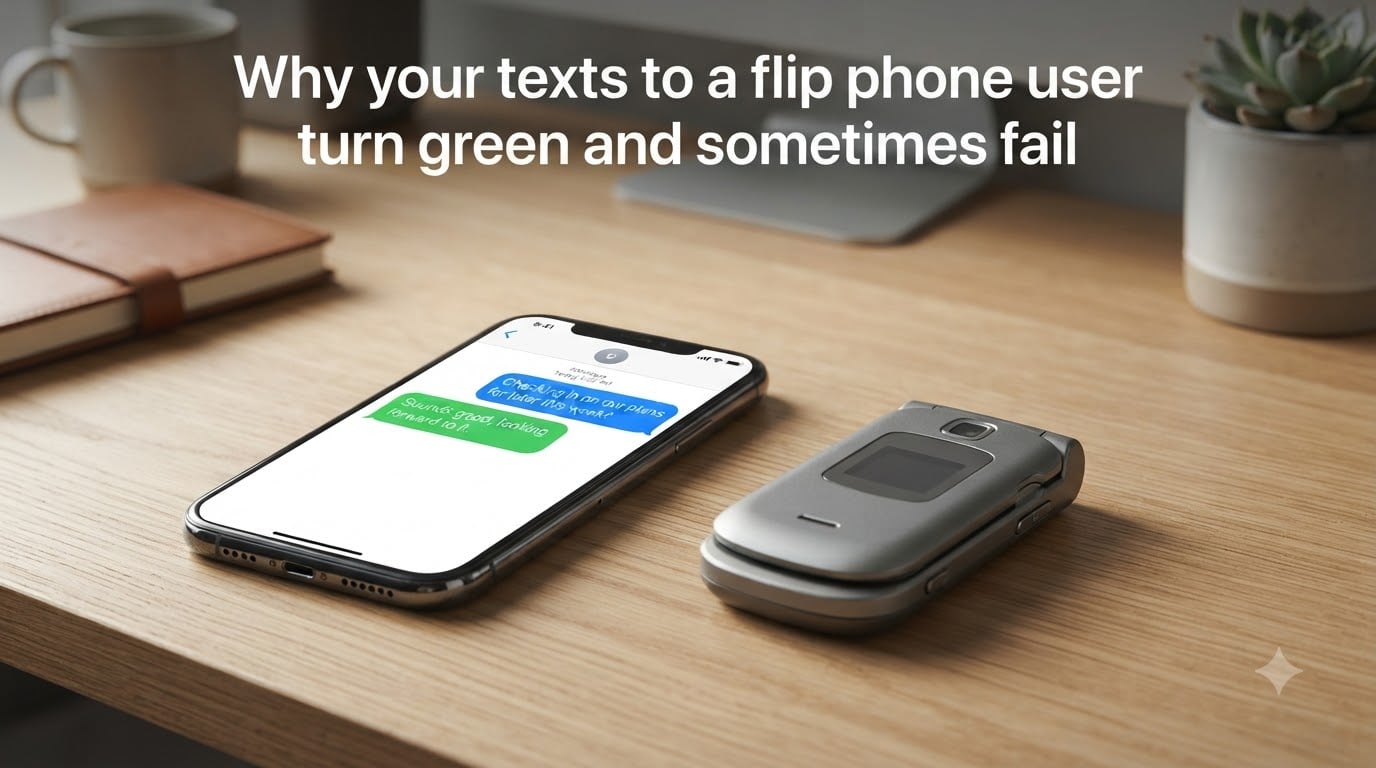
You typed a message on your iPhone, hit send, and watched the bubble turn green instead of blue. Maybe it even showed “Not Delivered” in red. If you are texting someone who uses a flip phone, this is completely normal, and you are not alone in wondering what is going on.
Our team has spent hours digging through Apple support docs, community forums, and carrier documentation to explain exactly why texts to a flip phone user turn green and sometimes fail. The short answer is that flip phones cannot use iMessage, so your iPhone falls back to SMS, and SMS has its own set of quirks that can cause delivery problems.
In this guide, we will break down why your texts to a flip phone turn green and sometimes fail, what the colors actually mean, whether you have been blocked, and how to fix the most common delivery issues. Let us clear up the confusion once and for all.
Table of Contents
Why Your Texts to a Flip Phone User Turn Green?
Blue bubbles mean iMessage. Green bubbles mean SMS or MMS. That is the core rule on every iPhone, and it explains almost everything you see when texting a flip phone.
iMessage is Apple’s proprietary messaging service that only works between Apple devices. It requires both the sender and the recipient to be on an iPhone, iPad, or Mac with an active internet connection. When both conditions are met, your message travels through Apple’s servers instead of your carrier’s cellular network, and the bubble shows up blue.
A flip phone is not an Apple device. It does not have iMessage installed, and it cannot connect to Apple’s messaging servers. The moment your iPhone detects that the recipient is not registered with iMessage, it automatically switches to SMS to deliver the message. That switch is what turns the bubble green.
This is not a bug or a setting you accidentally toggled. It is the iPhone doing exactly what it is supposed to do. The same thing happens when you text an Android phone, a Windows computer, or any device that is not part of the Apple ecosystem. Green simply means your message is traveling as a standard text message through your cellular carrier instead of through Apple’s internet-based service.
iMessage vs SMS vs MMS: What Is Actually Happening?
To understand why your texts to a flip phone turn green and sometimes fail, you need to know the difference between the three messaging protocols your iPhone uses.
iMessage sends messages over Wi-Fi or cellular data using Apple’s encrypted servers. It supports read receipts, typing indicators, high-quality photos, reactions, and message effects. It only works between Apple devices.
SMS (Short Message Service) is the original text messaging standard. It travels through your cellular carrier’s voice network, not the internet. SMS is limited to 160 characters of plain text with no images, no read receipts, and no typing indicators. This is what your iPhone uses when texting a flip phone.
MMS (Multimedia Messaging Service) is an extension of SMS that allows images, audio, video, and longer text. Your iPhone uses MMS automatically when you attach a photo or send a group message to non-Apple users. MMS requires a cellular data connection, even though it is not using iMessage.
The key difference is the transport method. iMessage uses the internet. SMS and MMS use the cellular network. When you text a flip phone, everything goes through the cellular network, which is why you lose features like read receipts and typing indicators. It is also why delivery can be less reliable, since you are now depending on cellular signal strength and carrier infrastructure instead of Apple’s servers.
Why Messages Sometimes Fail Entirely to Flip Phones?
Green bubbles are expected when texting a flip phone. But what about messages that fail to deliver at all? This is the part most articles skip, and it is directly tied to how SMS and MMS work on cellular networks.
Here are the most common reasons your texts to a flip phone fail to deliver:
Poor cellular signal on either end. SMS travels through the cellular voice network. If you or the flip phone recipient are in an area with weak cell coverage, the message may not go through. Unlike iMessage, which can fall back to Wi-Fi, SMS needs a cellular connection on both ends.
MMS requires cellular data to be enabled. If you send a photo or a group message to a flip phone, your iPhone sends it as MMS. MMS will fail if either phone has cellular data turned off, even if the voice signal is strong. Many flip phone users keep data disabled to save battery or avoid carrier charges, which causes MMS to silently fail.
Carrier-level filtering or blocking. Some carriers block SMS or MMS from certain numbers, especially for prepaid or basic plans. If the flip phone user has a limited texting plan, messages may be rejected at the carrier level without any notification to you.
The recipient’s phone is off or out of range. SMS messages are stored by the carrier and delivered when the phone reconnects, but only for a limited time, typically 48 to 72 hours. If the flip phone stays off longer than that, the message is discarded and shows as failed on your end.
Incorrect contact information. If the flip phone number is ported, suspended, or no longer active, your iPhone will attempt SMS delivery and receive a failure response from the carrier. This shows up as “Not Delivered” with a red exclamation mark.
Network congestion or outages. During high-traffic periods or carrier outages, SMS delivery can be delayed or dropped entirely. This is more common on the cellular network than on Apple’s iMessage servers.
Does a Green Bubble Mean You Are Blocked?
No. A green bubble does not mean you have been blocked. This is one of the most persistent myths around iPhone messaging, and the reality is much simpler.
When someone blocks you on an iPhone, your iMessage still appears to send normally as a blue bubble. There is no special color change, no error message, and no notification. The message simply never reaches the person who blocked you, but your phone does not tell you that. Apple deliberately does not inform senders when they have been blocked.
So if your messages to a flip phone are green, it is because the recipient does not have an Apple device, not because they blocked you. Flip phone users cannot block you through iMessage anyway, since they do not use iMessage. They can only block your number through their carrier or phone settings, which would look the same as any other failed SMS, not a color change.
If your messages to a fellow iPhone user suddenly switch from blue to green, that is a different story. It usually means their phone is off, they switched to an Android, they turned off iMessage, or they lost their internet connection. It does not automatically mean you are blocked.
How to Fix Green Messages and Delivery Problems?
If your messages are failing to deliver to a flip phone, work through these steps in order. Most delivery problems can be resolved in a few minutes.
Step 1: Check your cellular signal. Look at the signal bars in the top right corner of your iPhone. If you have one bar or no service, move to an area with better coverage and try resending. SMS needs a cellular voice connection to work.
Step 2: Toggle Airplane Mode. Swipe into Control Center, turn on Airplane Mode for 10 seconds, then turn it back off. This forces your iPhone to reconnect to the cellular network and can clear stuck message queues.
Step 3: Make sure cellular data is turned on. Go to Settings, then Cellular, and confirm Cellular Data is enabled. Even though SMS uses the voice network, MMS requires data. If you are sending photos or group messages to a flip phone, this setting must be on.
Step 4: Check MMS settings. Go to Settings, then Messages, and make sure MMS Messaging is turned on under the SMS section. If this is off, any photo or group text to a non-Apple device will fail silently.
Step 5: Restart your iPhone. A simple reboot clears temporary network glitches that can block SMS delivery. Hold the side button and volume button, then slide to power off. Turn it back on after 30 seconds.
Step 6: Update your carrier settings. Go to Settings, then General, then About. If a carrier update is available, a popup will appear within a few seconds. Tap Update. Outdated carrier settings can cause SMS routing problems.
Step 7: Toggle Send as SMS. In Settings, then Messages, make sure Send as SMS is enabled. This tells your iPhone to fall back to SMS when iMessage is unavailable. Without it, messages to non-Apple users may fail instead of converting to green.
Step 8: Contact your carrier. If none of the above works, the problem may be on the carrier side. Call your carrier and ask them to check for SMS routing issues, account-level blocks, or provisioning problems on your line.
How to Know If Your Green Text Was Delivered?
One of the biggest adjustments when texting a flip phone is that you lose the delivery feedback you are used to with iMessage. Here is what to expect.
iMessage gives you clear delivery signals. You see “Delivered” under the blue bubble when the message reaches Apple’s servers, and “Read” when the recipient opens it. Typing indicators show three dots when they are replying.
SMS gives you almost nothing. Standard SMS does not support delivery receipts or read receipts. Once you send a green text, you will not see “Delivered” or “Read” unless the recipient’s carrier and phone both support SMS delivery reports, which most flip phones do not.
“Not Delivered” with a red exclamation mark means the message failed. Tap the exclamation mark and select “Try Again” to resend. If it keeps failing, refer to the troubleshooting steps above.
No error and no confirmation means the message likely went through. If your iPhone shows the green bubble with no error indicator, the SMS was accepted by your carrier for delivery. Whether the flip phone actually receives it depends on the recipient’s signal, plan, and phone status, which you cannot control from your end.
FAQs
Why are my texts to someone suddenly green?
Your texts turn green when your iPhone cannot use iMessage and falls back to SMS. This happens when the recipient does not have an Apple device, has iMessage turned off, has no internet connection, or has switched carriers. With a flip phone user, green is the default because flip phones do not support iMessage at all.
Does green text mean someone blocked you?
No. A green bubble does not mean you are blocked. When someone blocks you on iPhone, your messages still appear to send normally. Green simply means the message is being sent as SMS instead of iMessage, which is normal for any non-Apple device including flip phones.
Why do my green texts fail to send?
Green texts fail when there is a problem with the cellular connection, MMS settings, or the recipient’s phone. Common causes include weak cell signal, cellular data turned off, MMS messaging disabled, the recipient’s phone being off for over 72 hours, or carrier-level blocking. Try toggling Airplane Mode, enabling cellular data, and restarting your iPhone.
Can a flip phone text an iPhone?
Yes. A flip phone can send and receive SMS text messages to an iPhone without any issues. The message will appear as a green bubble on the iPhone side. The main limitations are no read receipts, no typing indicators, no high-quality photo sharing, and no group chat features that iMessage provides.
How do I know if my green text was delivered?
Standard SMS does not provide delivery confirmation like iMessage does. You will not see Delivered or Read under a green bubble in most cases. If the message fails entirely, you will see a red Not Delivered error. If there is no error, the message was likely accepted by your carrier for delivery.
How do I turn my green text back to blue?
You cannot force a message to a flip phone to turn blue because iMessage only works between Apple devices. If your messages to another iPhone user are turning green, check that both phones have iMessage enabled in Settings under Messages, have an active internet connection, and are signed into iCloud. The bubbles will return to blue once iMessage reconnects.
Conclusion
Understanding why your texts to a flip phone user turn green and sometimes fail comes down to one simple fact: flip phones cannot use iMessage. Your iPhone automatically falls back to SMS, which shows as a green bubble and depends entirely on the cellular network for delivery.
Green bubbles are normal, not a sign of being blocked, and not something you can change. When messages fail entirely, the problem is almost always cellular signal, MMS settings, or carrier issues. Work through the troubleshooting steps above, and your texts should go through.
The next time you see that green bubble pop up when texting a flip phone user, you will know exactly what is happening under the hood.