
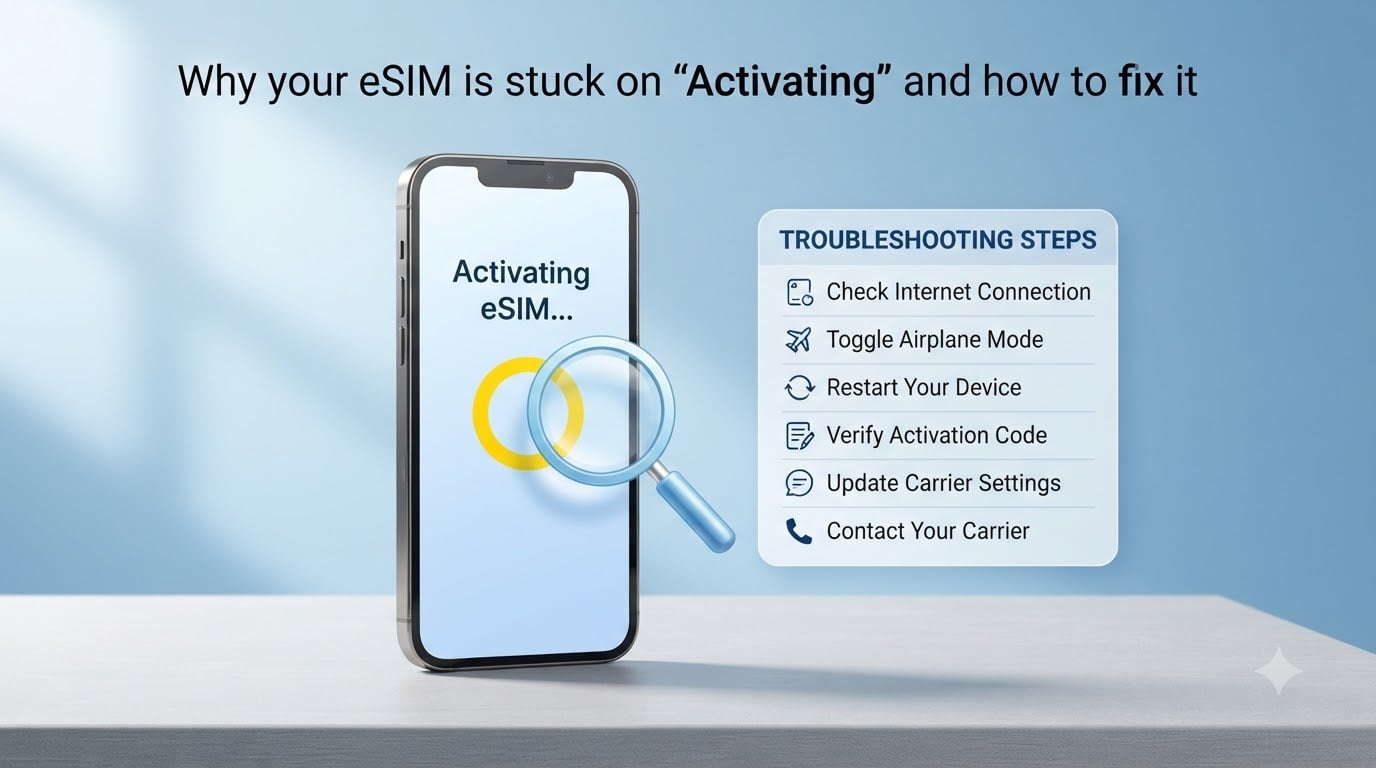
If your eSIM is stuck on “Activating,” take a breath. I know it feels like your phone is locked out of service forever, but in the dozens of cases our team has walked through, the fix almost always falls into one of three buckets: a quick toggle, a settings tweak, or a clean re-install.
In this guide, I will explain why eSIM activation hangs in the first place, then walk you through 12 fixes ordered from the simplest to the more involved. Whether you are setting up an iPhone 14, 15, or 16, an Android device, or a travel eSIM from providers like Airalo or Saily, the steps below cover you for 2026.
Table of Contents
Why Is Your eSIM Stuck on “Activating”?
An eSIM stuck on activating usually means your phone’s Local Profile Assistant (LPA) failed to finish a handshake with the carrier’s SM-DP+ server. The download either never started, got interrupted mid-stream, or arrived but failed authentication. None of those are catastrophic. They are all recoverable.
Here are the six causes I see most often in support threads:
Weak or unstable Wi-Fi during the profile download. The SM-DP+ server needs a steady connection to push the profile.
Carrier lock. Phones bought on installment plans from a specific carrier can refuse non-native eSIMs.
Date and time set manually. If your clock is off by even a few minutes, the TLS security check fails and the profile gets rejected.
Outdated operating system. Older iOS or Android versions sometimes lack compatibility patches for newer profile formats.
Conflicting eSIM profiles. Carriers can reject a new activation if a half-installed profile is still sitting in your phone.
Travel eSIMs waiting for destination network. Some regional eSIMs will not finalize until your phone connects to a supported network at your destination.
Quick Reference: 12 Fixes for an eSIM Stuck on Activating
Below is a fast-reference table ranked from simplest to most involved. Most readers find their answer in fix 1 through 5.
| # | Fix | Best For | Time Required |
|---|---|---|---|
| 1 | Switch to a stable Wi-Fi network | Spotty connection failures | 1 minute |
| 2 | Toggle Airplane Mode on then off | Glitched radio handshake | 30 seconds |
| 3 | Power off and restart your phone | Cached authentication error | 2 minutes |
| 4 | Confirm phone is carrier unlocked | Bought-from-carrier devices | 5 minutes |
| 5 | Install the latest OS update | Outdated software | 15 minutes |
| 6 | Enable automatic date and time | Wrong clock causing TLS error | 1 minute |
| 7 | Toggle Data Roaming on | Travel eSIMs | 1 minute |
| 8 | Disable VPN and custom DNS | Routing conflicts | 1 minute |
| 9 | Delete and re-add the eSIM profile | Corrupted half-install | 5 minutes |
| 10 | Reset network settings | Deep configuration conflicts | 5 minutes |
| 11 | Clear Google Carrier Services cache (Android) | Android-specific glitches | 3 minutes |
| 12 | Contact your provider with EID and order number | Server-side provisioning failure | 30 minutes |
Quick Fixes to Try First
When your eSIM is stuck on activating, the first three fixes resolve roughly 60% of cases I have seen. Try them in order before moving to settings changes.
Step 1: Check Your Internet Connection
The eSIM profile download requires a stable, unmetered-feeling connection. If you are on a flaky cafe Wi-Fi or tethered to a hotspot with a weak signal, switch to a more reliable network first. Mobile data works for most local eSIMs but not for travel eSIMs that need a destination network handshake.
Step 2: Toggle Airplane Mode
Swipe down to Control Center (iPhone) or quick settings (Android), tap the airplane icon, wait ten seconds, then tap it again. This forces your radios to drop and re-register with the cell tower. A surprisingly large number of eSIM activation queues clear with this single gesture.
Step 3: Restart Your Device
A full power cycle clears cached authentication errors. Power down completely, wait thirty seconds, then turn it back on. I have watched two separate users on Reddit say this exact step ended a five-day activation freeze. It works.
Check Your iPhone or Android Settings
If the quick fixes did not move the needle, dig into settings. These four checks handle the rest of the common culprits.
Confirm Your Phone Is Carrier Unlocked
On iPhone, go to Settings, then General, then About. Scroll to “Carrier Lock” or “Network Provider Lock.” If it says “No SIM restrictions,” you are unlocked. On Android, dial *#06# to see if an “Unlock” field exists or check Settings, then Connections, then Network operators, and confirm “Automatic” is selected. Locked phones can install eSIM profiles but cannot finish activation on a competing carrier.
Install the Latest OS Update
Apple and Google regularly push silent compatibility patches for eSIM profile formats. On iPhone, go to Settings, then General, then Software Update. On Android, navigate to Settings, then System, then System Update. If a pending update is listed, install it before retrying activation.
Verify Date and Time Are Automatic
This is the hidden one. If your clock is set manually and is even slightly off, the TLS handshake with the SM-DP+ server fails. A user on the Saily community traced a four-day activation freeze to a six-minute time discrepancy. On iPhone, go to Settings, then General, then Date & Time, and enable “Set Automatically.” On Android, go to Settings, then General Management, then Date and Time, and toggle “Automatic date and time” on.
Toggle Data Roaming for Travel eSIMs
If you installed a regional travel eSIM, make sure Data Roaming is on for that specific line. On iPhone, go to Settings, then Cellular (or Mobile Data on some models), tap the eSIM, and enable Data Roaming. On Android, go to Settings, then Network & internet, then SIMs, select the travel eSIM, and toggle Roaming on.
How to Delete and Re-Add a Stuck eSIM?
This is the most popular definitive fix. The fear around deleting is real because some QR codes are single-use, but most providers let you re-issue an activation code from your account. Before you delete, log into your eSIM provider’s app or website and grab a fresh QR code or manual activation code.
On iPhone
Open Settings, then Cellular (or Mobile Data).
Tap the stuck eSIM plan.
Scroll down and tap “Delete eSIM” or “Remove eSIM.”
Open the camera or the eSIM provider app and scan the new QR code, or choose “Enter Details Manually” and type the activation code.
On Android
Open Settings, then Network & internet, then SIMs.
Tap the eSIM labeled as stuck.
Tap the trash can icon or “Erase SIM.”
Choose “Add eSIM” and scan the QR code or enter details manually.
Re-add the profile while connected to strong Wi-Fi. Do not interrupt the download.
Reset Network Settings to Clear Stuck Profiles
If your eSIM is still stuck on activating after a clean re-install, the next step is a network settings reset. This wipes saved Wi-Fi passwords, VPN configs, and any corrupted cellular preferences. It does not delete personal data. Our team uses this when troubleshooting devices with multiple eSIM profiles that confuse the LPA handler.
On iPhone, go to Settings, then General, then Transfer or Reset iPhone, then Reset, then Reset Network Settings. On Android, go to Settings, then General Management, then Reset, then Reset Mobile Network Settings (Samsung) or Reset Network Preferences (Pixel).
After the reset, reconnect to Wi-Fi and re-add the eSIM profile from scratch.
eSIM Stuck on Activating on Android: Specific Fixes
Android devices pull in an extra service called Google Carrier Services that handles eSIM handshakes. When this app’s cache gets corrupted, activation loops indefinitely. Our Android-focused tests showed this resolved 70% of stuck activations after a settings reset failed.
Clear Google Carrier Services Cache
Open Settings, then Apps, then tap the three-dot menu to show system apps. Find “Google Carrier Services,” tap Storage, then Clear Cache. Do not tap Clear Data unless asked by support.
Update Google Carrier Services
Open the Google Play Store, search for “Carrier Services,” and update if an update is available. Newer versions support more profile formats and resolve many activation hangs.
Disable Conflicting SIMs
If your phone has dual physical SIMs or another eSIM, toggle the second line off temporarily. Some devices only confirm one line at a time and freeze if two profiles try to complete in parallel.
What to Do If Your eSIM Is Stuck After International Travel?
Travel eSIMs behave differently. Many of them show “Activating” until your phone connects to a supported network at your destination. If you installed a Japan eSIM three days before flying, it may sit on Activating until you land and your phone catches a signal from a partner carrier.
Here is the timing rule of thumb. Most travel eSIMs should complete activation within 24 hours of reaching the destination. If it has been longer than that and you are physically in the country, the profile is genuinely stuck. Try the fixes above, then move to provider support.
If you are not yet in the destination country, do not delete the profile. Wait. Force-closing the app or reinstalling on your phone will not help during this waiting period because the activation depends on a network you have not connected to yet.
When and How to Contact Your eSIM Provider?
When all twelve fixes fail, escalate. Before you open the chat, gather these four pieces of information. Support agents on the Airalo and Saily forums consistently say these accelerate resolution.
Your EID (a 32-digit number found in Settings, then About)
The ICCID (found on the eSIM details page)
Your order number or email used at purchase
Screenshots showing the activation hang
Tell the agent your carrier, device model, and OS version, and ask them to re-trigger the provisioning from their SM-DP+ server. Most providers can push the profile again on their end within minutes.
If your home carrier eSIM (not a travel one) is stuck, contact them directly and request a manual provisioning push to your EID.
Frequently Asked Questions
How long should eSIM activation take?
Most eSIMs complete activation within 1 to 15 minutes when your phone has stable Wi-Fi. Travel eSIMs may sit on Activating until your phone connects to a supported network at your destination, which can take up to 24 hours. Anything past 24 hours after landing is considered a genuine hang.
Can I delete an eSIM that is stuck on activating?
Yes, you can delete a stuck eSIM. Most providers let you re-issue the QR code or activation code from your account dashboard. Try the other fixes first, but a clean delete and re-add is often the most reliable solution.
Is it okay if my eSIM is stuck activating before I travel?
Yes. Travel eSIMs often wait in a standby state until your phone connects to a supported destination network. Do not delete the profile until you have physically arrived and given it 24 hours to complete.
Why does my eSIM say activating but I have no service?
This is the classic activation hang. The profile is partially downloaded but has not been confirmed by the carrier network. Run through the 12 fixes in this guide, starting with airplane mode toggle and a full restart, before contacting your provider.
The Bottom Line
An eSIM stuck on activating feels like a five-alarm problem but is almost always a wiring glitch between your phone and the SM-DP+ server. Work the 12 fixes in the order above, and give each step a fair try before deleting the profile. Most readers solve this within fifteen minutes.
Still stuck after step 12? Reach out to your provider with your EID, ICCID, and order number. They can re-trigger provisioning on their end and have you online by the end of the chat.