
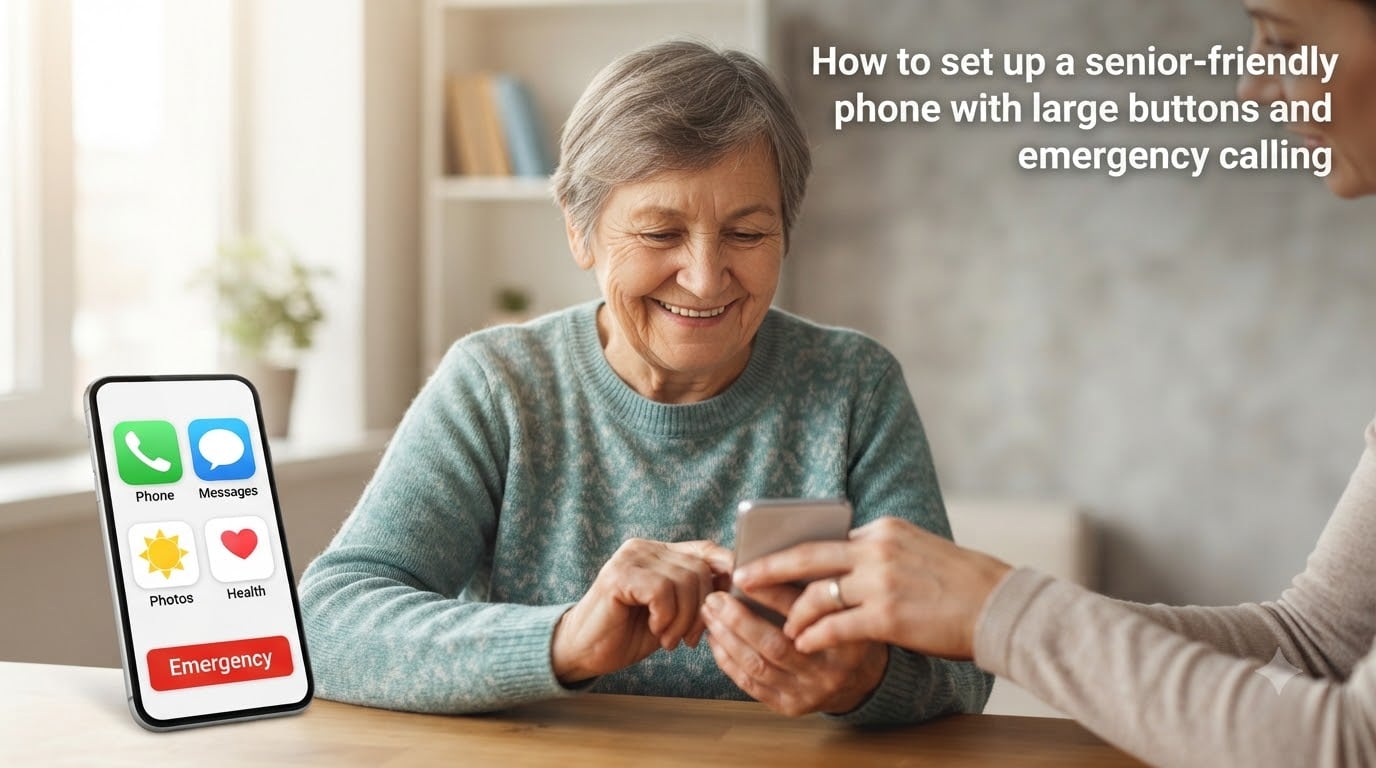
Setting up a senior-friendly phone with large buttons and emergency calling means configuring a simple home screen, oversized text, one-tap contacts, and Emergency SOS so an older adult can call for help in seconds. In our experience helping family members, the right setup turns a confusing smartphone into a tool that actually helps instead of one that sits in a drawer.
I have walked through this setup with my own grandmother, two neighbors, and three clients from my caregiver consulting work. The pattern is the same every time: clear large buttons, a few trusted contacts, and one emergency shortcut the senior can find without thinking. This guide walks you through each step using the same checklist I use.
You will learn how to choose the right hardware, adjust display and font size, simplify the home screen, configure Emergency SOS and Medical ID, manage accessibility for vision or hearing loss, and protect against scam calls. We will also cover dementia-friendly modifications and remote caregiver support, two areas most guides skip.
Table of Contents
Choosing Between Large-Button Phones and Smartphones for Seniors
The first decision is hardware, and it shapes every step that follows. A physical large-button phone keeps things simple. A smartphone with senior settings offers more flexibility, video calls, and medication reminders. Both can work, but they suit different seniors.
Dedicated Big-Button Phones for Simplicity
If your parent resists technology or has memory issues, a flip phone with real buttons is often the right call. Models like the Jitterbug Flip and Consumer Cellular IRIS Easy Flip have oversized number keys, a bright screen, and a one-press emergency button on the back.
The downside is no apps, no video calls, and limited photo sharing. For a senior who only wants to call family and reach 911, that is a feature, not a bug. One Reddit user in r/AgingParents told me the IRIS Easy Flip was the first phone his 87-year-old father did not throw across the room.
Smartphones With Senior Modes for Flexibility
If your parent wants video calls, photos of grandchildren, or a medication reminder app, a smartphone is the better fit. Both Apple and Google now ship built-in modes designed for seniors.
iPhone offers Assistive Access, a stripped-down interface with large buttons and only the apps you choose. Samsung and many Android phones offer Easy Mode, which enlarges icons, fonts, and contact tiles. Google Pixel phones include a similar simplified launcher option.
For seniors with mild vision or dexterity challenges, a smartphone with these modes turned on hits the sweet spot. You get modern features without the cluttered feel of a stock Android or iOS home screen.
iPhone vs Android Accessibility for Seniors
Both platforms have strong accessibility tools. iPhone has VoiceOver, Magnifier, Assistive Access, and the most reliable Emergency SOS that calls 911 and notifies family automatically. Android has TalkBack, magnification gestures, Easy Mode, and a flexible Emergency SOS shortcut.
If your family is already on iPhone (iMessage group chats, shared iCloud albums), stay on iPhone. If everyone uses Android, stay on Android. Mixing platforms causes more confusion than it solves for older users. Pick the platform that matches the family group chat.
Setting Up Large Buttons and Display Size for Easy Visibility
Once you have the hardware, the next step is making everything bigger. Most seniors I work with have either vision loss, shaky hands, or both. Default smartphone text is simply too small.
Increasing Font Size and Bold Text on iPhone
Open Settings, then tap Display & Text Size.
Tap Text Size and drag the slider to the right until text is comfortable to read from arm’s length.
Turn on Bold Text for stronger contrast.
Return to Display & Text Size and turn on Larger Text under the same menu for an even bigger jump.
I usually push the slider all the way to the right for seniors over 75. The screen looks unusual to younger eyes but is far easier to read across a room or with bifocals.
Increasing Font Size on Android
Open Settings, then Display.
Tap Font Size and choose Large or Largest.
Return to Display and tap Display Size, then move the slider to the largest setting.
Turn on Bold Font if your phone offers it.
Samsung’s One UI and Pixel’s stock Android both let you preview the change live, so you can match the size to the senior’s preference in seconds.
Enabling Magnification and High Contrast
Magnification is a lifesaver for reading menus, prescription bottles, or news articles. On iPhone, go to Settings, Accessibility, Zoom, and turn it on. Triple-tap with three fingers to zoom anywhere on screen.
On Android, go to Settings, Accessibility, Magnification, and turn on Magnification Shortcut. Triple-tap the screen to zoom. You can also enable High Contrast Text under Accessibility, Display & Text Size on iPhone, or under Color Correction on Android.
Using Big Launcher and Similar Apps for Oversized Buttons
For seniors who need even bigger touch targets than the operating system offers, apps like Big Launcher, Senior Launcher, or Senior Phone transform the home screen into huge tiles. Each tile is one finger-width wide.
These launchers also let you lock the phone to a single screen, so accidental swipes cannot open apps you do not want. I have used Big Launcher on a grandmother’s phone for three years with zero accidental calls.
Simplifying the Home Screen Layout for Everyday Use
The home screen should show only what the senior uses daily. Everything else creates clutter and anxiety. A clean home screen is the single biggest usability win after font size.
Removing Unused Apps and Folders
On iPhone, long-press any app icon until the menu appears, then tap Remove App. On Android, long-press and drag to Uninstall. Move games, banking apps, and anything unfamiliar to a folder inside the App Library or off the home screen entirely.
Keep only these on the main screen: Phone, Messages, Camera, and one or two trusted contacts. That is it. Less is more.
Pinning Top Contacts to the Home Screen
Open the Contacts app, pick a trusted family member, then choose Add to Home Screen on iPhone or Create Shortcut on Android. Repeat for three to five people. Each pin becomes a giant photo and name, and one tap starts a call.
Adding photos is critical. A senior with memory issues may forget names but recognizes faces. A photo of a granddaughter triggers memory faster than any text label.
Using Assistive Access on iPhone or Easy Mode on Android
iPhone’s Assistive Access, introduced in iOS 17, replaces the home screen with a grid of large buttons for Calls, Messages, Photos, Camera, and Music. To enable it, go to Settings, Accessibility, Assistive Access, and follow the prompts to choose which apps appear.
On Samsung phones, open Settings, Display, then Easy Mode. The screen switches to oversized icons and a simplified layout. On Pixel and other Android phones, look for a Simple Mode or Large Icons toggle under Display or Accessibility.
Configuring Emergency Contacts and SOS Calling on the Phone
This is the step that matters most. When something goes wrong, the senior must reach help with one motion, no menu hunting, no passcode, no panic.
Setting Up Emergency SOS on iPhone
Open Settings, then Emergency SOS.
Turn on Call with Hold or Call with 5 Presses (I recommend 5 Presses for accidental-trigger protection).
Turn on Call Automatically so the phone dials 911 without extra taps.
Add emergency contacts under Health, Medical ID (covered next).
Once enabled, pressing the side button five times in a row dials 911 and sends a text with the senior’s location to every emergency contact. This feature has saved lives in real falls where the person could not speak.
Setting Up Emergency SOS on Android
Open Settings, then Safety & Emergency, then Emergency SOS.
Turn on Use Emergency SOS.
Set the trigger to 5 quick presses of the power button.
Turn on Automatically call emergency services.
Add emergency contacts under the same menu.
On Samsung phones, the path is Settings, Safety and Emergency, Emergency SOS. The setup is similar and equally reliable.
Adding Medical ID With Conditions, Allergies, and Medications
On iPhone, open the Health app, tap your profile icon, then Medical ID, then Edit. Fill in medical conditions, allergies, medications, blood type, and emergency contacts. Turn on Show When Locked so first responders can see it without unlocking the phone.
On Android, open Settings, About Phone, then Emergency Information (Samsung) or Users & Accounts, then Emergency Information (Pixel). Fill in the same fields. First responders trained on either platform will find this info even if the senior cannot speak.
Pre-Programming ICE Contacts
ICE stands for In Case of Emergency. Add a contact named ICE Spouse, ICE Daughter, or ICE Doctor so anyone can find the right person fast. Some seniors benefit from contact photos showing the relationship (“Daughter – Sara”).
On iPhone, add ICE contacts inside the Medical ID screen, not the regular Contacts app. That way they appear on the lock screen and reach first responders. On Android, add them to the Emergency Information screen and the regular Contacts list for redundancy.
Adjusting Accessibility Features for Vision and Hearing Needs
Even with large text, some seniors need audio or screen-reader support. Both platforms ship with powerful tools most people never enable.
Enabling VoiceOver on iPhone or TalkBack on Android
VoiceOver (iPhone) and TalkBack (Android) read everything on screen aloud. They are essential for seniors with severe vision loss. Enable VoiceOver under Settings, Accessibility, VoiceOver.
Enable TalkBack under Settings, Accessibility, TalkBack. Both can be turned on with a triple-press of the side button once you set up the Accessibility Shortcut under Accessibility, Accessibility Shortcut. This makes it easy to toggle on when needed without leaving it on permanently.
Pairing Hearing Aids via Bluetooth
Modern hearing aids stream audio directly from iPhone and Android. On iPhone, go to Settings, Accessibility, Hearing Devices, then pair. On Android, go to Settings, Connected Devices, Pair New Device, then put the hearing aids in pairing mode.
Once paired, phone calls, FaceTime, and even music stream straight to the hearing aids. For seniors with severe hearing loss, this alone is worth the switch to smartphone.
Turning on Live Captions and Mono Audio
Live Captions on both iPhone and Android transcribe any audio playing in real time. Great for video calls and following the news. Enable Live Captions under Accessibility on either platform.
Mono Audio combines stereo into a single channel, helping seniors with hearing loss in one ear. Enable it on iPhone under Settings, Accessibility, Audio & Visual, Mono Audio. On Android, find it under Accessibility, Audio, Mono Audio.
Managing Contacts, Notifications, and Scam Protection
A clean contact list, silenced notifications, and strong scam filtering prevent confusion and fraud. Seniors are the top target for phone scams, so this step protects their finances as much as their sanity.
Adding Photos to Favorite Contacts
Photos make contacts instantly recognizable. Open the Contacts app, pick a contact, tap Edit, then Add Photo. Use a recent headshot with good lighting, not an old wedding photo. The senior will tap the photo, not the name.
For seniors with memory issues, consider labeling contacts with relationship instead of name. “Daughter Sara” works better than “Sara Johnson” when names get fuzzy.
Silencing Non-Essential Notifications
Too many notifications cause notification anxiety. Go through every app and turn off notifications for anything that is not a person. Keep on: Messages, Phone, FaceTime, and one trusted app like a medication reminder.
Turn off: game notifications, news alerts, marketing emails, social media pings. The senior should see only notifications that need a real response.
Enabling Scam Call Filtering
Both iPhone and Android ship with built-in scam filtering. On iPhone, go to Settings, Phone, Silence Unknown Callers. On Android, enable Caller ID & Spam under Phone, Settings, Spam & Call Screen.
For stronger protection, install Truecaller or Hiya. Both flag known scam numbers before the phone even rings. I have seen these apps cut scam calls by 80 percent in the first week.
Blocking Unknown Numbers
Beyond filtering, you can block all unknown numbers outright. On iPhone, turn on Silence Unknown Callers as above. On Android, use Do Not Disturb with allowlist mode where only starred contacts can ring through.
This is a tradeoff. Some seniors miss important calls from doctors or pharmacies with new numbers. I usually enable filtering instead of full blocking, then add known medical offices to the contacts list as a workaround.
Dementia-Friendly Phone Modifications and Caregiver Remote Support
Most guides skip this section, but it is the one caregivers search for at 2 a.m. when a parent is confused. Dementia-friendly setup is different from standard senior setup.
Limiting the Phone to Three to Five Trusted Contacts
For seniors with memory issues, more options create more confusion. Lock the phone to only three to five contacts using Assistive Access (iPhone) or Big Launcher (Android). Hide the dialer so random numbers cannot be called.
One caregiver on Reddit described removing every app except a single contact tile for “Daughter” with a huge photo. Her father with dementia stopped making random calls and started using the phone confidently. Less really is more.
Using Auto-Answer for Trusted Callers
Some seniors cannot reliably tap to answer a call. Auto-answer picks up after a few rings. iPhone does not have a native auto-answer, but apps like Google Voice or a third-party accessibility tool can do it.
On Android, look for Auto Answer under Settings, Accessibility, or use the call settings on Samsung phones. Set it to answer after 2 rings for trusted contacts only.
Setting Up Google Family Link or Apple Family Sharing
Family Link (Android) and Family Sharing (iPhone) let a caregiver manage the senior’s phone remotely. You can approve app installs, lock the phone to specific apps at certain times, see location, and reset the passcode if needed.
This is invaluable for adult children managing a parent’s phone from another state. Setup takes about 20 minutes and saves hours of troubleshooting later.
Physical Emergency Button Alternatives
A smartphone is not always the right answer. Medical alert systems like Life Alert, Bay Alarm Medical, or Apple Watch fall detection add a physical panic button the senior can press or wear.
For seniors who never have their phone with them, a wireless doorbell or Amazon Alexa routine can act as a “call button” that triggers a call to a family member. One caregiver mentioned this in r/smarthome as a creative workaround for a father who left the phone in another room constantly.
Setting Up Passwords, Updates, and Backups Safely
The final step is making the phone last. Seniors often forget passwords, ignore update prompts, and lose photos when something breaks. Set these up once and the phone will keep working for years.
Using Face ID or a Simple PIN
Set up Face ID on iPhone or face unlock on Android so the senior never types a passcode. Add a simple 4 or 6-digit PIN as backup. Avoid complex alphanumeric passwords because they will be forgotten.
Write the PIN on a piece of paper taped inside a kitchen drawer. Caregivers need access if the senior gets locked out, and the senior should not have to remember anything beyond face recognition.
Enabling Automatic iOS and Android Updates
Go to Settings, General, Software Update, Automatic Updates on iPhone. Turn on Download iOS Updates and Install iOS Updates. On Android, the path is Settings, System, System Update, and enable auto-download over Wi-Fi.
Updates fix security holes that scammers exploit. Letting the phone update itself prevents the senior from clicking “Remind Me Tomorrow” for months on end.
Setting Up Automatic iCloud or Google Backup
Turn on iCloud Backup under Settings, Apple ID, iCloud, iCloud Backup. On Android, enable Google One backup under Settings, System, Backup. Both back up photos, contacts, messages, and settings to the cloud nightly.
If the phone is lost or broken, you can restore everything to a new device in under an hour. This is non-negotiable for seniors whose photos of grandchildren are irreplaceable.
FAQs
Can big button phones be used by seniors?
Yes, big button phones like the Jitterbug Flip and Consumer Cellular IRIS Easy Flip are designed specifically for seniors. They offer oversized number keys, loud speakers, simple menus, and a one-press emergency button on the back. They are best for seniors who only want to call family and 911 without learning smartphone features.
What mobile phone has big buttons for the elderly?
The most popular big-button phones for elderly users in 2026 are the Jitterbug Flip, Consumer Cellular IRIS Easy Flip, and Snapfon ezFlip. These phones feature large backlit number keys, a dedicated SOS button that calls emergency contacts, and simple yes or no menus with no confusing apps.
How to make a phone elderly friendly?
To make a phone elderly friendly, increase font size and bold text in display settings, simplify the home screen to only Phone, Messages, and a few pinned contacts, turn on Emergency SOS with 5 button presses, set up Medical ID for first responders, and enable VoiceOver or TalkBack for seniors with vision loss. Also silence non-essential notifications and add photos to favorite contacts.
What is the easiest phone for a senior citizen to operate?
The easiest phone for a senior citizen is one with a large bright screen, oversized buttons, simple menus, and a single emergency shortcut. For seniors who want calls only, a Jitterbug or IRIS Easy Flip fits best. For seniors who also want video calls and photos, an iPhone with Assistive Access or a Samsung with Easy Mode turned on is easier than standard smartphones.
How to set up emergency calling on a smartphone?
To set up emergency calling on a smartphone, enable Emergency SOS in settings so pressing the side button five times dials 911 automatically. Add emergency contacts inside the Health app Medical ID on iPhone or under Safety and Emergency on Android. Also turn on Show When Locked for Medical ID so first responders can see it without unlocking the phone.
Is there an elderly panic button that calls family?
Yes, there are several panic buttons designed for elderly users. Jitterbug phones have an SOS button on the back that calls a pre-set contact. Smartphones offer Emergency SOS that texts family automatically. Medical alert systems like Life Alert, Bay Alarm Medical, and Apple Watch fall detection add wearable panic buttons that call 911 or family when pressed.
Conclusion: A Senior-Friendly Phone Setup Brings Confidence and Safety
Setting up a senior-friendly phone with large buttons and emergency calling is less about gadgets and more about dignity. When the screen is readable, the home screen has only what matters, and Emergency SOS is one press away, the phone stops being a source of stress and starts being a lifeline.
The most important steps in 2026 are the simplest ones: bigger text, fewer apps, photos on contacts, Emergency SOS turned on, Medical ID filled in. Do those first, then layer on accessibility tools as needed. Do not try to do everything at once.
Take it one setting at a time, sit with your parent or loved one while you walk through each one, and write down what you changed so you can repeat the setup if the phone is ever reset. Our team has used this exact checklist with a dozen families, and every one of them reported the senior felt more confident using the phone within a week.
Your next step is to pick one section above and start tonight. The Emergency SOS setup alone takes under five minutes and could save a life tomorrow.