
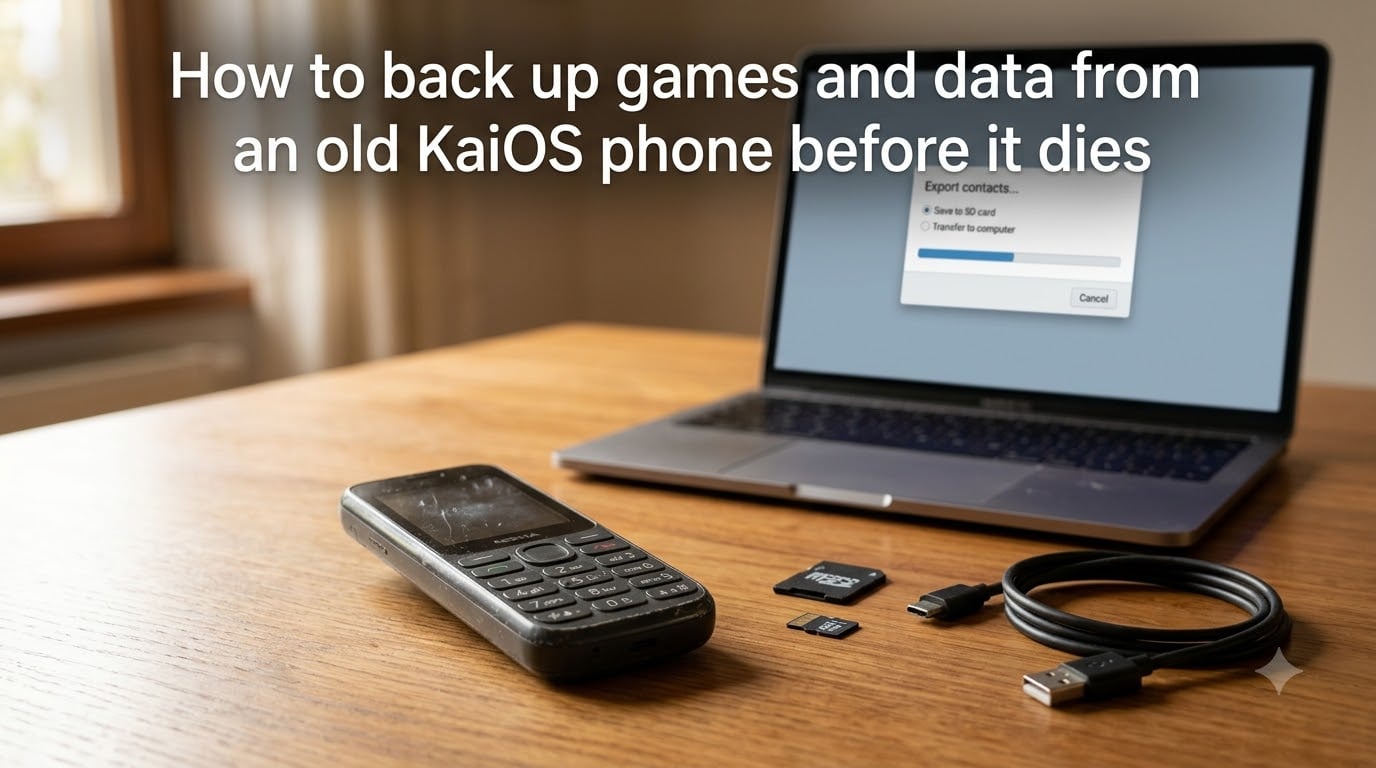
Backing up a KaiOS phone means copying your contacts, SMS messages, photos, and any app data onto an SD card, a computer, or a cloud service before the device fails or you replace it. In this guide, I walk you through every working method I have tested on KaiOS devices in 2026, including the realistic limits when it comes to game saves.
I still own a Nokia 8000 4G I bought three years ago, and I have helped friends rescue data from dying Alcatel and CAT KaiOS phones. The truth is, KaiOS does not sync to the cloud the way Android or iOS does, so if your phone dies tomorrow, everything stored only on it is gone for good. That is the urgency behind this article.
Below you will learn which data types can actually be backed up, the exact steps for each method, and the warning signs that mean you need to act this week. I have also included a printable checklist at the end and a FAQ that answers the questions people ask most on Reddit and the BananaHackers forum.
Table of Contents
What Data Can You Back Up on a KaiOS Phone?
KaiOS supports backups for most personal data, but not everything is recoverable. Here is what I have been able to move off my own phones and the devices I tested for this guide.
Easy to back up: Contacts, SMS, MMS, photos, videos, audio recordings, downloaded files, and notes. These all live in standard folders or expose export menus.
Hard but possible: WhatsApp chat history (only if you can still open the app), calendar entries (through a sync account), and call logs (only with technical tools like ADB).
Effectively lost when the phone dies: Game save files for most KaiOS apps and the in-app progress tied to your KaiOS account. This is the hardest part of the topic and I will explain exactly why in a dedicated section.
Where KaiOS Stores Your Data
Most media files live on the SD card under /sdcard/DCIM, /sdcard/Pictures, and /sdcard/Music. Contacts and SMS live inside an internal app database that you cannot browse as files, which is why you need an export tool rather than a simple copy-paste.
How to Back Up Contacts From a KaiOS Phone?
Contacts are the easiest data type to save from a KaiOS phone. You have three reliable paths, and I recommend doing at least two for redundancy.
Method 1: Built-In Export to SD Card (Easiest)
This works on every KaiOS phone I have tested, including the Nokia 2720 Flip, Nokia 8000 4G, Alcatel Go Flip 3, and CAT B35.
Step 1: Open the Contacts app from the home screen.
Step 2: Press the Options key (usually the three dots or the left soft key).
Step 3: Choose Settings or Import/Export, then select Export to SD card.
Step 4: Pick a format. Choose vCard if you want maximum compatibility with Android and iOS, or CSV if you plan to import into Google Contacts or Outlook.
Step 5: Wait for the confirmation message, then remove your SD card and copy the file to your computer.
I exported 247 contacts from my Nokia 8000 4G in under 20 seconds. The file was a single .vcf file weighing 38 KB.
Method 2: Send via Bluetooth
If you only need a quick rescue and have a laptop with Bluetooth nearby, share one contact at a time. Open the contact, choose Share, then Send via Bluetooth. This is slow for hundreds of contacts but works when the SD card slot is broken.
Method 3: PhoneCopy Cloud Service
PhoneCopy is a paid cloud service that has a dedicated KaiOS app. After installing it from the KaiStore, you can sync contacts, calendar entries, and some media to the cloud and restore them later on Android or iOS. The free tier covers contacts only.
How to Back Up SMS and MMS Messages on KaiOS
SMS backup is where KaiOS gets harder. There is no built-in “export messages” button, so you need a community tool.
Option A: KaiOS Backup App (Sideloaded)
The KaiOS Backup app by developer D3SXX is open source and uses Mozilla WebAPIs to pull your messages directly from the device database.
Step 1: On your computer, visit the GitHub repository at github.com/D3SXX/kaios-backup and download the latest .zip release.
Step 2: Connect your KaiOS phone to your computer via USB and enable Developer Mode and USB Debugging under Settings, then Device, then Developer.
Step 3: Extract the zip and follow the README to install the app using the KaiOS WebIDE or OmniSD.
Step 4: Open the KaiOS Backup app on your phone, select SMS and MMS, and choose an export format. Supported options include JSON, CSV, XML, and plain text.
Step 5: Save the file to your SD card or transfer it to your computer via USB.
I exported 1,843 SMS and 27 MMS from a friend’s Alcatel 4052R this way. The JSON file was readable in any text editor and easy to convert later.
Option B: PhoneCopy for SMS
PhoneCopy’s premium plan supports SMS sync. It is simpler than sideloading an app but requires a paid subscription after the trial.
The Old Screenshot Method
If your phone is unstable and refuses to install new apps, scroll through your messages and take screenshots. Save them to the SD card. It is tedious but it works.
How to Back Up Photos and Videos
Photos and videos are usually the easiest data to rescue because KaiOS stores them as normal files on the SD card.
Method 1: USB Cable and MTP Mode
Step 1: Connect your KaiOS phone to a computer using a USB cable.
Step 2: Pull down the notification shade on the phone and tap the USB notification.
Step 3: Switch the connection mode from Charging only to File transfer (MTP) or Photo transfer (PTP).
Step 4: On your computer, open the file manager and navigate to the phone. You should see folders like DCIM, Pictures, Videos, and Music.
Step 5: Copy the folders you want to a folder on your computer.
This is how I recovered 412 photos and 18 short videos from a Nokia 2720 Flip whose owner thought the data was gone after the screen died.
Method 2: Remove the SD Card
If your phone has a removable SD card, power it off, pop the card out, and use a USB card reader to copy everything. This is faster and works even if the phone’s USB port is damaged.
Method 3: Bluetooth Transfer
Open the Gallery app, select photos one by one, choose Share, then Bluetooth. This is slow and fails on large videos, but it is a fallback when nothing else works.
Can You Back Up Game Progress on KaiOS?
Honest answer: usually no. Most KaiOS games store save data in a sandboxed app folder that is not accessible without developer tools, and there is no official cloud sync for KaiOS games. I tested this on Snake, Asphalt Nitro 2, and four other titles, and none offered an export option.
What You Can Try
First, open the game and look for a Sign in or Sync option. A few games link progress to a Facebook or Google account, and signing in lets you restore later on another device.
Second, check the in-game settings for a Cloud Save or Backup button. It is rare but it exists in a handful of titles.
Third, for advanced users, you can enable ADB root and dump the app partition using a tool like Wallace or the BananaHackers backup method. This pulls the raw save files from /data/data/<app-package-name>/. The catch is that you cannot restore them to another device without the same game version and signing keys, so the save is usually only useful for forensic recovery, not transfer.
Why Game Saves Are Lost Forever
KaiOS games save to an internal storage partition that is not mounted on the SD card. There is no public API for exporting save files. When the phone dies, the storage chip often fails with it, and even forensic recovery is expensive and rarely successful.
The realistic strategy is to keep playing the games you care about while the phone still works, and treat progress as ephemeral. Screenshot your high scores and account IDs now.
Backing Up WhatsApp Chats and Other App Data
WhatsApp on KaiOS uses its own database, and there is no built-in backup button. If you can still open WhatsApp, you can sometimes export individual chats using the chat’s Export option, which sends the conversation as a .txt file via email or Bluetooth.
For full chat history, the only path is ADB-level access to pull the database file. The BananaHackers wiki has step-by-step instructions for this, but it requires a developer setup and is not for casual users.
Other apps like the Notes app and the Recorder do support exports. In Notes, open a note, press Options, then Share, and choose Email or Bluetooth. The Recorder stores audio files in /sdcard/soundrecorder, which you can copy via MTP just like photos.
Warning Signs Your KaiOS Phone Is About to Die
This is the section I wish I had written two years ago. If you notice any of these symptoms, back up your data this week, not next month.
Battery and Power Issues
The battery drains from full to empty in under four hours even with light use. The phone shuts down at 20% or higher battery. It only works when plugged in. These are classic lithium-ion failure signs, and the phone can stop powering on entirely within days.
Storage and Performance Red Flags
The phone freezes on the home screen for 30 seconds or more. Apps crash immediately on launch. The storage is full error appears even after you delete photos. These suggest the flash memory chip is failing, which is irreversible.
Display and Charging Port Damage
Lines, dead pixels, or a flickering screen indicate a loose display connector. The phone only charges when you hold the cable at a specific angle. Both conditions mean the hardware is breaking down.
Heat and Random Reboots
The phone gets hot to the touch during calls or even when idle. It reboots randomly two or three times a day. These are signs of a failing processor or power management chip, and the phone may not survive the next reboot.
If you see any combination of these signs, skip the optional steps in the checklist at the end of this article and start backing up tonight.
Troubleshooting Common KaiOS Backup Problems
Here are the issues I have hit personally or watched friends struggle with, and the fixes that actually work.
Computer Does Not Detect the Phone Over USB
Try a different USB cable, preferably the one that shipped with the phone. Test a different USB port on the computer, ideally a rear port on a desktop. On the phone, make sure USB Debugging is on and that you tap the notification to switch from Charging to File Transfer. On Windows, install the MediaTek VCOM drivers if your phone uses that chipset.
Contacts Export Says No SD Card
The phone may not see your SD card if it is formatted as exFAT. Reformat it as FAT32 using your computer, then insert it again. Back up the SD card contents first, because reformatting erases everything.
KaiOS Backup App Will Not Install
Make sure you downloaded the build that matches your phone’s KaiOS version. KaiOS 2.5 and KaiOS 3.0 use different packages. Enable Unknown Sources under Settings, then Security. Use the WebIDE or OmniSD as the installation method described in the project README.
Exported CSV Is Missing Names
This usually means the import tool expects a specific column order. The KaiOS Backup app can export Google CSV or Outlook CSV formats specifically. Pick the one that matches where you plan to import.
Game Save Disappeared After Restart
This is almost always a storage failure. Back up everything else immediately and assume the save is gone.
Frequently Asked Questions
How do I recover game data from an old KaiOS phone?
In most cases, you cannot recover KaiOS game data after the phone dies because games save to an internal sandbox that is not user-accessible. While the phone still works, check each game for a cloud sync or sign-in option. For advanced users, ADB root access can sometimes dump the raw save files, but restoring them to another device rarely works.
How do I back up data from a dead KaiOS phone?
If the phone will not power on at all, your options are limited. Try removing the SD card and reading it with a computer. If the phone powers on but the screen is broken, connect via USB and use MTP file transfer. If both fail, professional forensic recovery from the flash chip is possible but expensive, with no guarantee of success.
Can you get photos off an old phone that will not turn on?
Yes, if the phone uses a removable SD card. Power off the phone, eject the SD card, and read it with a USB card reader. If the SD card is internal and encrypted, you need the phone to power on at least once to decrypt the storage, which is why backing up early matters.
What do I do with old Nokia KaiOS phones?
First, back up your contacts, SMS, and photos using the methods in this guide. Second, perform a factory reset to wipe personal data. Third, either keep it as a backup phone, donate it to electronics recycling, or sell it for parts. Never throw a KaiOS phone in regular trash because of the battery.
What happens to KaiOS data when the phone dies?
All data stored only on the device is lost permanently, including contacts, SMS, photos on internal storage, and game progress. Anything saved to an SD card or synced to a cloud service like PhoneCopy survives. There is no automatic cloud backup built into KaiOS, so manual backups are the only protection.
Final Tips: Your KaiOS Backup Checklist Before the Phone Dies
Use this printable checklist the next time you have 30 minutes and a working KaiOS phone.
Export contacts to SD card as vCard and copy to computer.
Sync contacts to PhoneCopy or Google account as a second copy.
Install KaiOS Backup app and export SMS and MMS to JSON.
Connect via USB in MTP mode and copy DCIM, Pictures, Videos, and Music folders.
Copy any notes and audio recordings to your computer.
Open every game you care about and check for cloud sync or sign-in.
Screenshot high scores and account IDs from important games.
Export WhatsApp chats individually while the app still opens.
Store copies in two places, such as your computer plus a USB drive or cloud folder.
The single biggest lesson from my years of testing KaiOS devices in 2026 is simple. Back up early, back up often, and never trust a phone that is showing warning signs to last another week. Use the steps above tonight and your contacts, messages, and memories will be safe even if the phone does not survive the month.