
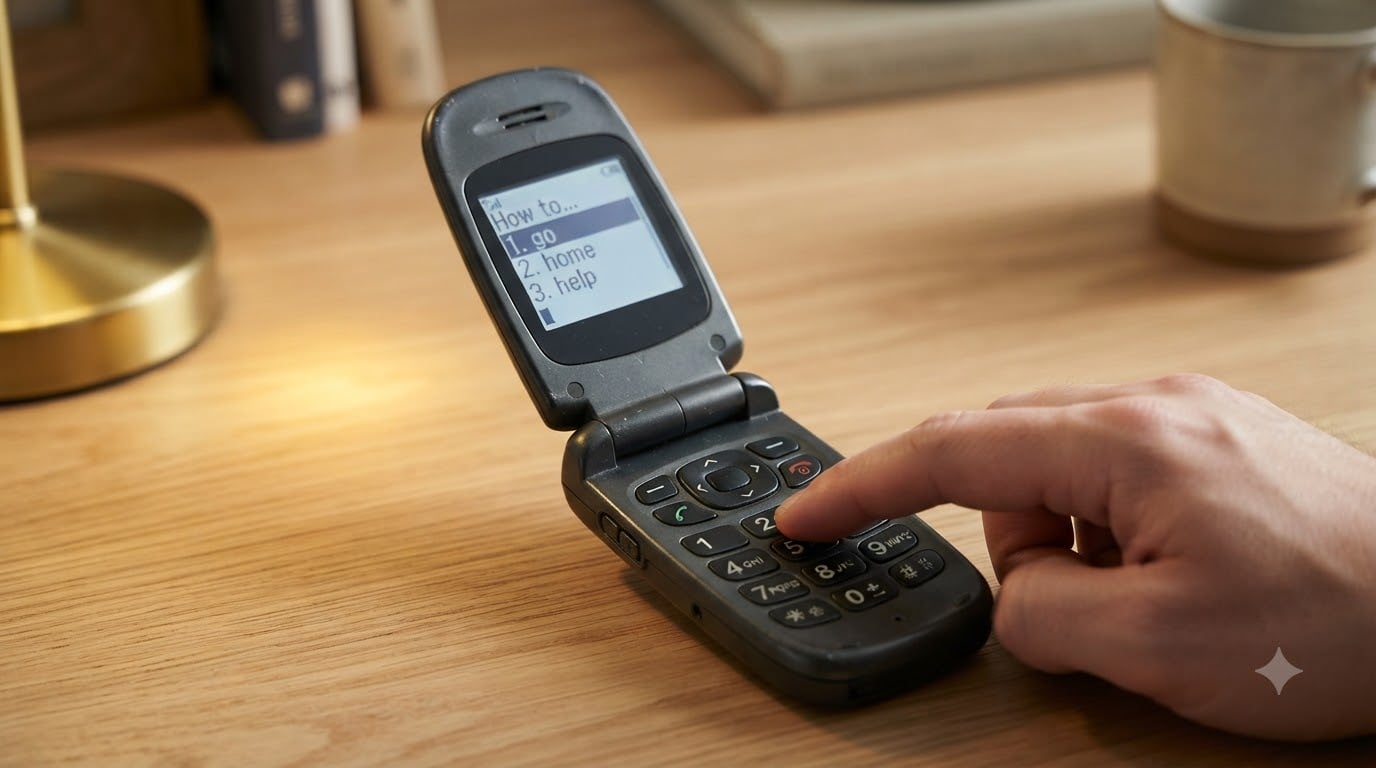
I spent two weeks relearning T9 on a CAT S22 flip phone after a decade on touchscreens, and the speed jump was shocking. By day 10, I was typing short messages roughly as fast as I did on a smartphone keyboard, using just one thumb.
If you want to know how to type faster with T9 predictive text on a flip phone, this guide walks you through every step. You’ll learn how T9 predicts your words, how to cycle through suggestions, and the practice habits that turn T9 into muscle memory.
Table of Contents
What Is T9 Predictive Text and Why It Still Matters?
T9 stands for “Text on 9 keys.” It’s a predictive text system built for phones with a 3×4 numeric keypad. Instead of pressing the 2 key three times to get a “c,” you press it once and T9 guesses the word you want.
The technology first shipped in 1995 on the Philips Illiuminate, and it changed mobile texting forever. Before T9, every letter required multiple taps (a system called multi-tap). T9 cut the number of keystrokes needed by roughly half, sometimes more.
Most people assume T9 died with the smartphone. It didn’t. The dumb phone community has grown steadily, and T9 lives on inside modern feature phones like the CAT S22, Kyocera DuraXV Extreme, Nokia 2780 Flip, and Alcatel Go Flip series. T9-style prediction also shows up on Android dialers and in apps like Type Nine and Smart Keyboard Pro.
Learning T9 still matters for three reasons. First, it’s faster than multi-tap for nearly any message. Second, it works one-handed without looking. Third, it’s the practical skill for anyone choosing a digital detox phone.
How T9 Works on a Numeric Keypad?
T9 maps every letter of the alphabet onto the eight numbered keys that have letters on them (the 1 key handles punctuation and shortcuts). The standard mapping is:
2 = A, B, C
3 = D, E, F
4 = G, H, I
5 = J, K, L
6 = M, N, O
7 = P, Q, R, S
8 = T, U, V
9 = W, X, Y, Z
When you type a sequence like 7-7-3-3 (P-Q-D-E), T9 runs that pattern against a built-in dictionary. It looks at every word that matches and ranks them by frequency of use, your personal typing history, and context from the previous word.
The first match is shown on screen. If you typed “home,” the screen reads “home” after pressing 4-6-6-3. If T9 guesses wrong, you can cycle to the next match without retyping anything.
How to Type Faster with T9 Predictive Text on a Flip Phone: Step-by-Step Guide
This is the core method. Follow these steps in order, and you’ll be able to send your first message in under five minutes.
Step 1: Open a new message and check the input mode.
From the home screen, open Messages and choose “New Message” or “Create.” Look at the indicator on screen. Most flip phones show “T9,” “Abc,” “abc,” or “ABC” in the corner. If you see “Abc” or “abc,” you are in multi-tap mode.
Press the * key (or whatever the mode key is on your model) until “T9” appears. On a Nokia, this is usually the # key. On a CAT S22 or Kyocera, it’s the left soft key labeled “Options” then “Predictive Text On.”
Step 2: Press each key exactly once per letter.
To type “hello,” press 4-3-5-5-6. Do not press 4 twice for “h” – T9 already knows 4 contains G, H, and I. Trust the prediction and keep going.
Step 3: Read the predicted word on screen.
After a brief pause (or after you press the next key), the phone displays its top guess. For 4-3-5-5-6, most phones show “hello.”
Step 4: Cycle to a different prediction if needed.
If the guess is wrong, press the 0 key (sometimes labeled with a down arrow) to see the next match. Press 0 repeatedly to scroll through every word that fits the key pattern. On some phones, the down arrow on the D-pad does the same job.
To go back to the previous suggestion, press the up arrow. This saves you from retyping the whole sequence when the prediction is off.
Step 5: Confirm the word and add a space.
Once the right word appears, press the right arrow on the D-pad, or press 0 once more, depending on your phone. On many devices, simply pressing the first key of the next word accepts the current prediction and adds a space.
Send your message with the left soft key or the Send button.
How to Cycle Through Predictions and Fix Wrong Words?
Cycling is the secret weapon of fast T9 typing. You will hit wrong guesses often, especially with proper nouns or uncommon words. Speed comes from how quickly you correct them, not from typing perfectly.
Here is the fastest way to handle a wrong prediction. First, do NOT delete the letters. The key sequence is correct – the dictionary just picked a more common word. Press 0 (or the down arrow) to cycle to the next match. Each press shows another valid word.
On a CAT S22 or most modern flip phones, holding 0 shows the full list at once. This is much faster than tapping through one at a time when the word you want is several slots down.
For names and slang, add them to your personal dictionary. Open Options or Menu while the new word is highlighted, then choose “Add Word” or “Save to Dictionary.” Once saved, T9 will suggest it the next time you type that pattern.
Punctuation, Numbers, and Symbols on T9
You can stay in T9 mode for most punctuation. The 1 key cycles through common marks: period, comma, question mark, exclamation point, and apostrophe. Press 1 once for a period, twice for a comma, and so on.
Smart punctuation is built in. T9 understands that a period usually follows the last word of a sentence and that “?” often follows “you” or “what.” Press the space key once after a sentence-ending word and your phone often inserts the period for you.
For numbers, hold the corresponding key. Holding 5 gives you a “5.” For symbols like @, #, $, or %, press the * key to open the symbol menu, then use the D-pad to pick one.
Tips for Typing Faster with T9 on a Flip Phone
The mechanics are easy. Real speed comes from these habits, which I picked up from long-term T9 users on r/dumbphones and the Mudita forum.
Stop looking at the keyboard. This is the single most common advice from experienced users. Look only at the screen. The keys are arranged the same on every T9 phone, so once you know where 7 lives, you know where it lives forever.
Practice short common words first. Drill these 20 words until you can type them without thinking: the, and, you, that, was, for, are, but, not, you, all, can, her, was, one, our, out, day, get, use. They cover roughly a third of everyday texting.
Use abbreviations you already know. T9 handles “lol,” “omg,” “brb,” and “idk” perfectly because they’re in the dictionary. Don’t waste keystrokes spelling everything out.
Type one-handed with your thumb. Hold the phone in one hand and tap with your thumb. Two-handed typing is slower because you’re moving both hands. The whole point of T9 is single-thumb speed.
Keep a steady rhythm. Don’t pause between letters. T9 uses the time between key presses to lock in its guess. Slow, deliberate typing confuses the prediction engine. Type the whole word, then check.
Practice in T9 simulators before buying a flip phone. Several free web simulators let you type on a virtual T9 keypad. Ten minutes a day for a week builds the foundation.
T9 vs Multi-tap vs QWERTY: Which Is Actually Faster?
For one-handed thumb typing on a small device, T9 wins. Multi-tap requires up to four presses per letter, and your thumb has to wait between presses to register the right character. T9 cuts that out entirely.
QWERTY keyboards on smartphones are faster when both thumbs are free and the screen is large. On a flip phone with a tiny keypad, T9 with one thumb is comparable to a touchscreen for short messages, and faster for very short ones like “yes,” “no,” or “on my way.”
For long emails or documents, QWERTY is still king. For texts, quick replies, and one-handed use, T9 holds its own.
Common T9 Problems and How to Solve Them
“My phone is stuck in multi-tap mode.” Press the mode key (often * or #) until “T9” appears in the indicator. Some phones hide this under Settings > Text Input > Predictive Text.
“T9 keeps guessing the wrong word.” Add your preferred word to the dictionary once, and the phone will remember it. If it still picks the wrong common word, type the word fully in multi-tap, then save it.
“I keep mixing up the key layout.” Stick a small sticker on the 5 key (the home key) until your thumb learns the center. This helps your muscle memory find the right row.
“Switching from QWERTY feels slow at first.” Give it at least two weeks. Most people hit usable speed around day 7 and match their old speed by day 21. Going back to a touchscreen feels clumsy for a few days after that.
FAQs
How to type fast on a flip phone?
To type fast on a flip phone, enable T9 predictive text mode, then press each numbered key exactly once per letter. T9 predicts the word from your key sequence, so you type ‘home’ as 4-6-6-3 instead of pressing 4 twice, 6 three times, 6 three times, and 3 once. Press 0 or the down arrow to cycle to a different prediction if the guess is wrong. Keep your thumb moving in a steady rhythm and avoid looking at the keypad.
Is T9 faster than QWERTY?
T9 is faster than QWERTY for one-handed texting on small devices because it requires fewer key presses per word. QWERTY wins for long messages and two-handed use on a full touchscreen. For short texts and replies, T9 with one thumb is competitive with touchscreen keyboards and faster than multi-tap input.
How to use T9 on a flip phone?
To use T9 on a flip phone, open a new message and check the input mode indicator in the corner. If it shows ‘Abc’ or ‘abc’, press the mode key (usually * or #) until ‘T9’ appears. Type by pressing each key once per letter. The phone shows its predicted word as you type. Press 0 or the down arrow to see other matches for the same key pattern. Press the right arrow or start the next word to confirm.
Is T9 texting still used today?
Yes, T9 texting is still used today. Modern flip phones and feature phones from Nokia, Kyocera, Alcatel, and CAT ship with T9 built in. T9-style prediction also appears in smartphone apps like Type Nine for iOS and Smart Keyboard Pro for Android. A growing dumb phone community relies on T9 as part of a digital detox lifestyle.
How long does it take to get fast at T9?
Most people become comfortable with T9 after about one week of regular texting and reach their previous texting speed within three weeks. The learning curve is steepest in the first three days as your thumb learns the key layout. Using a T9 simulator for ten minutes a day shortens the curve significantly.
Final Thoughts: Mastering T9 in 2026
Learning how to type faster with T9 predictive text on a flip phone is mostly about breaking the touchscreen habit. The keyboard is small, but the prediction does the heavy lifting. Once you trust the system, stop looking at the keys, and cycle through wrong guesses instead of deleting, your speed will surprise you.
Start with one short text a day on T9 mode. By the end of the week, you’ll know the layout without thinking. By the end of the month, you’ll be cycling predictions and adding custom words like a pro. The flip phone community is right – T9 is faster than most people give it credit for.
Try a T9 simulator tonight, grab your old flip phone from the drawer, and send your first message. The speed will come faster than you expect.