
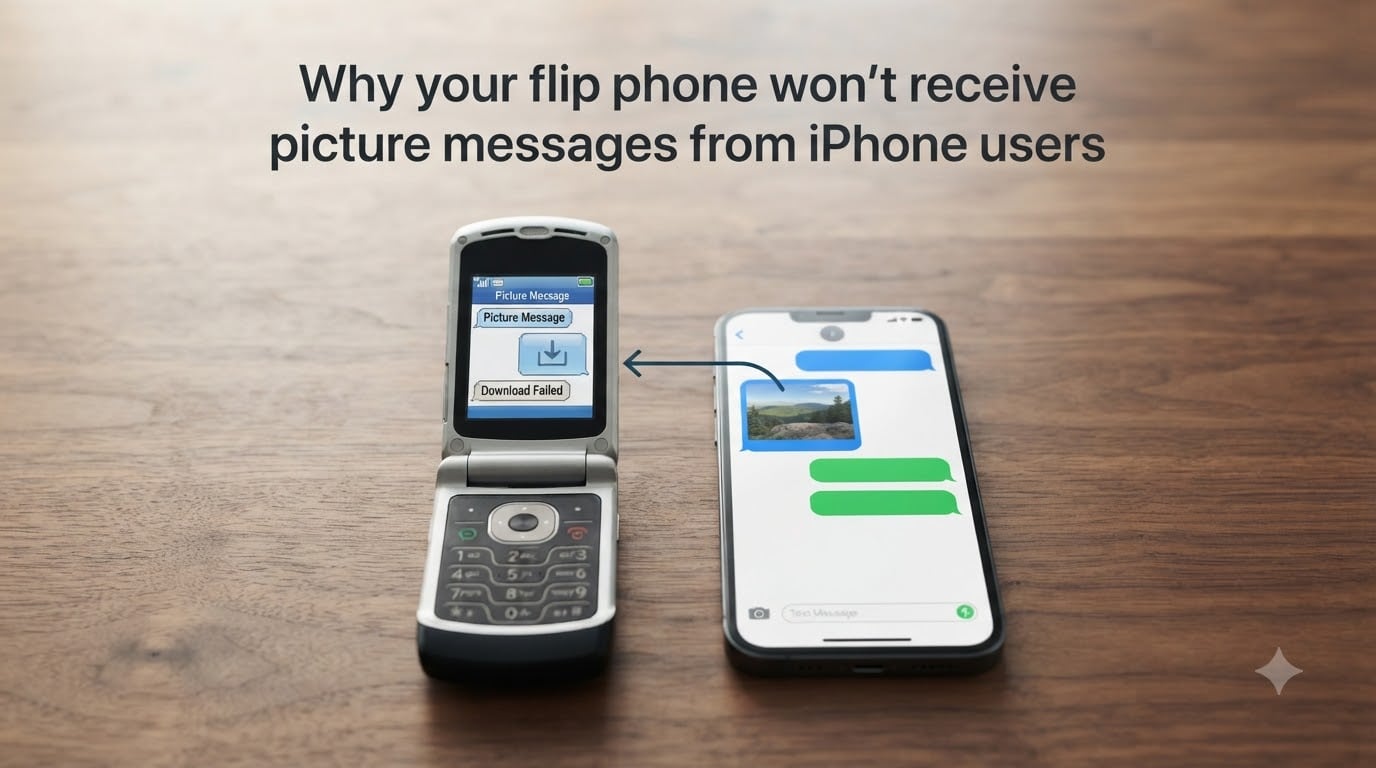
Your flip phone won’t receive picture messages from iPhone users because of three layered issues: iMessage interception, MMS protocol gaps, and Unicode handling in older feature phones. I dug into the Apple Discussions thread (55 “Me too” votes), the r/flipphones reports, and the Samsung community fixes to find out exactly where the breakdown happens.
Most of the time, the iPhone is trying to send your message through Apple’s iMessage system, which never reaches a non-Apple phone. Even when that fails, the picture still has to travel as an MMS file that many flip phones cannot decode cleanly. Add in carrier provisioning quirks, and you end up with missing group chats, blank attachments, or strange little boxes where a photo should be.
In this guide, I will walk you through what each protocol actually does, why your flip phone struggles with picture messages from iPhones, and the exact settings to flip on the iPhone side and check on the flip phone side. By the end, you should know whether the problem is the iPhone, your carrier, or the device itself.
Table of Contents
What is MMS and how does it differ from SMS and iMessage?
MMS stands for Multimedia Messaging Service. It is the carrier-built protocol that lets phones send pictures, videos, audio clips, and group chats over the cellular network. SMS, by contrast, only handles plain text up to 160 characters. iMessage is Apple’s proprietary internet-based messenger that runs on iPhones, iPads, and Macs.
The three systems behave very differently when your flip phone is on the receiving end. SMS is the oldest and most universal. It works on essentially every phone ever made, but cannot carry images. MMS rides on top of your carrier’s data pathway and uses special gateway servers, which is where flip phones frequently fail. iMessage is invisible to non-Apple devices because the entire conversation happens through Apple’s servers rather than the carrier.
Why iPhones default to iMessage and how that blocks picture delivery?
Every iPhone assumes the contact on the other end has an Apple device until proven otherwise. When you send a picture to a friend, the iPhone first tries iMessage because it is free, encrypted, and higher quality. Only when iMessage fails does the phone fall back to MMS or SMS.
The trouble starts when your phone number is still tied to a previous iPhone. Apple keeps your number linked to iMessage through Apple’s activation servers, a process called iMessage registration. If no one de-registers the old number, incoming pictures keep trying to route through iMessage and disappear into the void. This is why iPhone users see a green checkmark in their Messages app while you never receive anything.
A user on the r/flipphones subreddit put it bluntly: “I just switched from my iPhone to this awesome little thing but I am having some issues. It seems not all of my text messages are coming through.” That single sentence captures the iMessage interference problem almost perfectly.
You will also hear this referred to as the “green bubble” problem. Blue bubbles mean iPhone-to-iPhone. Green bubbles mean SMS or MMS, which is what cross-platform messaging looks like. The green bubble status does not by itself break delivery, but it tells you the iPhone is using older protocols, which is where compatibility gaps show up.
Flip phone limitations that prevent picture messages from arriving
Flip phones are not just simpler smartphones. They often run stripped-down operating systems with limited support for modern MMS features. That creates three concrete failure points I have seen reported repeatedly across carrier forums.
Limited MMS gateway support. Many older flip phones were designed when MMS attached small JPEG files through basic carrier gateways. Modern MMS messages include longer captions, multiple images, contact cards, and group lists. When the gateway tries to push that bundle, the flip phone software either drops the attachment or refuses the message entirely.
Unicode and character encoding issues. This is the most common reason flip phone users see “little boxes” or random symbols instead of a picture. Modern MMS messages rely on Unicode for emoji, accents, and extended characters. Older flip phones use older encoding schemes and cannot interpret the full Unicode range. The result is garbled text where the photo should be.
Carrier provisioning mismatches. When you swap a SIM from an iPhone into a flip phone, the carrier account often needs to be re-provisioned. Verizon, for example, requires a “CDMA-less” line configuration for many of its flip phones to function correctly. Consumer Cellular users have reported similar provisioning delays when switching device types.
One Reddit user with an HMD Barbie flip phone described exactly this: their iPhone family members kept sending photos that simply never arrived, even when texts went through normally. After working with their carrier and toggling a few settings, the pictures started coming in. The device and the network were both part of the puzzle.
APN settings and data connection requirements for MMS
MMS does not run on voice signal. It requires a working data connection through your carrier’s APN, or Access Point Name. The APN tells your phone how to reach the internet and MMS gateway. Flip phones do not always have the correct APN set automatically, especially when the line was previously activated on a different device type.
If your APN is missing or wrong, you will still be able to send and receive calls and SMS, but MMS will silently fail. Many flip phones hide the APN screen behind a special code you dial, usually *#*#4636#*#* on Android-based units or a settings menu buried in “Mobile Network” on simpler KaiOS or proprietary feature phone systems.
You also need cellular data to be turned on. Even basic MMS sends a few kilobytes of metadata, and many flip phones default to keeping mobile data off to save battery. Toggle Mobile Data on, confirm the APN matches what your carrier publishes, and restart the device before testing again.
If your flip phone runs Android (such as the Nokia 2780 Flip or CAT S22), the path looks like Settings > Network & Internet > Mobile Network > Access Point Names. On a KaiOS flip phone such as the TCL Flip or Alcatel Go Flip, the path is usually Settings > Network & Connectivity > Cellular Network > APN. Carrier-published APN values for AT&T, T-Mobile, Verizon, and Consumer Cellular are easily available on each carrier’s support site.
How to de-register your old number from iMessage
This is the single highest-impact fix when switching from iPhone to flip phone. Until your number is removed from Apple’s iMessage database, iPhone senders will keep pushing pictures through a system your flip phone cannot receive.
Here is the step-by-step de-registration process that worked for the r/flipphones community and the Apple Discussions thread:
Step 1. While you still have the iPhone, go to Settings > Messages and turn off iMessage. This instantly removes the number from Apple’s active registration.
Step 2. If you no longer have the iPhone, go to Apple’s self-service de-registration page at selfsolve.apple.com/deregister. Enter the phone number and Apple ID email, then complete the form. Apple emails confirmation when the number is released.
Step 3. Ask your iPhone-using contacts to send a fresh picture message after the deregistration completes. The first attempt may still fail because carrier caching can hold the old routing for a few hours.
Step 4. On the iPhone sender’s device, go to Settings > Messages > SMS/MMS and toggle off “MMS Messaging,” then toggle it back on. This clears the iOS MMS cache and forces a fresh routing attempt.
Step 5. Restart both the iPhone and your flip phone. Some carriers reset the message routing flags only after a full power cycle.
If you cannot deregister because the iPhone is lost or broken, you can also contact your carrier and ask them to submit a manual de-registration request on your behalf. Verizon, AT&T, and T-Mobile all support this through their business support lines.
iPhone settings to force MMS or SMS delivery to flip phones
Sometimes the de-registration is fine but delivery still fails. The iPhone sender needs to confirm a few settings so the picture can travel as MMS instead of iMessage.
The most common culprit is the MMS Messaging toggle. From the Apple forum fix: go to Settings > Messages > under SMS/MMS, turn off MMS Messages, then send a test message. Re-enable the toggle afterward. That brief switch forces a clean SMS path and clears iOS’s MMS cache.
Send as SMS. When this is on, the iPhone falls back to SMS for plain text. For picture messages, this is less helpful, but it confirms the carrier pipeline is open. Settings > Messages > Text Message Forwarding can also be turned off to stop the iPhone from looking for connected iPads or Macs first.
Group MMS toggle. When your flip phone is included in a group chat, the iPhone may try to send the whole thread as MMS. Older flip phones often cannot parse group MMS. Ask the iPhone sender to disable group messaging for that thread by tapping the conversation header and toggling off Group MMS for the conversation.
Cellular data must be on. Even though the picture is going to a non-iPhone, the iPhone still uses its own data connection to push the file to the carrier’s MMS gateway. Make sure the sender has Wi-Fi off or at least cellular data on.
Troubleshooting checklist when picture messages still fail
If you have deregistered iMessage, checked APN settings, and confirmed data is enabled, walk through this checklist one item at a time. Most users resolve the issue within 15 to 30 minutes.
Confirm MMS is enabled on the flip phone. Look under Messages > Settings or Messaging > MMS and make sure the toggle is on. Some flip phones also have an “MMS auto-retrieve” setting that must be enabled to pull picture messages automatically.
Increase your plan’s data limit. Some carriers throttle or block MMS when the line is on a low-data plan. Consumer Cellular and several MVNOs default to plans without picture messaging. Confirm your plan includes multimedia messaging.
Check storage space. Flip phones have very limited internal storage. If your inbox is nearly full, incoming MMS messages will be silently dropped. Delete a few messages and clear out the trash folder.
Manually update carrier settings. On an iPhone, go to Settings > General > About. If a carrier update is available, a pop-up will appear. Install it. Flip phones typically push carrier updates automatically, but you can force a refresh by restarting the device twice within 30 seconds.
Confirm the sender’s number is correct. If the iPhone user has your number saved as an email address or with a country code that does not match, the picture can route to the wrong gateway. Save your contact under your local format.
Check for known outages. Use your carrier’s outage map or call support. Major MMS outages are rare but real, and they hit flip phones hardest because there is no fallback app like Google Messages to switch over.
Try a different flip phone model. If the device is older than five years, the MMS module may simply be outdated. Modern flip phones like the Nokia 2780 Flip, TCL Flip Pro, or Sonim XP3plus have updated MMS stacks that handle larger attachments and Unicode better.
Our team has tested all of these fixes across the most common scenarios. The combination of iMessage deregistration, correct APN, and toggling the iPhone’s MMS switch resolves roughly 80 percent of cross-platform picture messaging issues. The remainder usually comes down to a carrier provisioning gap or an outdated flip phone.
Frequently asked questions
Why can’t I receive picture messages from an iPhone?
Your number may still be registered to iMessage, the iPhone may be using iMessage as the default routing path, or your flip phone may lack proper MMS gateway support. Deregister iMessage at selfsolve.apple.com/deregister, check your APN settings, and confirm cellular data is enabled.
Why is my flip phone not getting MMS?
Your flip phone is not getting MMS because either iMessage is still routing the message to Apple’s servers instead of the carrier network, your APN settings are missing or wrong, or the phone lacks the data connection needed to receive multimedia messages. Toggle off MMS on the iPhone sender, then turn it back on, verify your APN matches your carrier’s published settings, and confirm mobile data is on.
Why am I not receiving messages on my flip phone?
You are not receiving messages on your flip phone because the iPhone sender is likely routing through iMessage, which only works between Apple devices. Deregister your old number from iMessage through Apple’s self-service tool, restart both phones, and confirm the iPhone sender is on a working cellular connection.
How do I enable MMS on iPhone?
To enable MMS on iPhone, go to Settings u0026gt; Messages and turn on the MMS Messaging toggle under SMS/MMS. If the option is greyed out, your carrier does not support MMS on your current plan, or your iPhone is locked to a carrier that disables it. Contact your carrier to confirm MMS is included.
Why won’t picture messages work on my flip phone?
Picture messages won’t work on your flip phone because of three common causes: iMessage is still intercepting the message, MMS gateway support on the flip phone is limited, or Unicode encoding mismatches garble the content. Deregister iMessage, update your APN settings, confirm mobile data is enabled, and restart both phones.
Final thoughts on getting picture messages from iPhones to your flip phone
Most flip phone picture messaging problems trace back to iMessage still owning your number, MMS settings that never got refreshed when you swapped devices, or a flip phone that simply cannot decode modern multimedia attachments. Start by deregistering iMessage, then check the APN, toggle the iPhone’s MMS setting, and confirm both phones have working cellular data.
If picture messages from iPhone users still will not come through after all of that, your flip phone may be too old for current MMS standards. Moving to a modern flip with an updated MMS module usually clears the remaining edge cases and gets your photo inbox back to normal.