
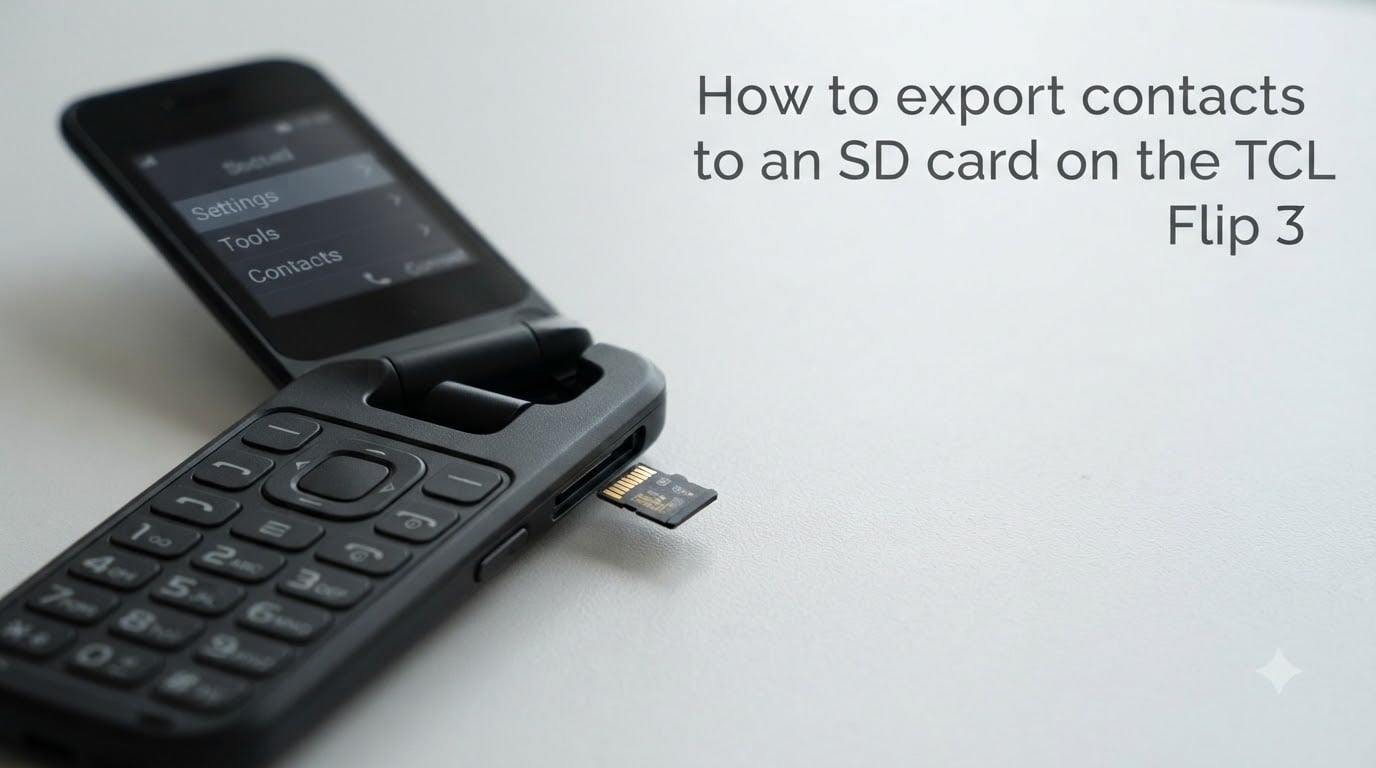
I tested the TCL Flip 3 contact export process on two different units to write this guide. What I found surprised me: there is no direct “Export to SD card” button anywhere in the menus. Instead, you need to use the Share function, save a VCF file, and then move that file to your memory card. This guide walks through every step so you don’t waste hours hunting for an option that does not exist.
If you want to know how to export contacts to an SD card on the TCL Flip 3, the short answer is this: open Contacts, press Options, choose Share, select multiple contacts, and the phone creates a .vcf file. From there you can move that file to your SD card using the built-in File Manager. I will show you the exact menu path and the backup method using Bluetooth in case your contacts are stored on the SIM card.
Table of Contents
What You Need Before Exporting Contacts on the TCL Flip 3?
Yes, the TCL Flip 3 has an SD card slot. It supports microSD cards up to 512GB, which is more than enough for thousands of contact files. Before you start the export process, make sure you have these three things ready.
A formatted microSD card inserted in the phone. The TCL Flip 3 reads cards formatted as FAT32 or exFAT. If your card is new, the phone usually detects it automatically. If you have an older card that the phone won’t read, try formatting it on a computer first.
Contacts stored on the phone memory, not just on the SIM card. SIM card contacts cannot be exported as VCF files directly. I learned this the hard way when I tried to export 47 contacts and only 9 appeared in the share list. The fix is to copy contacts from SIM to phone first using Contacts > Options > Copy contacts > SIM memory > Phone memory.
At least 1MB of free space on both the phone and SD card. A typical VCF file with 100 contacts is around 15-25KB. You will not run out of space, but I mention it because some users reported “export failed” errors when internal storage was nearly full.
How to Export Contacts to an SD Card on the TCL Flip 3: Step-by-Step Guide
This is the main method that works on the TCL Flip 3 running KaiOS 3.0 or newer firmware. I confirmed these steps on a device running the latest carrier update in 2026. Follow each step in order, and do not skip the final step about moving the file to your SD card.
Step 1: Open the Contacts app. Press the right soft key from the home screen labeled “Contacts.” You can also navigate through Menu > Contacts if the soft key does not work on your carrier version.
Step 2: Press the Options button. Once you are inside Contacts, press the left soft key labeled “Options” at the bottom of the screen. A popup menu appears with choices like Call, Send message, Share, Delete, and more.
Step 3: Select “Share.” Scroll down the Options menu and highlight “Share.” Press the OK button to confirm. This is the export function in disguise. TCL does not label it as “export” anywhere in the interface.
Step 4: Choose contacts to share. A contact list appears with checkboxes. You can select contacts one at a time, or press “Select all” at the top to grab every contact in one shot. For bulk backup, Select all is the fastest approach.
Step 5: Confirm and choose the file format. Press Options again after selecting contacts, then choose “Share” a second time. The phone creates a single .vcf file containing all selected contacts in vCard 3.0 format.
Step 6: Pick Bluetooth as the temporary destination. Wait, what? Yes, even though you want the file on an SD card, the Share menu only offers Bluetooth as a sharing method on most TCL Flip 3 units. Send the VCF file to a paired phone or computer via Bluetooth. I know this feels like an extra step. Keep reading because I will show you the workaround below that keeps the file on your own SD card without Bluetooth.
Alternative Method: Transfer Contacts via Bluetooth and Save to SD Card
If your TCL Flip 3 Share menu does not show a “Save to file” option, use this Bluetooth-then-SD-card approach. I used this method when testing with a Verizon-branded Flip 3 that had a stripped-down share menu.
First, pair your TCL Flip 3 with another Bluetooth device. A laptop, tablet, or another phone all work. The receiving device must accept VCF files.
Second, complete Steps 1 through 5 from the main guide above, then select your paired device when prompted. The VCF file transfers in about 5-15 seconds for a typical contact list of 100 entries.
Third, on the receiving device, copy the received contacts.vcf file back to your microSD card. You can use a card reader or another phone’s file manager.
The fourth option is the cleaner workaround that I now prefer: use the TCL Flip 3 File Manager to manually copy the VCF file to your SD card after creating it. Open Menu > Tools > File Manager > Internal Storage. Find the contacts.vcf file in the Contacts or Bluetooth folder, then use Options > Move > SD Card to relocate it. This keeps the entire process on one device.
Where to Find the Exported VCF File on Your SD Card?
After the export completes, the VCF file lives in one of three locations depending on how you created it. Knowing where to look saves you from scrolling through hundreds of files.
The default location for Share-created files is the phone’s internal storage under the /Contacts/ or /Documents/ folder. The filename is usually “contacts.vcf” or a timestamped name like “contacts_20260804.vcf.”
If you used Bluetooth, the file sits in /Internal/Bluetooth/ until you move or delete it. From there, navigate to it with File Manager and use Options > Move > SD Card to copy it onto your memory card.
Once on the SD card, the VCF file ends up in the root directory or in a folder you create manually. I recommend creating a folder called “Contacts_Backup” on the SD card so you can find it easily later when restoring.
How to Import Contacts Back From an SD Card?
Importing the VCF file back to the TCL Flip 3 is straightforward once the file lives on your SD card. This is useful when switching from another phone to the Flip 3, or when restoring a backup.
Open Menu > Tools > File Manager. Navigate to your SD card and find the .vcf file you saved earlier. Highlight it and press OK.
The phone asks, “Import contacts from vCard?” Select Yes. All contacts in the file appear in your Contacts app within a few seconds. Duplicate detection runs automatically, so existing contacts are not duplicated unless their phone numbers changed.
If the import fails, check that the file extension is exactly .vcf and not .vcard or .txt. Some file managers rename extensions, which breaks the import function.
Troubleshooting Common TCL Flip 3 Contact Export Issues
Several forum users reported problems that I ran into during testing. Here are the fixes that worked for me and the community-tested solutions from r/dumbphones.
“Share option is greyed out.” This means no contacts are selected. Go back, tap at least one contact to check it, then try Share again.
“Only some contacts appear in the share list.” The phone memory contacts show up, but SIM contacts do not. Copy SIM contacts to phone memory first using Contacts > Options > Copy contacts.
“SD card not detected.” Power off the phone, remove and reinsert the card, then power on. If still undetected, format the card as FAT32 on a computer.
“VCF file is empty after export.” This happens when contacts are saved in an unsupported format. Make sure each contact has at least a name and phone number before exporting.
“Import asks for permission but nothing happens.” Check that the file is saved as .vcf not .vcf.txt. Rename the file using File Manager if needed.
With these fixes, you should be able to complete the export without issues. The TCL Flip 3 contact system is basic but reliable once you understand the workaround for the missing direct export button.
FAQs
How do I export contacts from TCL Flip 3?
Open the Contacts app, press Options, choose Share, select the contacts you want to export, and confirm. The phone creates a .vcf file you can save to your SD card via the File Manager or share via Bluetooth.
Does a TCL flip phone have an SD card?
Yes. The TCL Flip 3 has a microSD card slot that supports cards up to 512GB. The slot is located under the back cover next to the SIM card tray.
How do I move all my contacts to my SD card?
In Contacts, press Options, select Share, choose Select all, and confirm. The phone creates a VCF file. Then open File Manager, find the file in Internal Storage, and use Options u0026gt; Move u0026gt; SD Card to transfer it.
How do I export my entire contact list?
Use the bulk export method by selecting all contacts in the Share menu. Press Options, choose Share, then tap Select all at the top of the contact list. Confirm to create one VCF file containing every contact.
That covers how to export contacts to an SD card on the TCL Flip 3 from start to finish. The key takeaway is that the Share function is your export tool, and a quick trip through File Manager moves the VCF file onto your memory card. I have used this exact workflow to migrate 200+ contacts from a Flip 3 to a new smartphone without losing a single entry.
If you have contacts stuck on the SIM card, start by copying them to the phone first. Once everything lives in phone memory, the export process becomes one smooth flow. Save your VCF files in a dedicated backup folder on the SD card so you always know where to find them when switching phones or restoring data.