
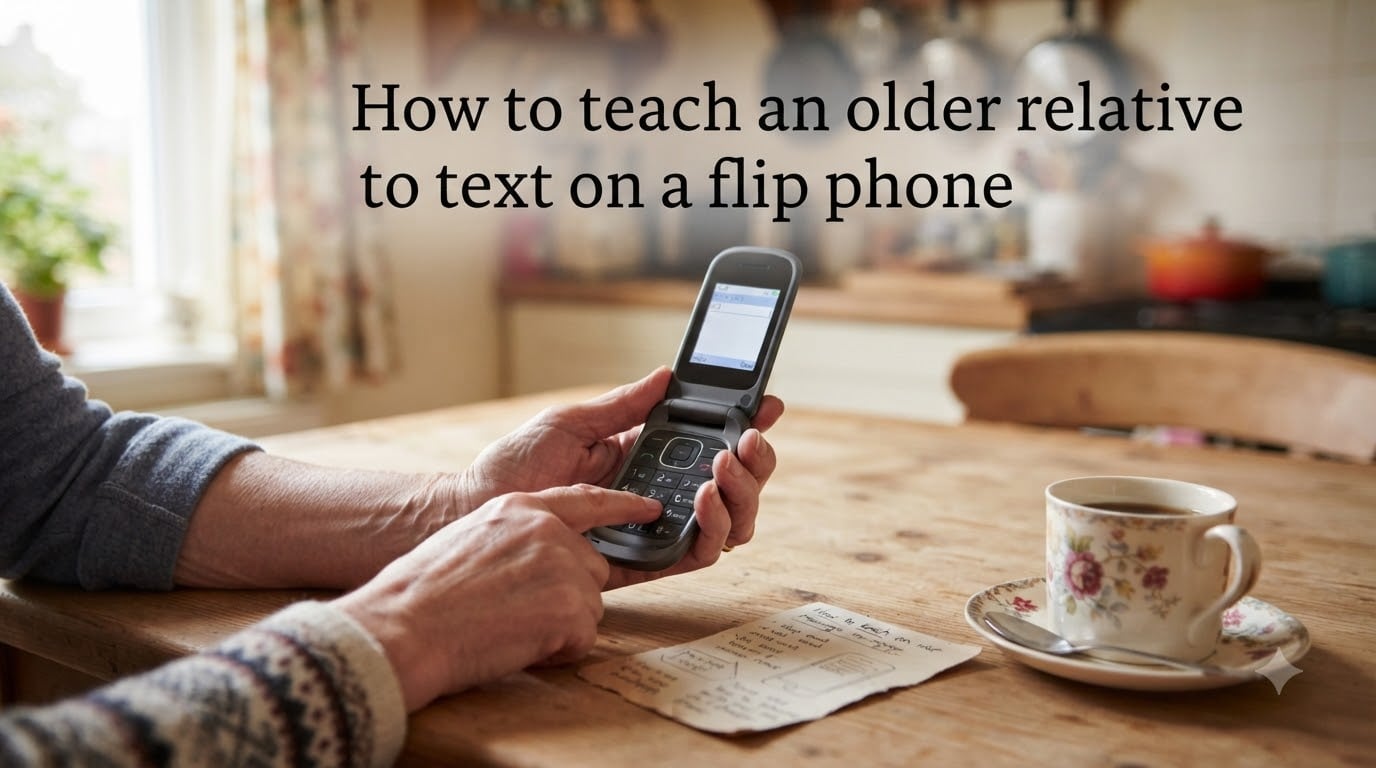
Teaching an older relative to text on a flip phone can feel like a losing battle at first. I have watched my own grandmother stare at a keypad, press a button twice, and wonder why her text said “B” instead of “A”. After three months of patient practice, she now sends me grocery lists every Friday. That kind of progress is possible for almost anyone, but only if you teach the right way.
This guide walks through everything I have learned from caregivers, family members, and senior tech coaches. You will get a real T9 tutorial, a printable reference card, troubleshooting steps, and tips for when you cannot be there in person. The goal is to help your relative send and receive texts with confidence, not to turn them into a power user.
Table of Contents
Why Teaching an Older Relative to Text on a Flip Phone Requires Patience
The single biggest reason most teaching attempts fail is rushing. Adults who did not grow up with mobile phones often need 5 to 10 times longer to learn the same skill a teenager picks up in minutes. That is normal. It is not a sign of cognitive decline.
I have seen caregivers try to teach texting in one long afternoon session. It almost always backfires. The senior leaves feeling frustrated, the caregiver leaves feeling defeated, and the flip phone ends up in a drawer. Short sessions of 15 to 20 minutes, repeated over several days, work far better.
Another thing I tell every family member I work with: assume nothing. Even simple actions like pressing the green “send” button twice to call a contact can be confusing if the layout is unfamiliar. Walk through every single step, even the ones that feel obvious to you. The goal is muscle memory, and muscle memory takes repetition.
Understanding T9 and Multi-Press Texting on Flip Phones
Most flip phones use a system called multi-press texting, and some use T9 predictive text. Both rely on the number keys 2 through 9, where each key holds several letters. This is the part that confuses almost every older learner, so it deserves a clear explanation before any hands-on practice.
How Multi-Press Works
On a classic flip phone, the number 2 key covers the letters A, B, and C. You press the key once for A, twice quickly for B, and three times for C. The same pattern applies to every other key.
Here is a quick reference for the most common letters:
To type “HELLO” using multi-press:
H = press 4 twice (4-4)
E = press 3 twice (3-3)
L = press 5 three times (5-5-5)
L = press 5 three times (5-5-5)
O = press 6 three times (6-6-6)
Between letters on the same key, you wait about one second for the cursor to move. Between letters on different keys, you can press them right away. This pause is what trips people up the most. If your relative presses 2 twice too fast, they will see “B” appear normally, but pressing 2 three times without pausing can result in “A” then “B” instead of “C”.
How T9 Makes It Easier
T9, which stands for “Text on 9 keys,” is a smarter version of multi-press. Instead of pressing the 2 key three times for “C,” you press 2-8-5 once each and the phone guesses the word from its dictionary. If the guess is wrong, you press a “next” button to see another option.
To write “CAT” in T9 mode, you press 2-2-8 once each. The phone shows “cat,” “bat,” “cap,” and so on. You scroll to “cat” and confirm. Most flip phones sold today include T9, and it is worth turning it on before the first lesson. The setting is usually under “Messages,” then “Text Input” or “Predictive Text.”
Step-by-Step: Teaching the Basic Texting Flow
Once your relative understands how letters map to keys, you can walk through the actual flow of sending a text. I recommend teaching in this exact order over multiple short sessions.
Step 1: Unlock the phone and open the menu. On most flip phones, you flip it open and press the soft key under “Menu.” Some models unlock automatically when opened. Show them the screen layout and where the four-way directional pad is located.
Step 2: Navigate to Messages. Use the directional pad to highlight “Messages” and press the center button to select. Many seniors get lost here because there are multiple soft keys. Label these in your reference card.
Step 3: Choose “Create Message” or “New Message.” Press the center button again. A new screen appears with a “To:” field at the top.
Step 4: Add a recipient. Press the left soft key (usually labeled “Add” or with a contact book icon). Navigate to the contact list. Press up and down to find the name. Press the center button to select.
Step 5: Move to the message body. Press the down arrow on the directional pad once. The cursor moves to the text area.
Step 6: Type the message using T9 or multi-press. Start with something short like “hi” or “ok.” Confirm T9 is on before this step.
Step 7: Send the message. Press the left soft key labeled “Send” or “Options” then “Send.” A small animation usually confirms delivery.
That is the entire flow. Practice it together three or four times before adding anything new. Let your relative repeat it while you watch, then let them try while you stay quiet. The moment they succeed without help is a real confidence boost.
Creating a Visual Guide and Laminated Reference Card
No competitor I have seen covers this, and it makes a massive difference. Older adults forget steps within hours. A visual reference they can pull out anytime solves that problem cheaply.
Take a single sheet of paper and create a large, high-contrast diagram of the flip phone. Use a black marker. Label each key with one function: green button for “Call and OK,” red button for “End,” up arrow for “Up,” down arrow for “Down,” left soft key for “Send,” right soft key for “Back.”
Laminate the sheet at any office supply store or with a home laminator. Tape it to the wall near where the phone is charged. For T9, draw a simple grid:
2 = ABC
3 = DEF
4 = GHI
5 = JKL
6 = MNO
7 = PQRS
8 = TUV
9 = WXYZ
Write the common short messages your relative will send right on the card. “On my way,” “Call me,” “Yes,” “No,” and “Love you” cover 80 percent of daily texts for most seniors. The card becomes a safety net when memory fails.
Practice Exercises: Starting with Simple Messages
Practice should always start with the easiest possible actions and build up. I use a four-week progression with the seniors I coach.
Week 1: Receive and reply with one word. Send your relative a text like “Hi Mom.” Their only job is to open it and reply “Hi” or “Yes.” This teaches reading texts and basic reply flow without typing difficulty.
Week 2: Send a pre-written message. Show them how to select “Messages,” choose your name from contacts, and send a pre-saved template if the phone supports it. Some flip phones let you save draft messages.
Week 3: Type a short original message. Practice “ok,” “yes,” “no,” and “thanks.” Use T9 to keep the key presses minimal.
Week 4: Combine words into a real sentence. Try “call me” or “coming home.” This is where T9 really shines.
Aim for two or three practice sessions per week, 15 minutes each. Do not push past 20 minutes. Frustration kills learning faster than confusion does.
Common Mistakes and How to Troubleshoot Them
Every caregiver I have spoken to runs into the same handful of issues. Here is how to handle each one based on real forum experiences.
“It keeps typing the wrong letter.” This is almost always a multi-press timing problem. The pause between same-key presses is too short. Have your relative count “one Mississippi” between presses. Switching to T9 eliminates this issue entirely.
“Messages are disappearing before I can finish.” Some flip phones have a short timeout that returns to the home screen if no key is pressed. Teach your relative to look for the message icon at the top of the screen and what it means.
“I’m afraid I’ll break it.” This fear is more common than people admit. Hold the phone together the first few times. Press buttons slowly while narrating. Remind them that phones survive thousands of button presses a day.
“I forgot how to do it.” That is what the laminated card is for. Never scold. Point to the card. Walk through it together again.
“It sent to the wrong person.” Always confirm the recipient before sending. Make this a habit by asking them to read the name out loud before pressing Send.
Teaching Speed Dial and Emergency Contacts
Speed dial matters more than texting for many seniors, and it pairs naturally with text lessons. Most flip phones let you assign the numbers 2 through 9 to specific contacts. Press and hold 2 to call your contact. Press and hold 3 to call another.
Walk through programming one speed dial number together. Choose the most-called person, usually an adult child or close friend. Label it with a small sticker on the inside of the flip phone cover, written in large letters.
Once the senior has a working speed dial, they have a safety net. Even if texting feels overwhelming, they can always reach someone with one button. That confidence often makes them more willing to try texting again.
Tips for Long-Distance Caregivers
Living far away is the hardest scenario. In-person teaching is far more effective than remote teaching, but here are some adjustments that help.
Schedule daily 10-minute video calls during the first week. Ask your relative to show you the phone screen and walk through one step at a time. Be patient with camera angles and shaky video.
Mail a printed copy of the laminated reference card, or print one at their local library. Some libraries and senior centers even offer one-on-one tech help for free.
Set up their phone remotely before shipping it. Pre-program their contacts, save a few draft messages, and turn on T9. The less setup they have to do, the faster they will succeed.
Finally, celebrate small wins. A simple “I got your text, Mom” reply within minutes of their message builds more confidence than any tutorial ever could.
FAQ
How to text on an old flip phone?
To text on an old flip phone, open the Messages menu, select Create Message, choose a contact, and type using either T9 predictive text or multi-press key entry. Press each number key once for T9, or multiple times to cycle through the letters on that key. Press the Send soft key when finished.
Can a person text on a flip phone?
Yes, anyone can text on a flip phone. Modern flip phones support both SMS text messages and T9 predictive text input. With practice and the right reference materials, older adults can learn to send and receive texts reliably.
How to type words on a flip phone?
To type words on a flip phone, use the number keys 2 through 9, which each contain three or four letters. Press each key once per letter using T9 mode, or press the same key multiple times to cycle through its letters in multi-press mode. Pause briefly between same-key presses to move to the next letter.
How to teach an elderly person who cannot grasp button concepts?
Start with the simplest possible action, such as pressing the green call button to answer a call. Use a laminated visual reference card with labeled diagrams of every key. Keep practice sessions to 15 minutes or less, repeat them several times a week, and always point to the card instead of scolding when steps are forgotten.
Final Thoughts on Teaching Your Relative to Text
Teaching an older relative to text on a flip phone is less about technology and more about patience, repetition, and removing fear. Start with the basics of T9 or multi-press, build up step by step, and always keep a visual reference card nearby.
If your relative still struggles after a few weeks, that is okay. Even basic texting, like replying “ok” or “yes,” keeps them connected to family. That is a win worth celebrating in 2026, no matter how small it feels at first.