
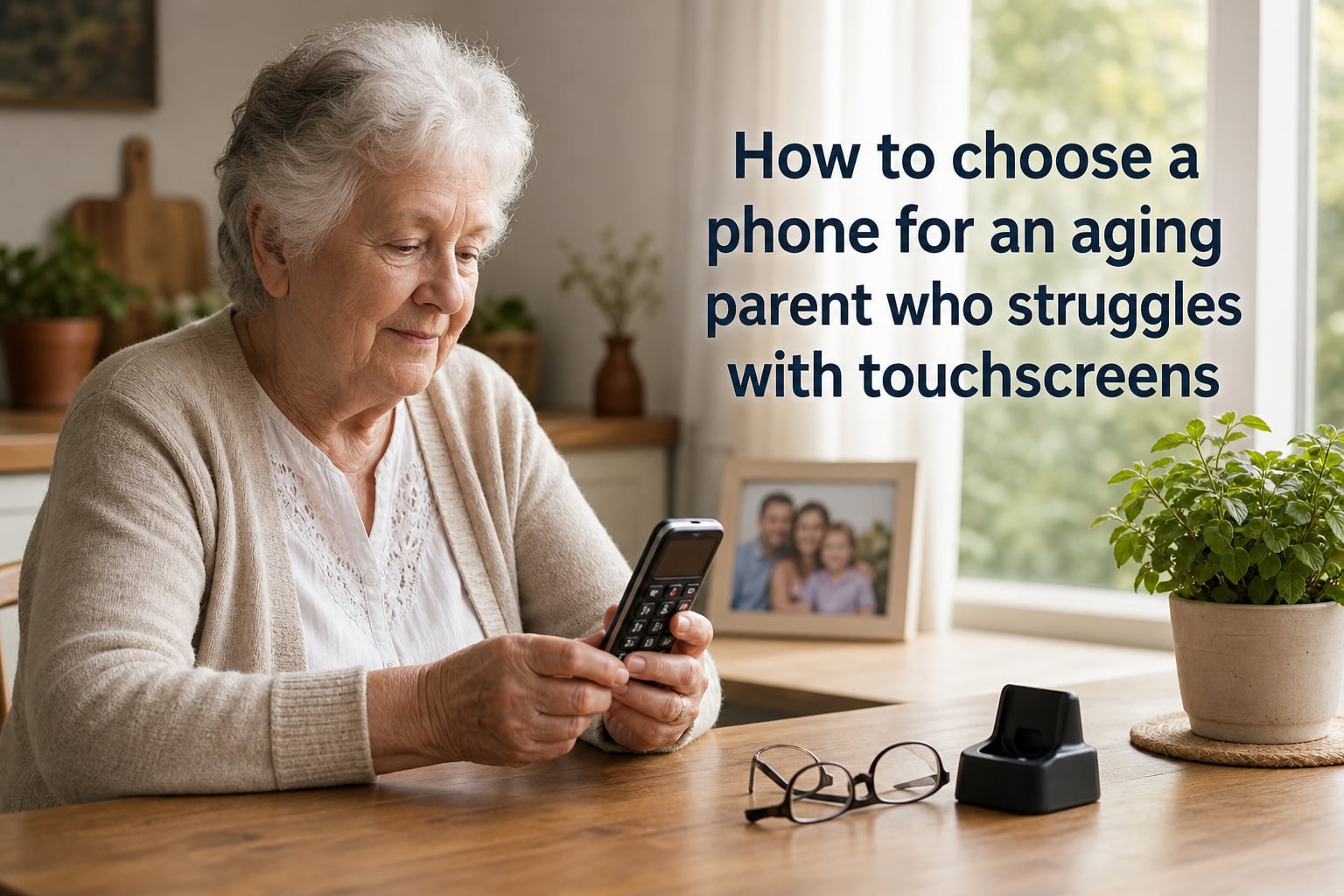
Choosing the right phone for an aging parent who struggles with touchscreens is one of the most meaningful decisions you can make as a caregiver. The right device keeps them connected, safe, and independent. The wrong one creates daily frustration, isolation, and risk during emergencies.
I have helped my own family navigate this twice. My grandmother resisted every smartphone we tried until we found a flip phone with picture speed dial. My uncle with early-stage dementia now uses a memory phone with no touchscreen at all. Each parent needs a different solution, and this guide walks you through how to find theirs.
In this article, I will walk you through the core challenges aging parents face with touchscreens, the features that actually matter, and a step-by-step process for choosing the right phone. Whether you are shopping for a new device or trying to make an existing one easier to use, you will find practical guidance here.
Table of Contents
Understanding Touchscreen Challenges for Aging Parents
Touchscreens are designed for nimble fingers and sharp eyes. For many aging parents, both decline with age, and that creates a daily barrier between them and the people they love.
The most common challenges include reduced fine motor control, which makes tapping small icons or swiping precisely difficult. Vision changes, including cataracts, macular degeneration, and presbyopia, make small text and low-contrast icons hard to read. Cognitive changes from dementia or medication side effects make multi-step menus feel overwhelming. And arthritis pain can turn pressing a flat screen into a painful chore.
According to caregivers on Reddit and dementia support forums, the breaking point usually comes when a parent cannot dial 911 quickly, calls the wrong person repeatedly, or stops trying to use the phone altogether. One forum member described watching her father stare at his phone for five minutes trying to accept a call before giving up. That moment is when choosing a different phone becomes urgent.
It is also worth acknowledging the emotional side. Many aging parents feel embarrassed about their struggles or fear losing independence. Approaching this conversation with respect, rather than as a correction, makes adoption much more likely.
Why Physical Buttons Matter for Some Seniors?
Physical buttons provide tactile feedback that touchscreens cannot replicate. A senior with arthritis can feel a button click, hear it, and know their press registered. That alone removes a huge source of frustration.
Physical buttons also remove the guesswork. There is no swiping, no long-press to discover, no accidental taps on the wrong icon. A flip phone that opens to answer a call and snaps shut to end it is something many seniors already understand intuitively.
If your parent has any of the following, prioritize a phone with real buttons:
Diagnosed arthritis or joint pain in the hands
Parkinson’s disease or tremors
Moderate to severe cognitive decline
Vision impairment that makes on-screen icons hard to identify
Strong resistance to touchscreen interfaces
That said, not every senior needs physical buttons. A parent with mild vision issues and good motor control may thrive on a simplified smartphone with very large icons. The key is matching the device to the specific challenge, not the age.
Essential Safety Features Every Senior Phone Should Have
Safety features are non-negotiable. If your parent has one moment of confusion, dizziness, or fall, the phone must make it easy to call for help without thinking.
Here are the features that genuinely matter.
Dedicated Emergency Button
A physical SOS button on the back of the phone or a dedicated key that, when held, calls a preset emergency contact or 911 directly is the single most important safety feature. Look for one that works even when the phone is locked or closed.
GPS Location Sharing
Many caring children and caregivers lost sleep wondering if a parent with dementia had wandered off. Modern senior phones can share real-time location with family members automatically, or let a caregiver request it remotely. This is especially critical for parents in the early stages of dementia who still live independently.
Fall Detection
Some phones pair with wearables or have built-in accelerometers that detect hard falls and automatically call for help. This is optional but valuable for parents who live alone.
Hearing Aid Compatibility
If your parent wears hearing aids, look for an M-rating and T-rating of 3 or higher. This ensures the phone will not produce buzzing or interference and will route sound clearly to the hearing aid.
Scam and Spam Protection
Seniors are frequent targets for phone scams. Phones with built-in call screening, fraud warnings, and easy call-blocking features significantly reduce the risk. Some senior-focused phones go further by limiting incoming calls to an approved contact list only.
Long Battery Life and Charging Cradle
Forum caregivers consistently report that charging routines are a major issue. Parents forget to plug in phones, leaving them dead precisely when they are needed. A phone with multi-day battery life plus a simple dock-style charging cradle eliminates that problem. They just set the phone down and it charges.
Phone Type Comparison: Basic, Flip, or Simple Smartphone
There are three main categories of phones for seniors, and each has clear strengths. Here is how they compare.
| Phone Type | Best For | Strengths | Limitations |
|---|---|---|---|
| Basic Phone (candy bar) | Calls and texts only, no internet needed | Very simple, large buttons, long battery, low cost | Limited features, no apps, no GPS in most models |
| Flip Phone | Parents who want familiar form factor with modern features | Opens to answer, physical keypad, some have GPS and emergency buttons | Limited app ecosystem, screens are still small |
| Simple Smartphone (senior-focused) | Parents who want video calls, photos, and family apps | Large icons, video calling, family locator apps, accessibility settings | Still a touchscreen, requires some learning curve |
If your parent’s main need is to call you and receive calls, a basic or flip phone is usually the right answer. If they want to see grandchildren on video calls or use a family locator app, a senior-focused smartphone is worth the extra setup time.
Popular Examples by Category
For basic phones, the Snapfon ez4G and the AT&T Cingular Flex are widely praised for their large buttons and simple menus. For flip phones, the Jitterbug Flip2 from Lively offers a dedicated urgent response button and operator assistance. For simple smartphones, the Lively Jitterbug Smart4 and the RAZ Memory Cell Phone stand out, with the latter being purpose-built for dementia patients.
How to Make an Existing Smartphone Easier for an Elderly Parent
Before buying a new phone, see if you can make the current one work. With a few well-placed settings changes, a standard iPhone or Android can become much more senior-friendly.
Step 1: Increase Text Size and Display
On iPhone, go to Settings, then Accessibility, then Display and Text Size, and turn on Larger Text. Slide to a comfortable size. On Android, go to Settings, then Display, then Font Size, and choose the largest option. Also enable Bold Text and High Contrast Text if available.
Step 2: Enable Magnification
Both iPhone and Android have built-in screen magnifiers that let users zoom in on any part of the screen with a tap or button. On iPhone, enable Magnifier under Accessibility and triple-click the side button to summon it. On Android, use the Magnification shortcut in Accessibility settings.
Step 3: Set Up Voice Control
Voice control lets seniors call, text, and open apps by speaking. On iPhone, enable Voice Control in Accessibility settings. On Android, set up Google Assistant or Voice Access. This is the single biggest unlock for parents who find touchscreens painful.
Step 4: Simplify the Home Screen
Remove every app they do not use. Keep only Phone, Messages, Camera, and one or two essentials. Put those remaining apps into a single folder or, on Android, use a senior launcher like BIG Launcher or Senior Launcher that shows only huge buttons for the chosen functions.
Step 5: Configure Emergency Contacts
Set up emergency contacts in the health app on iPhone or in the personal safety app on Android. Make sure Medical ID is filled in and visible on the lock screen. Teach your parent to use the Emergency SOS shortcut, which dials 911 even when the phone is locked.
Step 6: Lock Down Privacy and Scam Settings
Turn on Silence Unknown Callers on iPhone or enable caller ID and spam protection on Android. Disable app installations from unknown sources. Consider removing the App Store or Google Play entirely if they will not use it, to prevent accidental downloads.
If after these changes the phone is still overwhelming, it is time to consider a simpler device. There is no shame in admitting a smartphone is not the right tool for the job.
Caregiver Controls and Remote Monitoring
One of the most powerful features of modern senior phones is the ability to help from a distance. As the primary caregiver, you do not need to be in the same room to keep the phone working properly.
Family Setup on iPhone
Apple’s Family Sharing lets you manage app purchases, screen time, and location sharing remotely. For parents, you can set up a shared Apple ID family group and approve app downloads from your own phone.
Family Link on Android
Google Family Link serves the same role for Android devices. You can approve downloads, set screen time limits, and locate the phone on a map from your own device.
Dedicated Caregiver Apps
Apps like Lively, RAZ Care, and GrandPad are designed specifically for senior caregivers. They let you set up the phone remotely, monitor usage, get alerts if the phone has not been used in a day, and even see battery status. These are worth the monthly subscription for families with parents in early to mid-stage dementia.
Battery and Usage Alerts
Set up alerts so you are notified when the battery drops below 20 percent or when the phone has not been used for 24 hours. Forum users report this feature alone has prevented multiple emergencies by catching situations early.
Choosing the Right Phone for Specific Conditions
Different conditions call for different solutions. Here is how to match the phone to the diagnosis.
For Dementia and Memory Loss
The RAZ Memory Cell Phone is the standout choice in this category. It uses picture-based speed dial, has no other apps, cannot receive texts from numbers outside the approved list, and includes an emergency button. It is designed specifically for the cognitive challenges of dementia. For late-stage dementia, simpler is better. Avoid anything with more than three functions on the home screen.
For Arthritis and Dexterity Issues
Look for a phone with large, well-spaced physical buttons and a comfortable grip. The Jitterbug Flip2 and the basic phones from Consumer Cellular are good options. Avoid phones with side buttons that are easy to press accidentally.
For Vision Impairment
Either a senior smartphone with very large icons or a basic phone with high-contrast buttons and a backlit keypad. Any phone you choose should have TTY and hearing aid compatibility with a rating of 3 or higher. Look for amplified sound as well, since vision and hearing loss often occur together.
For Hearing Loss
Hearing aid compatibility is essential. Look for volume-boosting speakerphones, captioned calling capabilities, and adjustable ringtones that go loud enough to be heard over a hearing aid. The Captel and InnoCaption apps provide live captioning of phone calls for those who need it.
For Mild Cognitive Decline or Technology Anxiety
A simple smartphone with a senior launcher is often the sweet spot. It looks familiar enough to not feel stigmatizing, but the simplified interface keeps it manageable. Pair it with a weekly check-in call to reinforce the basics.
Key Buying Criteria Checklist
Before you commit to a phone, run through this checklist. It covers the must-haves I would not compromise on.
Physical buttons, large icons, or both, sized for your parent’s specific challenges
Dedicated emergency button that dials 911 or a family contact without unlocking the phone
GPS location sharing accessible to a designated caregiver
Hearing aid compatibility rated M3/T3 or higher
Battery life of at least two days, ideally with a charging cradle
Scam protection: call screening, unknown caller blocking, restricted contact list option
Remote caregiver management through an app or family-sharing setup
Simplified interface or senior launcher support
Voice control for hands-free calling and texting
Customer support number that the parent can call easily, ideally with operator assistance
If a phone fails more than two of these criteria, keep looking. The right phone exists for almost every situation, but it takes some searching.
Teaching Tips for Introducing a New Phone
Even the perfect phone will end up in a drawer if the introduction is botched. Here are six tips from caregivers who have been through this multiple times.
1. Introduce the Phone When They Are Well
Do not wait until after a fall or hospitalization. Introduce the new phone when your parent is alert, rested, and in a good mood. Stress and illness make learning new things nearly impossible.
2. Teach One Feature at a Time
Do not try to explain everything in one sitting. Focus on the most important feature, usually how to answer a call and how to call you, then add one more function each week.
3. Write Instructions in Their Handwriting Style
Use large-print, simple notes taped near the phone. Include pictures of the buttons, not just text. One caregiver I spoke with drew pictures of the icons on sticky notes and put them on the wall.
4. Customize Before Handing It Over
Pre-load the contacts, set the wallpaper to a family photo, label the favorite contacts. Make the phone feel like theirs, not a confusing new gadget.
5. Practice Together, Repeatedly
Sit with them and have them make calls to you. Do this until they can do it without prompting. Repetition is the only reliable teacher for new technology at this stage.
6. Build in a Backup Plan
Always have a landline, a medical alert system, or a wearable with fall detection as a backup. Phones fail. Batteries die. A second layer of safety is not optional.
When to Consider Alternatives Like Wearables?
Sometimes no phone will work. In the late stages of dementia, for example, the parent may not remember to carry the phone, charge it, or even wear it. In those cases, a wearable medical alert device may be the better choice.
Devices like Apple Watch with fall detection, Medical Guardian, and Life Alert offer one-touch emergency response without requiring the parent to remember how to use a phone. They are worn on the wrist and can be paired with a simple caregiver app.
For parents with severe cognitive decline, a combination approach often works best. A simple wearable for emergencies plus a landline in the home covers most situations without requiring tech literacy.
Another alternative is a smart display like the Amazon Echo Show or Google Nest Hub in the home. Voice commands work well for many seniors who can no longer use a touchscreen, and family members can use video calling features to check in.
Frequently Asked Questions
What is the easiest cell phone for an elderly person to use?
The easiest cell phone for an elderly person is one with large physical buttons, a simple menu, a dedicated emergency button, and a loud speaker. For dementia patients, picture-based phones like the RAZ Memory Cell Phone remove all text entirely. For seniors who only need calling, the Snapfon ez4G and Jitterbug Flip2 are reliable choices. The right pick depends on the specific challenge, whether that is arthritis, vision loss, or memory issues.
How to make a smart phone easier for the elderly?
Start with display settings: increase text size to the largest option, enable bold text, and turn on high contrast. Use voice control like Siri or Google Assistant so they can call and text by speaking. Simplify the home screen to only Phone, Messages, and Camera. Enable magnification shortcuts. Set up emergency contacts and Medical ID in the lock screen. Finally, install a senior launcher like BIG Launcher for an even simpler interface with large buttons.
Is iPhone or Samsung better for the elderly?
Both iPhone and Samsung work well for seniors with the right setup. iPhone has more intuitive accessibility features, including Magnifier, Voice Control, and reliable family sharing. Samsung offers more customization, including larger default text sizes and more affordable hardware. The deciding factor is usually which ecosystem the family uses. If you have iPhones, your parent should get an iPhone for easier Family Sharing. If they want a simpler experience, neither platform beats a purpose-built senior phone like the Jitterbug Smart4.
What phone is best for seniors with dementia?
The RAZ Memory Cell Phone is widely recommended for dementia patients. It uses picture-based contacts, has no other apps, can only receive calls from approved numbers, and includes an emergency button. For early-stage dementia, a simple smartphone with a senior launcher like BIG Launcher can also work. For late-stage dementia, many families move to a wearable medical alert device instead, since the parent may not remember to carry the phone.
How do I help a parent with dementia use a phone?
Help by setting up the phone for them before they need it. Pre-load the contacts, set up speed dial or picture dial, remove unnecessary apps, and write instructions in large print near the phone. Teach one function at a time, and repeat it often. Avoid correcting mistakes, since frustration can make dementia worse. Have a backup plan like a medical alert wearable in case the phone is forgotten or lost. Most importantly, be patient and celebrate small successes.
Conclusion
Choosing a phone for an aging parent who struggles with touchscreens is about more than specs and buttons. It is about preserving their independence, keeping them safe, and reducing daily friction in their lives. The right phone depends on the specific challenge they face, not just their age.
Start by understanding the real problem. Is it dexterity, vision, memory, or fear of technology? Once you know the obstacle, you can match the device to it. For many seniors, a physical-button phone with a large emergency button and a charging cradle is the answer. For others, a senior-focused smartphone with caregiver controls is a better fit. And for parents with significant cognitive decline, a wearable alert device may be the safest choice.
Whatever you choose, take the time to set it up properly, teach patiently, and build in a backup plan. The phone is a tool, but the relationship and the patience you bring to it will determine whether it gets used or left in a drawer. With the right approach, a phone can genuinely improve your parent’s quality of life and give your whole family more peace of mind.