
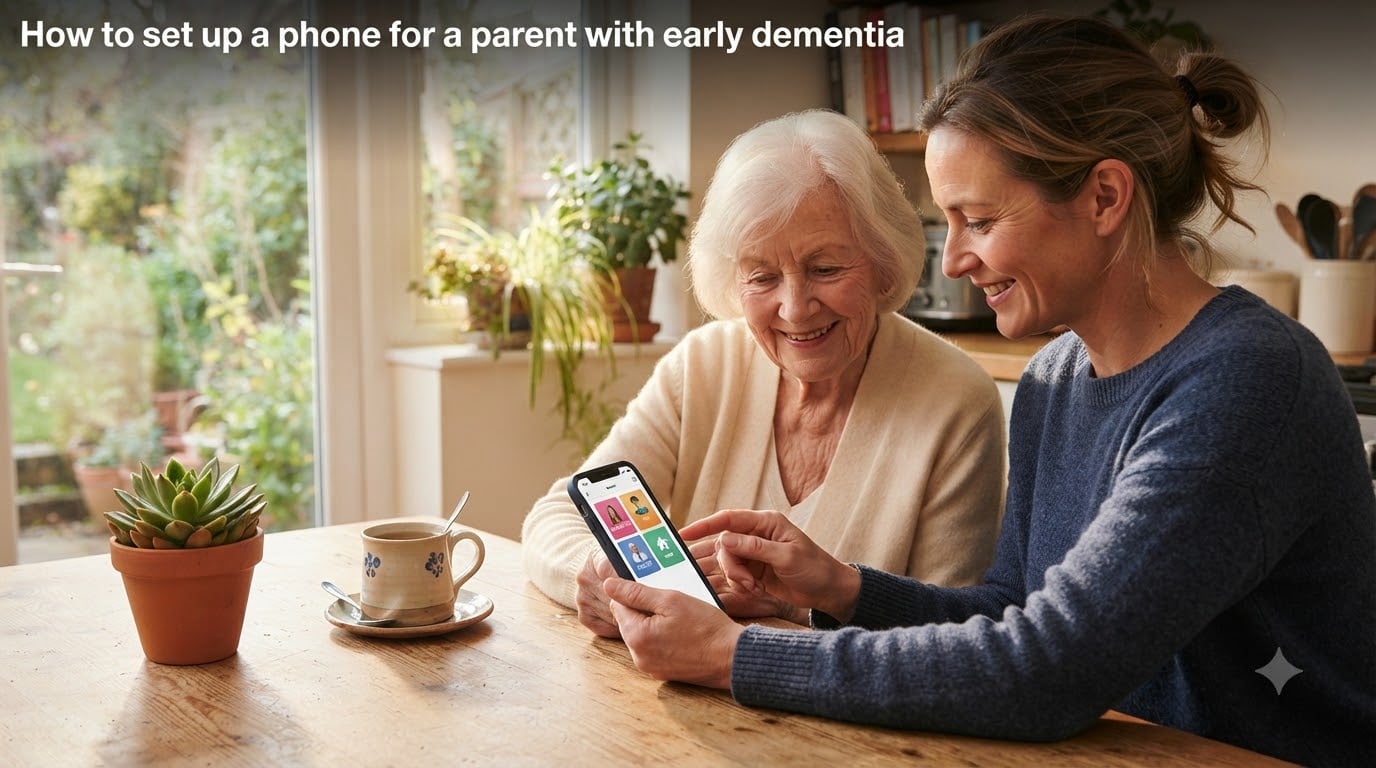
Setting up a phone for a parent with early dementia felt overwhelming the first time I tried it. I sat at my dad’s kitchen table with his iPhone, a sticky note, and a lot of anxiety. Within an hour, I had turned a confusing slab of glass into a simple tool with three big buttons, one of which called me and another that pinged my phone if he ever wandered from home. That single afternoon changed how our family handled his diagnosis.
This guide is everything I learned that day, plus the things other caregivers taught me afterward. If you are trying to figure out how to set up a phone for a parent with early dementia, you will get a complete walkthrough for both iPhone and Android, the features that actually matter, and the safety settings that give you peace of mind without taking away your parent’s independence.
Table of Contents
Why standard phones create problems for people with dementia?
Standard smartphones are built for people with strong short-term memory, fluid abstract thinking, and the patience to dig through five menus. None of those describe my dad in 2026, and I doubt they describe your parent either.
Dementia affects the brain in ways that turn everyday phone tasks into obstacles. A person may forget a passcode within minutes of learning it, mistake a notification for a message, or tap the wrong icon and end up on a random app. One caregiver in a dementia support group put it bluntly: “She calls me seven times a day because the green call button is too small.”
Common problems I hear from families include parents accidentally enabling airplane mode and going silent for hours, downloading apps they will never use, falling for scam calls at 2 a.m., or calling the wrong contact because every name on the screen looks the same. The good news is that every one of these problems has a fix, and most of them are built into the phone you already own.
Key features to prioritize in a dementia-friendly phone
Before you touch any settings, get clear on what the phone actually needs to do. For my dad, the list boiled down to five things: let him call me and a few other family members, let him answer when we call him, give him a way to call for help, let me find him if he gets lost, and not let him accidentally rack up charges or fall for scams.
Here are the features worth prioritizing, in order of importance:
One-touch emergency calling: An SOS button or shortcut that dials 911 or a designated family member without unlocking the phone.
Picture dialing: Tap a photo of a person, the phone calls them. No names to read, no numbers to dial.
GPS location sharing: Live location with you or other caregivers, plus geofencing alerts if your parent leaves a safe area.
Simplified home screen: Three to six icons maximum, with large text and high-contrast colors.
Long battery life: At least a full day, ideally two, since remembering to charge can be a challenge.
Loud speakerphone: Hearing aids and tiny earpieces do not mix well. A loud speaker lets calls be heard clearly.
You do not need a special device to get all of these. Modern iPhones and Android phones have the hardware and software to do it. The trick is configuring them properly, which is what we will cover next.
How to set up an iPhone for a parent with dementia using Assistive Access?
Apple built a feature specifically for cognitive accessibility called Assistive Access. It strips the iPhone down to its essentials, replaces small text with giant buttons, and locks down anything confusing. It is the single most helpful tool for setting up a phone for a parent with early dementia on iOS.
Here is the step-by-step process I followed on my dad’s iPhone 14 running iOS 17:
Step 1: Update the iPhone to the latest iOS. Go to Settings, then General, then Software Update. Assistive Access requires iOS 17 or later.
Step 2: Back up the phone. Connect to Wi-Fi, then go to Settings, tap your name at the top, choose iCloud, and tap Back Up Now. This protects your parent’s photos and contacts.
Step 3: Start Assistive Access setup. Open Settings, tap Accessibility, then scroll to the bottom and tap Assistive Access. Choose Set Up Assistive Access.
Step 4: Sign in with the Apple Account. Use your parent’s Apple ID. If they do not have one, you can create one during this step.
Step 5: Choose the layout. You will see two options: a Rows layout with large text, or a Grid layout with picture-based buttons. I picked Grid for my dad because he responds better to photos than words.
Step 6: Select and customize apps. Pick only the apps your parent will actually use. I chose Phone, Messages, Photos, Camera, and Music. You can also remove the App Store, Safari, and Mail to prevent confusion and accidental downloads.
Step 7: Set the device passcode. Pick something your parent can remember but you can guess. I used my dad’s wedding date, which he still recalls.
Step 8: Set the Assistive Access passcode. This is the four-digit code that lets you (the caregiver) exit Assistive Access and return to the standard iPhone interface. Do not share it with your parent.
Step 9: Designate yourself as the trusted supporter. Apple lets you assign a trusted contact who can remotely help with the device. Add yourself so you can reset the passcode if needed.
Step 10: Add contacts with photos. Open the Phone app, add the contacts your parent calls most, and assign each one a clear photo. Use recent, well-lit pictures of faces, not logos.
After setup, my dad’s iPhone showed exactly four buttons: a Call button, a Pictures button that opened his family photo album, a Help button that dialed me, and a 911 button. That was it. No apps to scroll through, no settings to misconfigure, no notifications to misinterpret.
How to set up an Android phone for a parent with dementia using Family Link?
If your parent uses Android, Google Family Link is the closest equivalent to Assistive Access. It is free, works on most Android phones made after 2018, and gives you remote control over the device from your own phone.
Follow these steps to configure an Android phone for dementia use:
Step 1: Install Google Family Link on your own phone. Search for “Google Family Link” in the Play Store or App Store and install the parent version.
Step 2: Create a Google Account for your parent. If they do not already have one, create it during setup. Write down the email and password in a safe place.
Step 3: Install Family Link for children on their phone. Open the Play Store on the parent’s device, search for Family Link, and choose the child or teen version.
Step 4: Link the accounts. The parent’s phone will show a setup code. Open your Family Link app and enter that code to pair the two devices.
Step 5: Set content restrictions. In your Family Link app, go to Controls, then Content Restrictions. Set the maturity level for apps and games to the lowest acceptable rating. This stops accidental downloads of adult or scam-laden apps.
Step 6: Lock the Play Store purchases. Under Controls, choose Family Library, then set “Require approval for purchases” to Always. You will get a notification every time your parent tries to buy something.
Step 7: Set daily screen time limits. Under Controls, choose Daily Limit. Most dementia patients do not need more than 1 to 2 hours of phone time per day. Setting a limit prevents late-night confusion.
Step 8: Enable location sharing. In the parent’s phone, open Settings, go to Location, and turn it on. Then in your Family Link app, choose Location, and make sure you can see their phone at all times.
Step 9: Set up Bedtime mode. Bedtime mode in Android silences the phone and dims the screen during set hours. I set my dad’s to 9 p.m. to 7 a.m. to stop late-night calls.
Step 10: Use a launcher for a simpler home screen. Apps like “Senior Launcher” or “Big Launcher” replace the standard Android home screen with huge icons and a clean layout. This is the single biggest usability upgrade you can make.
Reddit caregivers consistently report that launcher apps work better than stock Android for dementia users. One user said, “The day I installed Big Launcher was the day my mom stopped calling me in tears because she could not find the phone icon.”
How to prevent wandering with GPS tracking and geofencing?
Wandering is one of the scariest dementia behaviors. According to the Alzheimer’s Association, six in ten people with dementia will wander at least once. A phone with GPS can shorten a wandering episode from hours to minutes.
For iPhones, open Settings, tap your name, choose Find My, and turn on Share My Location. Then open the Find My app on your own phone and add your parent as a contact. Their location will update every few minutes.
For Android phones, open Settings, tap Location, and enable it. Then in your Family Link app, choose Location to see where their device is at any moment. For real-time tracking, Google Find My Device is reliable enough for daily check-ins, but not robust enough for emergency wandering situations.
For real peace of mind, set up geofencing. Geofencing sends you an alert when the phone enters or leaves a designated area, like your parent’s home or a local park. On iPhone, you can use the Find My app’s Notify When Left Behind feature. On Android, third-party apps like Life360 or Apple’s Find My Friends work well.
I drew a 200-meter circle around my dad’s house and around his favorite walking spot. Now if he leaves either area, I get a ping within 30 seconds.
How to restrict calls, downloads, and in-app purchases
Dementia patients are prime targets for phone scams. The FBI’s Internet Crime Complaint Center reported that seniors lose more than 3 billion dollars a year to fraud, and a large share of those scams start with a phone call. Restricting who can contact your parent is one of the most protective steps you can take.
On iPhone, open Settings, tap Screen Time, then Content and Privacy Restrictions. Turn on restrictions and create a passcode. Under Allowed Apps, disable Safari, Mail, and the App Store. Under Contacts, choose Specific Contacts to limit who can call or be called. Anything not on the list goes straight to voicemail.
You can also enable Silence Unknown Callers in Settings, Phone, then toggle on Silence Unknown Callers. Calls from numbers not in the contacts list will be silenced and sent to voicemail.
On Android, use Family Link’s Contacts settings to limit who your parent can call. You can also enable caller ID and spam protection in the Phone app’s settings, which warns about suspected scam numbers.
For time-of-day call restrictions, use Do Not Disturb on either platform. Set it to activate at 9 p.m. and deactivate at 7 a.m. Only starred contacts can break through.
How to teach your parent to use the phone step by step?
Even the best setup fails if the person holding the phone does not know how to use it. Teaching a parent with dementia is different from teaching a child or a tech-shy adult. Patience, repetition, and routine matter more than technical accuracy.
Here is the approach that worked for my family:
Pick one or two functions to focus on first. We started with “tap the green button to call me” and “tap the red button to end the call.” Nothing else for two weeks.
Practice together daily. A 10-minute practice session at the same time each day builds muscle memory. Morning coffee time worked for us.
Use the same wording every time. I always said “tap the picture of Sarah to call Sarah,” not “press Sarah’s icon” or “select Sarah.” Consistency reduces confusion.
Keep a printed cheat sheet near the charger. A laminated card with three pictures (Call Sarah, Call 911, Answer) taped next to the charging dock helped my dad during the first month.
Celebrate small wins. Every successful call is a success. The goal is not to teach every feature, it is to give your parent a tool they can actually use.
If you can, involve your parent in choosing the phone case color and the contact photos. Ownership builds familiarity, and familiarity reduces resistance.
Troubleshooting common dementia phone problems
Even with a perfect setup, things will go wrong. Here are the issues I hear about most often, and how to fix them.
Airplane mode keeps turning on: This is the most common issue. On iPhone, go to Settings, Screen Time, Content and Privacy Restrictions, and toggle off Airplane Mode under Allowed Changes. On Android, use Family Link to lock the quick settings panel so your parent cannot toggle airplane mode.
Phone is always dead: Set up a charging routine tied to something they already do, like brushing teeth. A wireless charging pad on the nightstand removes the fiddly cable step. Consider a phone with truly long battery life, like the Jitterbug Smart or a recent mid-range Android.
Calls are going to voicemail: Check Do Not Disturb schedules and make sure your contact is starred or marked as a favorite. Also confirm the ringer volume is turned all the way up.
You need to fix something remotely: For iPhones, use the trusted supporter feature or Apple Family Sharing to push settings. For Android, Google Family Link lets you approve app downloads, lock the device, and change settings from your own phone. Both platforms also support remote screen sharing with the right apps.
If you cannot fix it remotely, prepare a “phone emergency kit” with the charger, a backup phone, and written instructions that any neighbor or family member can follow. I left one with my dad’s next-door neighbor in 2026, and it has paid for itself twice.
FAQs
What is the easiest cell phone to use for someone with dementia?
The easiest phones for dementia patients are simplified smartphones with iPhone Assistive Access or Android Family Link enabled, or dedicated dementia phones like the RAZ Memory Cell Phone or Jitterbug Smart. The best choice depends on your parent’s stage of dementia, budget, and whether they are already used to a smartphone. For early dementia, an iPhone with Assistive Access gives the most flexibility while remaining simple.
Should a person with dementia have a mobile phone?
Yes, most dementia patients benefit from having a mobile phone, especially in the early and middle stages. A phone helps them stay connected to family, call for help in emergencies, and maintain independence. The phone should be simplified with large buttons, restricted contacts, and GPS tracking enabled. As dementia progresses, families often transition to a dedicated device with fewer features.
How do I set up an iPhone for a parent with dementia?
To set up an iPhone for a parent with dementia, update to iOS 17 or later, then go to Settings, Accessibility, and choose Assistive Access. Select a Grid or Rows layout, pick only the apps your parent will use, set both a device passcode and an Assistive Access passcode, and add contacts with photos for picture dialing. Designate yourself as the trusted supporter so you can help remotely.
What features does a phone need for dementia patients?
A dementia-friendly phone needs one-touch calling to a small list of trusted contacts, an emergency or SOS button, GPS location sharing with caregivers, simplified home screen with large icons and text, loud speakerphone, scam call blocking, and long battery life. Optional but helpful features include picture dialing, geofencing alerts, and remote management for the caregiver.
How can I track my parent with dementia if they wander?
Enable location sharing on your parent’s phone and use the Find My app on iPhone or Google Find My Device on Android to see their location in real time. Set up geofencing alerts so you are notified when they enter or leave a designated safe area, such as their home or a local park. For higher-risk wanderers, consider a wearable GPS device as a backup.
A final word for caregivers
Learning how to set up a phone for a parent with early dementia is one of the most practical acts of love you can offer. You are giving your parent a tool that keeps them connected, safe, and a little more independent, while giving yourself the reassurance that you can reach them and find them whenever needed.
Start with the Assistive Access or Family Link setup, choose your must-have features, and run through it together for a week. Adjust as you go. You will make mistakes, your parent will call you at strange hours, and the routine will not always go smoothly. That is normal. Every small setup is a win, and over time, the phone becomes less of a battle and more of a bridge between you and your parent.