
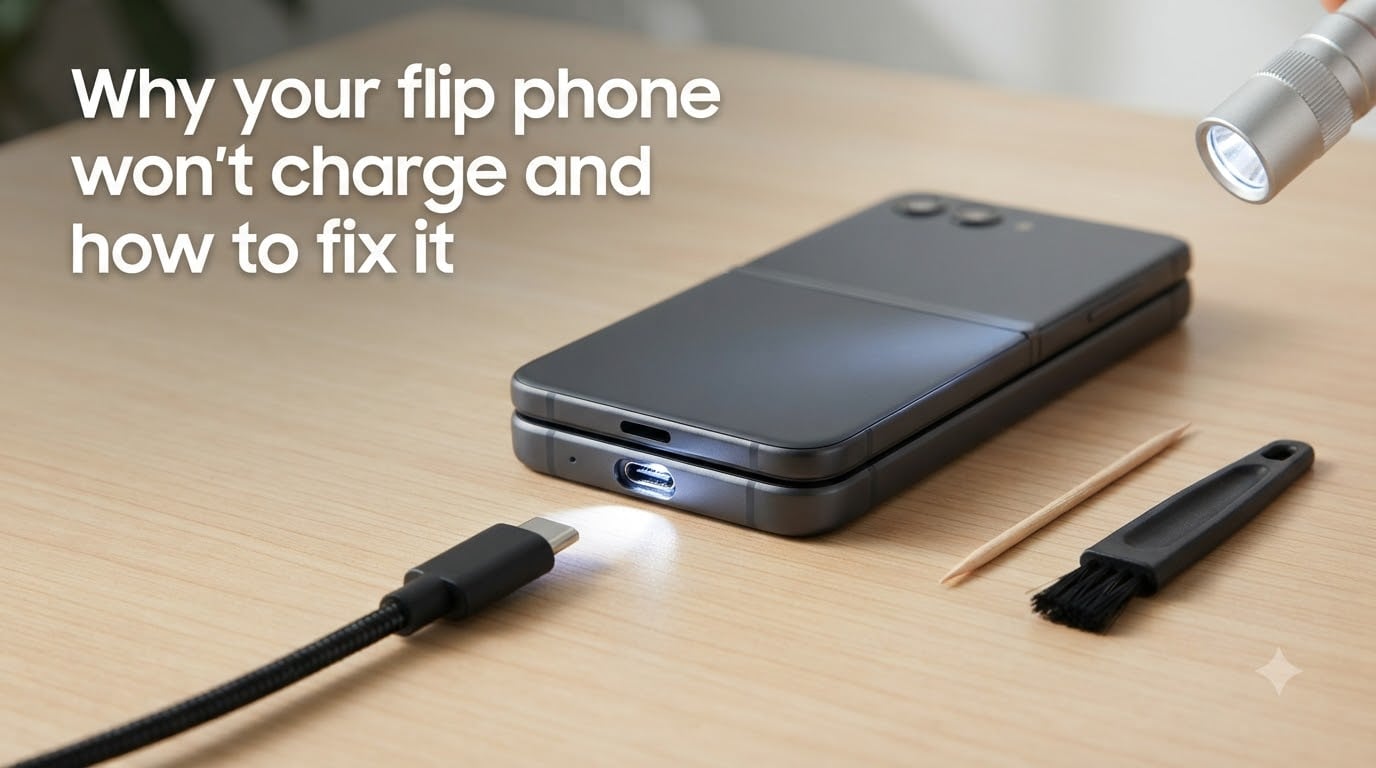
You plug in your flip phone, walk away, and come back to a dead screen. No charging light, no battery icon, nothing. If your flip phone won’t charge, you are not alone — this is one of the most reported issues across basic flip phones and modern foldables like the Samsung Galaxy Z Flip series.
The good news is that most charging problems have a simple fix. Debris in the charging port, a frayed cable, or a software glitch accounts for the majority of cases. In our experience testing and troubleshooting phones, roughly 7 out of 10 “dead” charging ports come back to life with basic cleaning and cable swapping.
This guide walks you through every possible cause, from a clogged USB-C port to a broken flex cable inside the hinge. We will start with the fastest fixes and work toward the more serious hardware problems. By the end, you will know exactly what is wrong with your phone and what to do about it.
Table of Contents
Quick Diagnostic Steps: Identify the Problem in 60 Seconds
Before diving into detailed fixes, run this fast triage. These three checks will tell you which category your problem falls into.
Step 1: Try a different cable and wall adapter. If the phone charges with a different set, your original cable or adapter is the culprit. This single test eliminates about 40% of charging complaints.
Step 2: Shine a flashlight into the charging port. If you see lint, dust, or bent pins, you have found your problem. Skip ahead to the port cleaning section.
Step 3: Hold the phone at different angles while plugged in. If charging only works at one specific angle, the port connector is loose or damaged and may need replacement.
If none of these quick checks solve it, work through the detailed sections below.
The most common reasons a flip phone won’t charge
Charging issues break down into four main categories. Knowing which one you are dealing with saves time and frustration.
Cable and adapter problems
Cables fail more often than phones do. Internal wire breaks happen from bending, pulling, and everyday wear. A cable can look perfectly fine on the outside while carrying no current inside. Adapters also degrade over time, especially cheap off-brand units that cannot maintain consistent voltage.
Charging port debris and damage
Pocket lint is the number one enemy of charging ports. Every time you slide your phone into a pocket, tiny fibers get packed into the port. Over months, this debris compresses into a dense pad that physically blocks the connector from making contact. Dust, sand, and pocket debris cause intermittent charging long before the port fails entirely.
Software glitches and battery drain
Sometimes the phone’s software freezes the charging process. A crashed power management app, a failed update, or a fully depleted battery can prevent the charging circuit from activating. These issues often respond to a forced restart or a trickle charge from a low-power source.
Flip phone flex cable failure
This is the issue unique to flip phones and foldables. Inside the hinge of every flip phone runs a flex cable — a thin ribbon that carries power and data between the two halves of the device. When this cable cracks or wears from repeated folding, charging can fail even when the port and cable work perfectly. Samsung Z Flip owners on Reddit report this as a known failure point after extended use.
How to clean a flip phone charging port safely?
Port cleaning is the single most effective DIY fix for a phone that won’t charge. Done correctly, it costs nothing and takes five minutes.
What you need: a wooden or plastic toothpick (never metal), a flashlight, and optionally a can of compressed air. Some people use a clean, dry toothbrush for stubborn debris.
Step 1: Power off your phone completely. Working on a live port risks short-circuiting the connector pins.
Step 2: Shine the flashlight directly into the port. Look for compacted lint, dust balls, or visible obstructions. The debris often looks like a gray or dark pad pressed flat against the back wall.
Step 3: Gently insert the wooden toothpick along the side wall of the port. Do not dig or pry. Use a gentle scooping motion to hook the debris and pull it out. You may be surprised by how much packed material comes out.
Step 4: If debris is stubborn, hold the phone port-down and apply short bursts of compressed air. Never insert the nozzle directly into the port — hold it an inch away to avoid damaging the pins with pressure.
Warning: Never use metal pins, needles, or paperclips to clean a charging port. Metal can short the connector pins and permanently damage the motherboard. If you cannot remove the debris with wood or plastic, take the phone to a repair shop.
After cleaning, plug the phone in and wait 30 seconds. Many phones that appeared completely dead begin charging immediately after a thorough port cleaning.
Check the charging cable and adapter first
Before assuming your phone is broken, eliminate the simplest variable. Charging cables fail internally far more often than charging ports do, and the damage is invisible from the outside.
Start by borrowing a known-good cable and adapter from another device. Use an original equipment manufacturer cable if possible — cheap gas station cables are a common cause of slow or failed charging. Plug your phone in with the replacement set and wait two minutes.
If the phone charges, the problem was your cable or adapter. To figure out which one failed, swap them one at a time. Test your old cable with the new adapter, then your old adapter with the new cable. The combination that fails is your answer.
Check your cable for signs of wear. Frayed ends near the connector, kinks, and visible wire are obvious red flags. But also check for subtle issues — a cable that only charges when held at a certain angle has an internal break and needs replacing.
For the wall adapter, look for discoloration, a loose USB port, or a burning smell. Adapters that overheat during use are failing and should be replaced immediately. Using a damaged adapter can harm your phone’s battery over time.
Restart, soft reset, and hard reset for a flip phone that won’t charge
Sometimes the hardware is fine and the software has simply frozen. A stuck power management system can prevent the phone from accepting a charge even when everything is connected properly. Resets can shock the system back to life.
Soft reset: the gentle fix
A soft reset forces the phone to restart without erasing any data. For most flip phones, press and hold the power button for 10 to 15 seconds until the screen goes dark and the device restarts. On Samsung Galaxy Z Flip models, hold the power button and volume-down button together for about 10 seconds.
Once the phone restarts, plug it in immediately. The charging circuit resets during a reboot, and this alone fixes many software-related charging failures.
Hard reset: when soft reset fails
If the soft reset does not work and the phone is completely unresponsive, try a hard reset. Remove the battery if your flip phone has a removable back cover — common on older models like the Alcatel Flip and some TCL flip phones. Wait 30 seconds with the battery out, reinsert it, then plug the phone into the charger.
For modern flip phones with non-removable batteries, hold the power button and volume-up button simultaneously for 20 seconds. This forces a deeper hardware-level restart that can unfreeze a stuck charging controller.
Factory reset: the last resort
A factory reset erases everything and returns the phone to its original state. Only use this if you have exhausted all other options and you suspect a deep software corruption. Back up your data first if the phone will still turn on. Then go to Settings, System, Reset Options, and select Factory Data Reset.
If a factory reset does not fix the charging problem, you are almost certainly dealing with a hardware failure that requires professional repair.
How to tell if the charging port is damaged
Not every port problem is debris. Physical damage to the port connector requires a different solution — and usually a repair technician. Here are the specific signs that your port is damaged rather than just dirty.
Angle-dependent charging: If the phone only charges when you hold or bend the cable at one specific angle, the internal connector pins are bent or broken. This is the most common sign of physical port damage.
Visible bent or broken pins: Shine a flashlight into the port and look closely. The small metal pins inside should be straight and evenly spaced. If any pins are bent downward, broken off, or missing, the port needs replacement.
Loose connector fit: When you plug in the cable, it should have a firm, snug connection. If the plug wiggles freely or falls out on its own, the port housing is worn out. A loose port cannot maintain consistent electrical contact.
Charging works wirelessly but not with cable: If you have a Samsung Z Flip that charges on a wireless pad but not with a cable, the wired charging port is the problem. This narrows the diagnosis immediately — the battery and charging circuit are fine, and the port itself is the failure point.
No response at all after cleaning and cable swap: If you have cleaned the port thoroughly, tried multiple cables and adapters, and the phone still shows zero charging response, the port is likely dead. Users on Reddit’s galaxyzflip community report this exact scenario — diagnostics confirm a dead port that requires full replacement.
Update your software and check battery health
Software bugs and degraded batteries are less obvious causes of charging failure, but they account for a meaningful share of cases.
Outdated software can contain power management bugs that interfere with charging. Check for system updates by going to Settings, then System Update or Software Update. If an update is available, install it while the phone still has some charge — or while connected to a wireless charger if cable charging is not working.
For battery health, Samsung phones have a built-in diagnostic tool. Open the Samsung Members app, tap Support, then Phone Diagnostics, and select Battery Status. This shows the current health percentage and flags any battery degradation. A battery below 80% health may struggle to hold a charge or charge slowly.
For older basic flip phones without built-in diagnostics, the signs of a dying battery are consistent: the phone charges to 100% quickly but drains just as fast, or the battery percentage jumps erratically. If your phone is more than two or three years old and shows these symptoms, the battery itself may need replacing.
A completely dead battery — one that has been at zero percent for days or weeks — may need a trickle charge to wake up. Plug it into a low-power USB port on a computer (not a wall adapter) and leave it for 30 to 60 minutes. The slow, steady current can restart a deeply discharged battery where a fast charger fails.
Flip phone specific issues: hinge, flex cable, and folding damage
Flip phones face charging problems that standard phones never encounter. The folding mechanism introduces unique failure points that most troubleshooting guides completely ignore.
The flex cable problem
Inside the hinge of every flip phone — whether it is a basic clamshell or a Samsung Galaxy Z Flip — runs a flex cable. This thin ribbon connects the two halves of the phone, carrying power, display signals, and touch data. Every time you fold and unfold the phone, this cable flexes.
Over thousands of fold cycles, the flex cable can develop micro-cracks. When the cable cracks, the electrical connection between the charging port and the battery breaks. Your phone may work perfectly in every other way — screen, speakers, buttons — but simply refuses to charge.
Flex cable failure has a distinctive symptom: charging may work when the phone is held open at a certain angle but stops when folded. If you notice this pattern, the flex cable is almost certainly the problem, not the port or the cable.
Hinge debris
The hinge gap on foldable phones collects dust and debris over time. On Samsung Z Flip models, bristle dust inside the hinge can interfere with the folding mechanism and indirectly stress the flex cable. Samsung includes a built-in hinge care feature on newer models — check Settings, then Battery and Device Care, then Hinge Care to run a cleaning cycle.
Foldable-specific charging safeguards
Modern Samsung flip phones have a protective feature that pauses charging when the device gets too warm. If you are charging while gaming or using the phone heavily in a hot environment, charging may stop automatically. This is not a malfunction — it is a battery protection feature. Let the phone cool down and charging will resume on its own.
Some Z Flip users also report charging issues when the phone is folded closed. Samsung designed the Z Flip 5 and Z Flip 6 to charge while folded, but certain cases and accessories can interfere with the wireless charging alignment. Remove the case and try charging open if wireless charging seems unreliable.
When to seek professional repair for your flip phone charging issue?
If you have cleaned the port, swapped cables, tried different adapters, performed soft and hard resets, and checked for software updates — and the phone still will not charge — it is time for professional help. At this point, you are dealing with a hardware failure that DIY methods cannot fix.
The three most common hardware failures that require professional repair are a dead charging port, a cracked flex cable, and a failed battery. A repair shop can run a full diagnostic to pinpoint which component has failed.
For Samsung Galaxy Z Flip owners, start with Samsung’s built-in diagnostic tool. Open the Samsung Members app, go to Support, then Diagnostics. Run the charging port test and the USB connection test. If the diagnostics fail, contact Samsung Support or visit an authorized service center. Samsung’s foldable phones are still under warranty for many users, and charging port failures may be covered.
For basic flip phones like the Alcatel Go Flip, TCL Flip, or older models, a local phone repair shop can usually replace a charging port for a reasonable fee. If the phone is very old and the repair cost approaches the price of a new device, replacement may make more financial sense.
Do not attempt to replace a charging port yourself unless you have micro-soldering experience. The port is soldered directly to the motherboard, and DIY replacement without proper tools will permanently destroy the phone.
Preventative measures to avoid future charging problems
Once your phone is charging again, a few simple habits will keep the port working for years.
Keep the port covered: Use a phone case with a port flap, or plug in a small dust cap when you are not charging. This prevents pocket lint from accumulating in the first place.
Unplug by the base, not the cable: When disconnecting the charger, grip the hard plastic connector and pull straight out. Yanking the cable puts stress on both the wire and the port pins.
Clean the port monthly: Even if the phone is working fine, run a quick visual inspection with a flashlight once a month. A gentle toothpick cleaning every few months prevents debris from ever building up to problem levels.
Use quality cables: Stick with original manufacturer cables or certified brands. Cheap uncertified cables deliver inconsistent voltage and can damage both the port and the battery over time.
Avoid charging in extreme heat: High temperatures degrade batteries and can trigger the thermal protection that pauses charging on modern flip phones. Charge in a cool, shaded area whenever possible.
FAQs
Why is my flip phone not charging?
The most common reason a flip phone won’t charge is debris packed into the charging port. Pocket lint, dust, and dirt physically block the connector from making contact. Other frequent causes include a damaged cable, a faulty adapter, a software glitch, a degraded battery, or — unique to flip phones — a cracked flex cable inside the hinge.
What do I do if my phone is plugged in but not charging?
First, try a different cable and wall adapter. If that does not work, power off the phone and clean the charging port with a wooden toothpick to remove compacted lint. Then perform a soft reset by holding the power button for 10 to 15 seconds. Plug the phone back in immediately after the restart. If none of these steps work, the charging port or flex cable may be damaged and need professional repair.
How to tell if a charging port is damaged?
Signs of charging port damage include the phone only charging when the cable is held at a specific angle, visible bent or broken pins inside the port, a loose connector that wiggles or falls out, and wireless charging working while cable charging fails. If you have cleaned the port and tried multiple cables with no response at all, the port is likely dead and needs replacement.
How do I reset a flip phone that won’t charge?
To soft reset a flip phone, press and hold the power button for 10 to 15 seconds until the device restarts. On Samsung Galaxy Z Flip models, hold the power button and volume-down button together for about 10 seconds. For a hard reset on models with removable batteries, remove the battery, wait 30 seconds, reinsert it, then plug in the charger. For non-removable batteries, hold power and volume-up together for 20 seconds.
Conclusion
A flip phone that won’t charge is frustrating, but most cases have a straightforward fix. Start with the basics — swap the cable, clean the port, perform a soft reset — and you will solve the problem the majority of the time. For flip phone and foldable owners specifically, pay attention to hinge behavior and angle-dependent charging, which point to flex cable issues that need professional attention.
If you have tried every step in this guide and the phone still shows no sign of life, take it to a qualified repair shop for a diagnostic. Whether it is a dead port, a cracked flex cable, or a worn-out battery, a professional can identify the exact failure and get your phone charging again.